Learning Center
Learn ZeloBooking, step by step.
50 short guides with screenshots — from your first booking to your website.
New here?
Start here
6 guides, about 40 minutes, and your salon is ready to take bookings.
- 1Create your account and set up your business8 min · Getting started
- 2Set your opening hours and booking rules6 min · Getting started
- 3Add and organise your services8 min · Services & team
- 4Add your team and set working hours8 min · Services & team
- 5Share your booking link, widget and QR code5 min · Bookings & front desk
- 6Automatic confirmations and reminders5 min · Reminders & messages
Browse by topic
Everything, by topic
- Getting startedCreate your account, add your details and hours, and learn your way around.5 guides
- Services & teamYour menu, prices, photos, team members, working hours and calendar sync.5 guides
- Bookings & front deskThe calendar, walk-ins, check-in and checkout, the waitlist and your booking link.6 guides
- Clients & formsClient profiles, importing your list, consent and intake forms, and kiosk mode.5 guides
- Reminders & messagesAutomatic emails, website messages and follow-ups. Texting clients is coming soon.7 guides
- Phone & AI receptionistYour business number in the browser, the AI receptionist and pay-as-you-go credit.3 guides
- WebsiteTemplates, the website editor, your own domain, SEO and visitor insights.12 guides
- Grow & reportLoyalty points, promo codes, products, inventory, social posts and reports.7 guides
Getting started
Create your account, add your details and hours, and learn your way around.
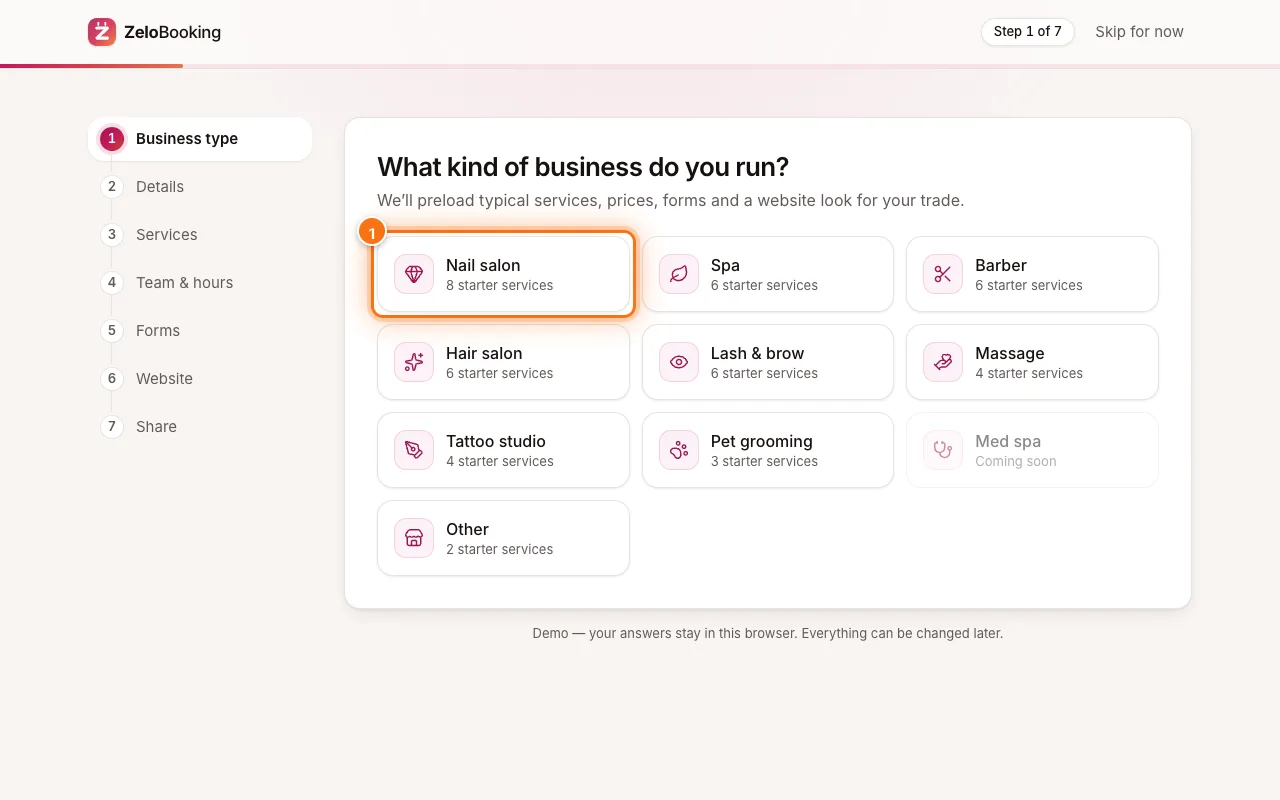 Create your account and set up your businessSign up, answer two quick questions (your trade, then your name, time zone and booking link), then finish the checklist in Settings → Set up status. 8 minBeginner
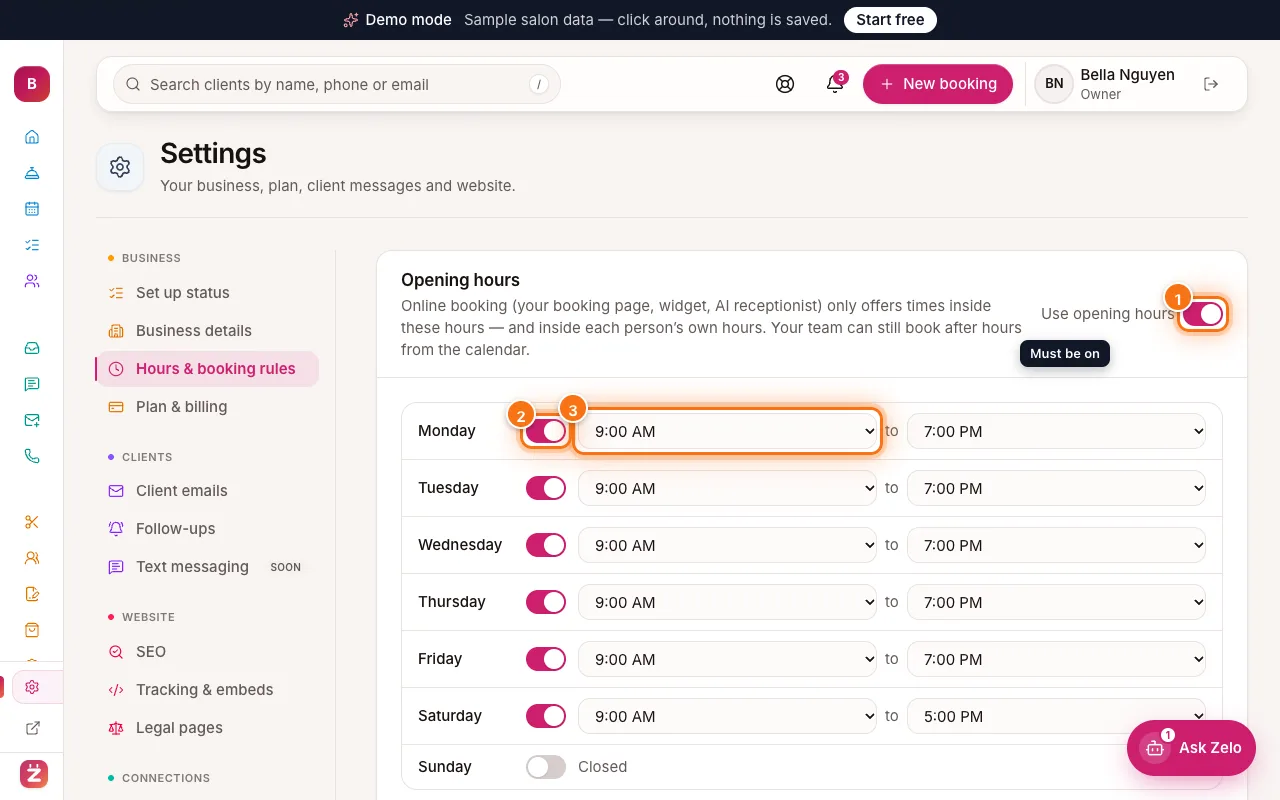 Set your opening hours and booking rulesDecide when clients can book online, which days you’re closed, how much notice you need, how far ahead they can book and your cancellation policy. 6 minBeginner
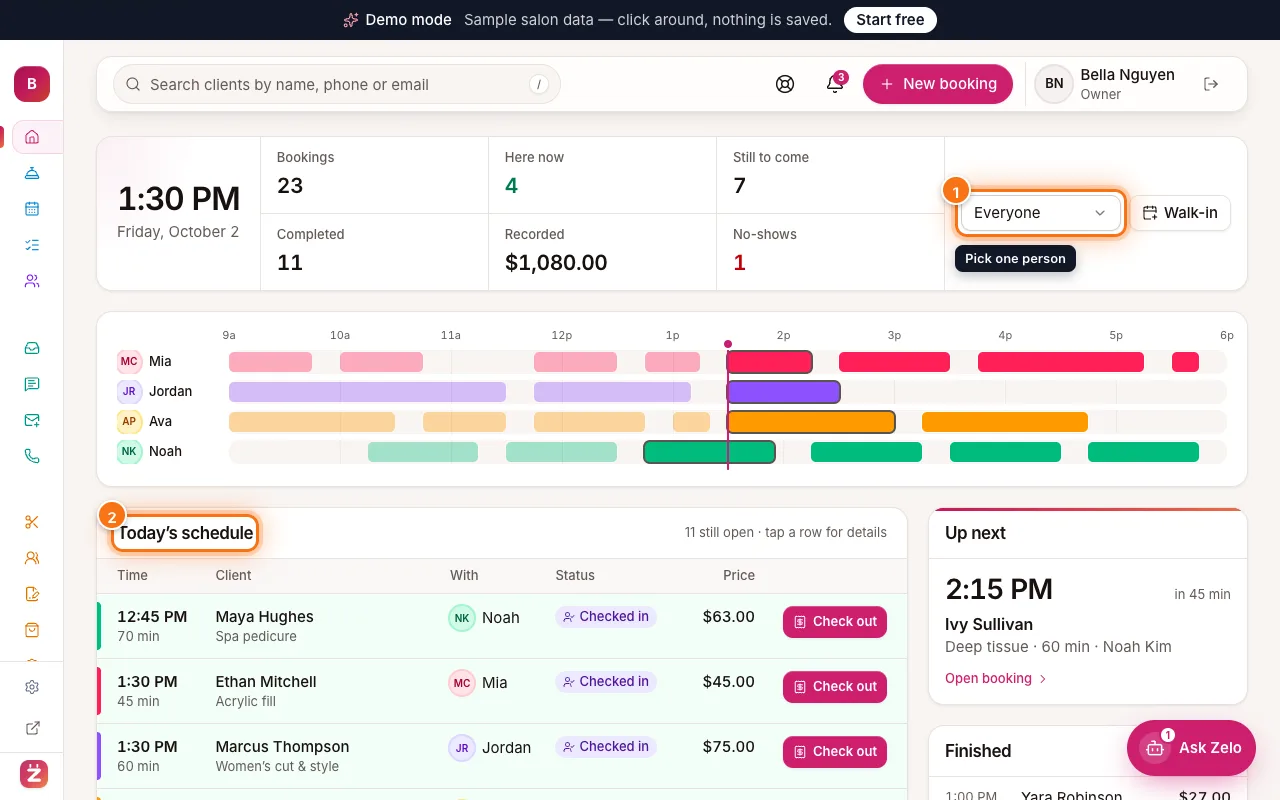 Take a tour of your dashboardLearn what each part of the dashboard is for: Home, the left menu, search, New appointment, the bell, Help and your profile. 4 minBeginner
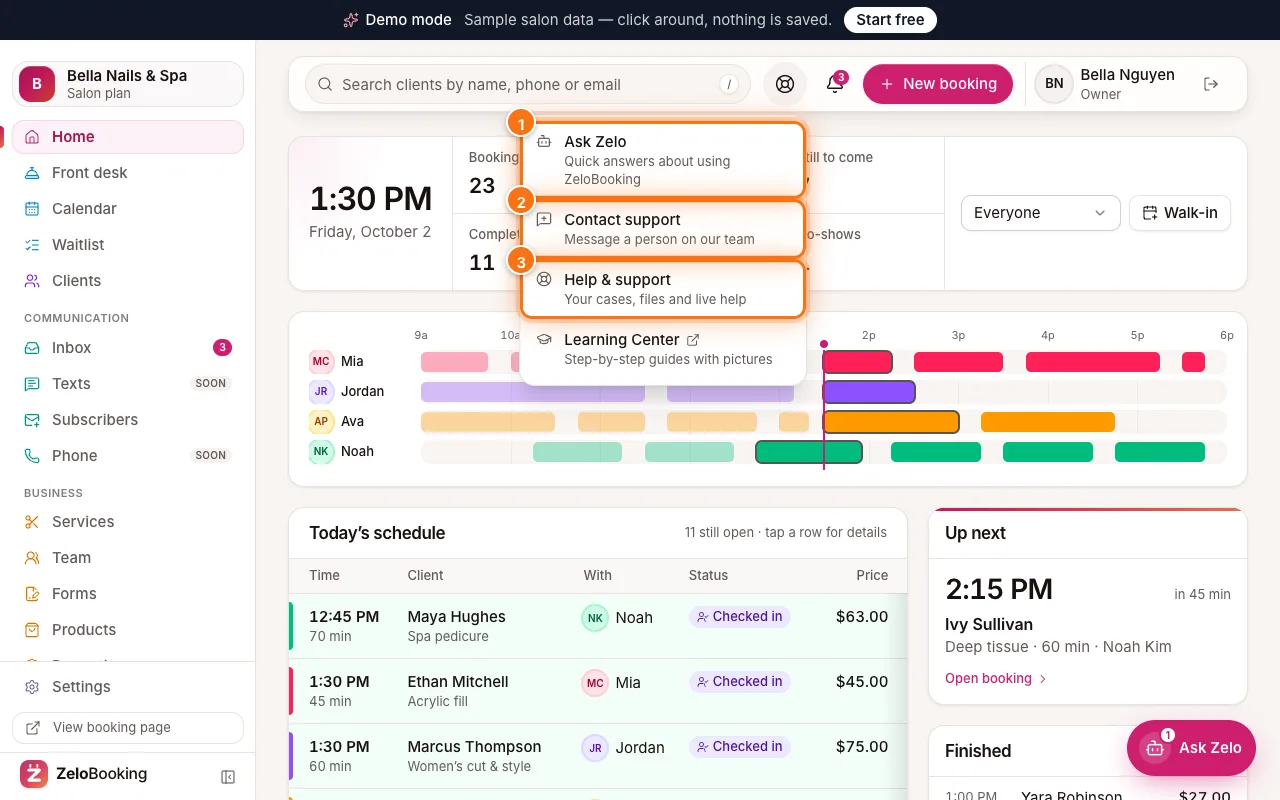 Get help: Ask Zelo, contact support and live helpUse the Help button to ask Zelo, open a support case with screenshots, follow your cases on Help & support, and allow live help only when you want it. 6 minBeginner
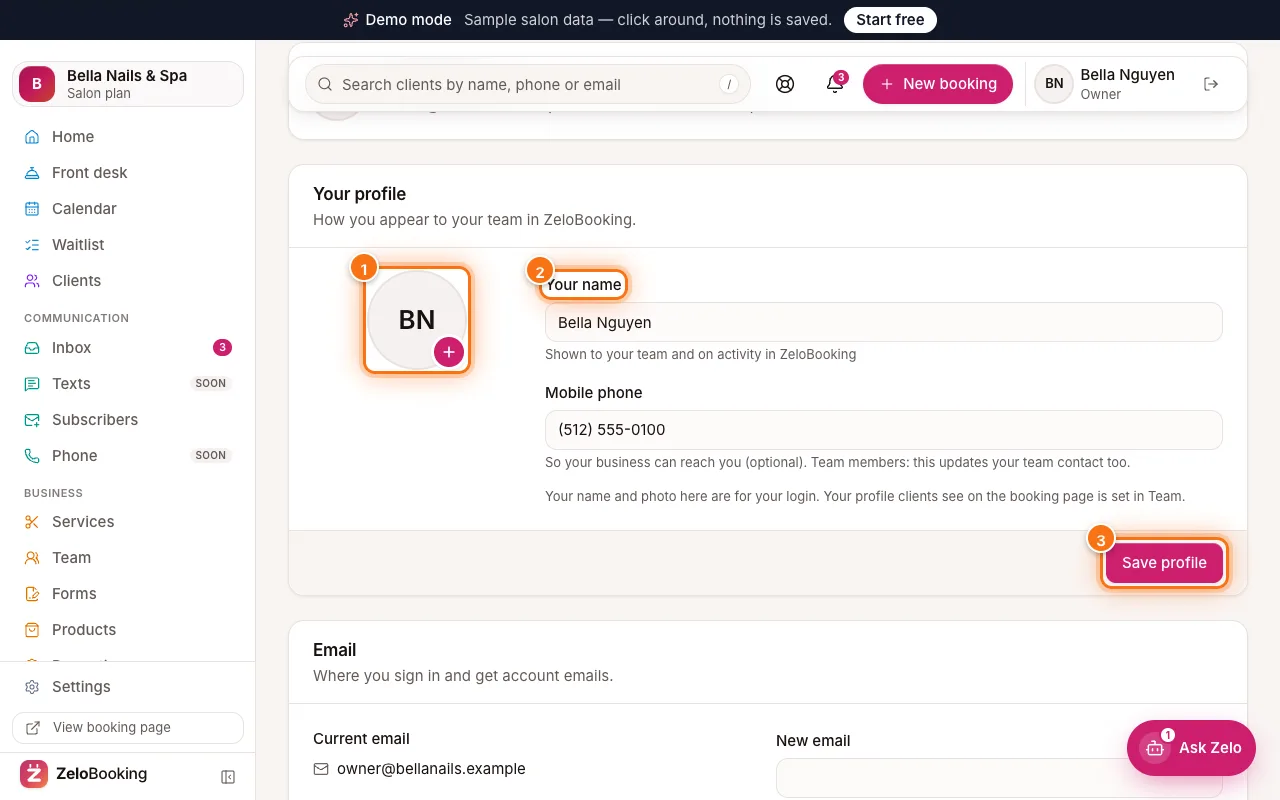 Your profile, password and text alertsChange your name, photo, sign-in email and password, turn on two-step sign-in, sign out everywhere, and choose whether ZeloBooking texts you about new bookings. 6 minBeginner
Services & team
Your menu, prices, photos, team members, working hours and calendar sync.
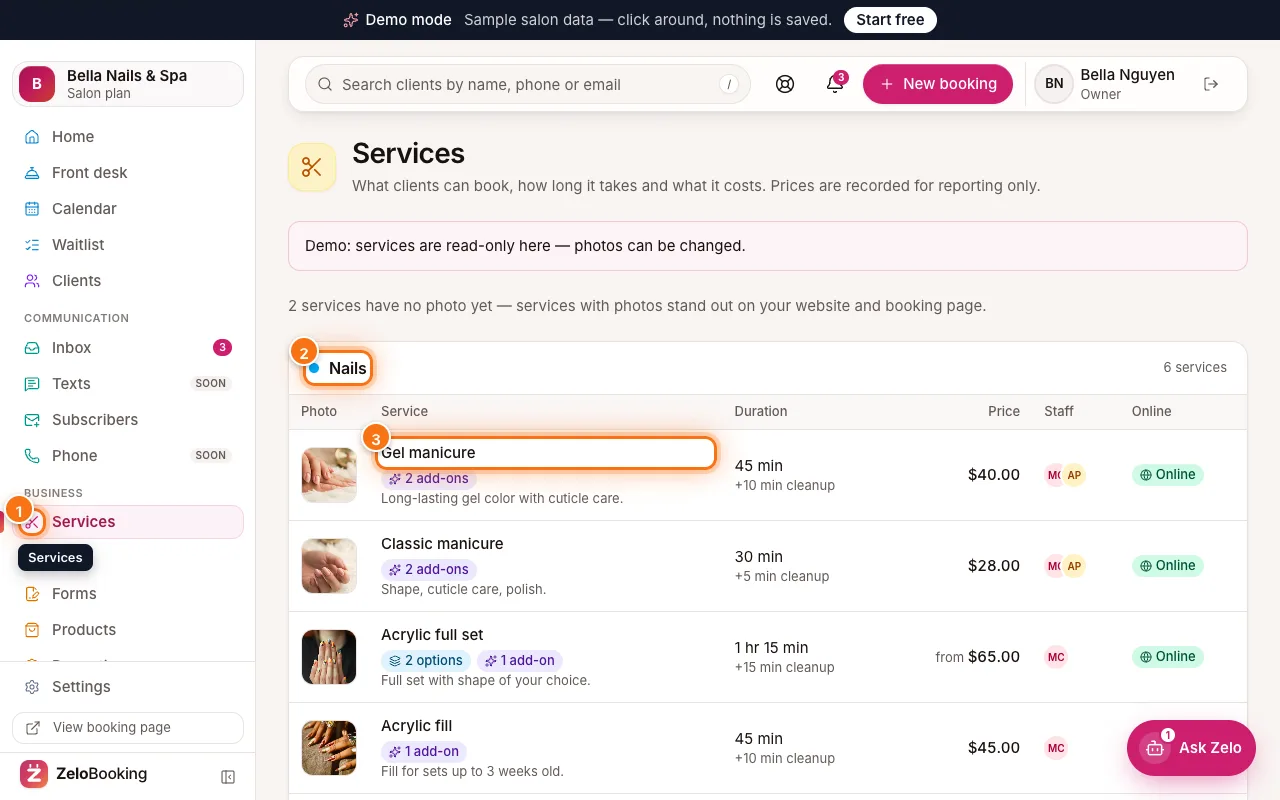 Add and organise your servicesBuild your menu: categories, durations, cleanup time, prices, photos, who does each service and whether clients can book it online. 8 minBeginner
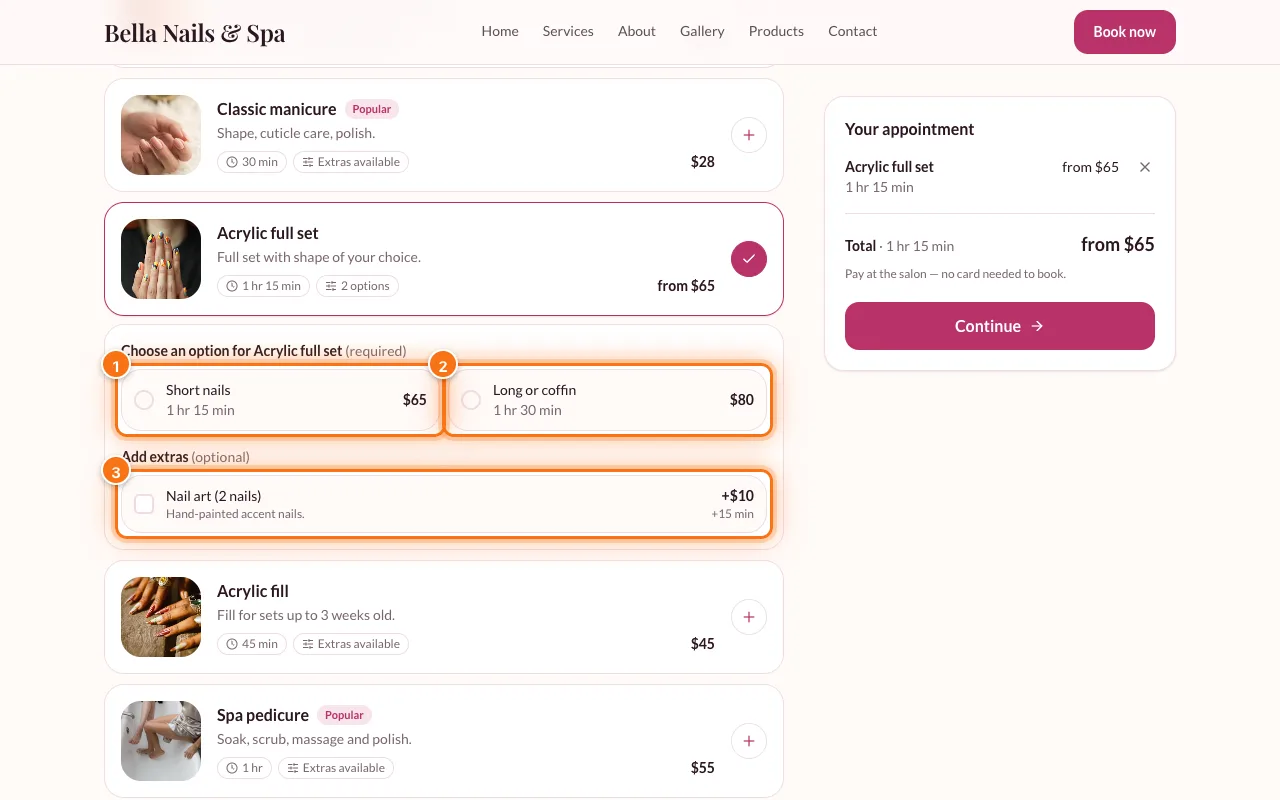 Service options, add-ons and processing timeOffer lengths or levels with their own price (Short / Long), extras clients tick while booking, and processing gaps when the stylist is free. 7 minIntermediate
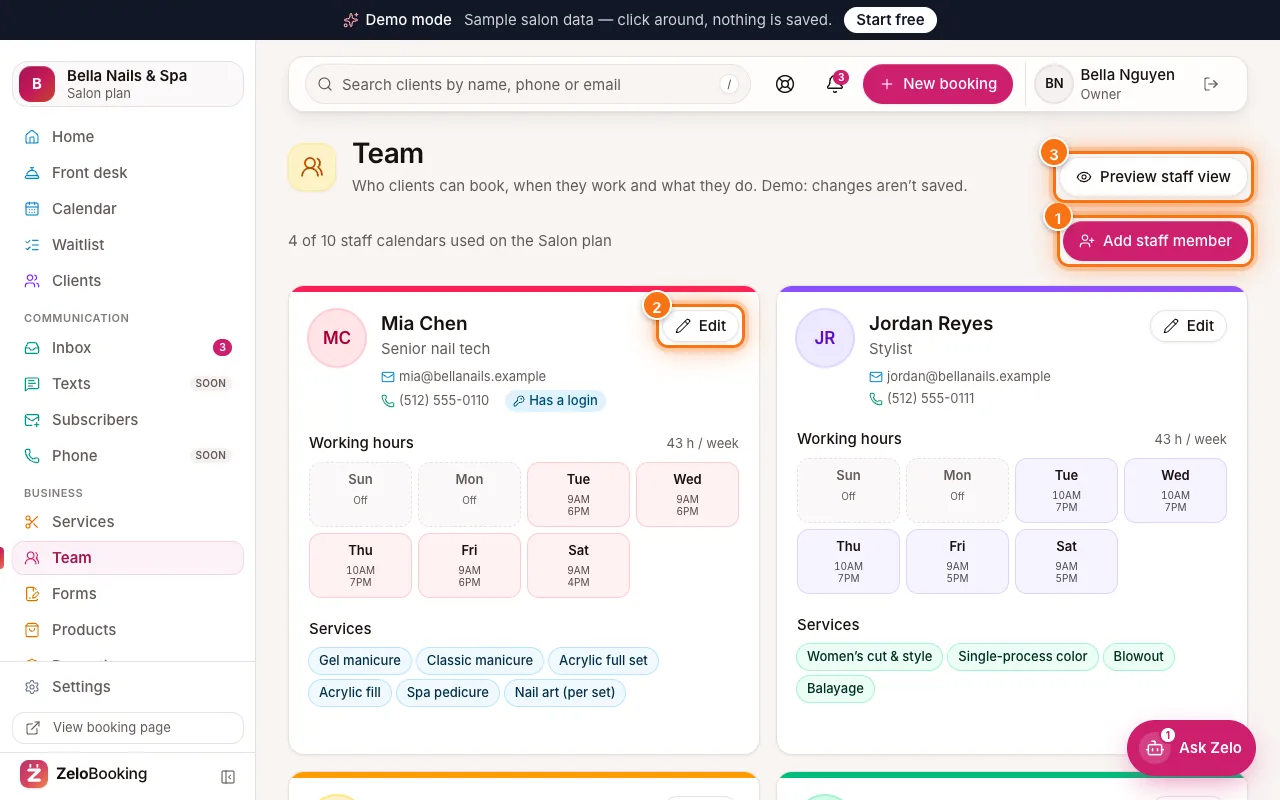 Add your team and set working hoursAdd team members, set each person’s photo, hours and services, decide who takes bookings, and invite them to sign in with the right role. 8 minBeginner
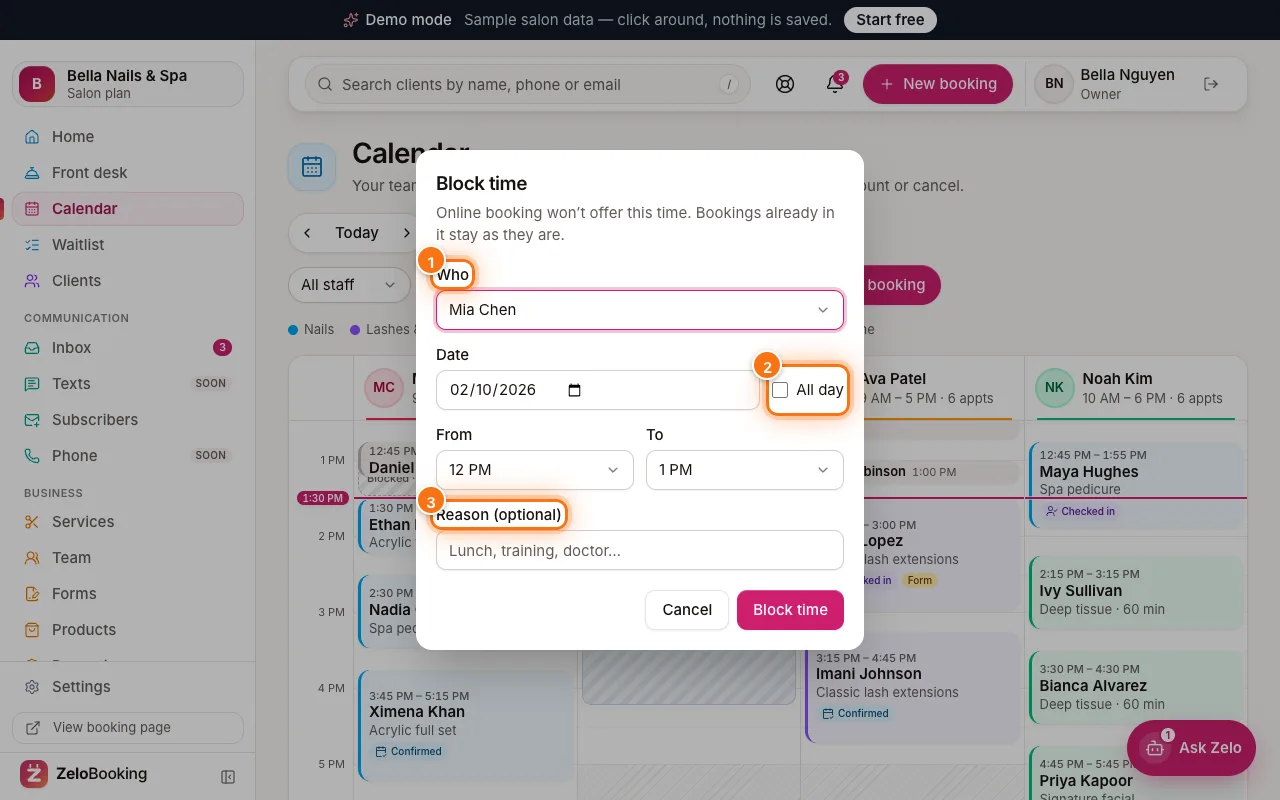 Time off, breaks and days awayBlock a lunch break or an afternoon on the calendar, let staff add their own days off, and see how each one closes online booking. 5 minBeginner
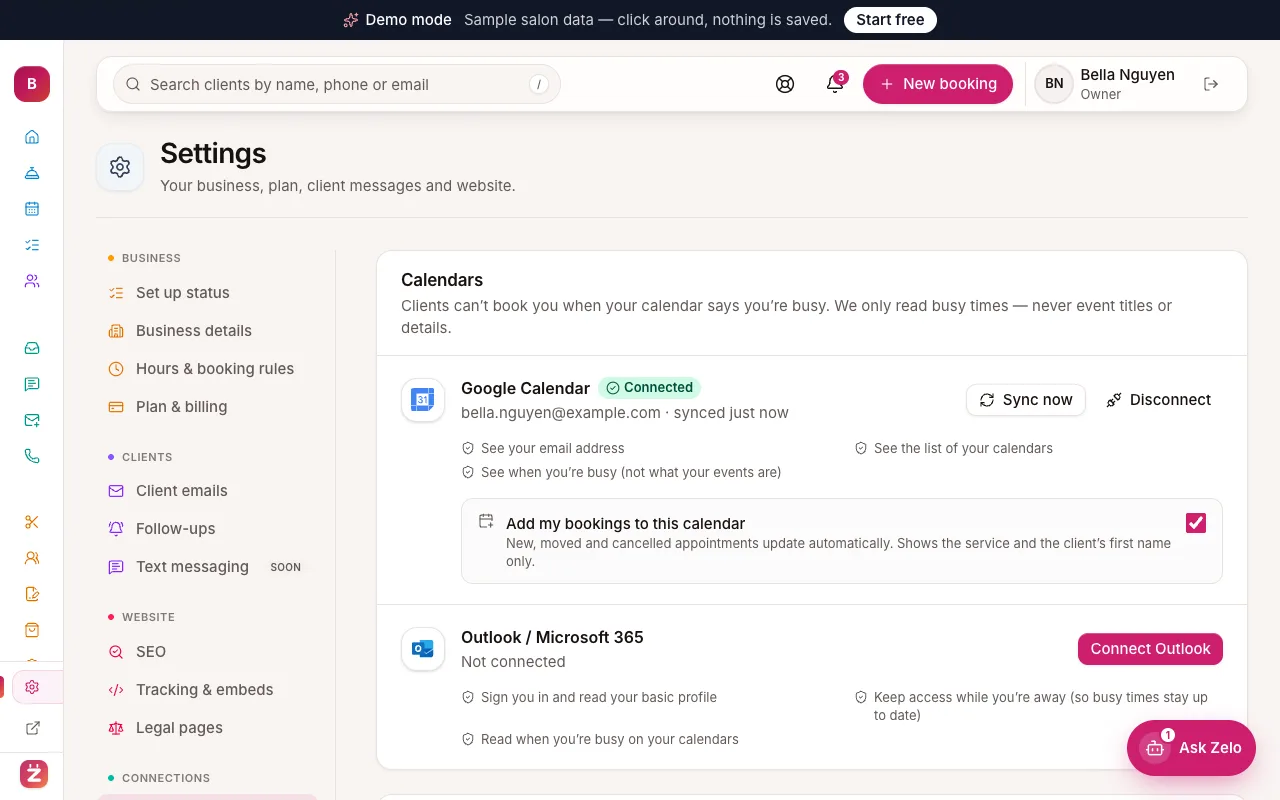
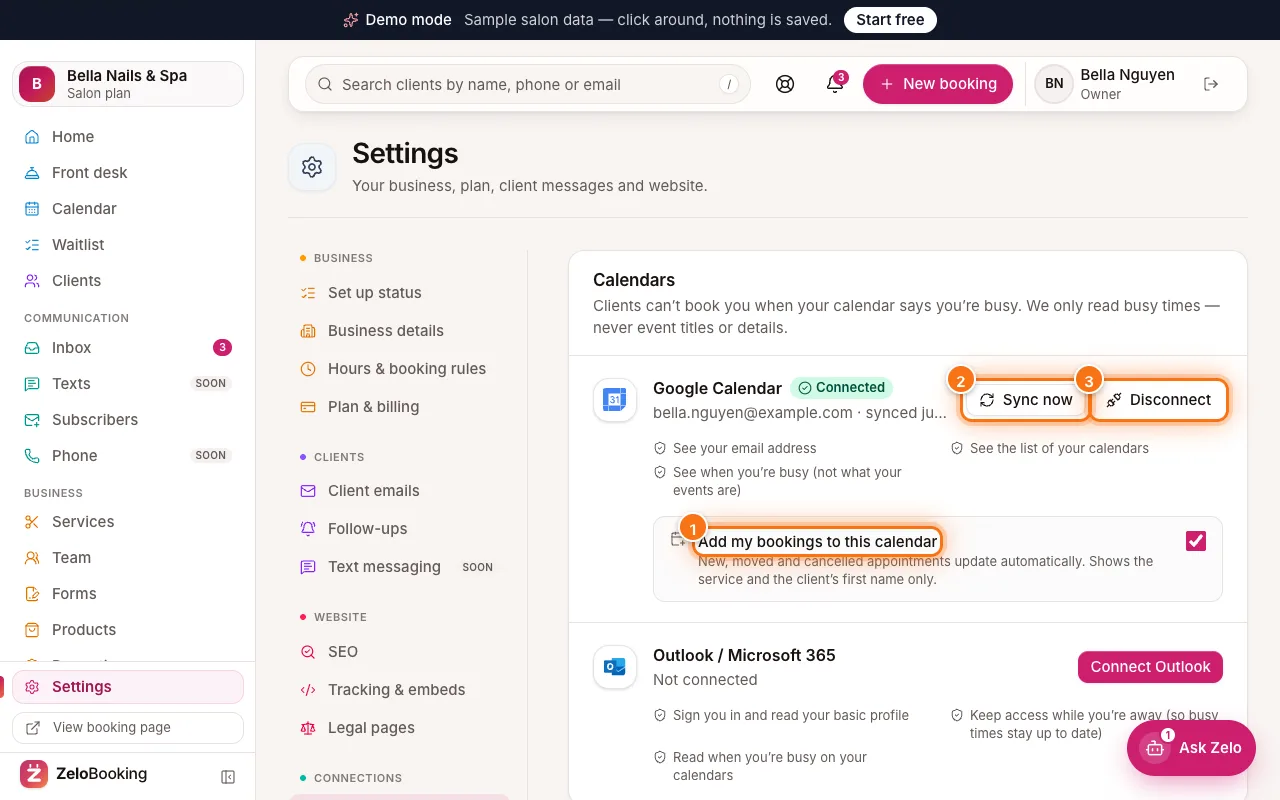 Connect Google Calendar or OutlookStop double bookings with personal plans: busy times on your calendar block online booking, and your bookings can appear there too. 4 minBeginner
Bookings & front desk
The calendar, walk-ins, check-in and checkout, the waitlist and your booking link.
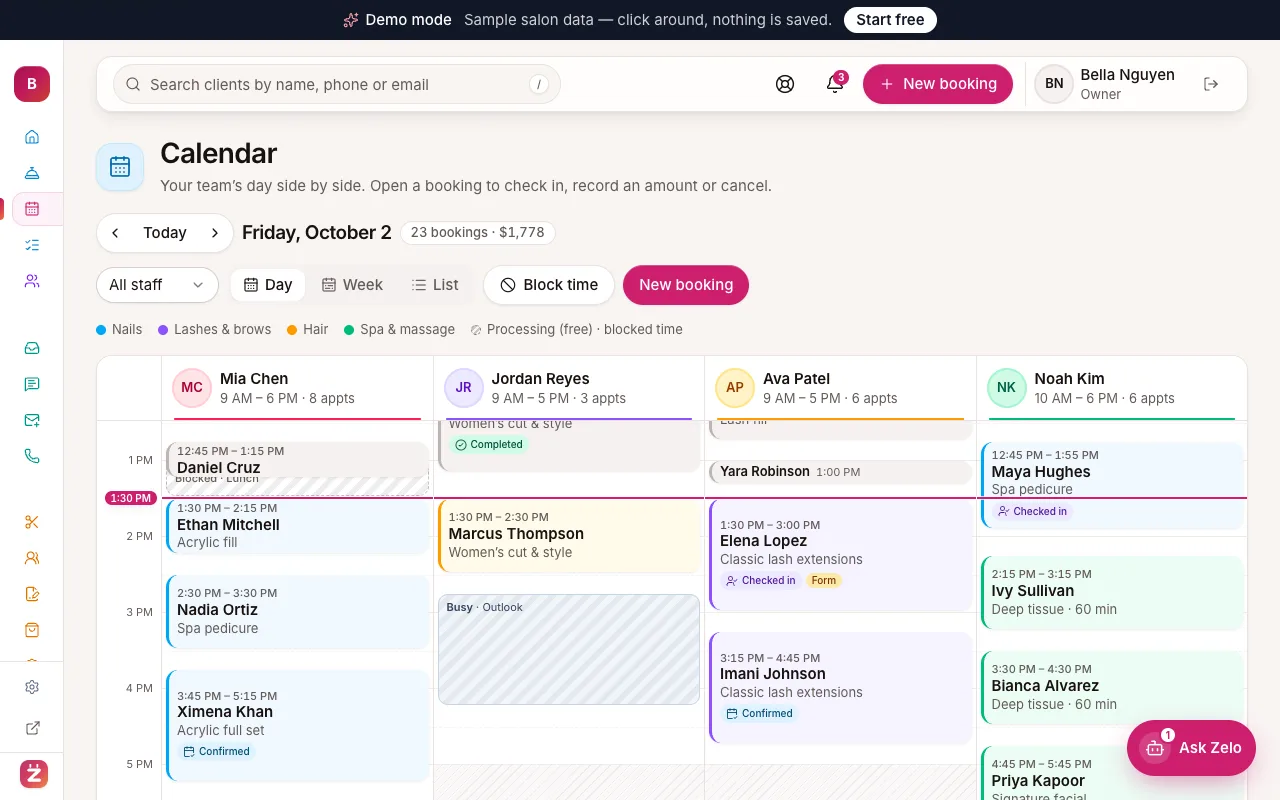 Use the calendar: book, move and block timeMake a booking step by step, open a booking to check in or cancel, move it to a new time, block time for breaks and switch between day, week and list. 8 minBeginner
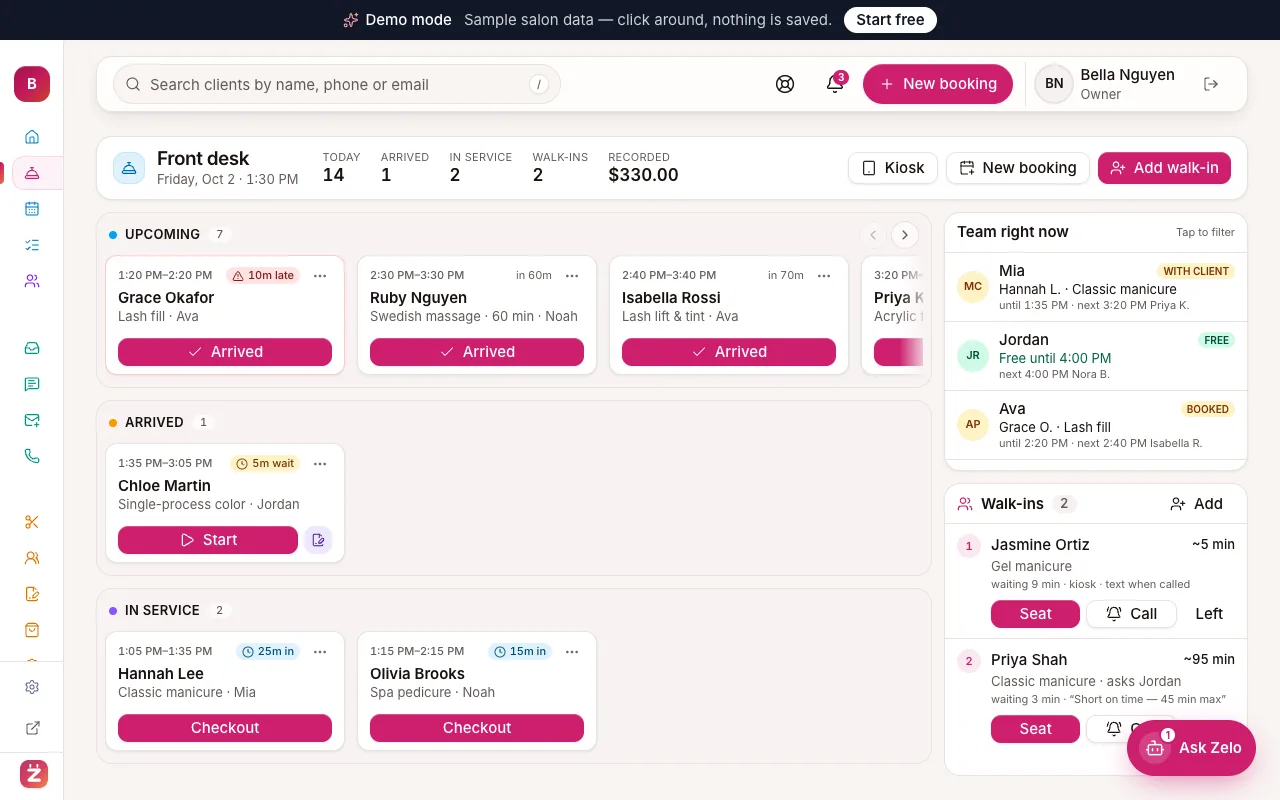 Run the front desk: check-in, walk-ins and checkoutUse the front desk board to see who’s arriving, move clients from Check in to Start to Checkout, and add, call and seat walk-ins. 7 minBeginner
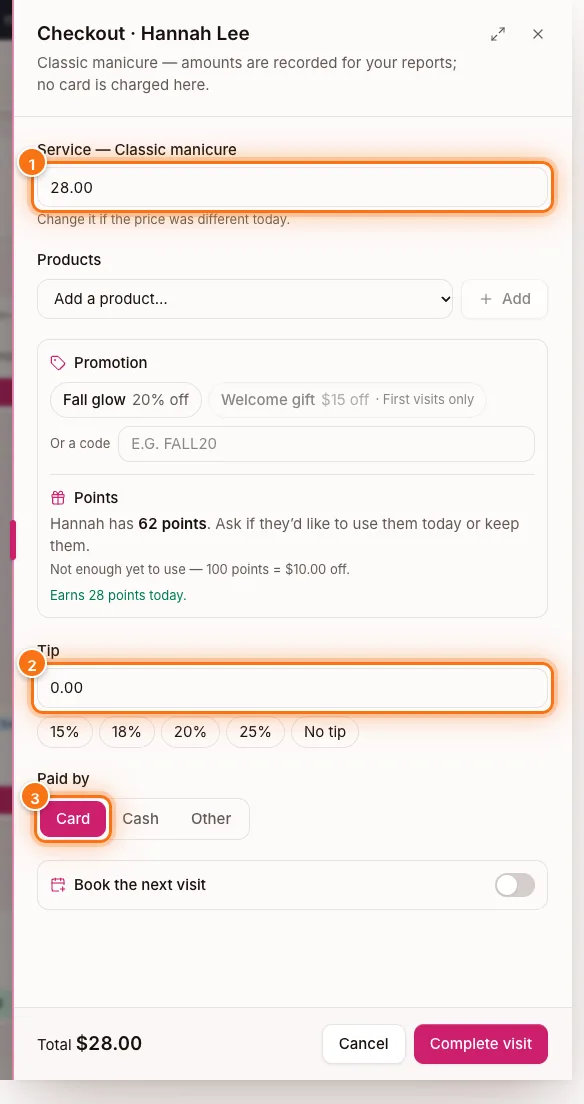 Record payment at checkoutWhen a visit ends, record the price, tip and how the client paid — plus promotions, points and their next visit. For your reports only: no card is charged. 5 minBeginner
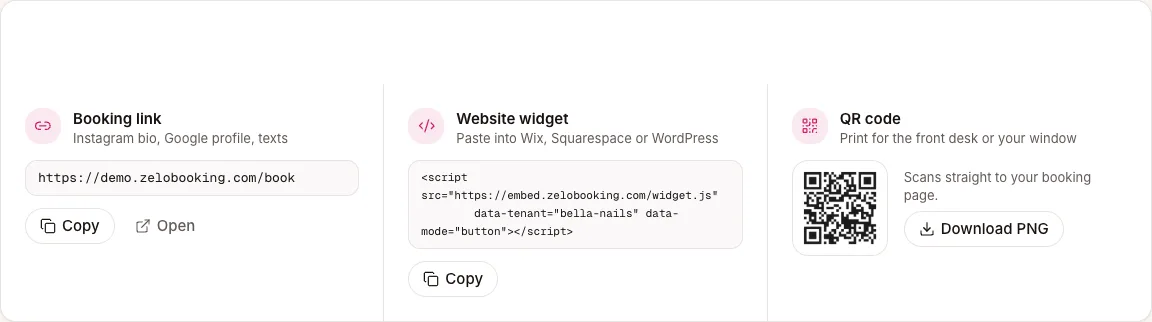 Share your booking link, widget and QR codeGet bookings from Instagram, Google, your own website and in the salon — all synced to the same calendar. 5 minBeginner
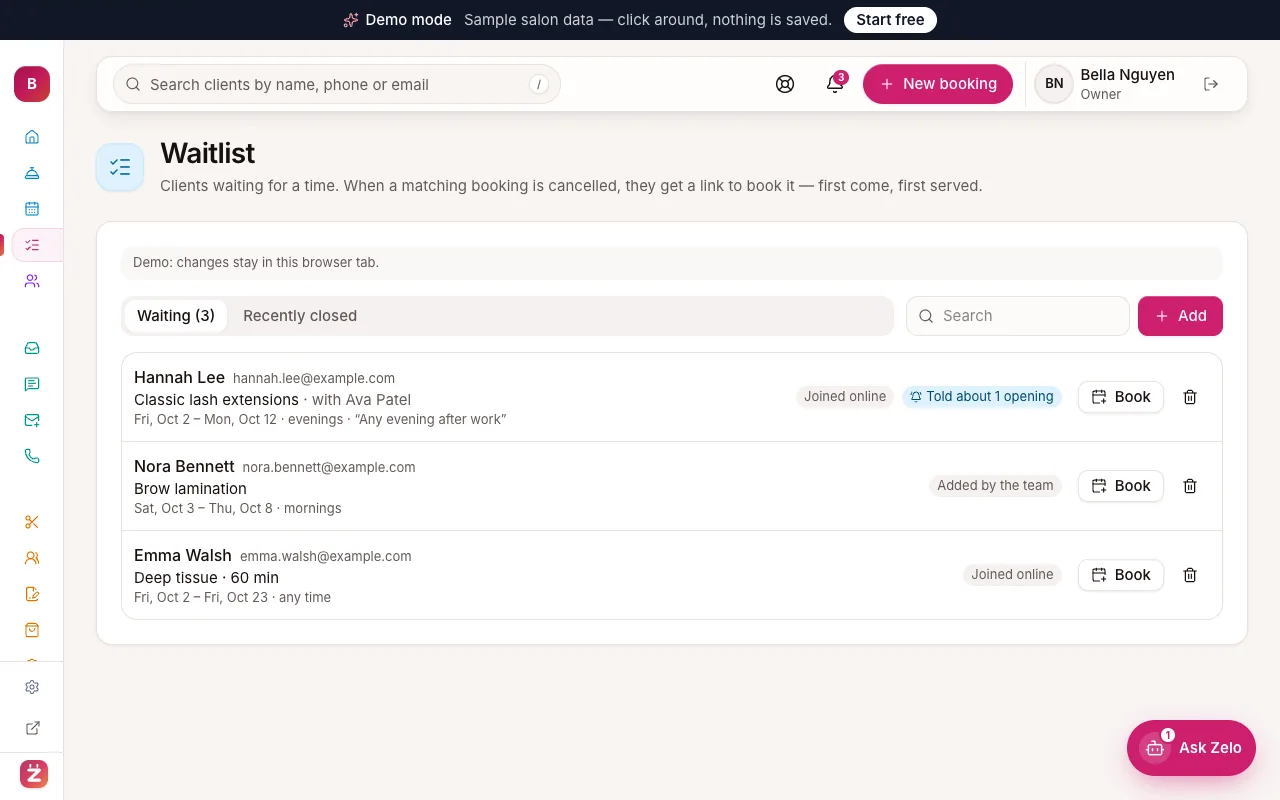 Fill cancellations with the waitlistLet clients join a waitlist when no time suits them — when a matching slot opens, they get a link to book it. Add callers yourself. 5 minBeginner
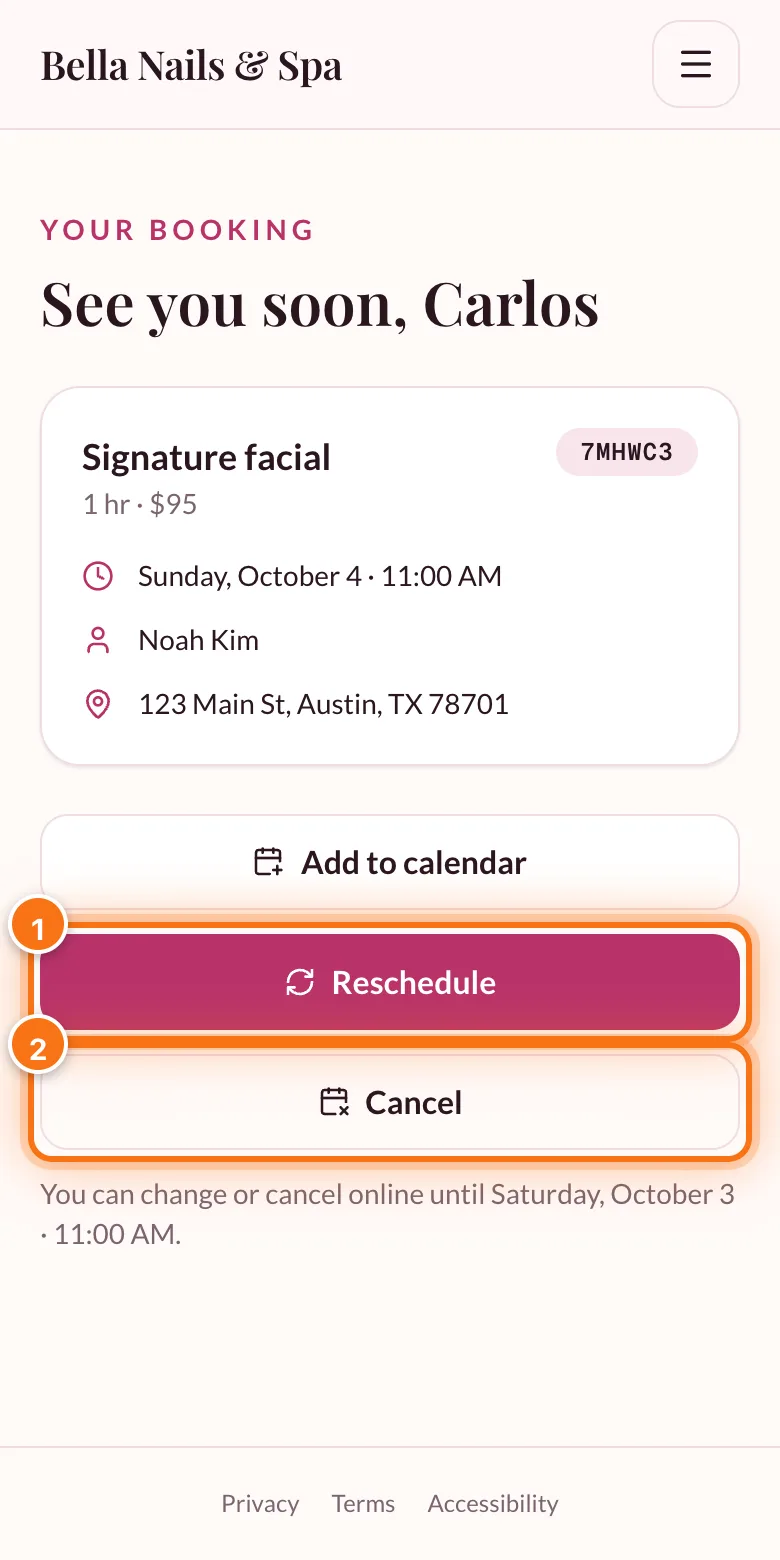 Let clients change or cancel their own bookingEvery booking email has a private link where clients can reschedule or cancel online — up to the cutoff you choose. Here’s how it works and what you see. 5 minBeginner
Clients & forms
Client profiles, importing your list, consent and intake forms, and kiosk mode.
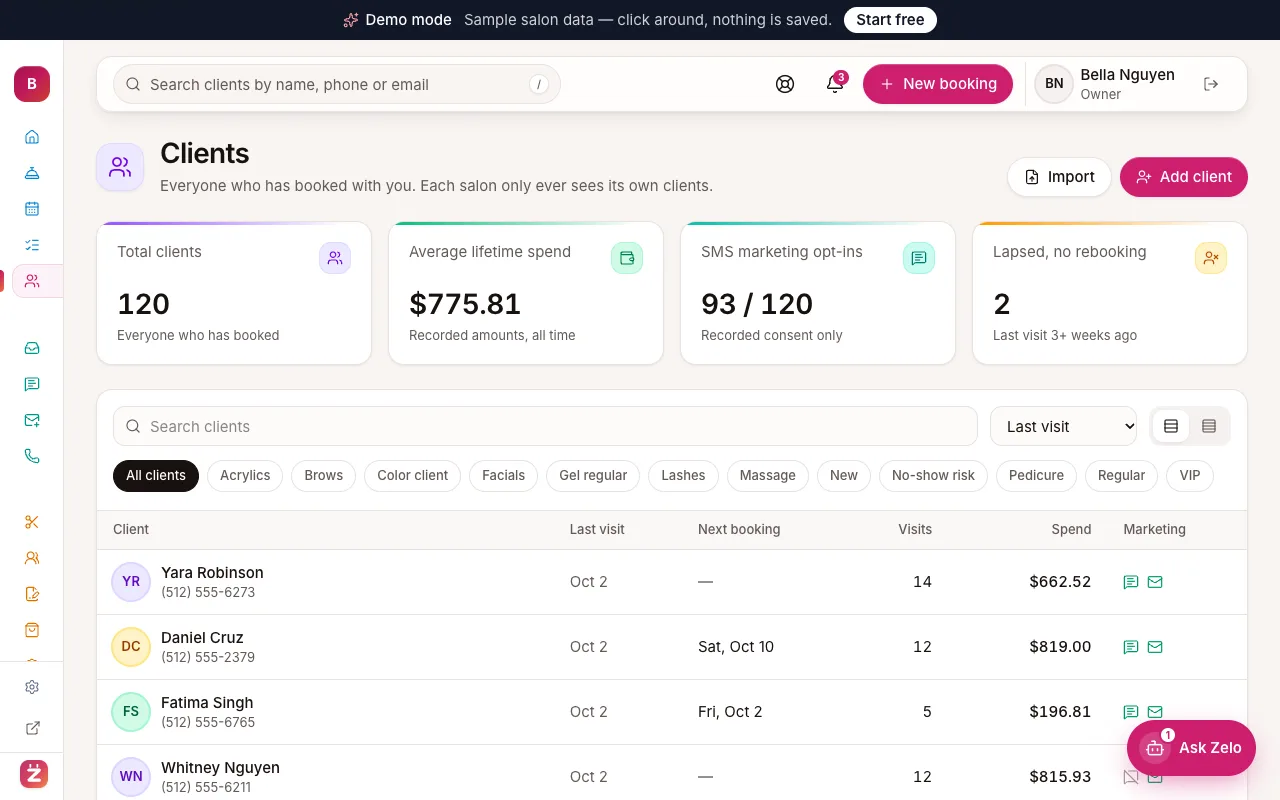 Client profiles, notes and contact preferencesFind any client in seconds, add new ones by hand, and keep service notes, allergies and contact preferences where the whole team can see them. 6 minBeginner
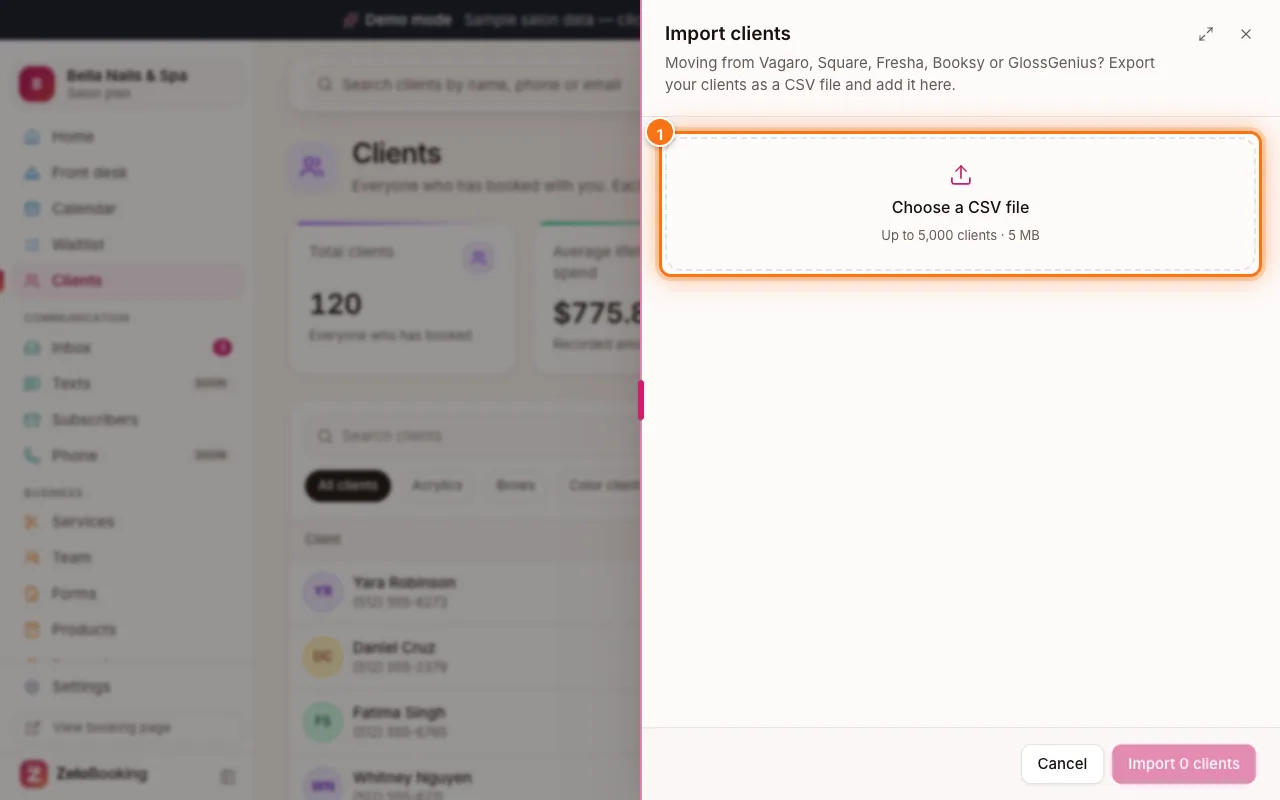 Import your client listBring your clients over from Vagaro, Square, Fresha, Booksy, GlossGenius or a spreadsheet with a CSV file. Duplicates are skipped and nobody is signed up for marketing. 5 minBeginner
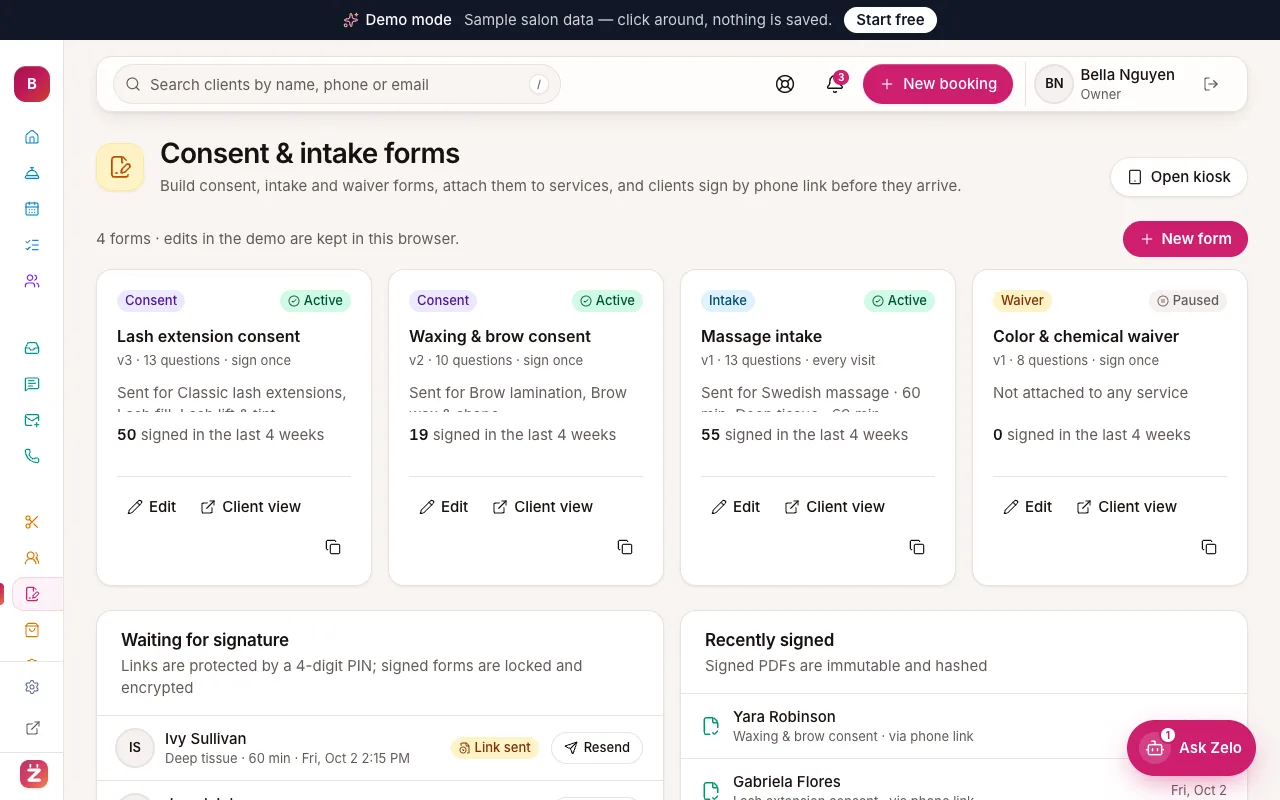 Build consent and intake formsCreate waivers and intake forms from a template or from scratch, choose how often clients sign, and attach them to the services that need them. 8 minIntermediate
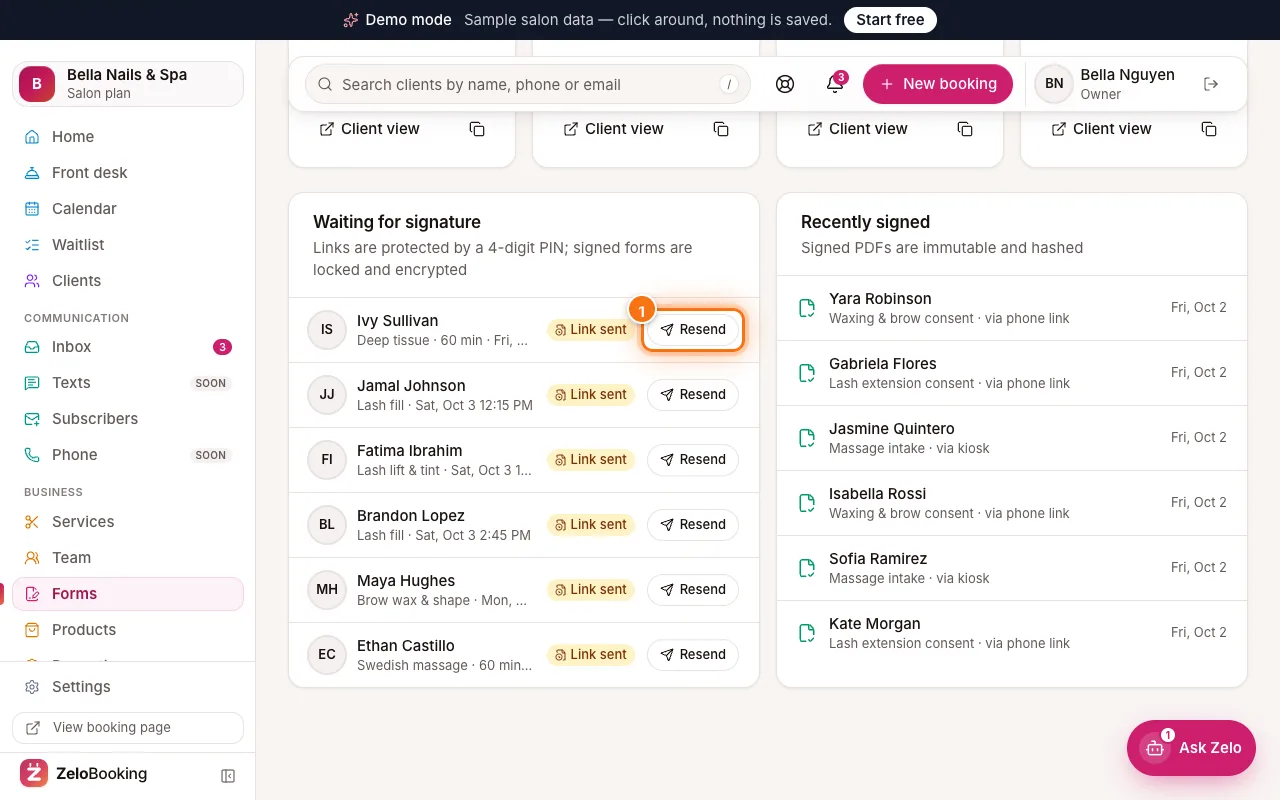 Send forms to clients and view signed copiesHow form links and 4-digit PINs reach clients, how to resend one, and where to find signed forms and their PDFs. 5 minBeginner
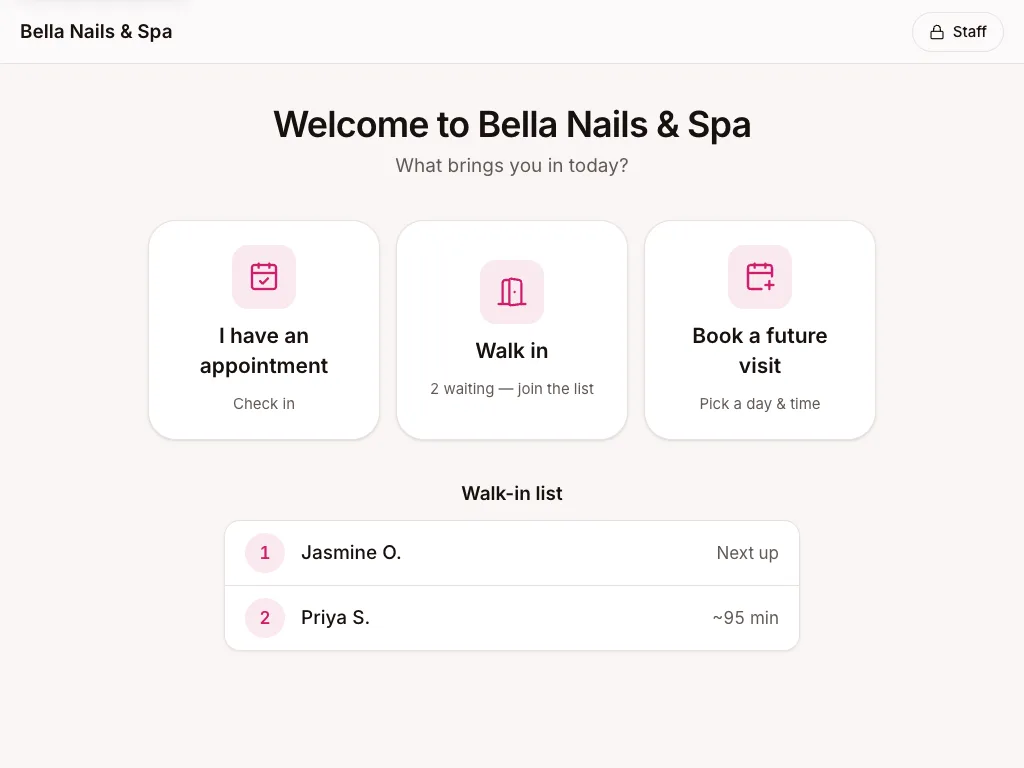 Kiosk mode on your salon tabletTurn an iPad or Android tablet into a self check-in screen: clients check in, join the walk-in list, sign forms or book their next visit. 5 minBeginner
Reminders & messages
Automatic emails, website messages and follow-ups. Texting clients is coming soon.
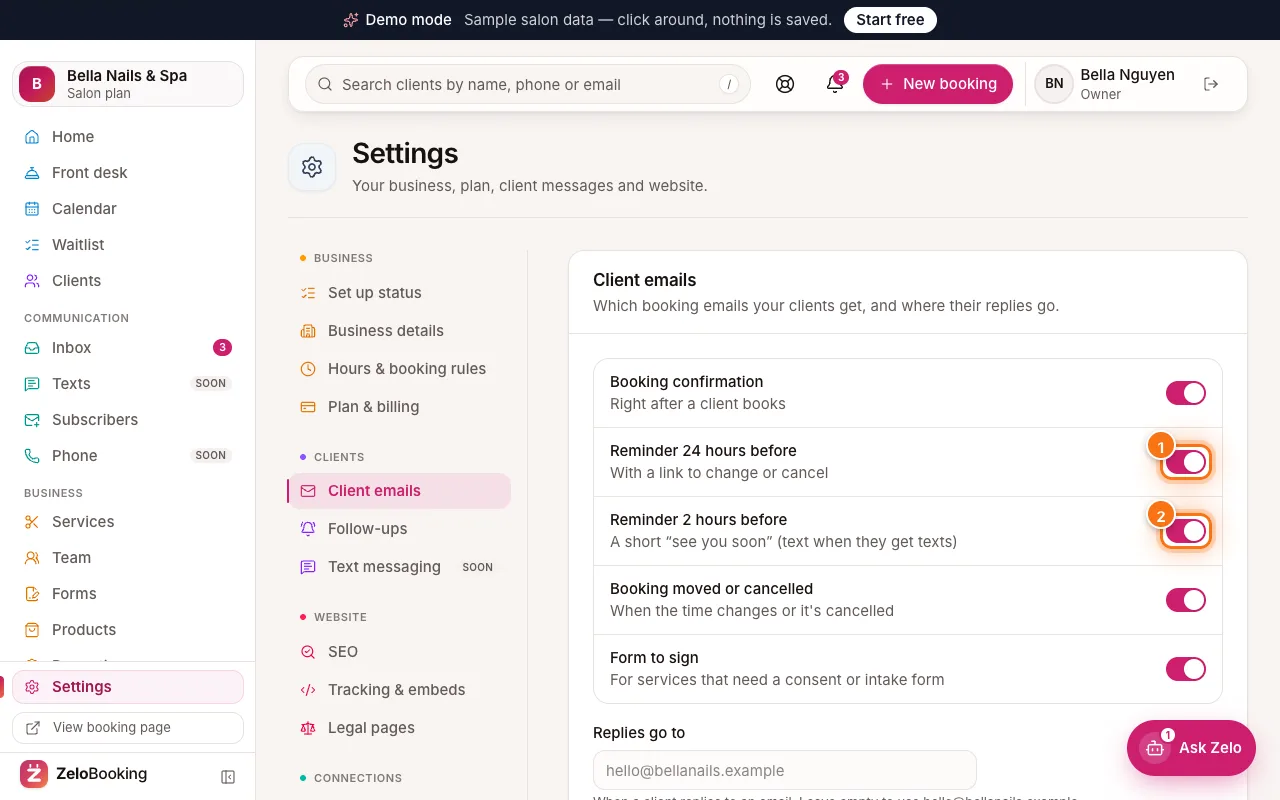 Automatic confirmations and remindersChoose which booking emails clients get — confirmation, 24-hour and 2-hour reminders, changes and form links — and preview every one. 5 minBeginner
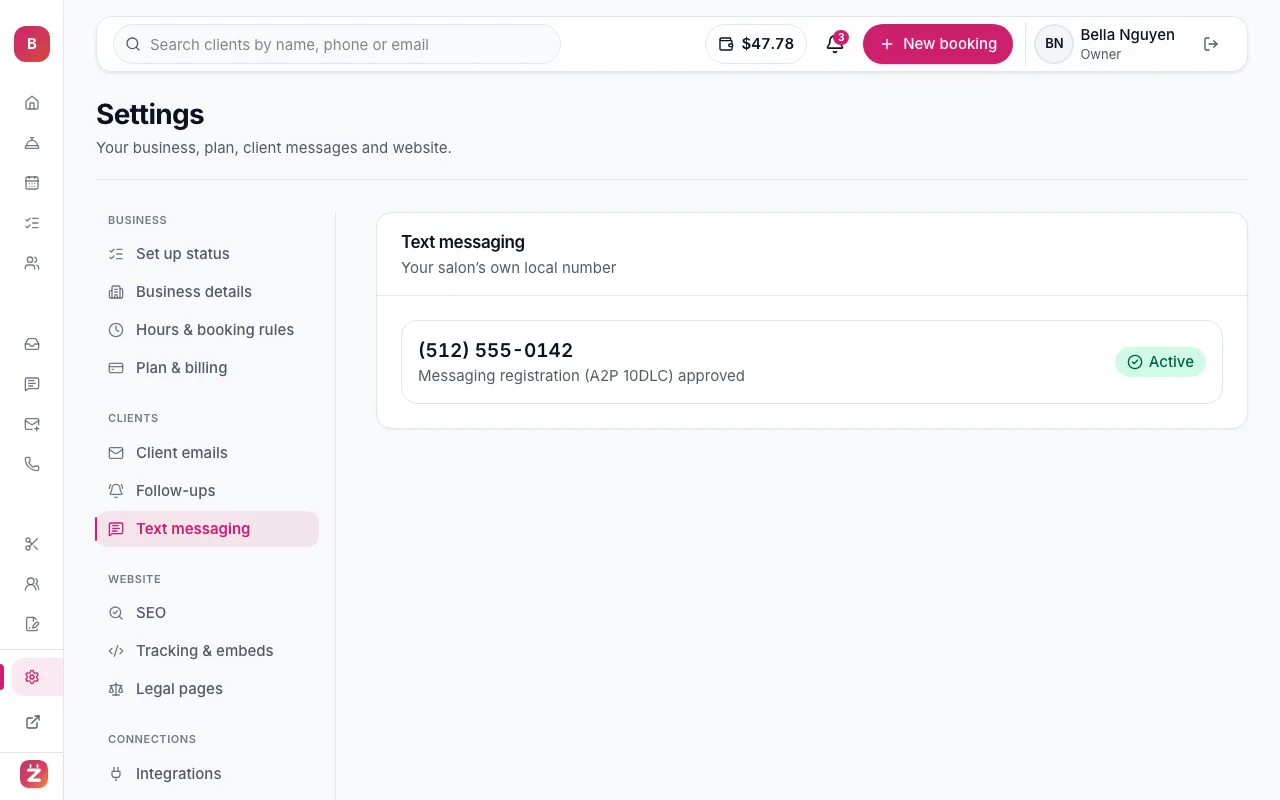 Turn on text messagingComing soon. Get your own local number (or move your existing one) and send appointment texts from it — on every paid plan. 10 minIntermediateStarter plan and up
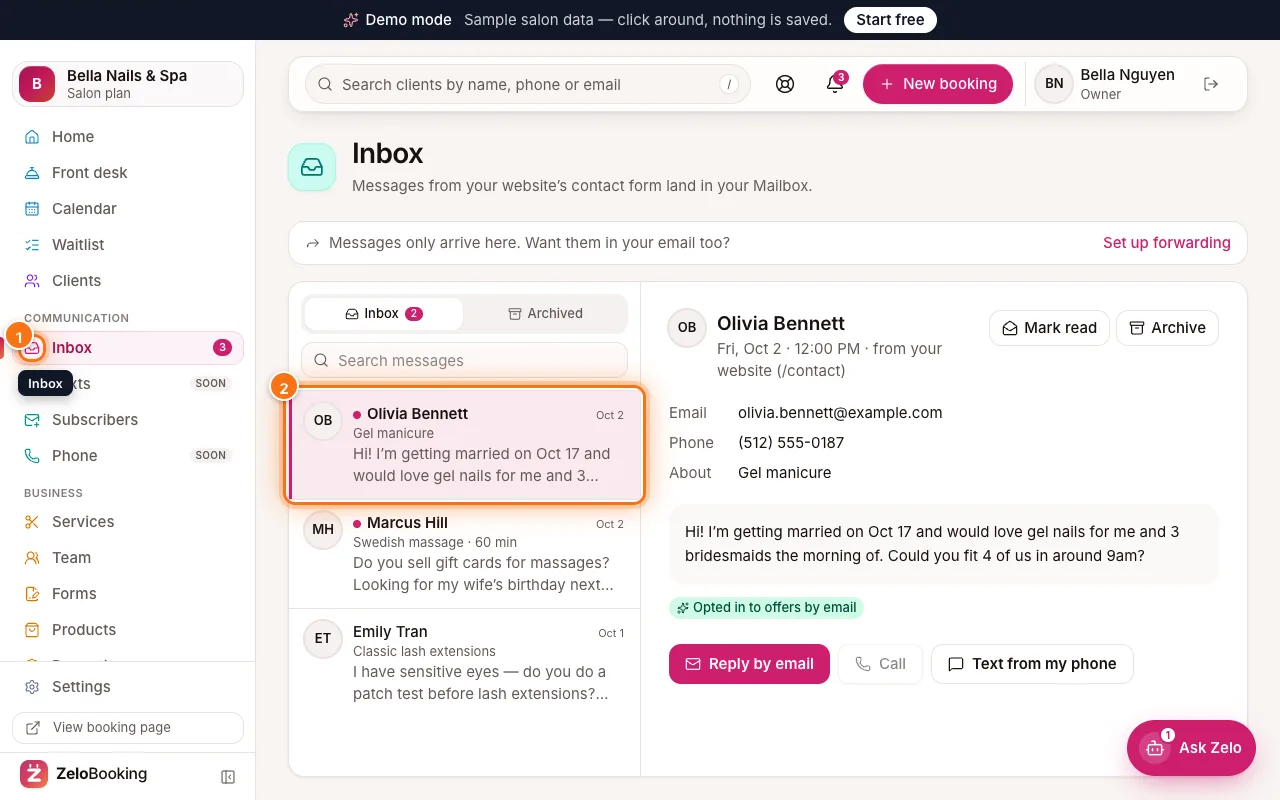 Website messages and the inboxMessages from your website’s contact form land in your Inbox — reply by email, call or text, archive them, and get a copy in your own email. 4 minBeginner
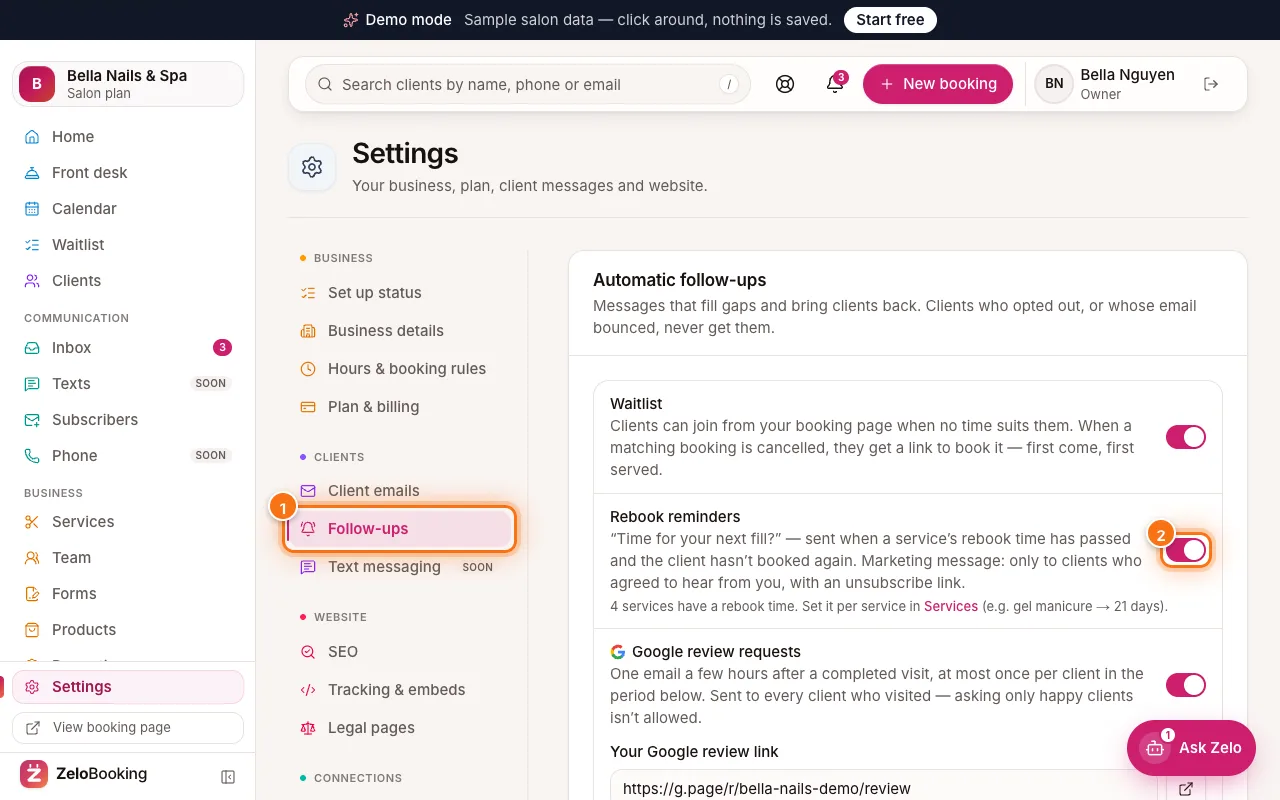 Follow-ups: rebook reminders and Google reviewsBring clients back when they’re due, ask every client for a Google review, and fill gaps from the waitlist — automatically. 6 minIntermediate
 Send a newsletter to your subscribersWrite a newsletter with a photo and a button, preview it, send yourself a test, then send it now or schedule it — and see how it did. 6 minBeginner
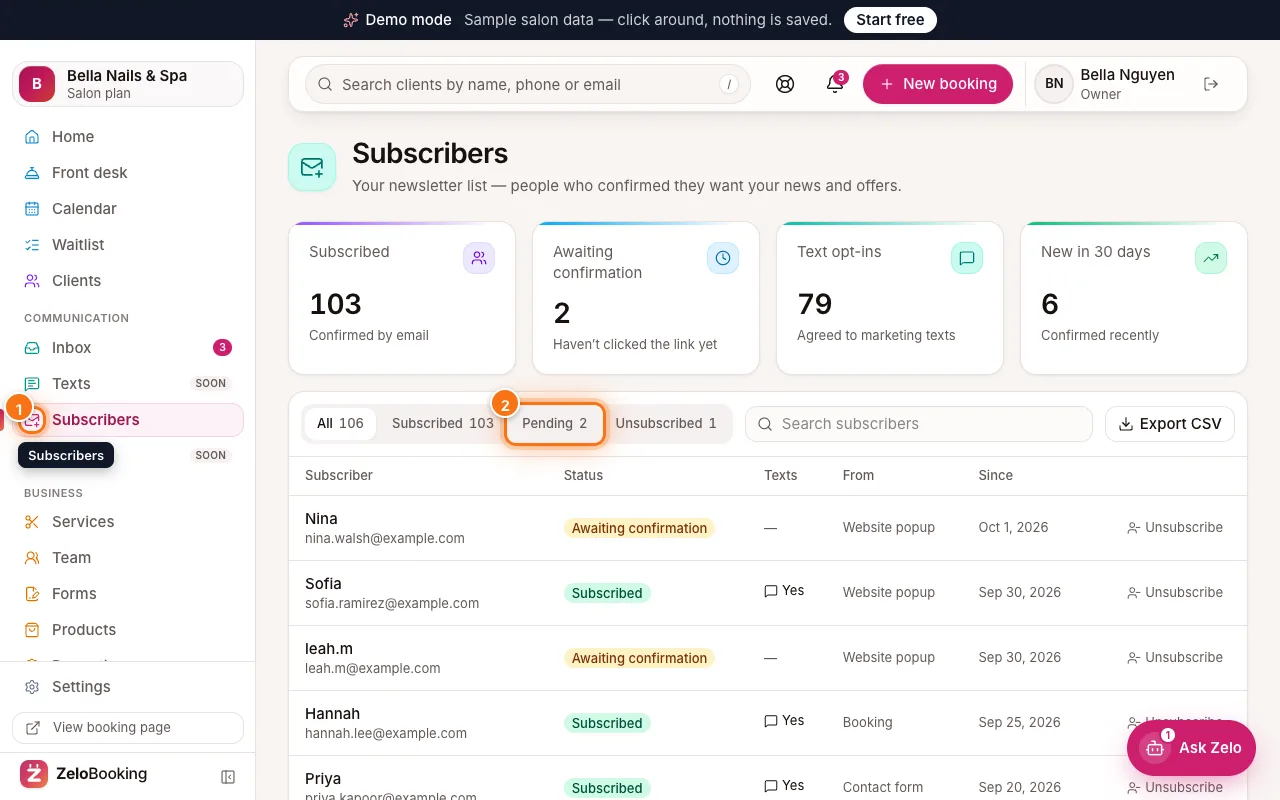
- Grow your newsletter list with SubscribersCollect email sign-ups with a website popup, see who confirmed, export your list for your email tool, and handle unsubscribes. 5 minBeginner
 Connect Zapier to send bookings to other appsComing soon. Send new bookings, changes and new clients to thousands of apps — Google Sheets, Mailchimp, Slack, your CRM — with no code. 5 minIntermediateSalon plan and up
Phone & AI receptionist
Your business number in the browser, the AI receptionist and pay-as-you-go credit.
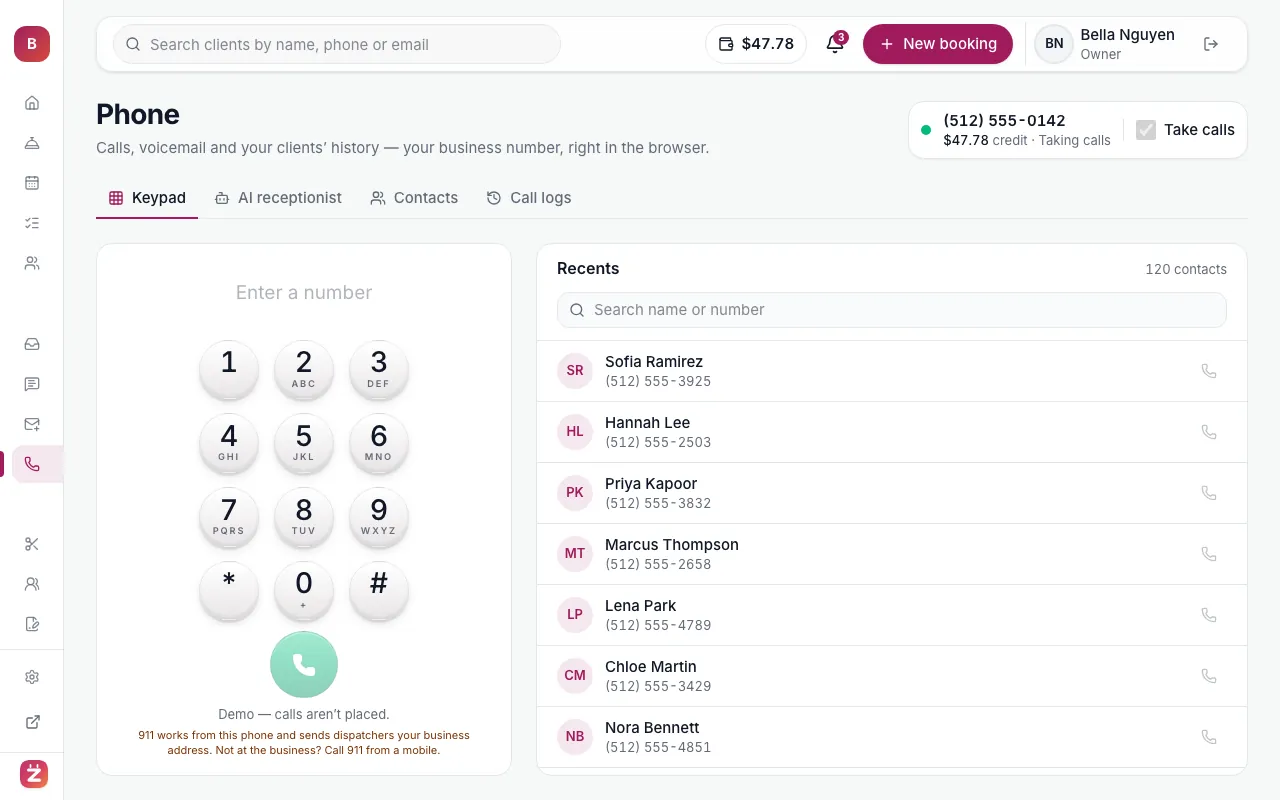 Make and take calls in your browserComing soon. Use your business number on any computer or tablet — a keypad, contacts, call logs and voicemail with transcripts. 5 minBeginnerSalon plan and up
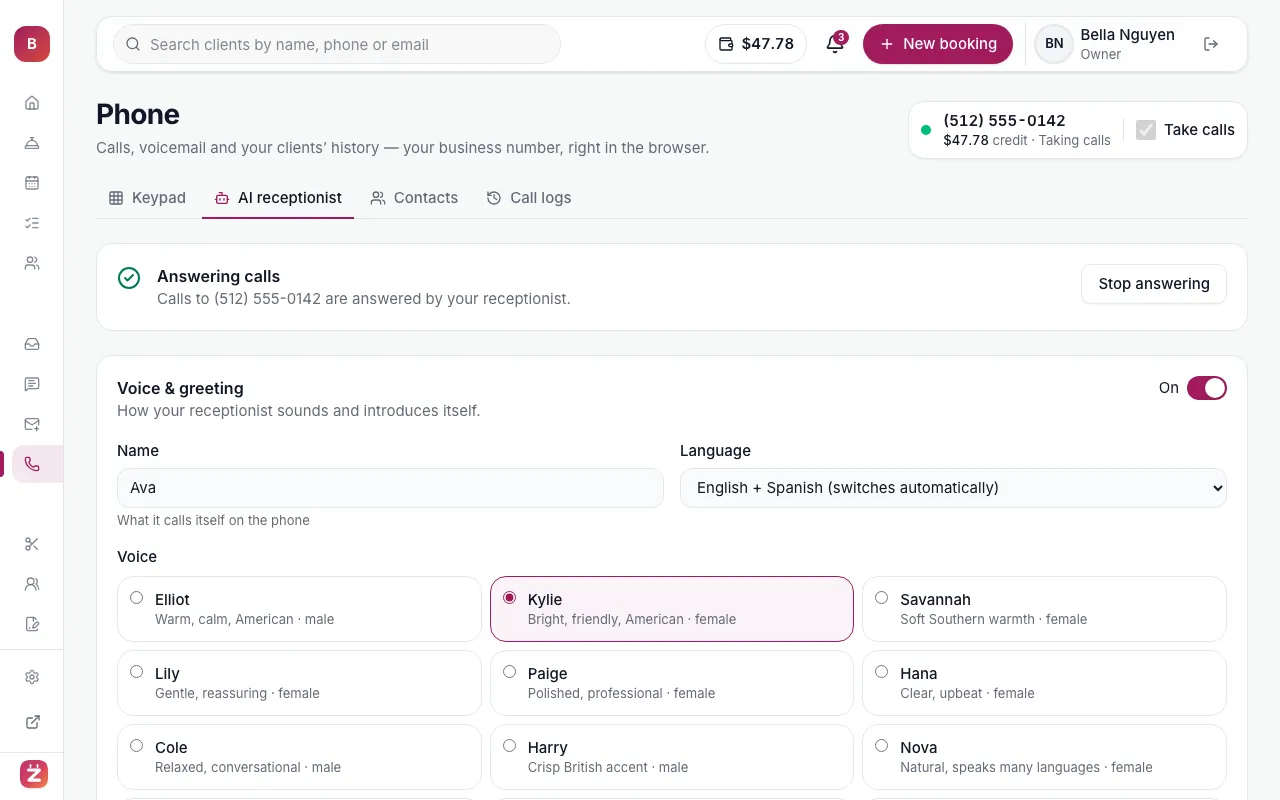 Set up your AI receptionistComing soon. An assistant that answers when you can’t — it knows your services, prices and live availability, books appointments and takes messages. 8 minIntermediateSalon plan and up
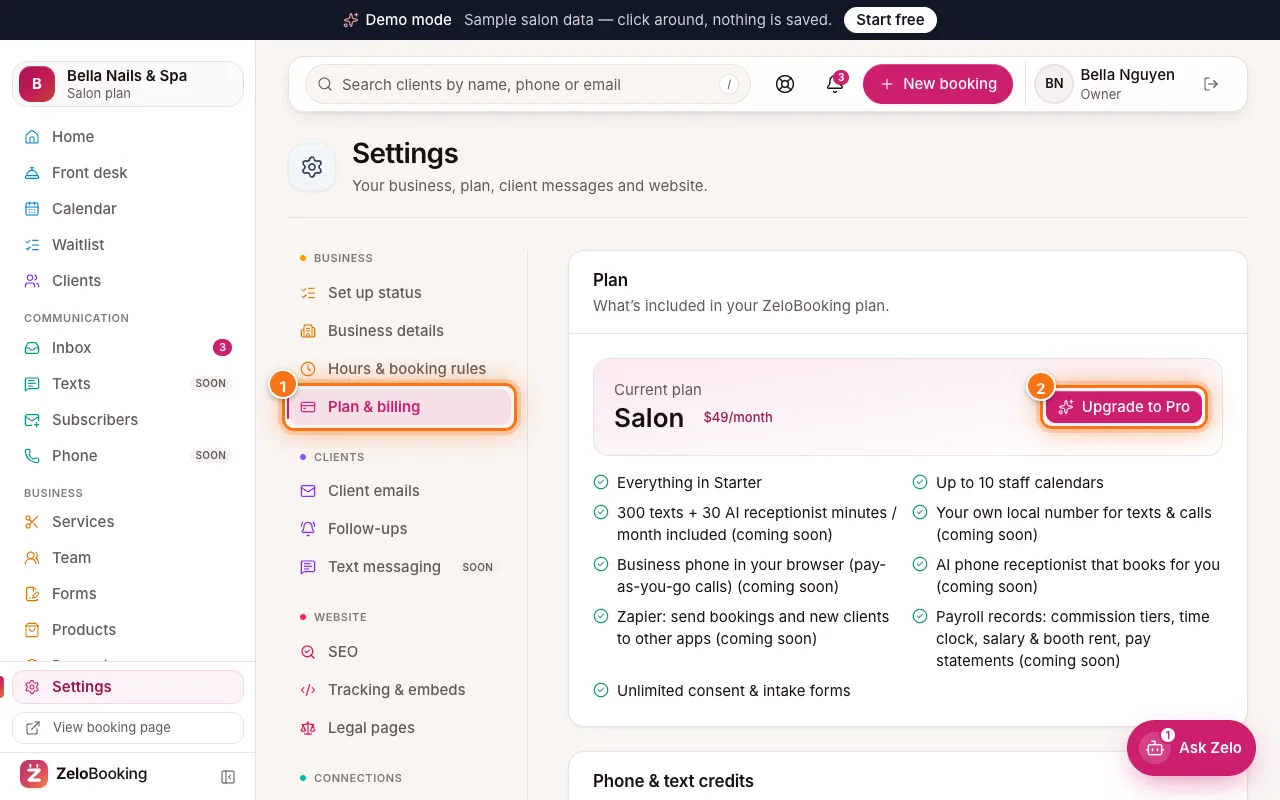 Plans, billing and phone & text creditSee your plan and what it includes, upgrade or change plans, and — coming soon — add pay-as-you-go credit for texts, calls and AI minutes. 4 minBeginner
Website
Templates, the website editor, your own domain, SEO and visitor insights.
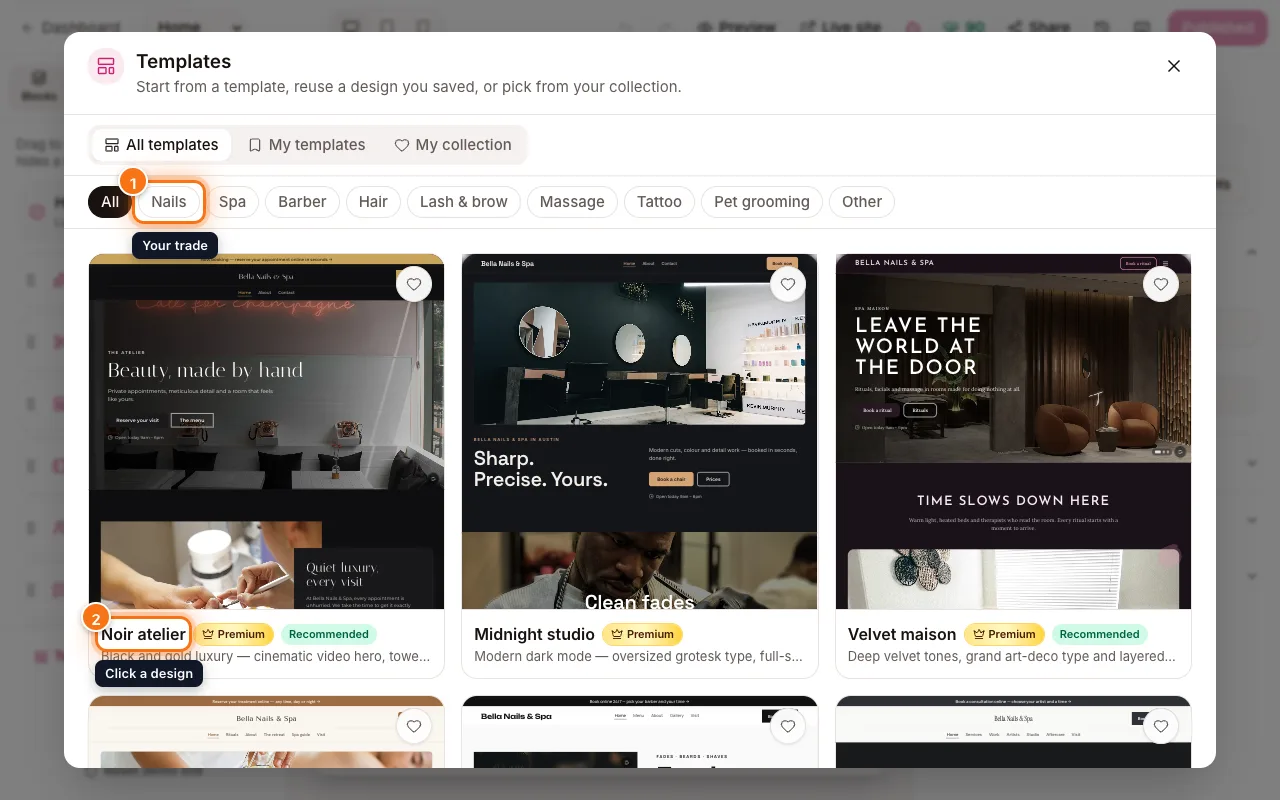 Choose a website templatePick a design made for your trade. Your services, team and hours fill in by themselves, and you can switch designs any time. 4 minBeginner
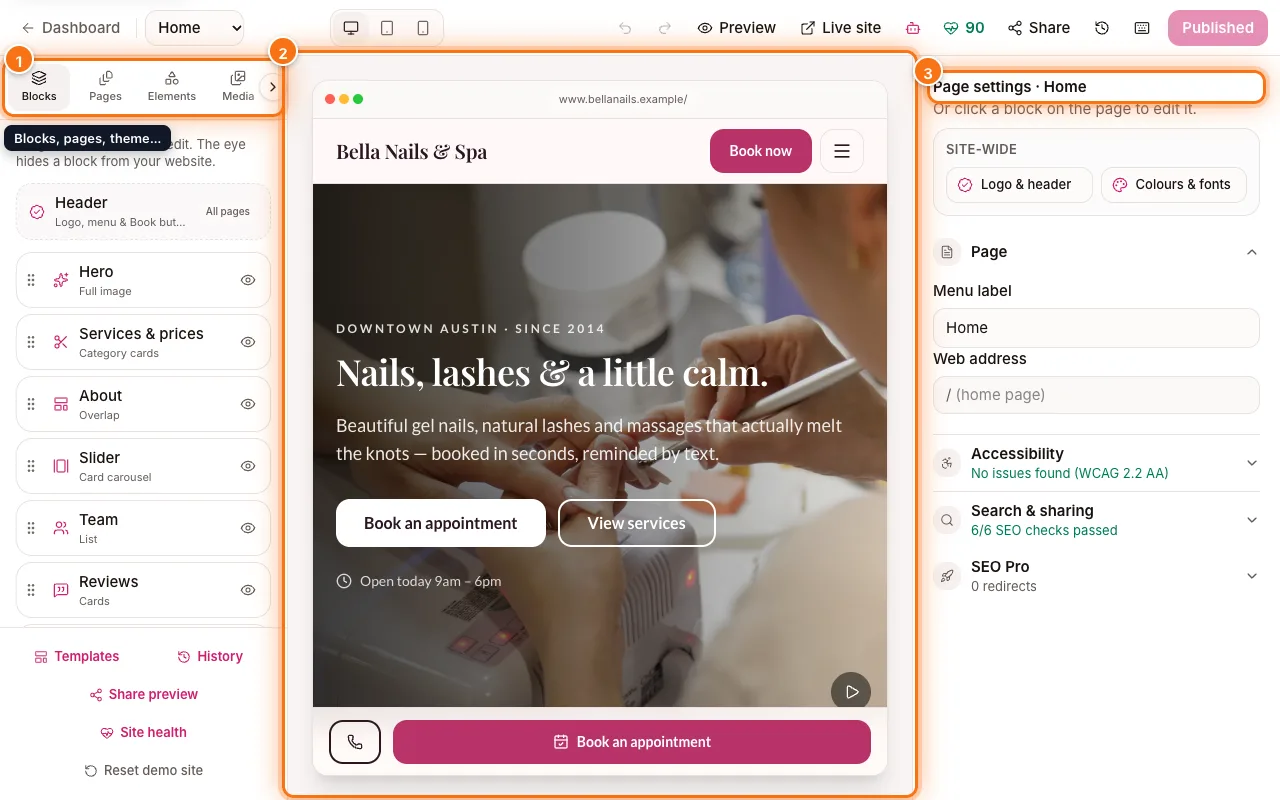 Get to know the website editorA tour of the editor: where your sections, pages, theme and settings live, how to switch pages, and how saving and publishing work. 6 minBeginner
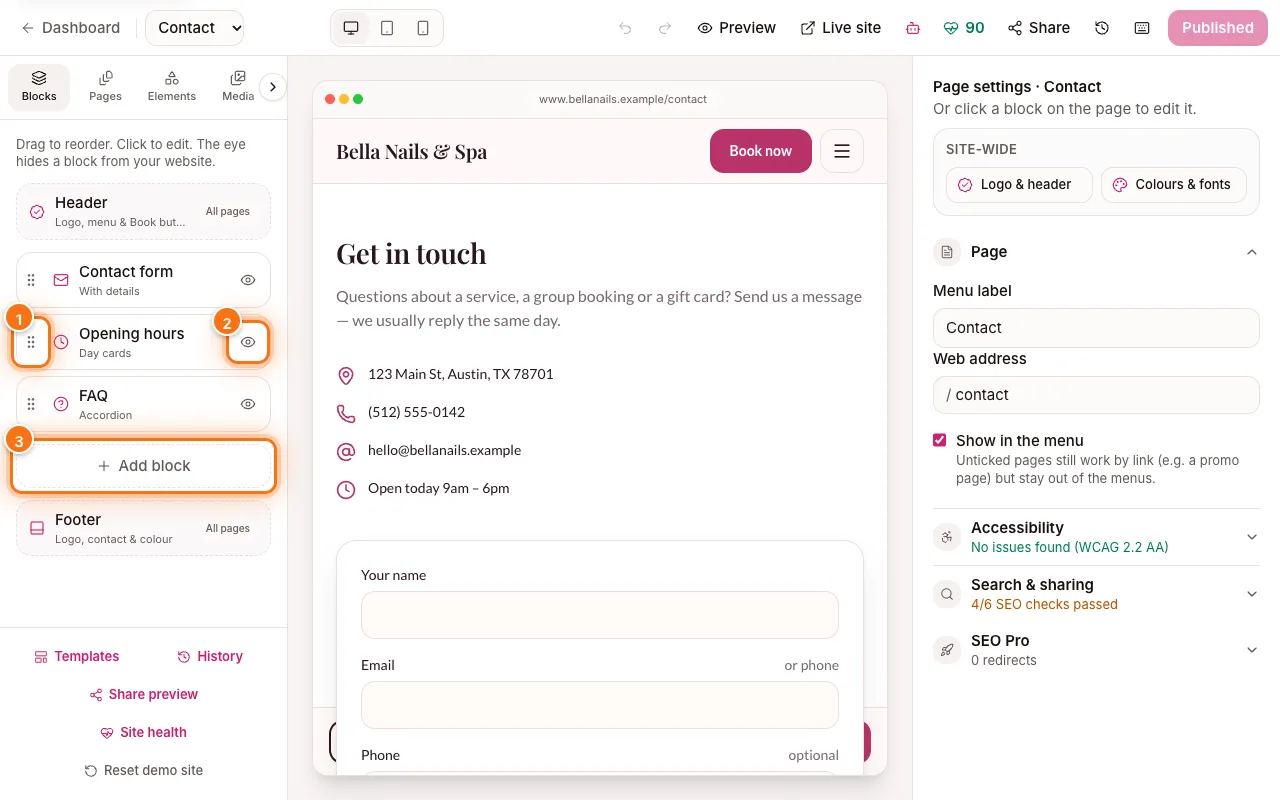 Add and arrange sectionsAdd, move, hide and delete the sections of a page, switch a section’s layout, and change its words, background and spacing. 8 minBeginner
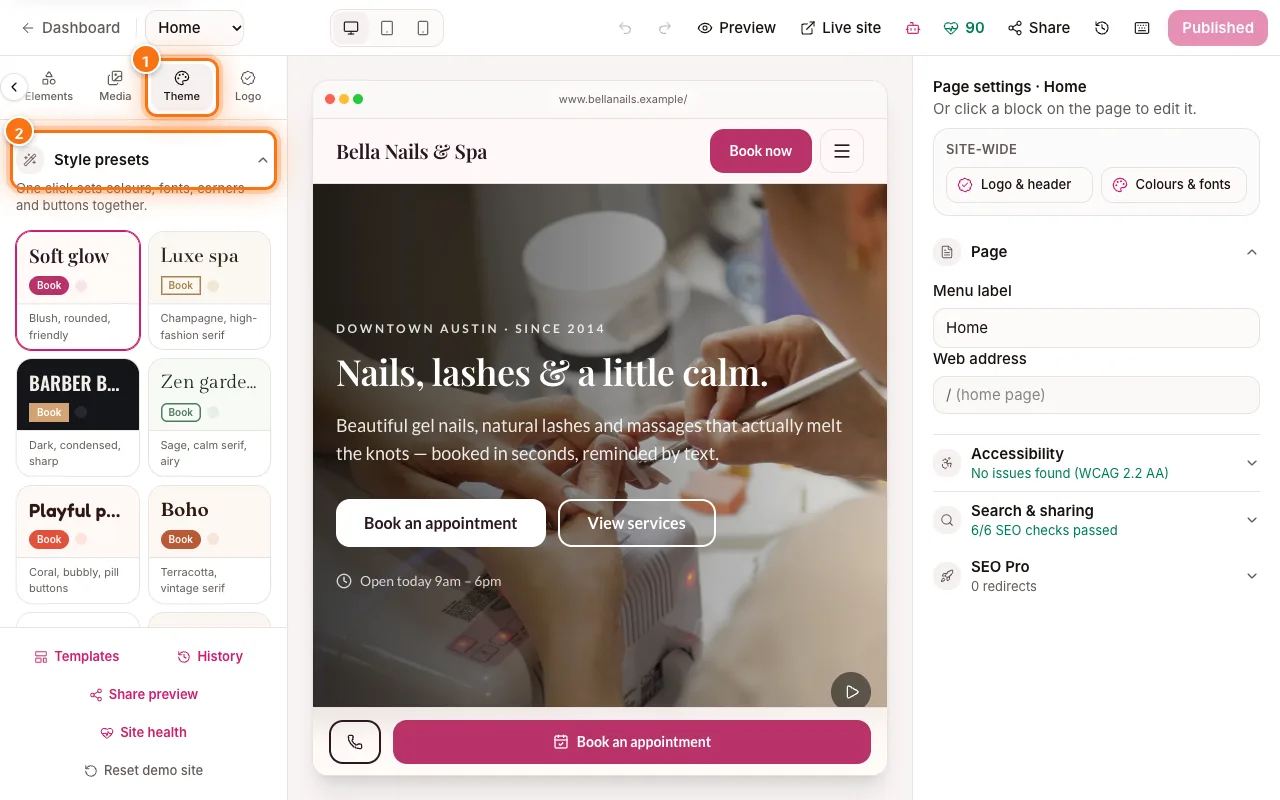 Theme, fonts and logoSet your website’s colours, fonts, button style and motion in Theme, and your logo, favicon and header in Logo. 6 minBeginner
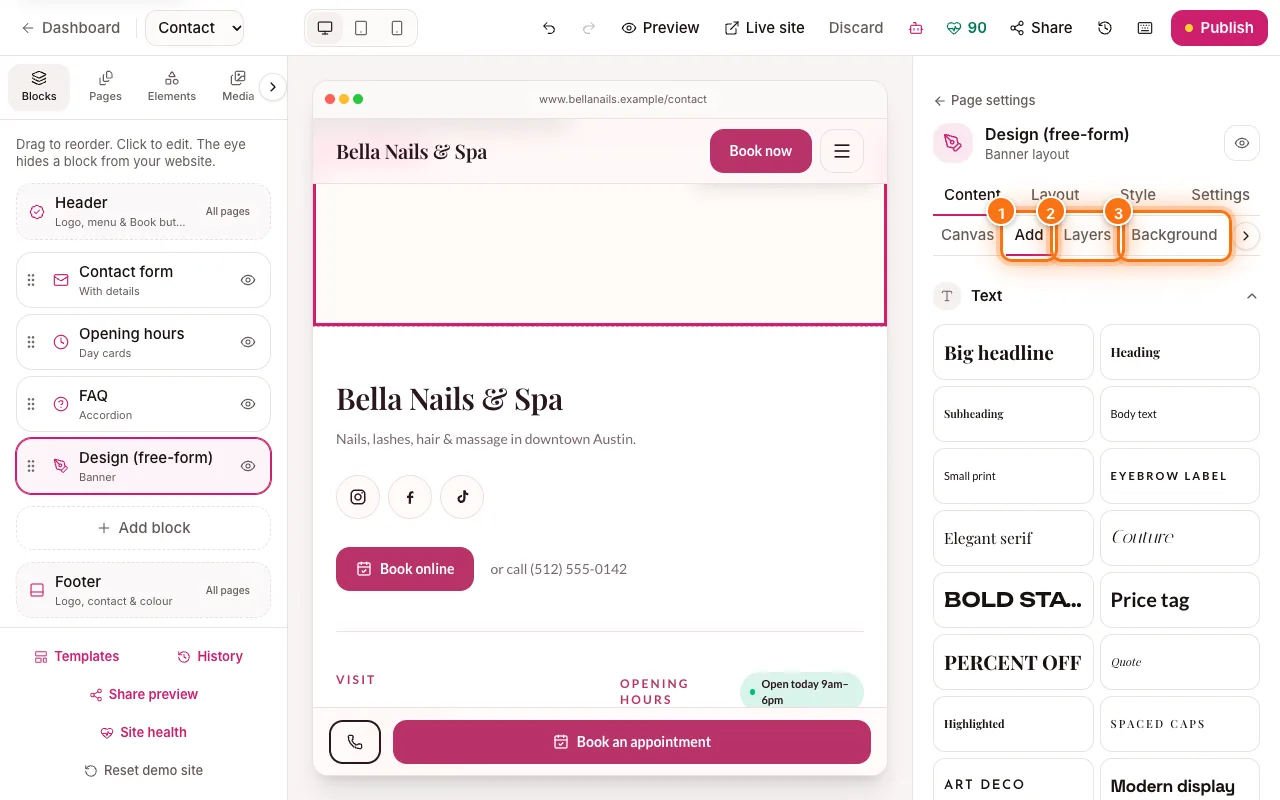 Design freely: blank sections and elementsBuild a section like a poster with the free-form Design block, or place text, shapes, icons and buttons on top of any section. 8 minIntermediate
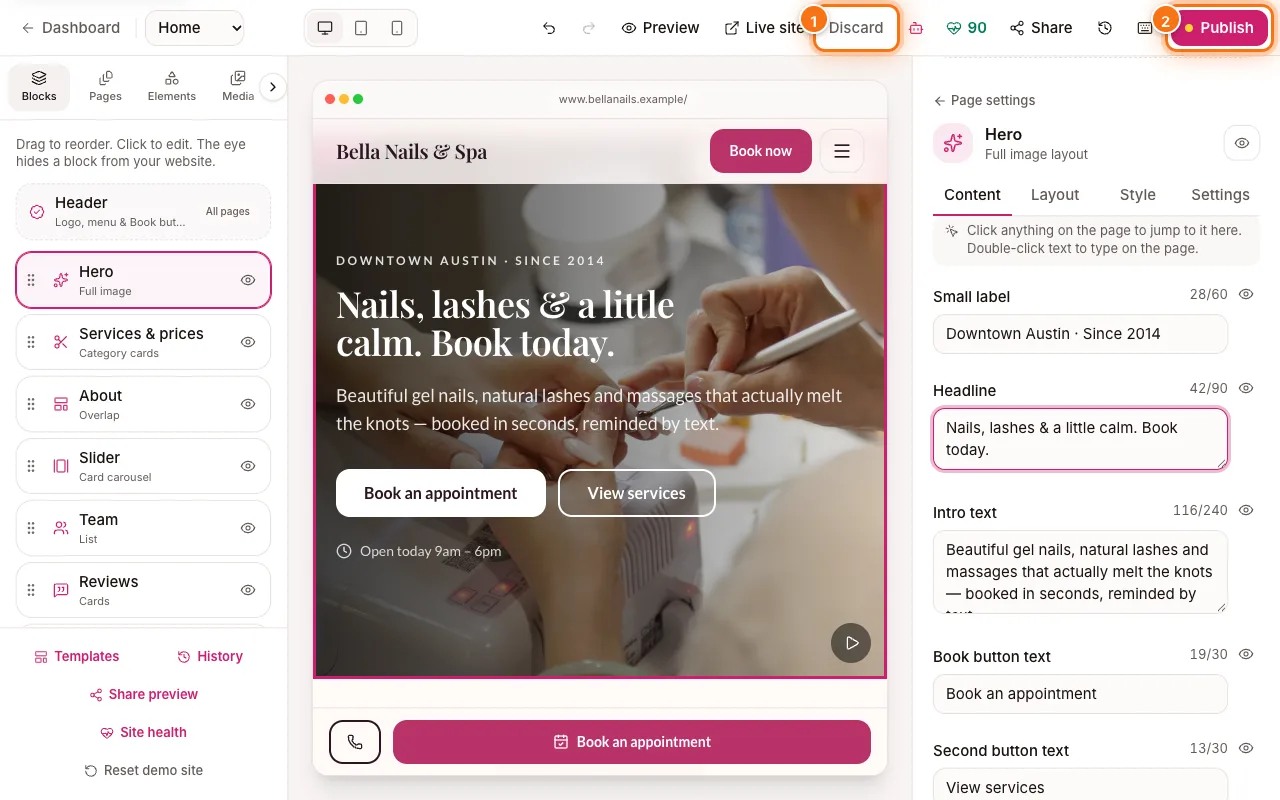 Preview, share and publishCheck your site on phone, tablet and computer, send a private preview link, publish your changes and bring back an earlier version. 5 minBeginner
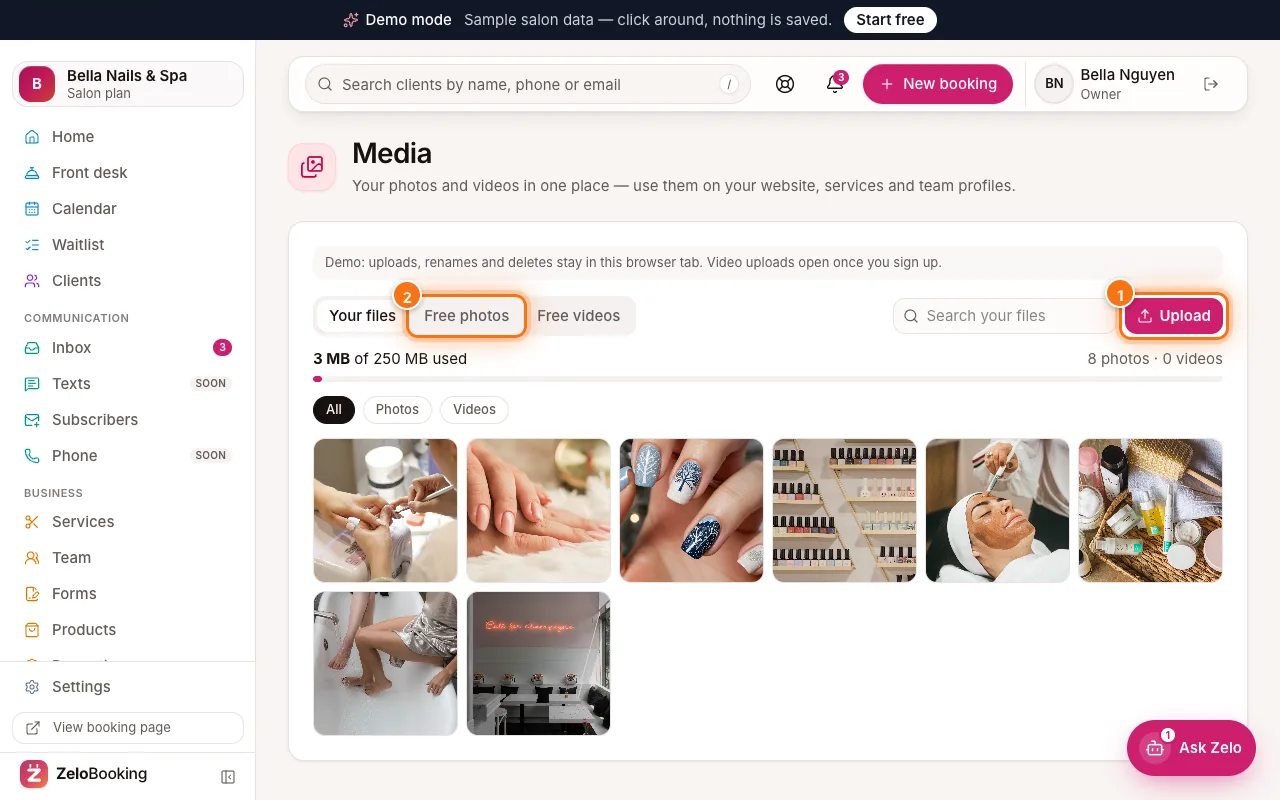 Your photo and video libraryUpload your photos and videos once, find free stock photos, and use them on your website, services, team and products. 4 minBeginner
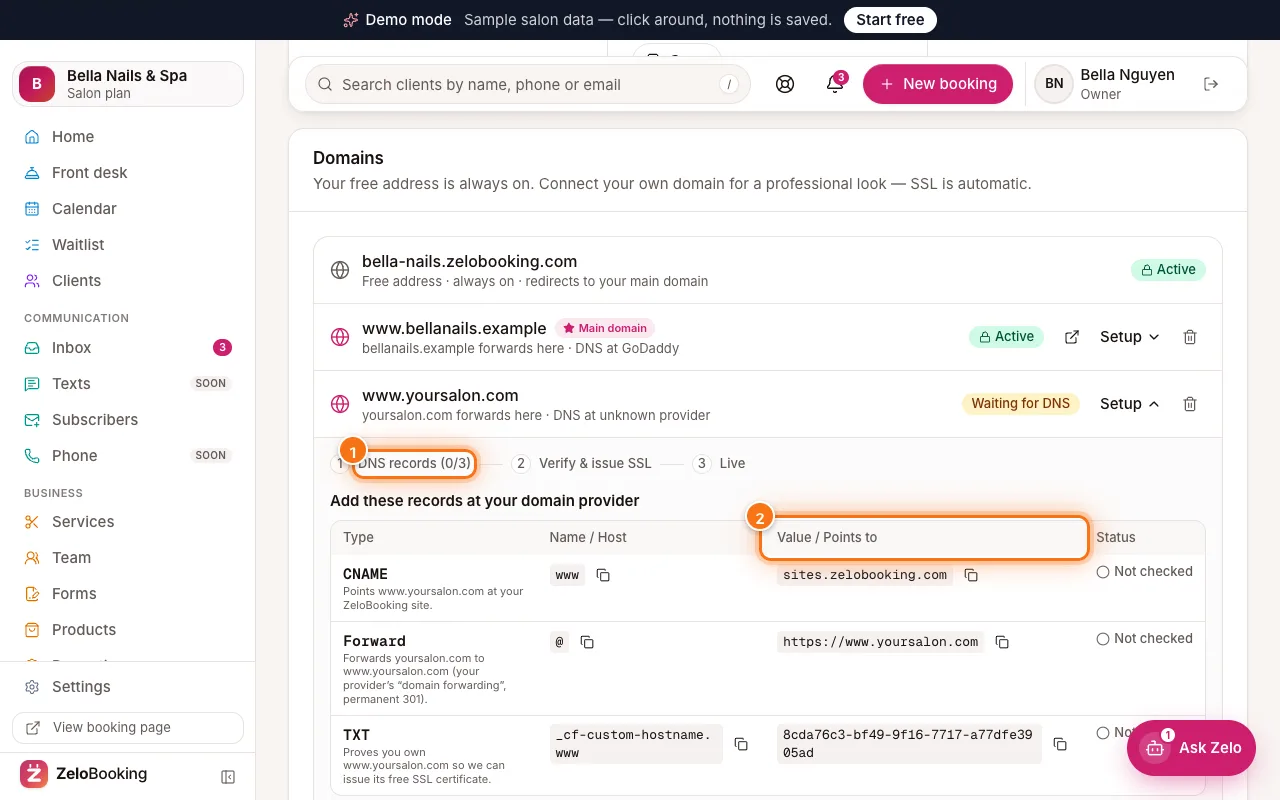 Connect your own domainUse yoursalon.com instead of the free address. We show you exactly what to add at your provider, check it for you, and set up SSL. 8 minIntermediateStarter plan and up
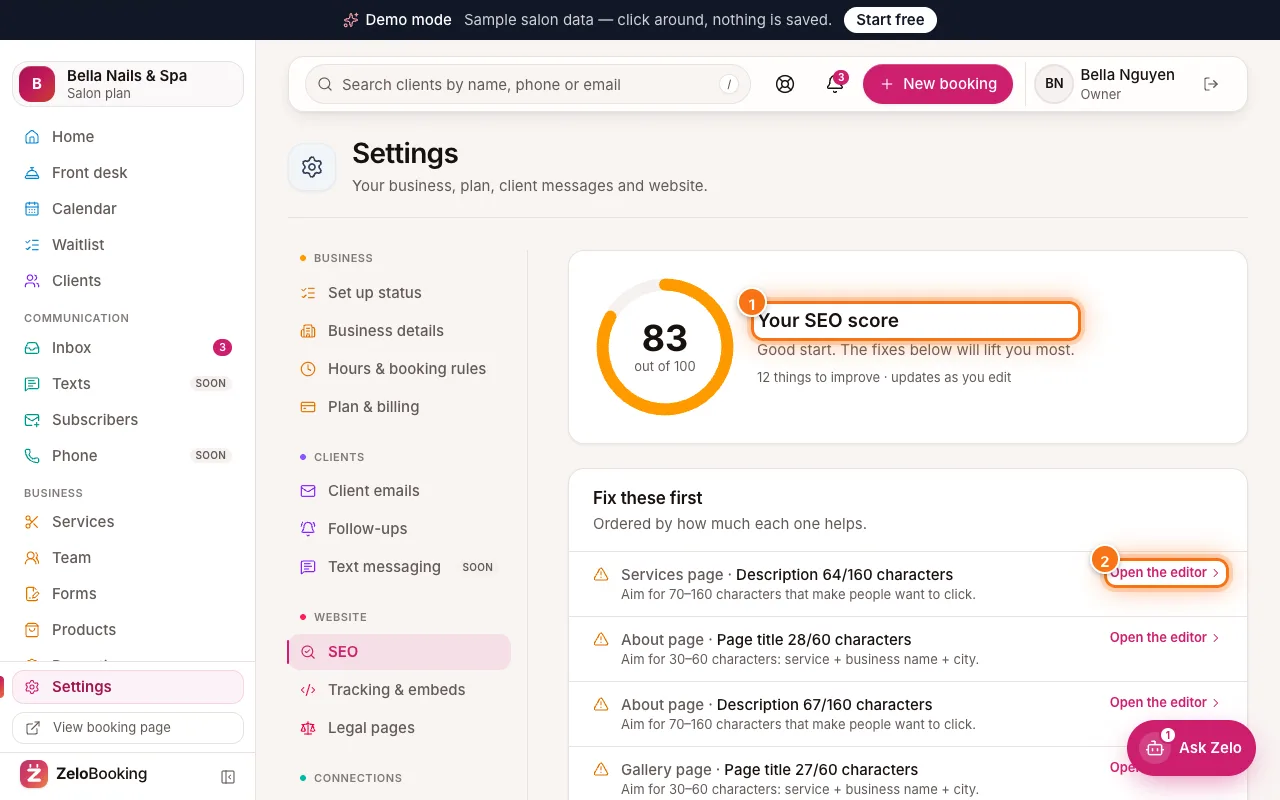 Get found on Google (SEO)Use your SEO score to fix what matters most, then write page titles and descriptions that make people click. 7 minIntermediate
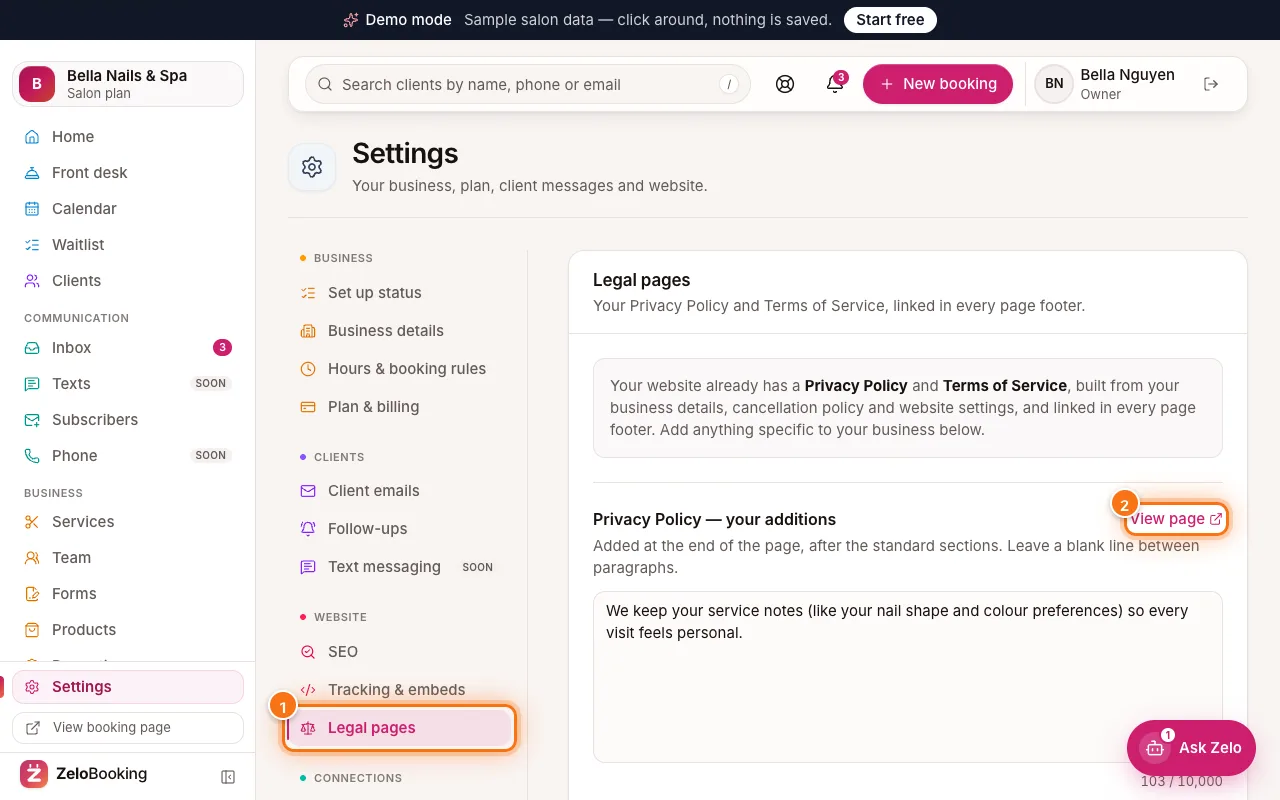 Privacy Policy and Terms of ServiceYour website already has a Privacy Policy and Terms of Service. Add your own rules — deposits, children, gift cards — in a few lines. 3 minBeginner
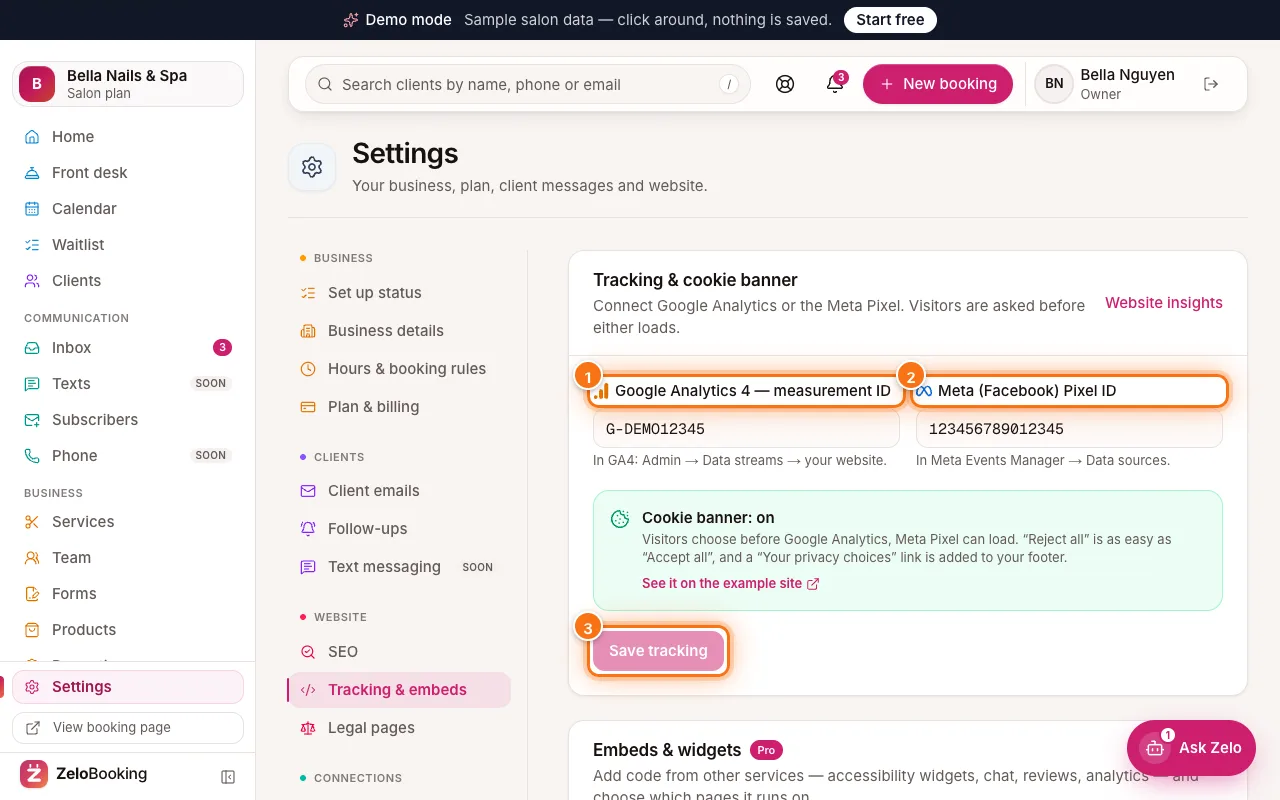 Google Analytics, Meta Pixel and embedsConnect Google Analytics or the Meta Pixel behind a cookie banner, and on Pro add code from other services like chat or reviews. 6 minIntermediateStarter plan and up
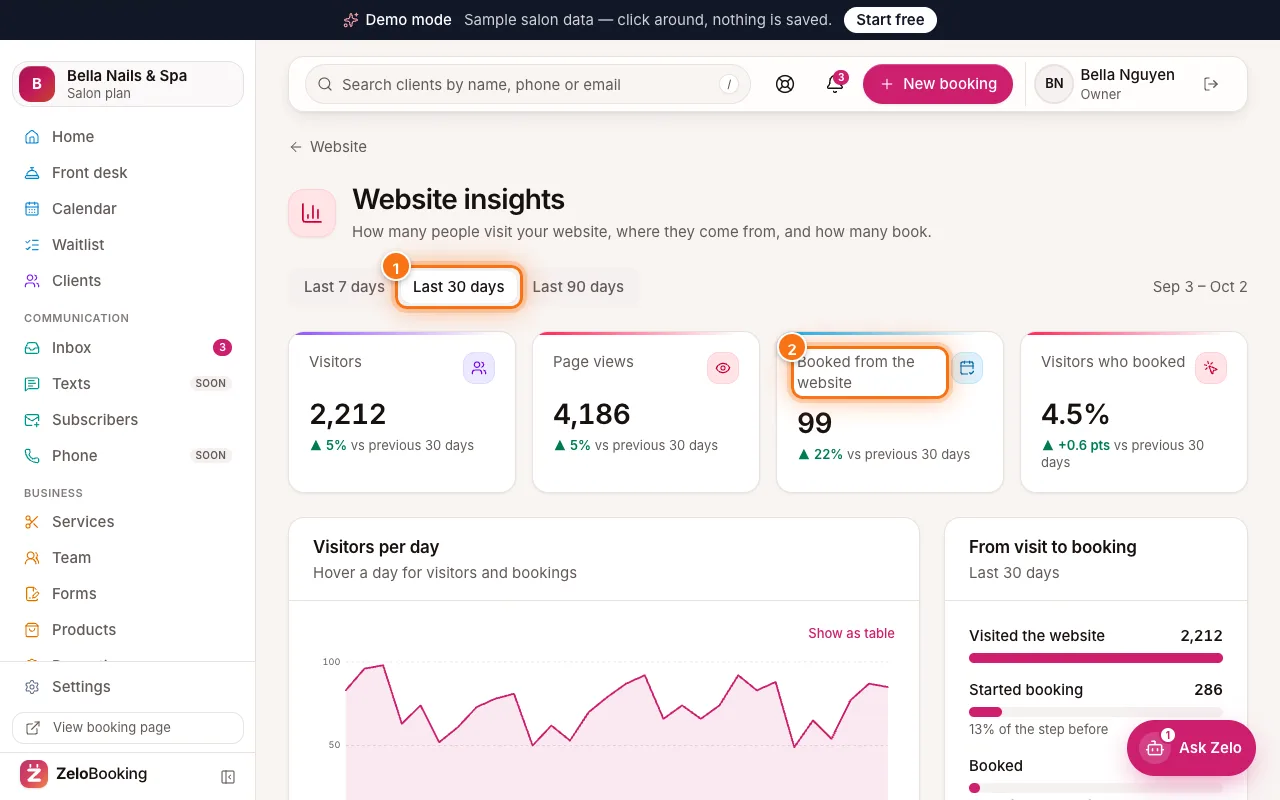 Website insights: visitors and bookingsSee how many people visit your website, where they come from, which pages they read and how many book — no cookies needed. 4 minBeginner
Grow & report
Loyalty points, promo codes, products, inventory, social posts and reports.
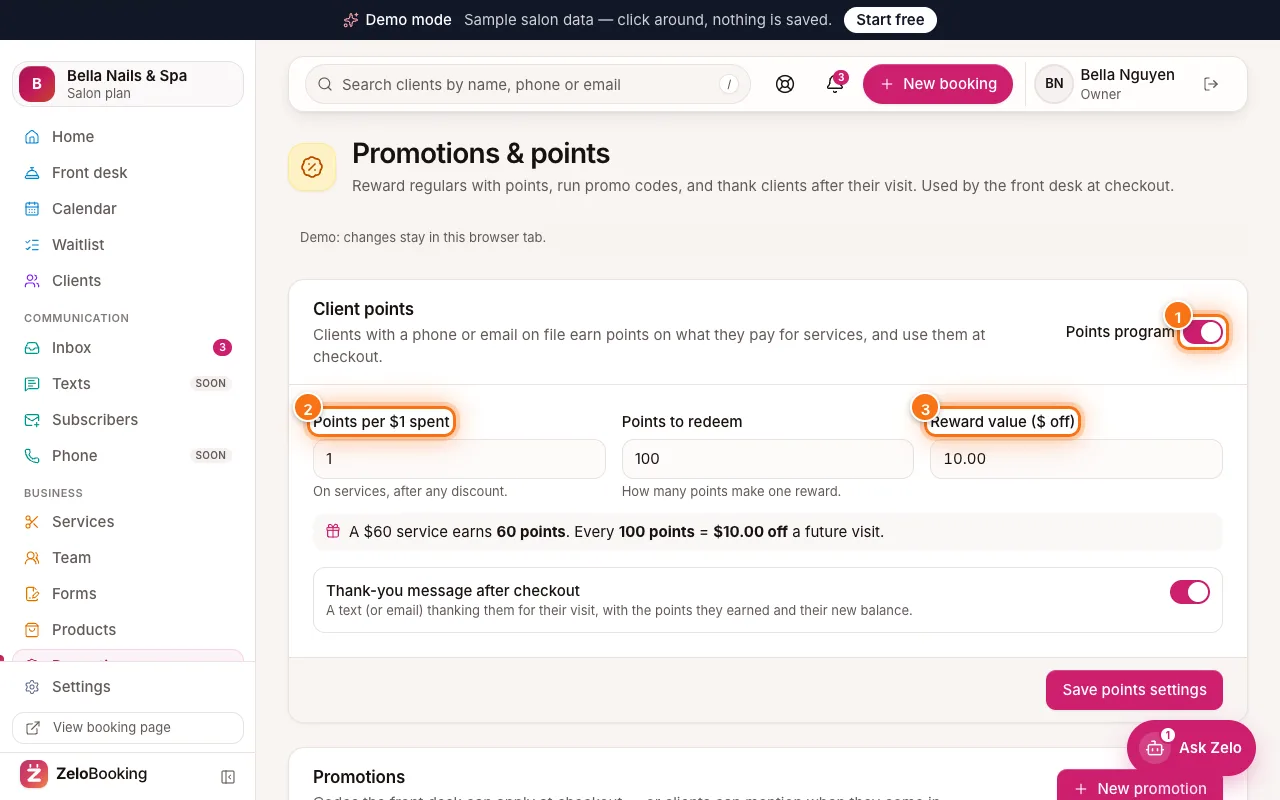 Client points (loyalty program)Clients earn points on what they spend and use them at checkout. Set the rules once and send an automatic thank-you after each visit. 5 minBeginnerPro plan and up
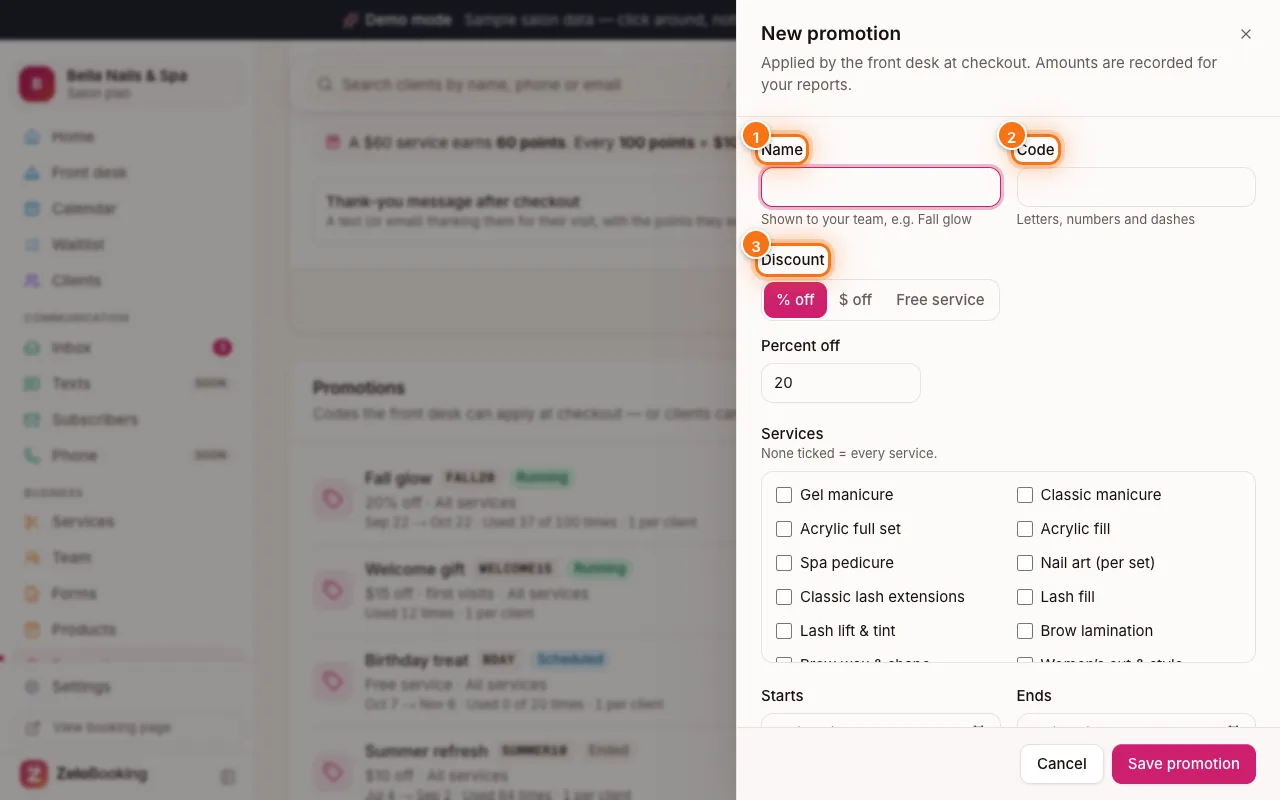 Promo codes and offersCreate codes like FALL20 with a discount, dates and limits, and apply them at checkout. Separate from points — you can use both. 5 minBeginnerPro plan and up
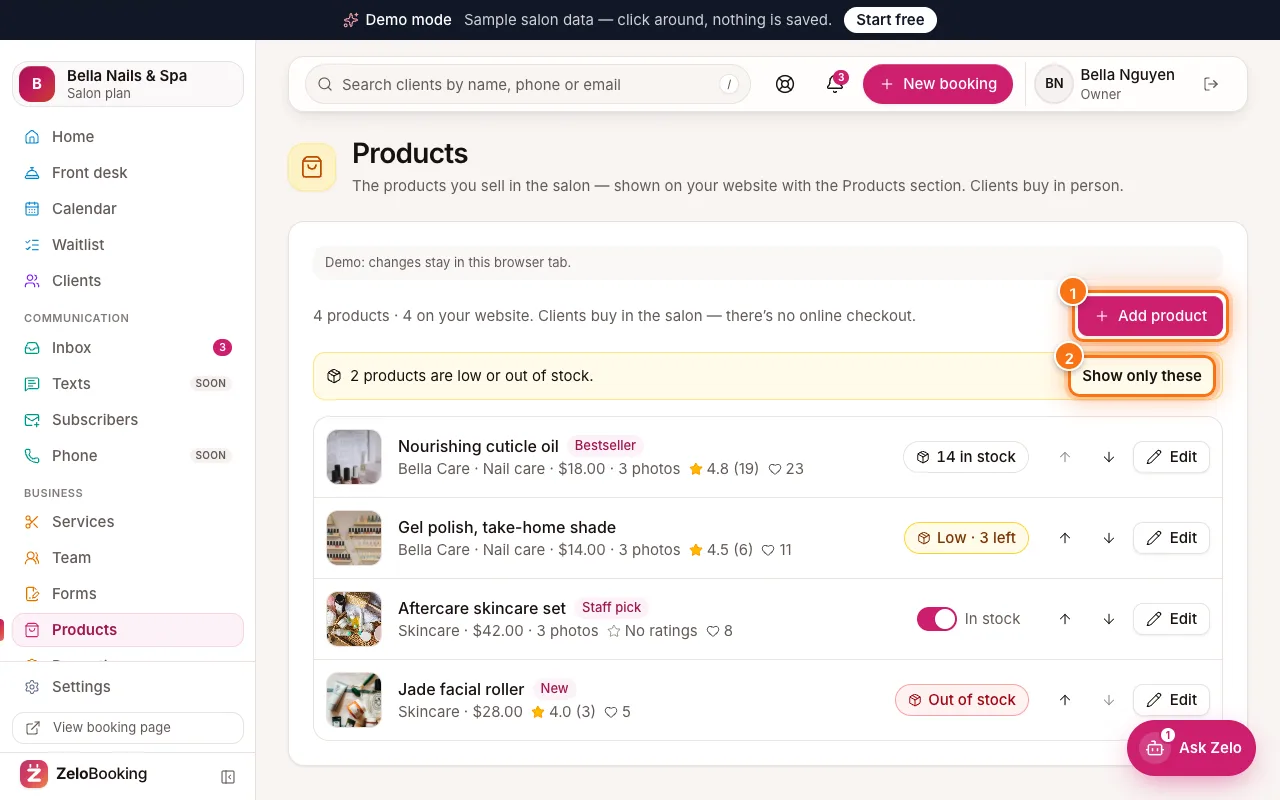 Products you sellShow the retail products you sell in the salon on your website, with photos, prices and stock — and add them to a client’s checkout. 5 minBeginner
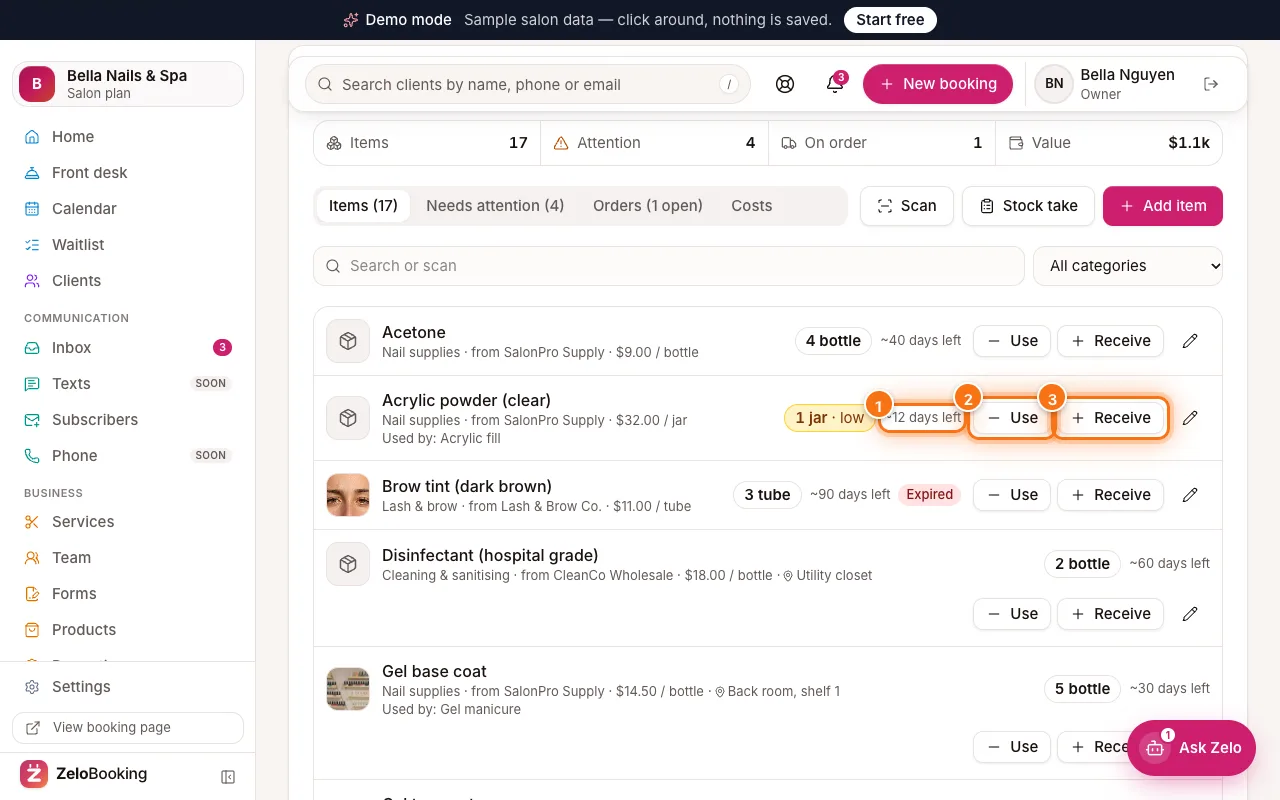 Salon supplies and stockTrack the supplies you use — what’s low, what’s expiring and what to order. Stock goes down by itself as services are completed. 8 minIntermediate
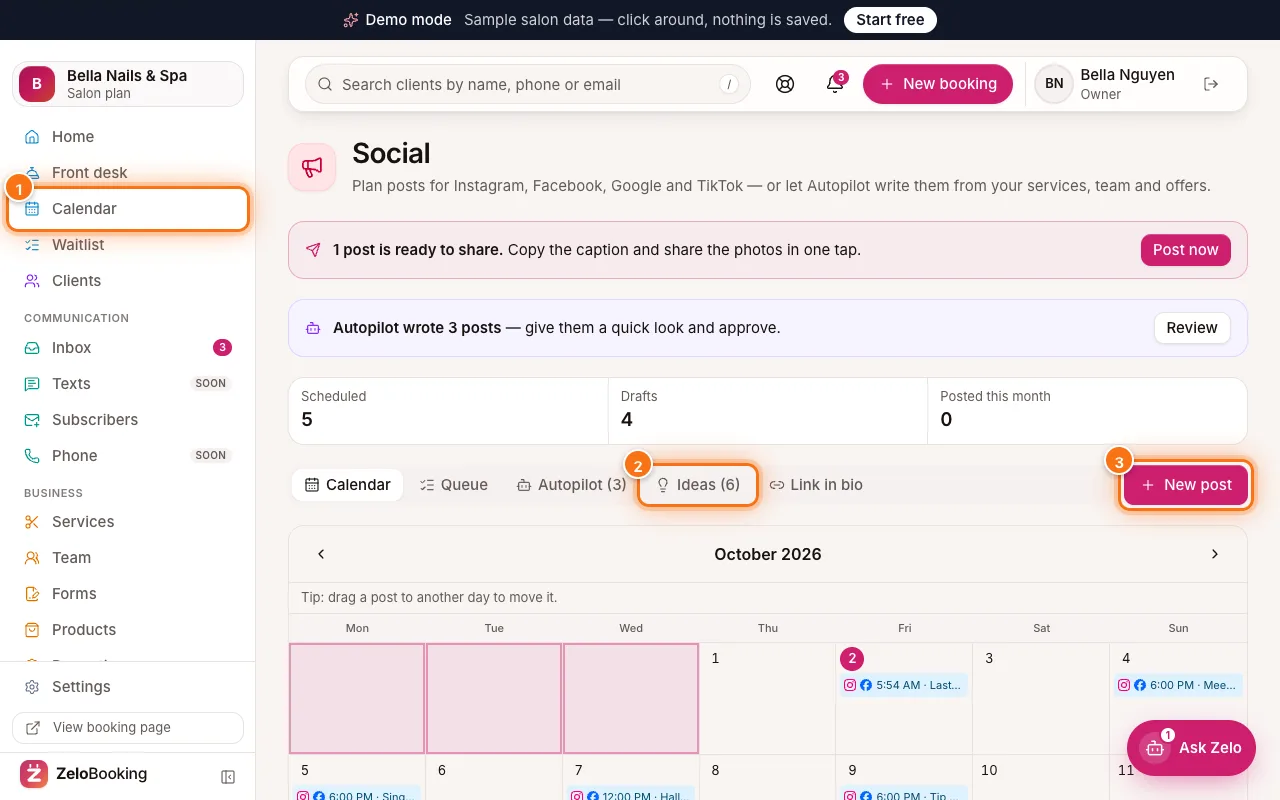 Plan social media postsPlan Instagram, Facebook, Google and TikTok posts with ideas from your bookings, AI captions and reminders — or let Autopilot write them. 7 minBeginnerSalon plan and up
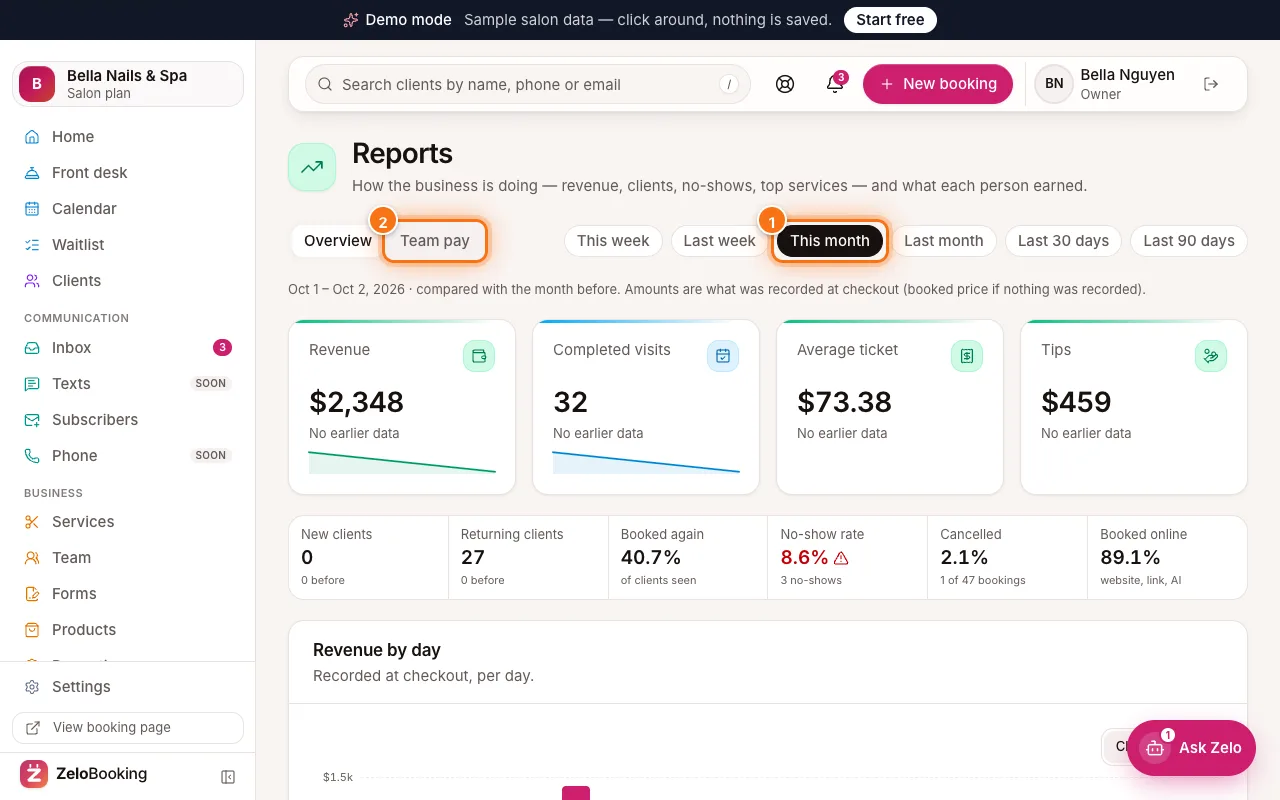 Understand your reportsTrack revenue, visits, average ticket, tips, new and returning clients, no-shows and top services — and what each person earned. 5 minBeginner
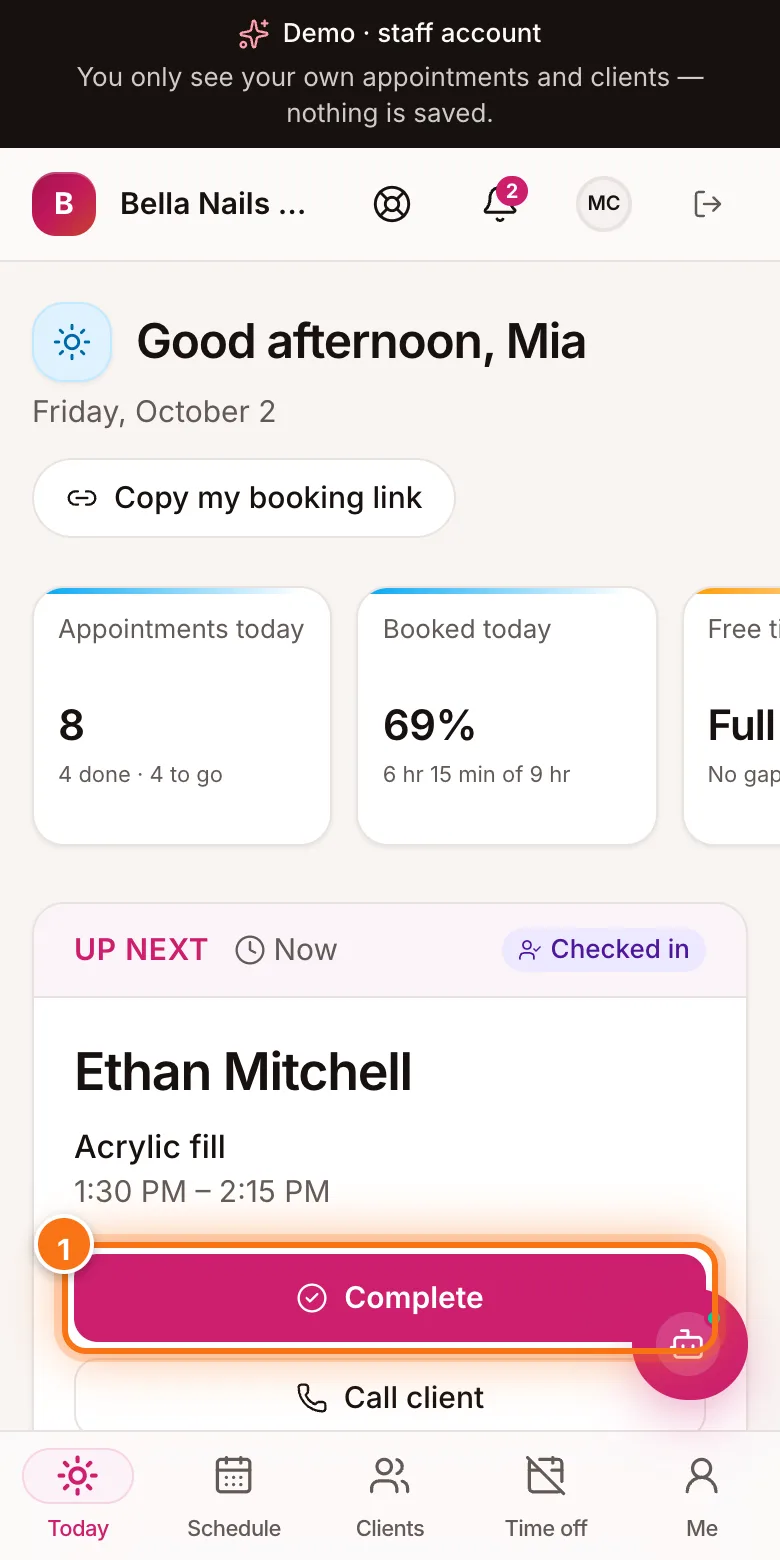 The staff app and client appZeloBooking Business puts each team member’s day on their phone; clients see, book and change visits in the ZeloBooking app. Both send booking notifications. 5 minBeginner
The fastest way to learn is to try it.
Start free — your booking page can be live before your next client.