Video walkthrough coming soon
The written steps below cover everything in the meantime.
About 8 min to follow along
When you’re done
- Missed calls answered and booked 24/7
- A voice and greeting that fits your brand
- Answers to the questions clients ask most
- 1
Coming soon
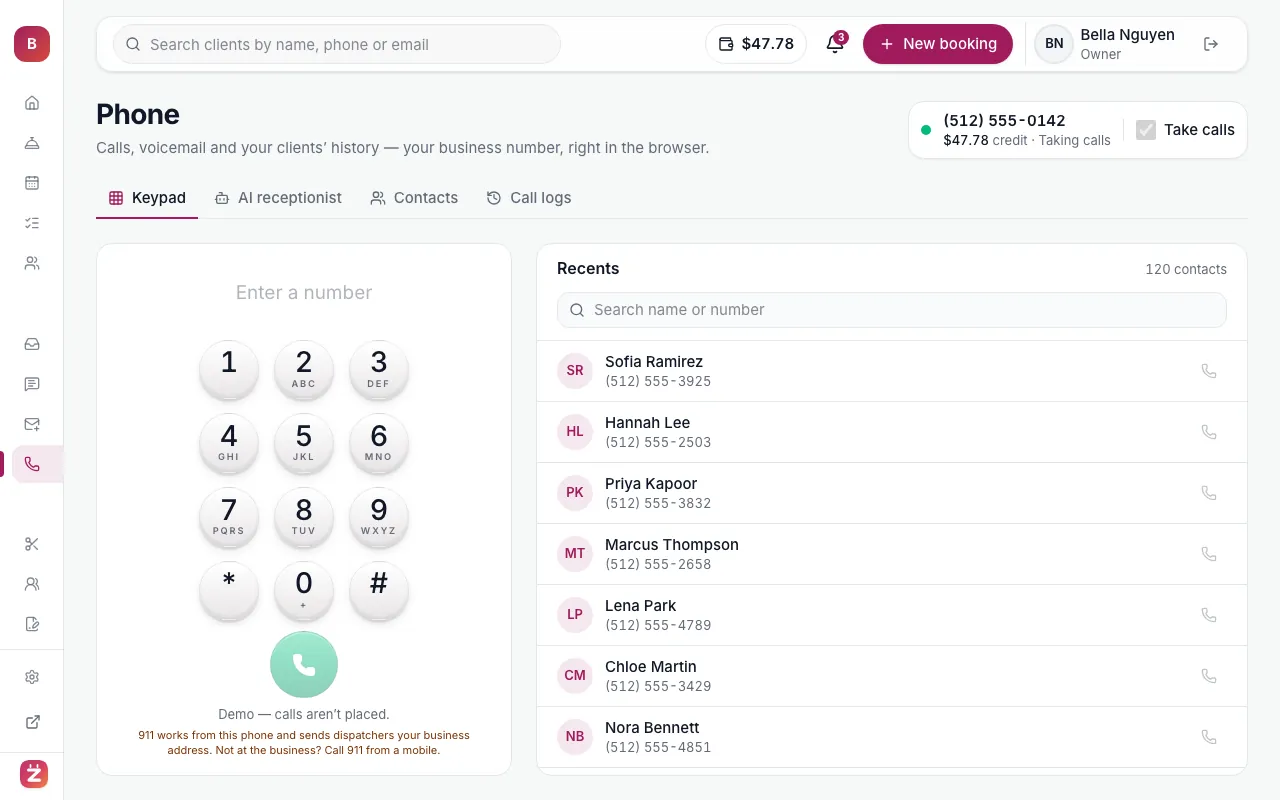
Phone & AI receptionist are coming soon. Soon you’ll answer and make calls from your browser with your business number, and an AI receptionist will pick up when you’re busy and book for you.
- 2
Turn it on
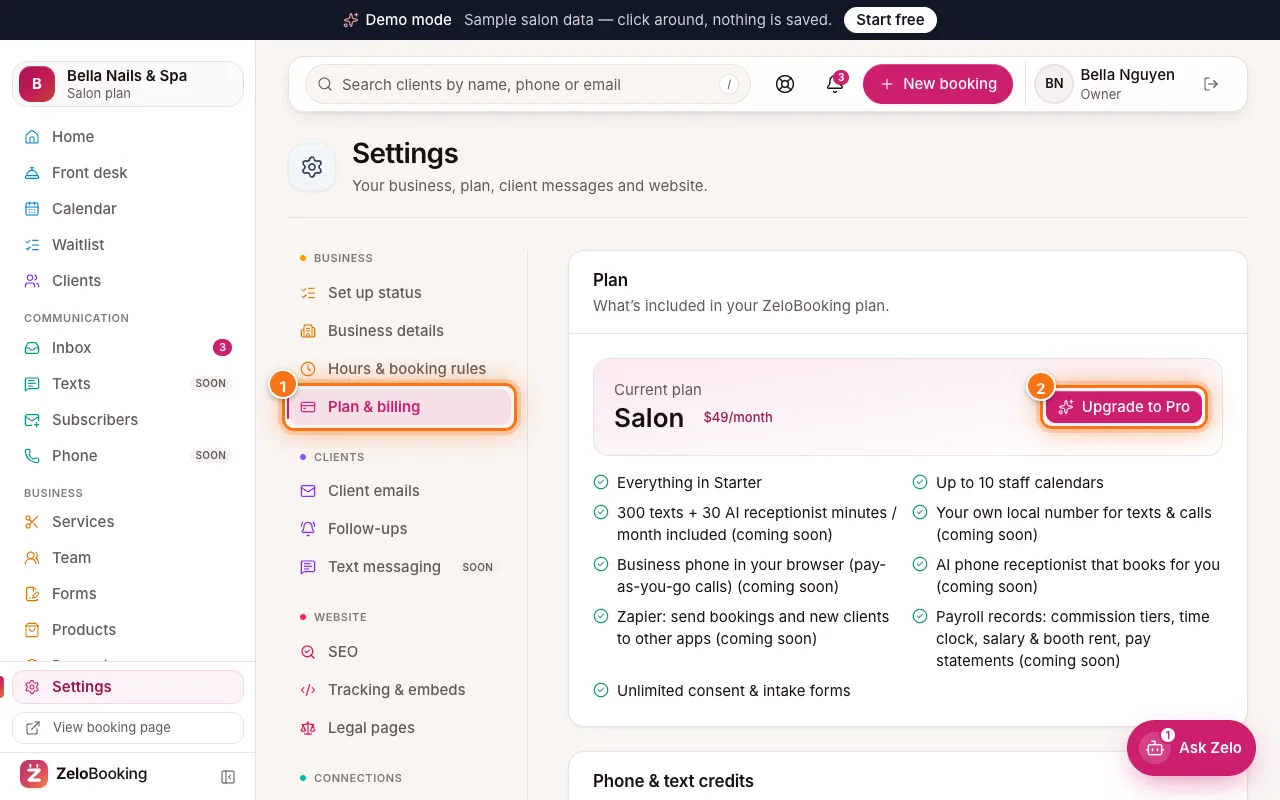
The AI receptionist is on the Salon and Pro plans.
In the left menu, click “Phone”, then the “AI receptionist” tab. Switch on “Receptionist answers calls”. The status at the top tells you whether calls to your number are being answered, and the “Phone line” panel shows whether your business number is connected.
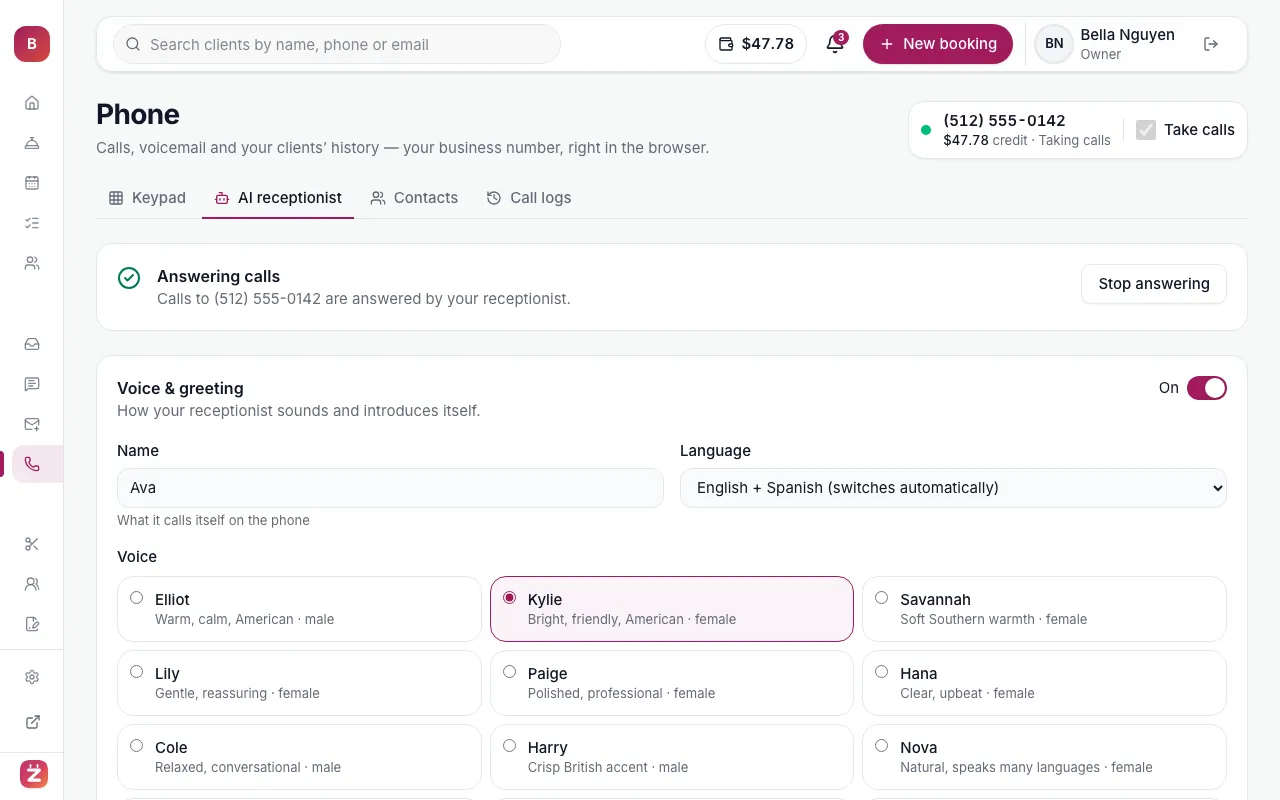
AI receptionist: answering status, voice, greeting, what it can do and what it knows - 3
Choose a name, language and voice
Under “Voice & greeting”:
- “Name” — what it calls itself on the phone.
- “Language” — English, Spanish, Vietnamese, or English + Spanish (switches automatically).
- “Voice” — pick the voice that suits your salon.
- “Greeting (optional)” — leave empty for the default. It always tells callers it’s a virtual assistant.
The “Callers hear” box underneath shows the exact first sentence callers will hear.
- 4
Decide what it can do
Under “What it can do”, it always answers questions about your services, prices, hours and location, and can take a message. It never takes payments. Switch on any of these:
- “Book appointments” — checks your live calendar, books the client in and sends the usual confirmation. For services with options (like length or size) it asks which one, and reads back its price and length first.
- “Cancel appointments” — only the caller’s own bookings (matched by their phone number), inside your cancellation window.
- “Transfer to a person (optional)” — the number to pass the call to when a caller asks for someone.
- 5
Teach it your answers
Under “What it knows”, add questions clients often ask and your answers — for example “Is there parking?” → “Yes — free parking behind the building.” Use “Extra instructions (optional)” for tone and house rules, like “Mention our 10% first-visit offer.”
Your services, prices, team, hours, policies and the text on your published website are read fresh for every call, so you don’t need to type them in.
- 6
Save and test
Click “Save receptionist”. You’ll see “Saved. New calls use these settings right away.” Then call your business number from your mobile, let it ring through, and check the transcript in the “Call logs” tab.