Video walkthrough coming soon
The written steps below cover everything in the meantime.
About 5 min to follow along
When you’re done
- A site that looks right on every screen
- Feedback before anything goes live
- Changes published — and a way back if you need it
- 1
Check every screen size
At the top centre of the editor are three buttons (1): computer, tablet and phone. Click the phone to see your page at phone width — most clients will visit on a phone.
Click “Preview” (2) to hide the editing tools and click around like a visitor. Click “Exit preview” to keep editing.
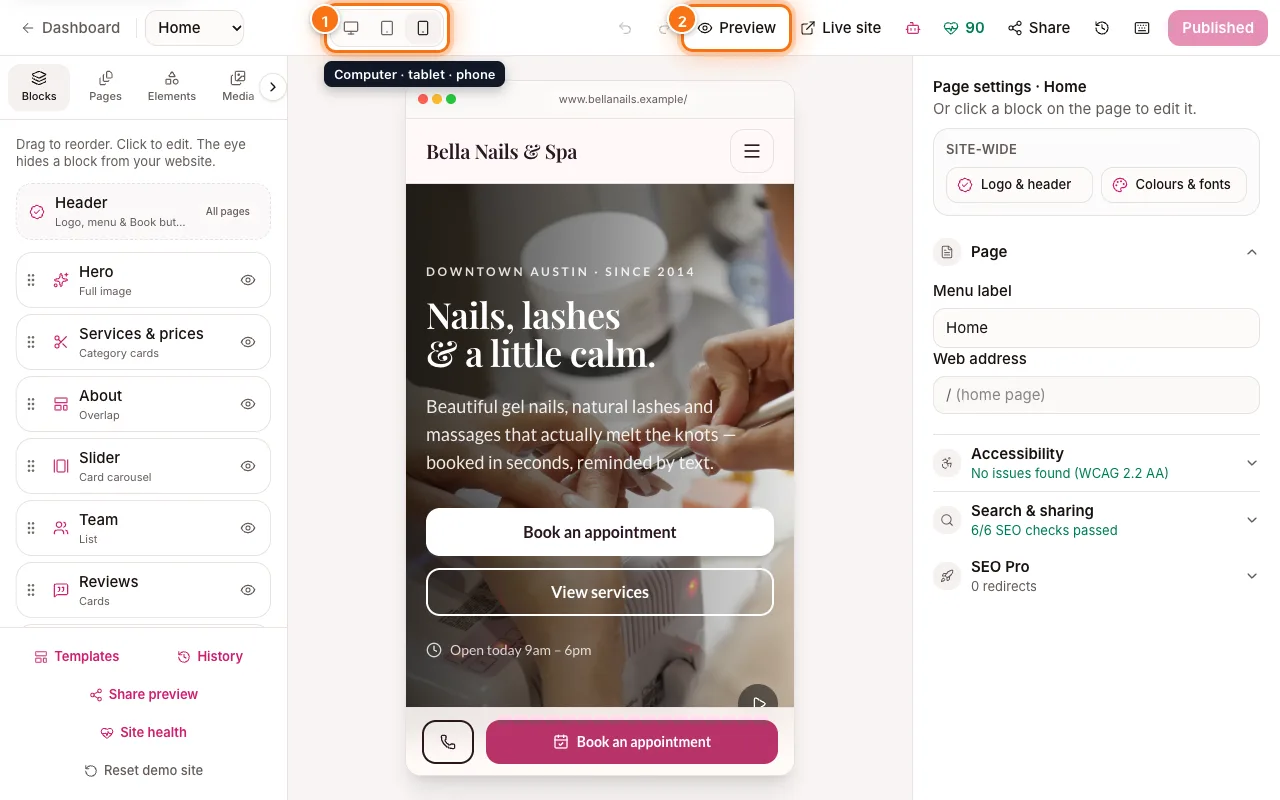
Phone preview in the editor with the device buttons (1) and Preview (2) highlighted - 2
Share a private preview
Want a second opinion? Click “Share” at the top (or “Share preview” at the bottom of the left panel). The “Share a preview” window (1) opens.
Click “Create link”, then “Copy link” and send it. The link shows your latest draft — not your live site — works for 7 days, never shows up in Google, and its forms are switched off. “Stop sharing all links” turns every link off.
Tip: Anyone with the link can see it, so send it only to people you trust.
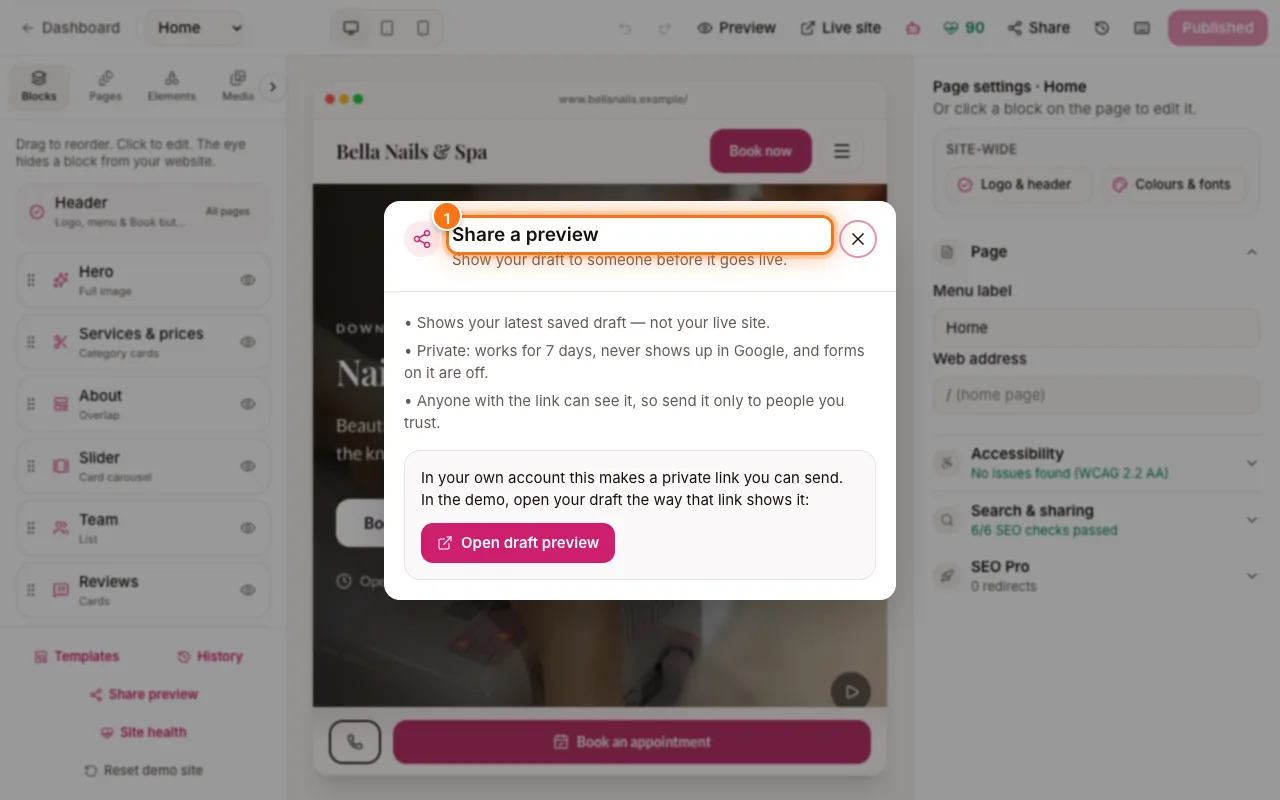
Share a preview window highlighted (1) - 3
Publish your changes
Your edits save as a draft by themselves. When you change something, the button at the top right turns into “Publish” (2) with a small dot. Click it to put everything live.
Changed your mind? “Discard” (1) throws away everything since your last publish.
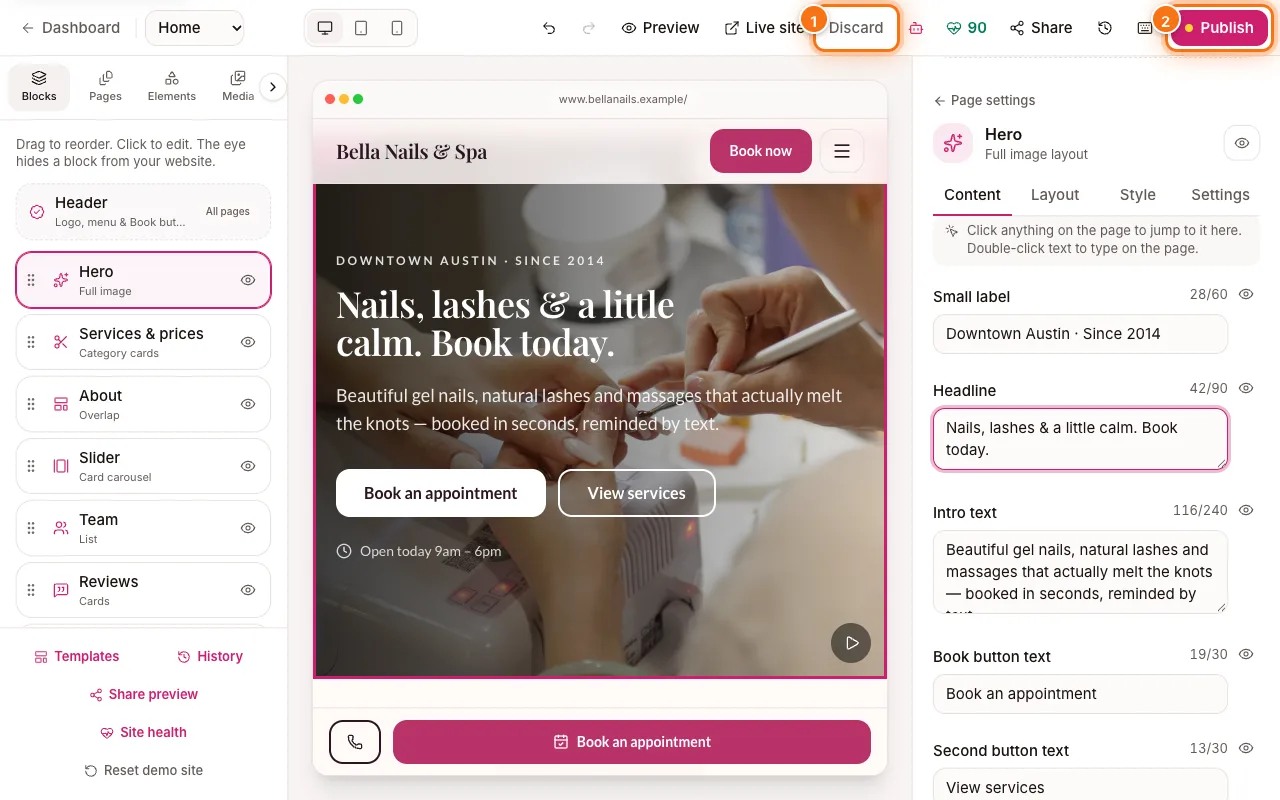
An edited page with Discard (1) and Publish (2) highlighted - 4
Go back to an earlier version
Click the clock button at the top (Version history), or “History” at the bottom of the left panel. You’ll see your last 20 publishes; the one marked “Live” is on your website now.
Click “Preview” (1) to look at an old version, or “Restore” (2) to make it your draft. Then click “Publish” to put it live again.
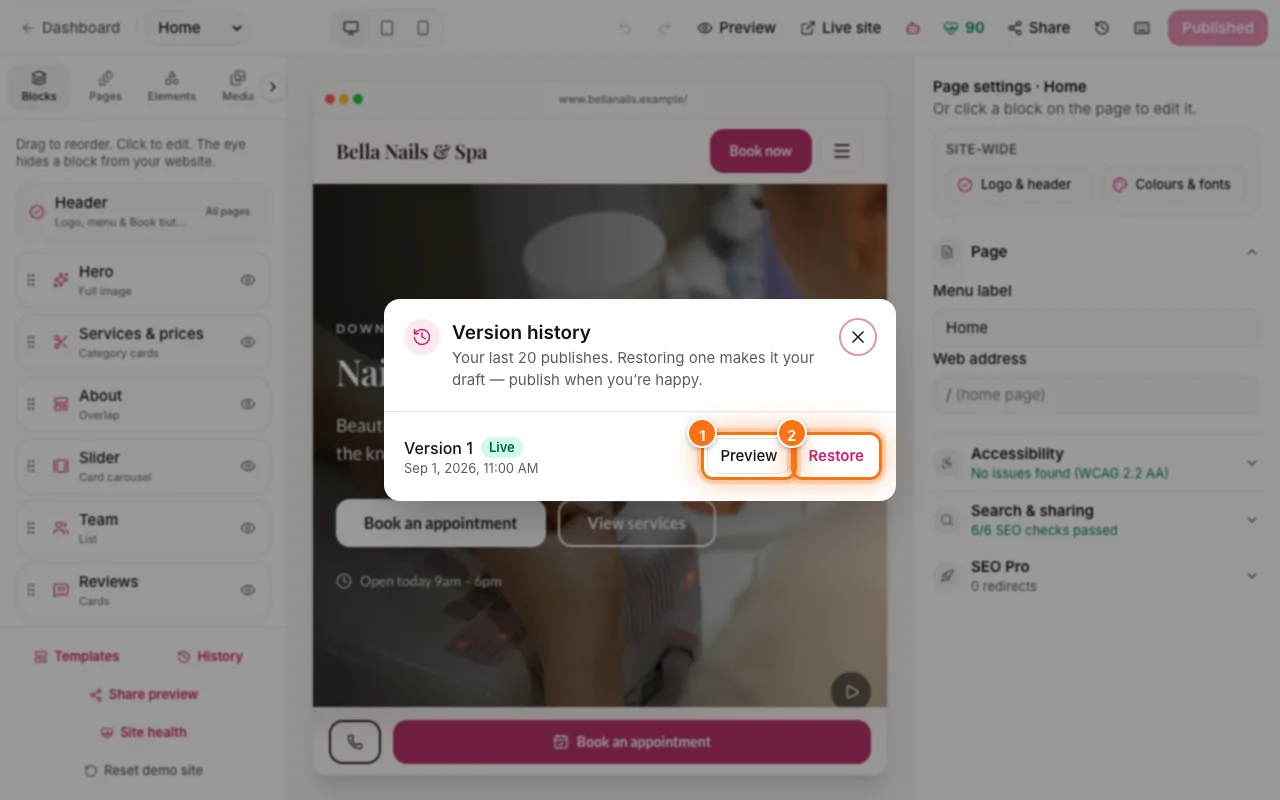
Version history window with Preview (1) and Restore (2) highlighted - 5
Check your site health
The heart score at the top (and “Site health” at the bottom of the left panel) checks search, accessibility, photos and your address. Click it to see what to fix.