Video walkthrough coming soon
The written steps below cover everything in the meantime.
About 5 min to follow along
When you’re done
- A points program clients understand
- Points earned and used at checkout, with no extra work
- An automatic thank-you after every visit
- 1
Turn on points
Go to the left menu → Promotions. In “Client points”, switch on “Points program” (1).
Then set the rules:
- “Points per $1 spent” (2) — for example 1. Points are earned on services, after any discount.
- “Points to redeem” — how many points make one reward, for example 100.
- “Reward value ($ off)” (3) — what that reward is worth, for example 10.00.
The line underneath sums it up, e.g. “A $60 service earns 60 points. Every 100 points = $10.00 off a future visit.”
Tip: A reward worth about 5–10% of what clients spend feels generous without hurting your margins.
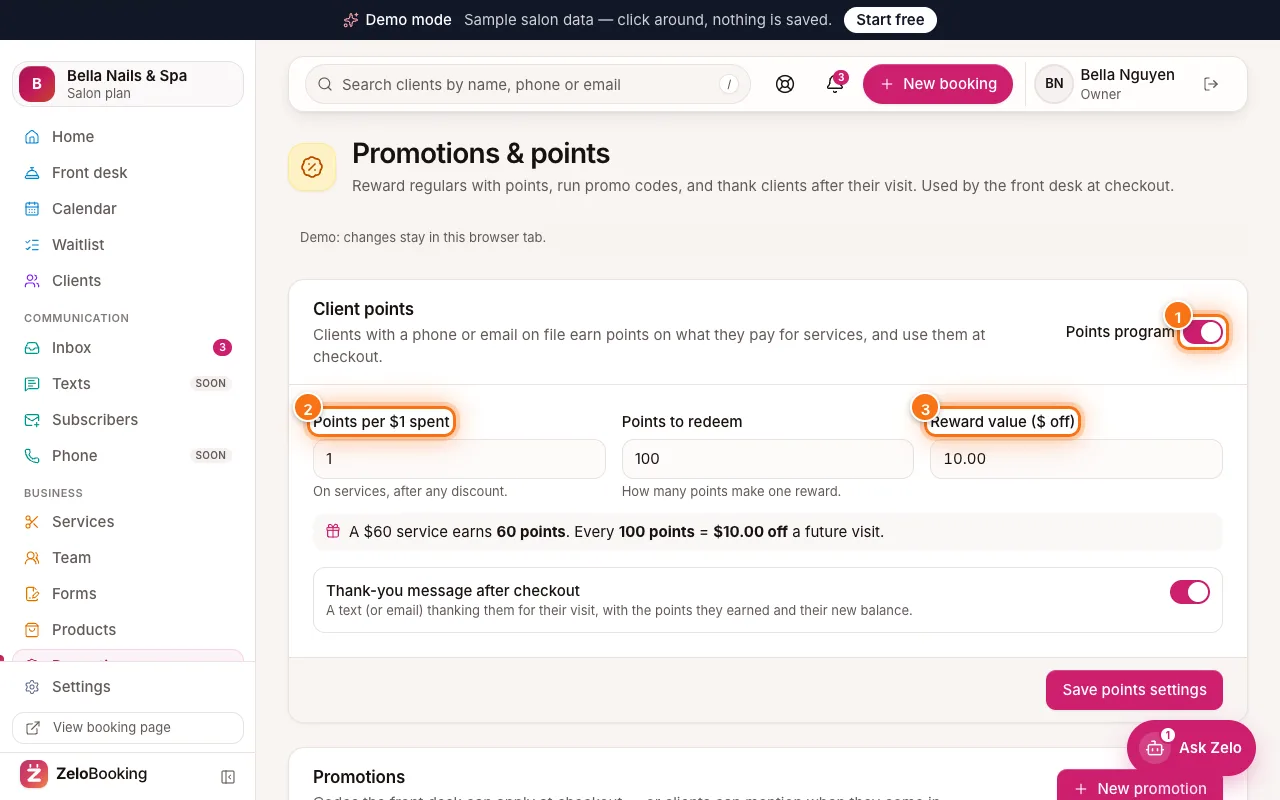
Client points with the Points program switch (1), Points per $1 spent (2) and Reward value (3) highlighted - 2
Send a thank-you after checkout
Switch on “Thank-you message after checkout” (1). After each visit, the client gets a text or email thanking them, with the points they earned and their new balance.
Click “Save points settings” (2).
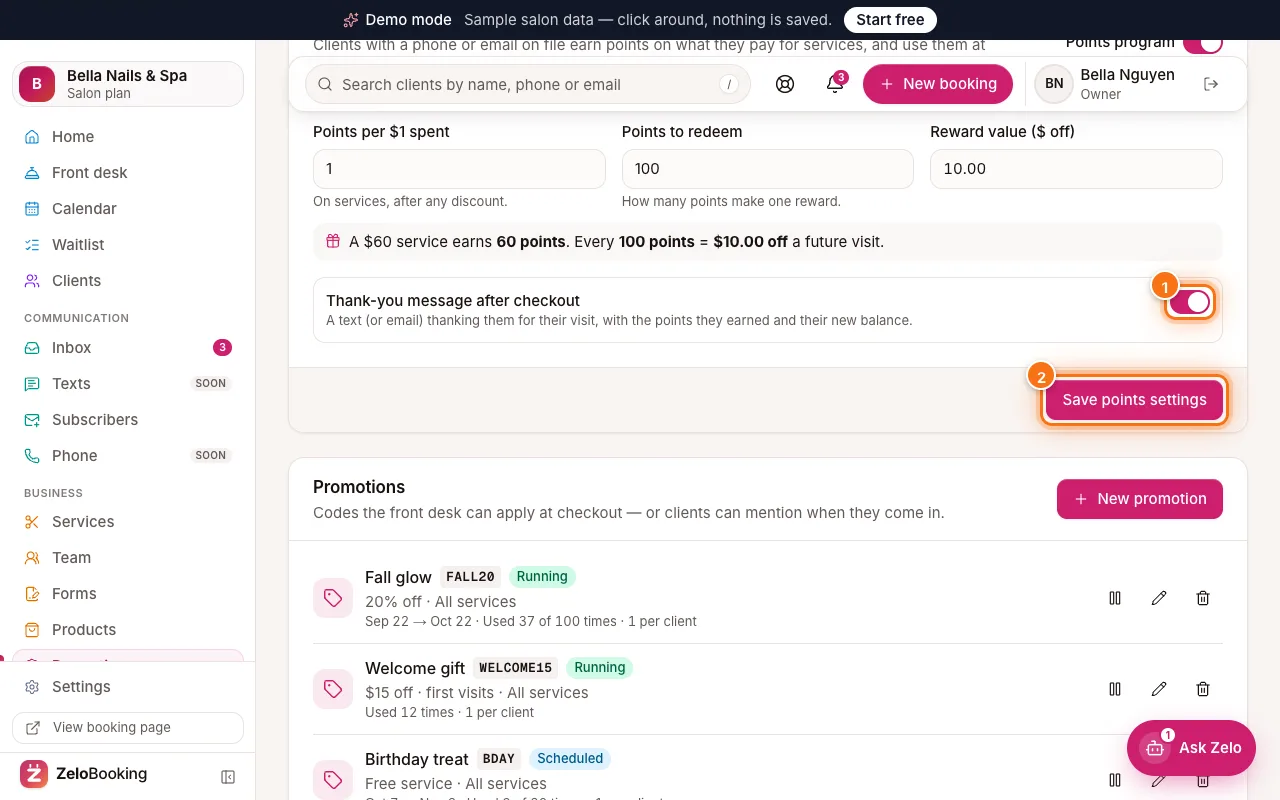
Thank-you message switch (1) and Save points settings (2) highlighted - 3
Points at checkout
When the front desk clicks “Checkout” on a visit (Front desk board), the “Points” box (1) shows the client’s balance and what it’s worth. Ask if they’d like to use them today or keep them, then click “Use …” or “Keep for later”.
The box also shows how many points this visit earns. Click “Complete visit” to save.
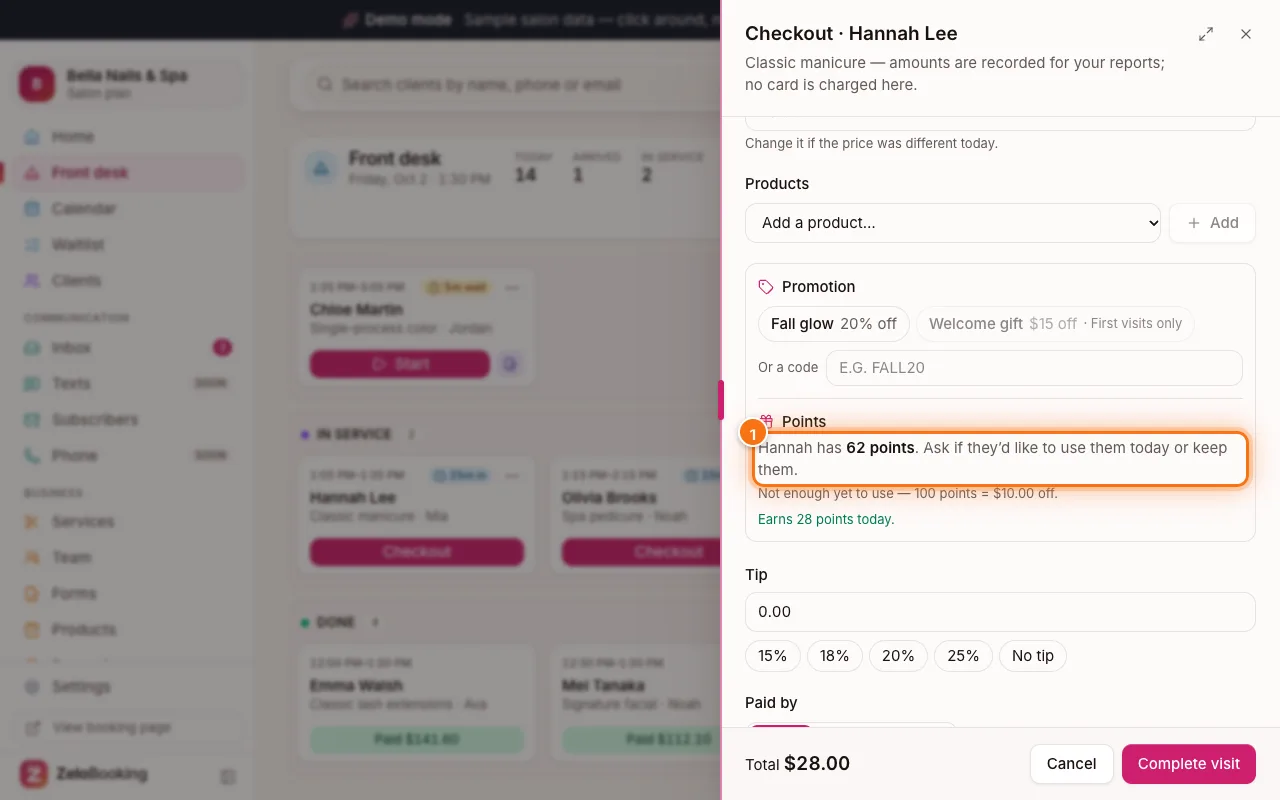
Checkout window with the client’s points highlighted (1) - 4
What clients see
In the client app, “Your points” (1) shows their balance, how much is ready to use and how close they are to the next reward.
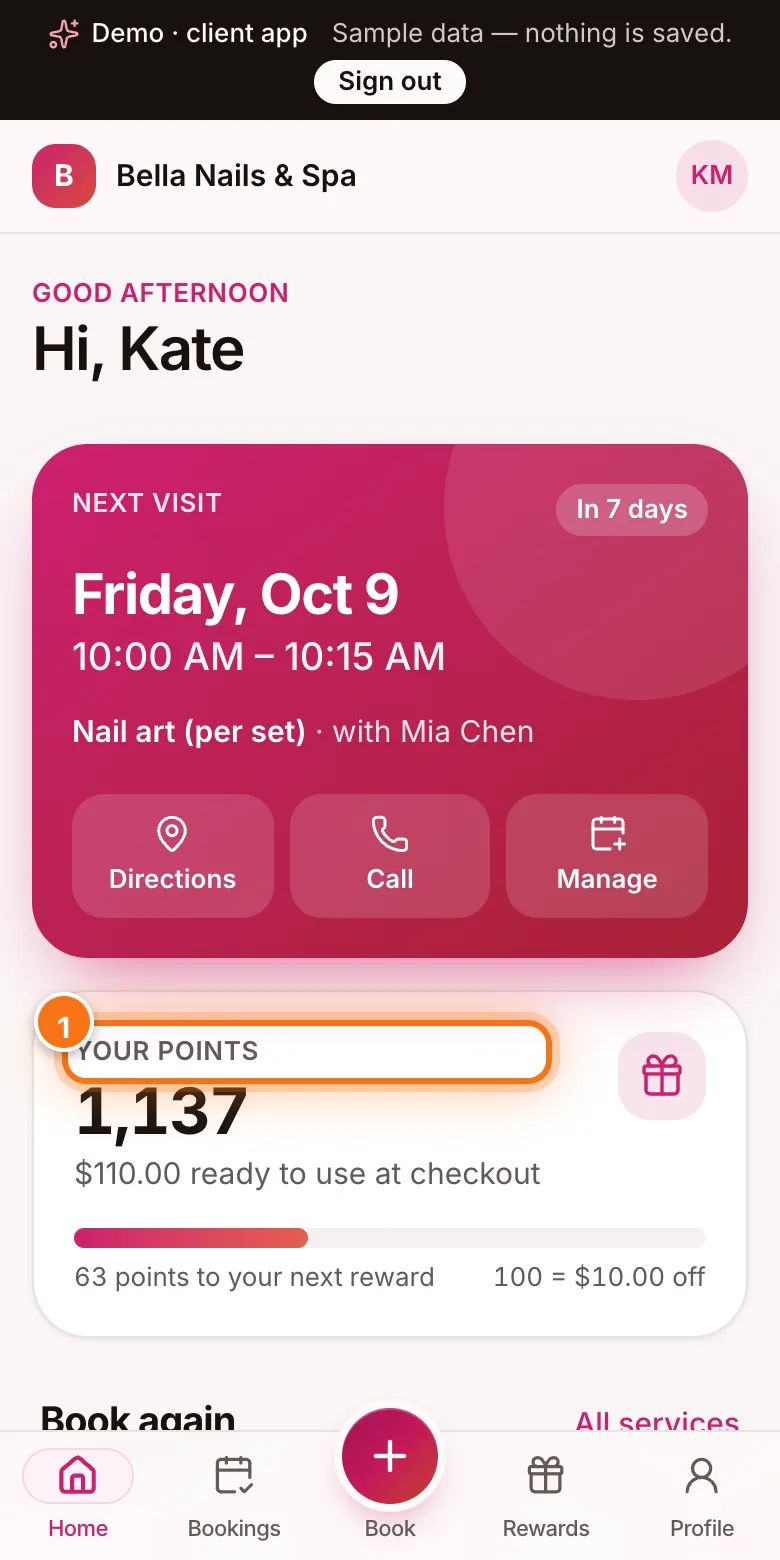
The client app on a phone with Your points highlighted (1)