Video walkthrough coming soon
The written steps below cover everything in the meantime.
About 5 min to follow along
When you’re done
- Your booking link in your Instagram bio and Google profile
- A Book button on any website you already have
- A printable QR code for your window or front desk
- Tagged links that show in Reports where each booking came from
- 1
Find Share & book
In the left menu, under Online presence, click “Website”. Scroll down to the “Share & book” box. It has three parts: Booking link, Website widget and QR code.
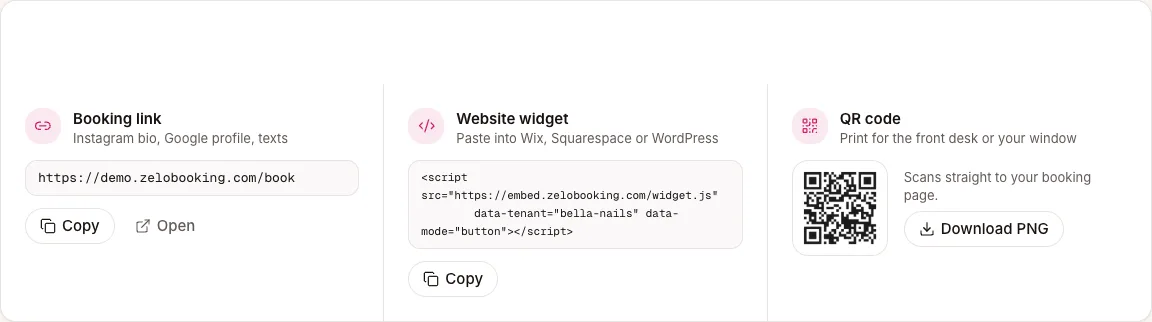
Share & book: booking link, website widget code and QR code - 2
Copy your booking link
Under “Booking link”, click “Copy” (1). You’ll see “Copied”. Paste the link into your Instagram bio, Facebook page, Google Business Profile, email signature and replies to clients.
Click “Open” next to it to see your booking page the way clients do.
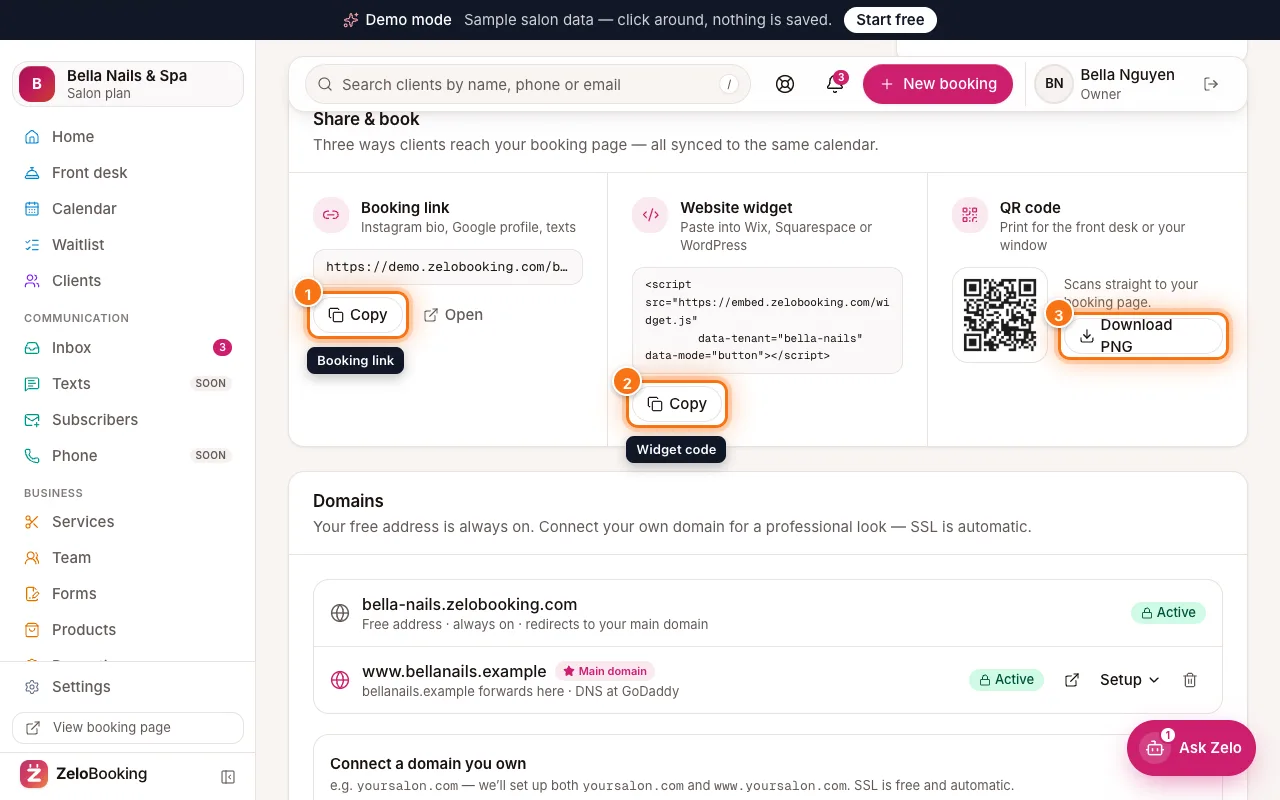
Website → Share & book with Copy for the booking link (1), Copy for the widget code (2) and Download PNG for the QR code (3) highlighted - 3
Add a Book button to your own website
Already have a website on Wix, Squarespace or WordPress? Under “Website widget”, click “Copy” (2) to copy the code. In your website builder, add an HTML or embed block and paste the code into it.
It adds a Book button that opens your booking page without leaving your site.
Tip: Built your website with ZeloBooking? You don’t need the widget — booking is already built in.
Website → Share & book with Copy for the booking link (1), Copy for the widget code (2) and Download PNG for the QR code (3) highlighted - 4
Download the QR code
Under “QR code”, click “Download PNG” (3). Print it for your window, mirror stations, front desk or business cards. Clients scan it with their phone camera and land on your booking page.
Website → Share & book with Copy for the booking link (1), Copy for the widget code (2) and Download PNG for the QR code (3) highlighted - 5
Send clients into the ZeloBooking app
Under the three parts, “Client app QR code” has a second QR code — click “Download PNG” and print it for the front desk. It opens your business in the free ZeloBooking app (or your page on the web if they don’t have the app yet). In the app, clients book, see their visits and get their confirmation and reminders as notifications — also clients who sign in with just their mobile number and have no email.
Your confirmation emails carry a “Get the ZeloBooking app” link too.
- 6
Add tagged links to Instagram, Facebook, Google and TikTok
Below “Share & book”, the “Social booking links” box has a card for “Instagram”, “Facebook Page”, “Google Business Profile”, “TikTok” and a “QR code for the front desk”. Each link ends in a tag like ?ref=instagram.
Click “Copy” on a card and follow the steps on it:
- Instagram: Edit profile → Links → Add external link, and the Link sticker in Stories.
- Facebook Page: Edit action button → Book now → Link to website.
- Google Business Profile: Edit profile → Booking.
- TikTok: Edit profile → Website.
The link opens inside Instagram or Facebook, so clients book without leaving the app. In Reports, “Booked from” then shows how many bookings came from each place.
Tip: These are links to your booking page, not the “Book” buttons Instagram, Facebook and Google build in for partner booking systems.
- 7
See what clients see
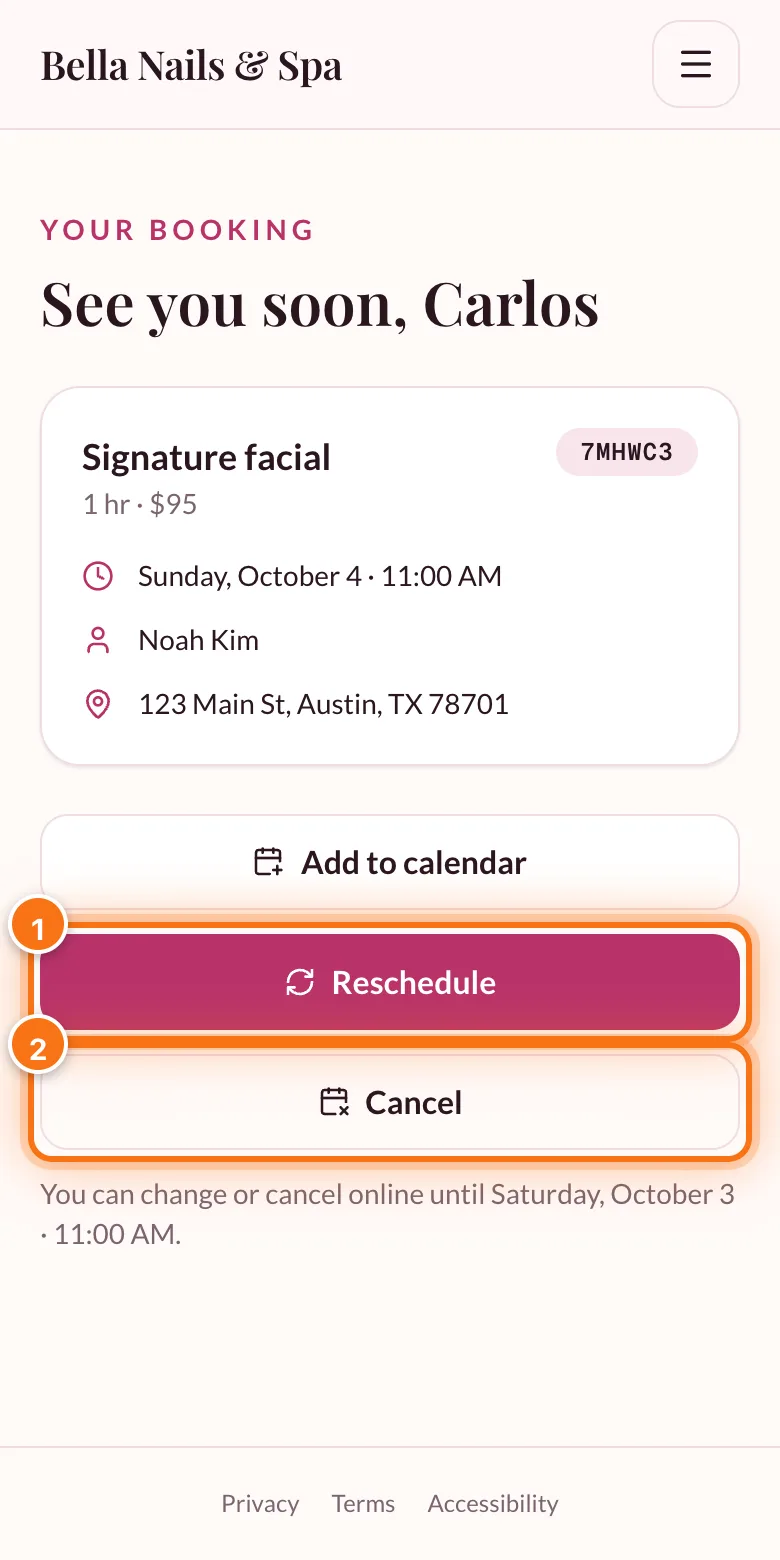
Clients pick one or more services, a professional (or anyone available) and a time, then confirm with their name and contact details. They get a confirmation email with a link to change or cancel. If no time suits them, they can join your waitlist.
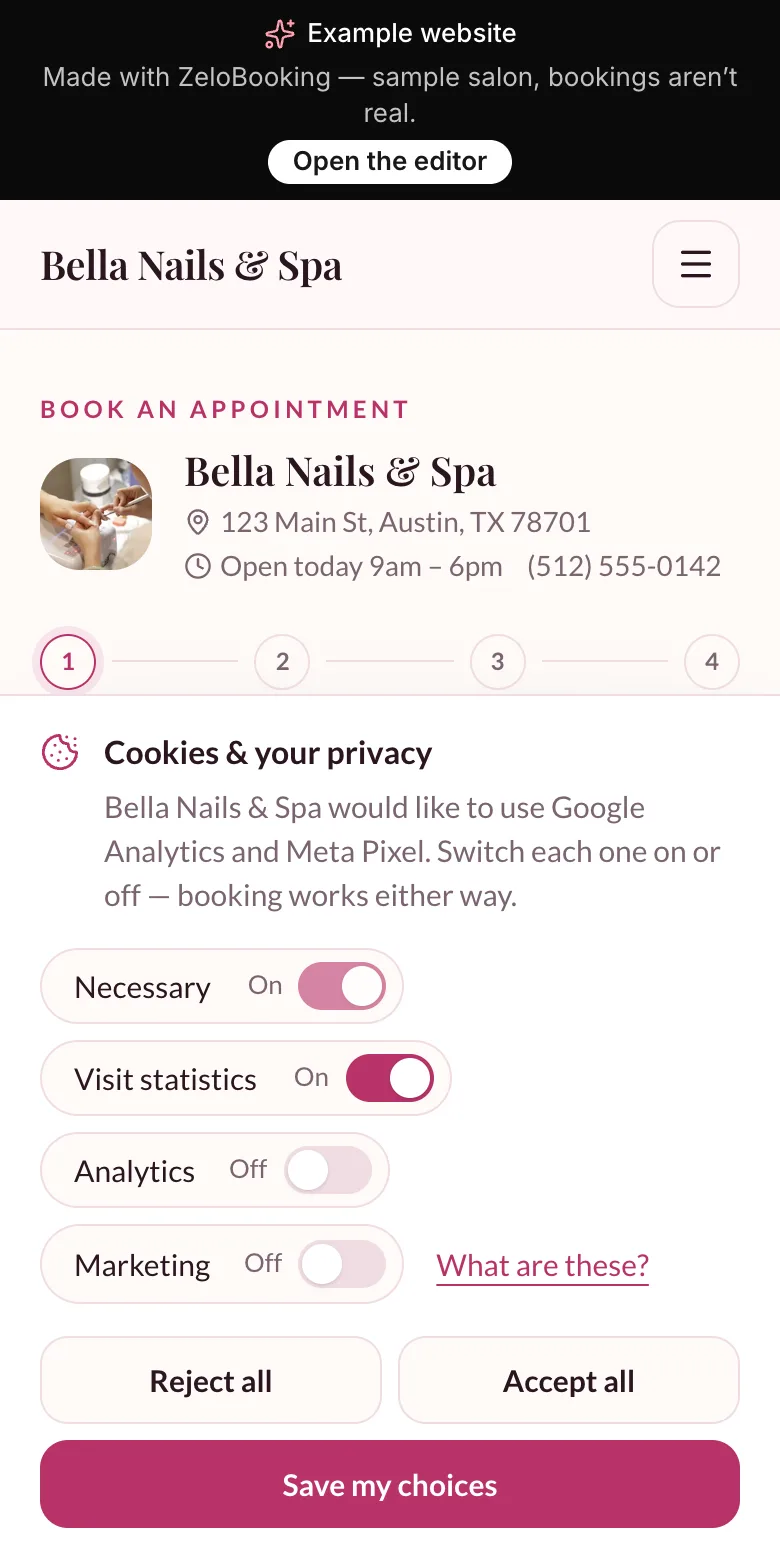
The booking page on a phone