Video walkthrough coming soon
The written steps below cover everything in the meantime.
About 5 min to follow along
When you’re done
- Every team member running their day from their phone
- Booking alerts on the right phones, quiet at night
- Clients rebooking without calling
- 1
Get the apps
Your team will use “ZeloBooking Business” and your clients “ZeloBooking” — free apps for iPhone, iPad and Android, coming to the App Store and Google Play soon. Until then, the team’s day and the client account work in the phone’s browser; notifications on the phone and links that open the app come with the store apps.
The apps never sell plans or credit — billing stays on the web.
- 2
Until then: add it to the home screen
On iPhone: open ZeloBooking in Safari → Share → Add to Home Screen. On Android: Chrome → ⋮ → Install app. It opens full-screen with its own icon.
- 3
Your team signs in to ZeloBooking Business
Team members sign in with the email and password they use on the web — plus the 6-digit code from their authenticator app if they use two-step sign-in. “Forgot password?” opens the reset page in the browser.
They land on Today: their day at a glance, “Up next” with the client who’s here now and the one action they need, like “Complete” (1). The tabs at the bottom open Today, Schedule, Clients, Time off and Me. Team members only see their own bookings and clients.
A front desk login opens the desk board, walk-ins and the check-in kiosk instead — made for the salon iPad.
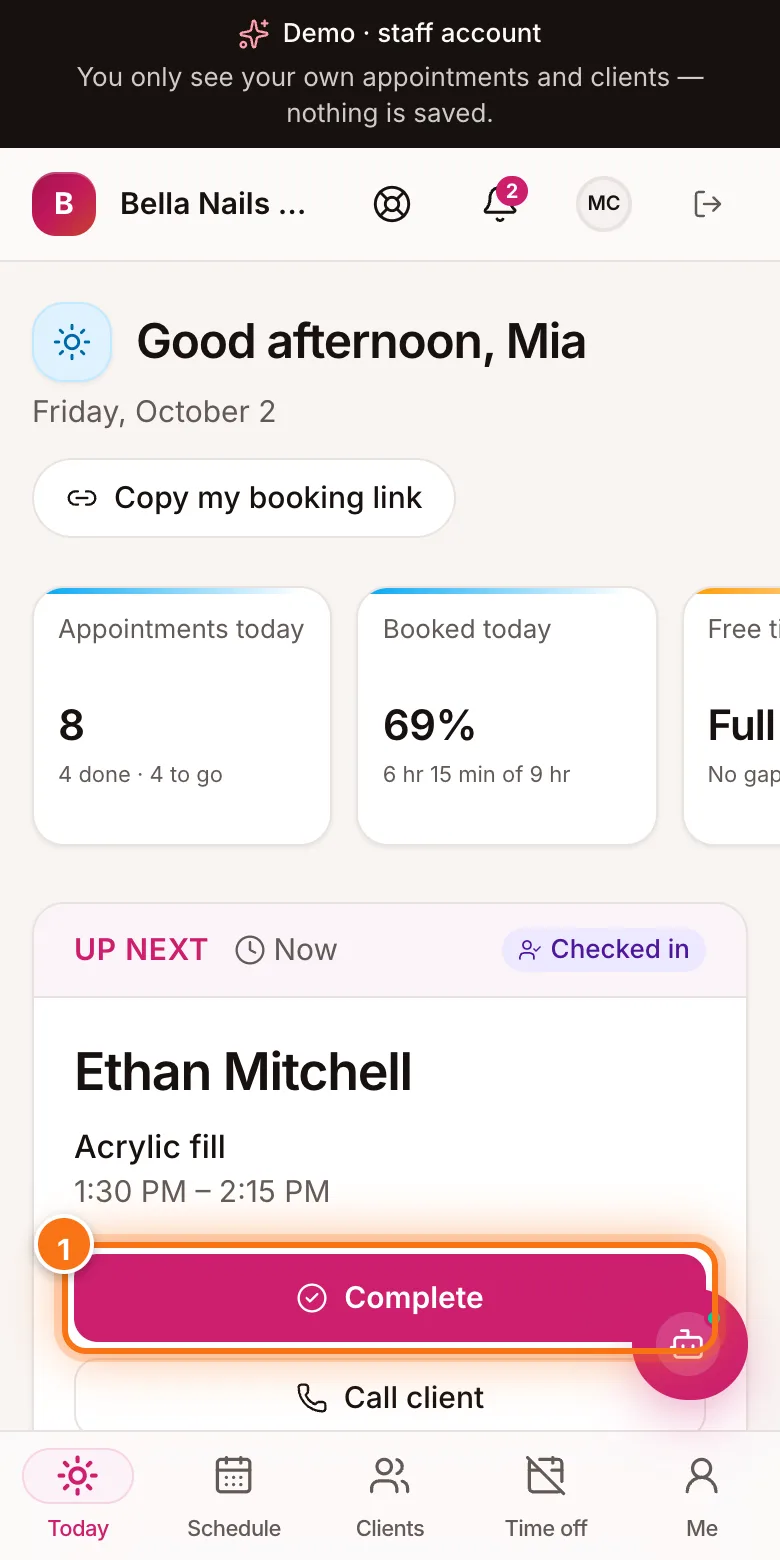
The staff app on a phone with the Complete button highlighted (1) - 4
Booking notifications for your team
Right after signing in, the app explains notifications and asks once. A team member gets a notification when a client books, moves or cancels with them — and when someone else changes their booking in the dashboard. Owners and admins get one for every booking.
- Me → Notifications turns each kind on or off, or all of them on this phone.
- Your business’s quiet hours (9 PM – 8 AM unless an owner changed them) keep phones silent at night.
- The bell on Today lists every alert, also the quiet ones.
- 5
Your clients use the ZeloBooking app
Clients sign in with the email they book with: they tick “I’m 13 or older” and enter the 6-digit code we email them — or a password they set in Profile. Where sign-in by text is on, they can choose “Phone” instead — and book with just their mobile, no email needed: their confirmation and reminders come as app notifications, plus texts when your texting number is live and they ticked the box. The tabs open Home, Bookings, Book, Rewards and Profile; a visit has “Add to calendar”, “Directions”, “Call salon”, “Reschedule” and “Cancel”.
The same account works on the web: zelobooking.com → “Log in” → “My bookings”. There, their next visit has “Manage” (1) to change or cancel, and “Book again” (2) for services they’ve had before.
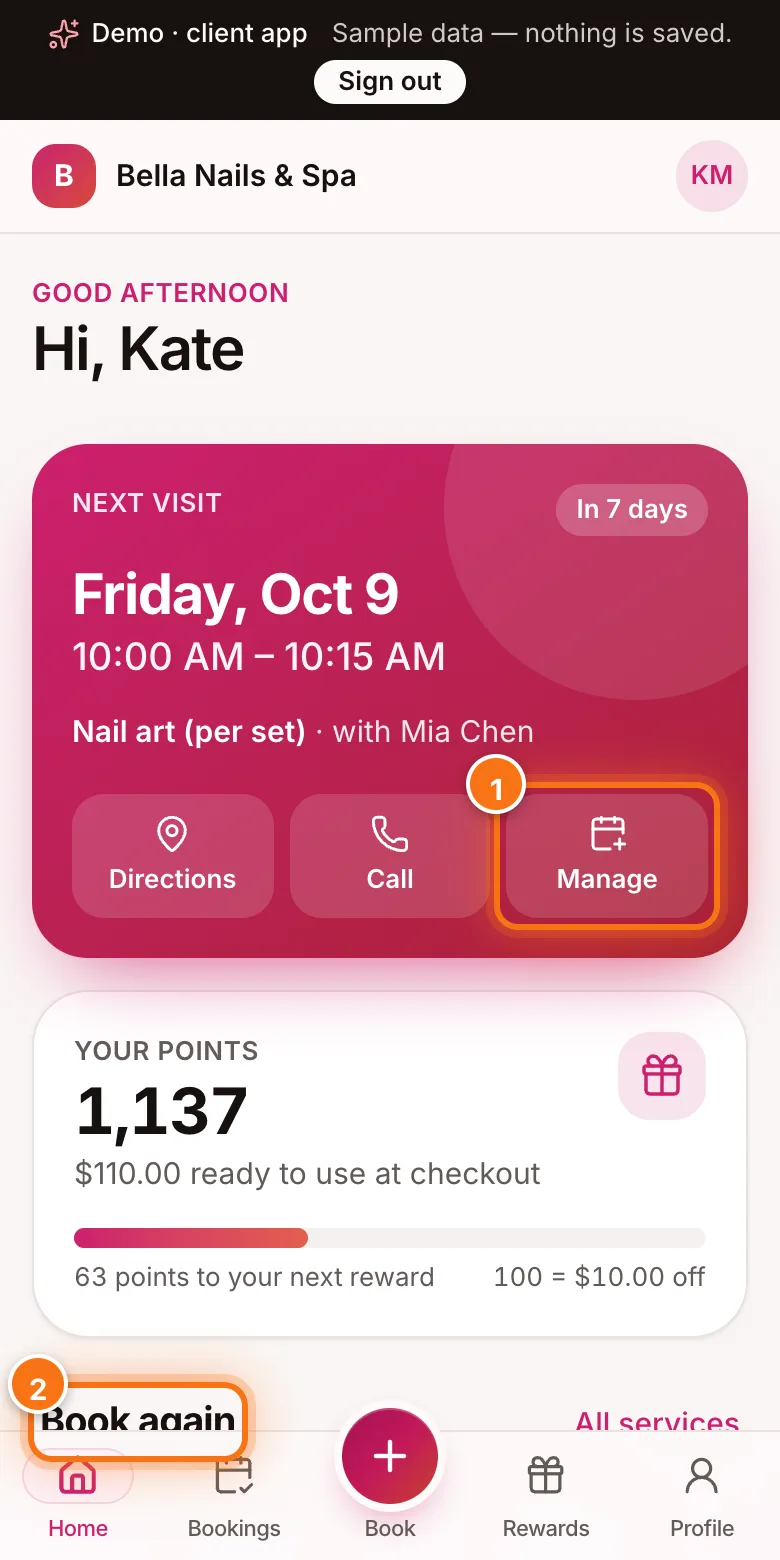
The client app on a phone with Manage (1) and Book again (2) highlighted - 6
Notifications for your clients
Clients can turn on notifications after they sign in or on the “You’re booked” screen. They get their confirmation, reminders (at the same times as your reminder emails) and the changes you make to their visits — never offers. They switch them off in Profile → Notifications.
Your Settings → Client emails switches apply to these notifications too. At night (your quiet hours) they arrive silently.
- 7
Links open the apps
On a phone with the app, links to the Bookings page of a client’s account (account.zelobooking.com/bookings) open the ZeloBooking app, and links to a team member’s own day (the links in their alert texts) open ZeloBooking Business. Other links — booking pages, forms, a booking’s own change link — open in the browser as before.