Video walkthrough coming soon
The written steps below cover everything in the meantime.
About 5 min to follow along
When you’re done
- New bookings and clients flowing into the apps you already use
- A private API key that only Zapier holds
- A log showing every event that was sent
- 1
Coming soon
Zapier is coming soon. Soon you’ll send new bookings, cancellations and new clients to thousands of apps — Google Sheets, Mailchimp, Slack, your CRM — with no code.
- 2
Where Zapier lives
Go to Settings (gear icon at the bottom of the left menu) → “Integrations”, and scroll down to the “Zapier” panel.
Zapier is included on the Salon and Pro plans, and only owners and admins can set it up.
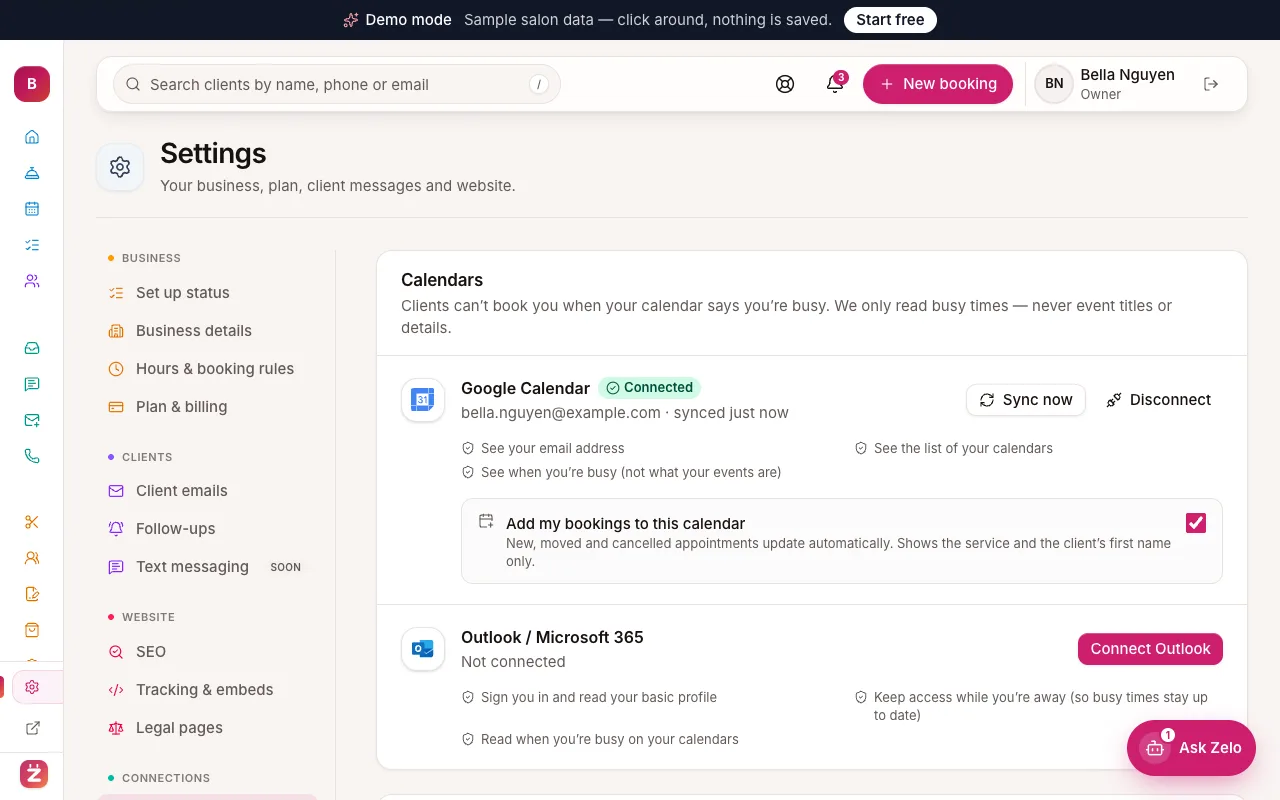
Settings → Integrations: Google Calendar connected, Outlook and team calendars - 3
Create an API key
The panel shows three short steps. Type a name under “Key name” (it starts as “Zapier”) and click “Create API key”.
A green box appears: “Your new API key — copy it now”. Click “Copy”. For your security the key is only shown once — if you lose it, create a new one.
Tip: Anyone with the key can read your bookings and client contact details. Paste it only into Zapier, never into an email or chat.
- 4
Make a Zap
In Zapier, create a Zap and pick ZeloBooking as the trigger app. Choose one of the triggers:
- New booking
- Booking moved
- Booking cancelled
- Visit completed
- New client
When Zapier asks you to connect your account, paste the key. Then choose what should happen — for example add a row in Google Sheets or post in Slack.
- 5
Check it’s working
Back in the Zapier panel, your key shows when it was created, when it was last used and how many Zaps use it. “Recent activity” lists each event sent with “Sent”, “Retrying” or “Failed”.
To stop a connection, click “Revoke” next to the key. Zaps using it stop straight away.