Video walkthrough coming soon
The written steps below cover everything in the meantime.
About 5 min to follow along
When you’re done
- Clients move or cancel without calling you
- Your own cutoff so last-minute changes still go through you
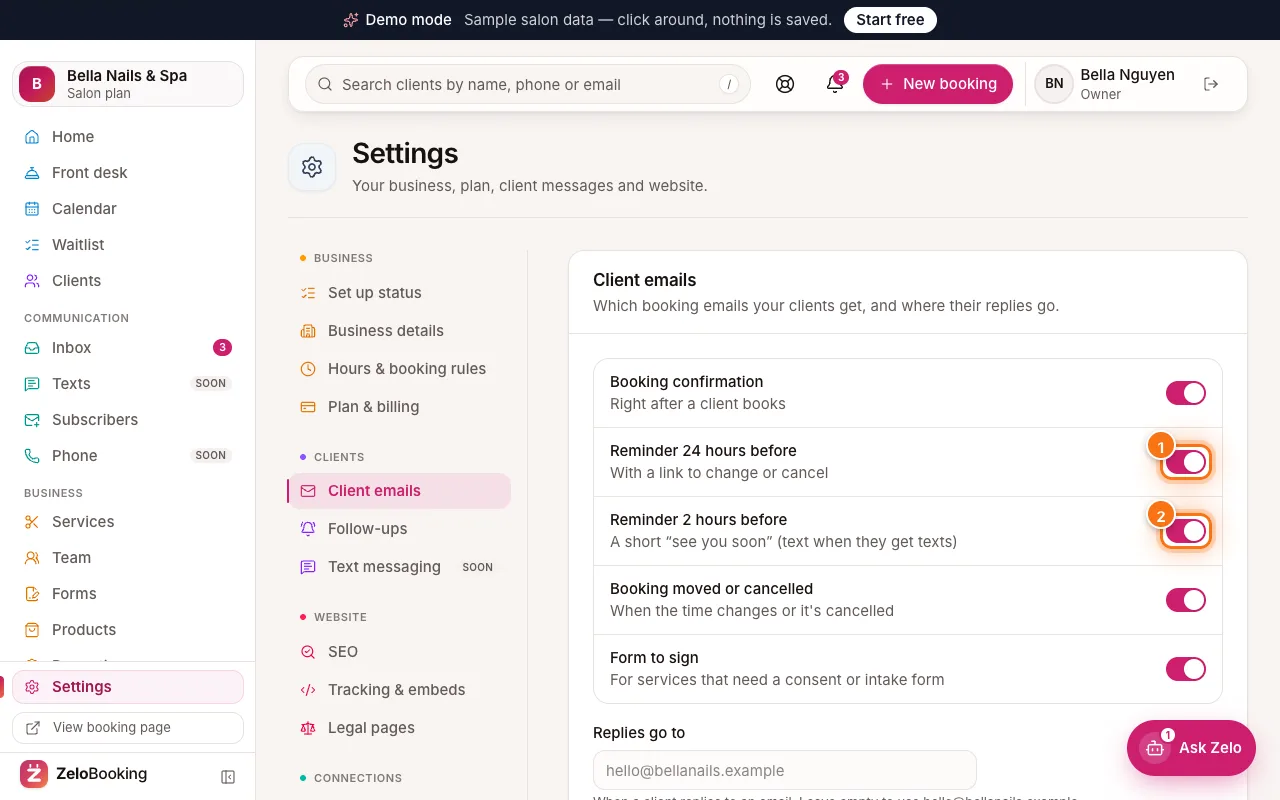
- An email to you whenever a client changes a booking
- 1
Where clients find the link
Each booking confirmation email has a “Manage booking” button, and reminder emails have one too. The link belongs to that one booking — clients don’t need an account or a password.
- 2
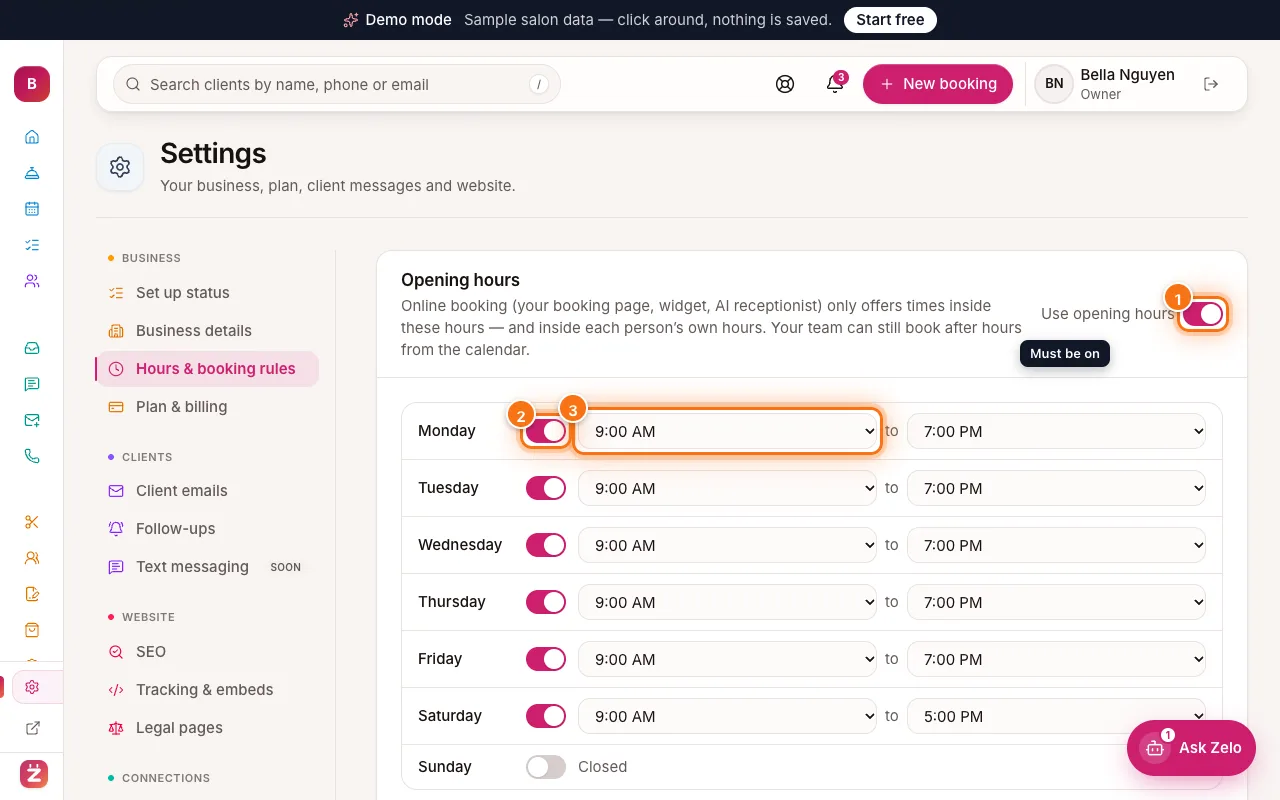
Choose when online changes close
In the left menu, click “Settings”, then “Hours & booking rules”, and scroll to “Booking rules”.
- “Online changes close” (1): from “At the start time” up to “72 hours before”. After that, clients can’t cancel or move online and are asked to call you.
- “Cancellation policy” (2): your own words, shown on the booking page, in the client app and in confirmation emails.
Click “Save booking rules” (3).
Tip: “Minimum notice” and “Book up to” here also apply when a client picks a new time.
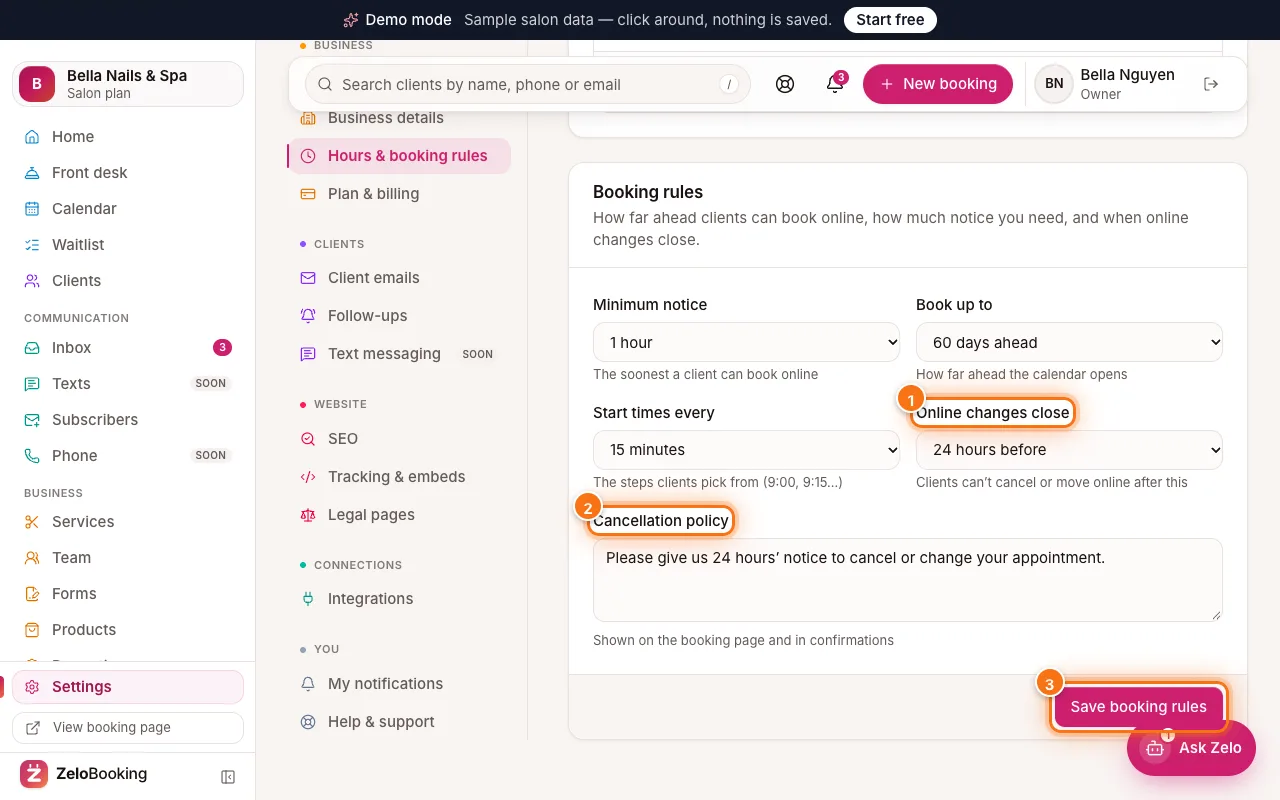
Settings → Hours & booking rules with Online changes close (1), Cancellation policy (2) and Save booking rules (3) highlighted - 3
What clients see
The link opens a page with their booking: service, date and time, team member and address. Buttons:
- “Add to calendar”
- “Reschedule” (1)
- “Cancel” (2)
Underneath it says until when they can change or cancel online. After the cutoff, the buttons are switched off and the page asks them to call you.
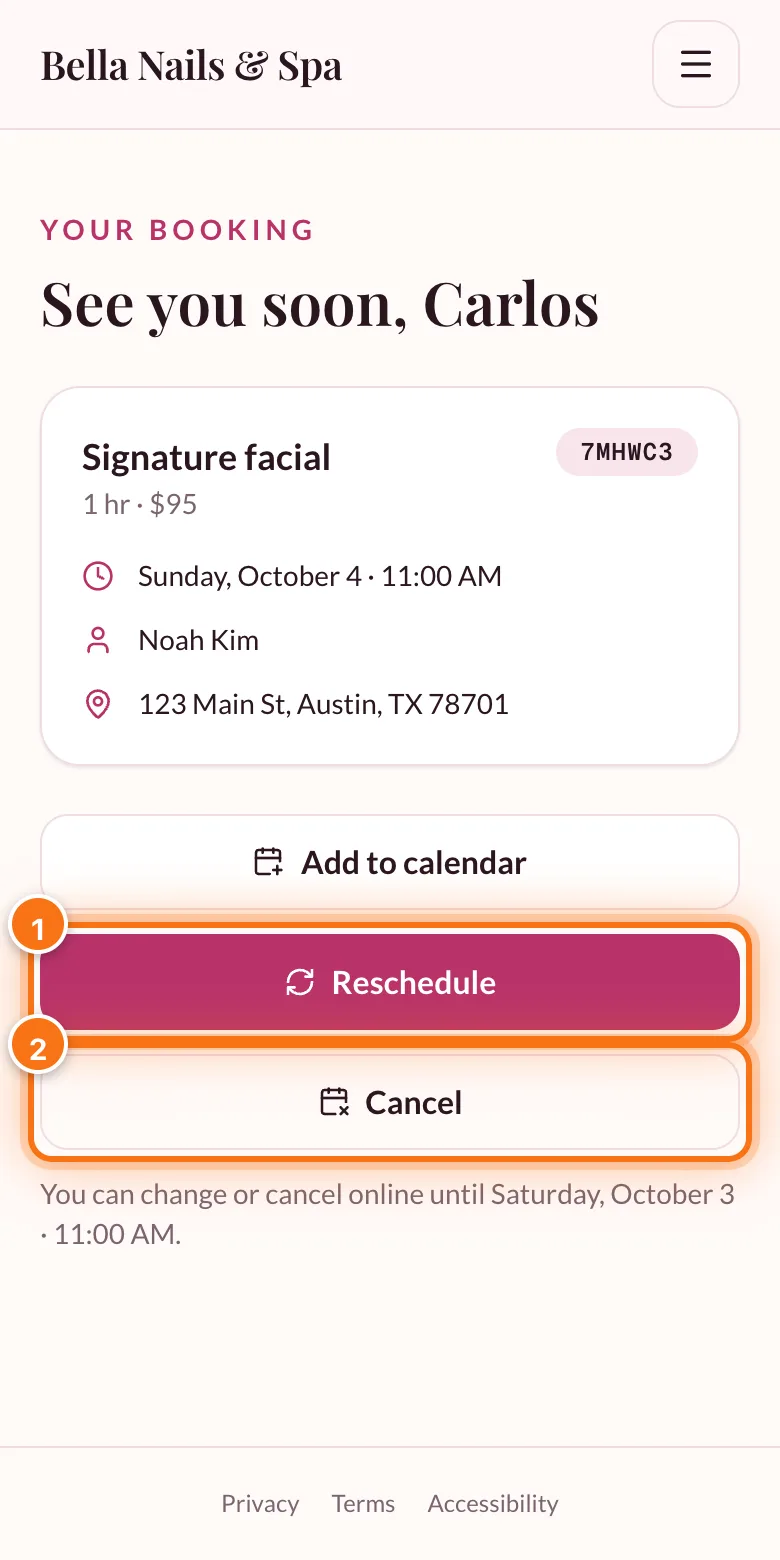
A client’s booking page on a phone with the Reschedule (1) and Cancel (2) buttons highlighted - 4
Rescheduling and cancelling
Reschedule shows “Pick a new time with” the same team member: a month calendar with every day they could book online (as far ahead as your “Book up to” setting), then that day’s free times. The client taps a time, then confirms with “Yes, move it” (or “Keep current time”), and gets a new confirmation.
Cancel asks “Cancel this booking?” — “Yes, cancel it” or “Keep my booking”. After cancelling, they see a “Book again” button.
- 5
What you see
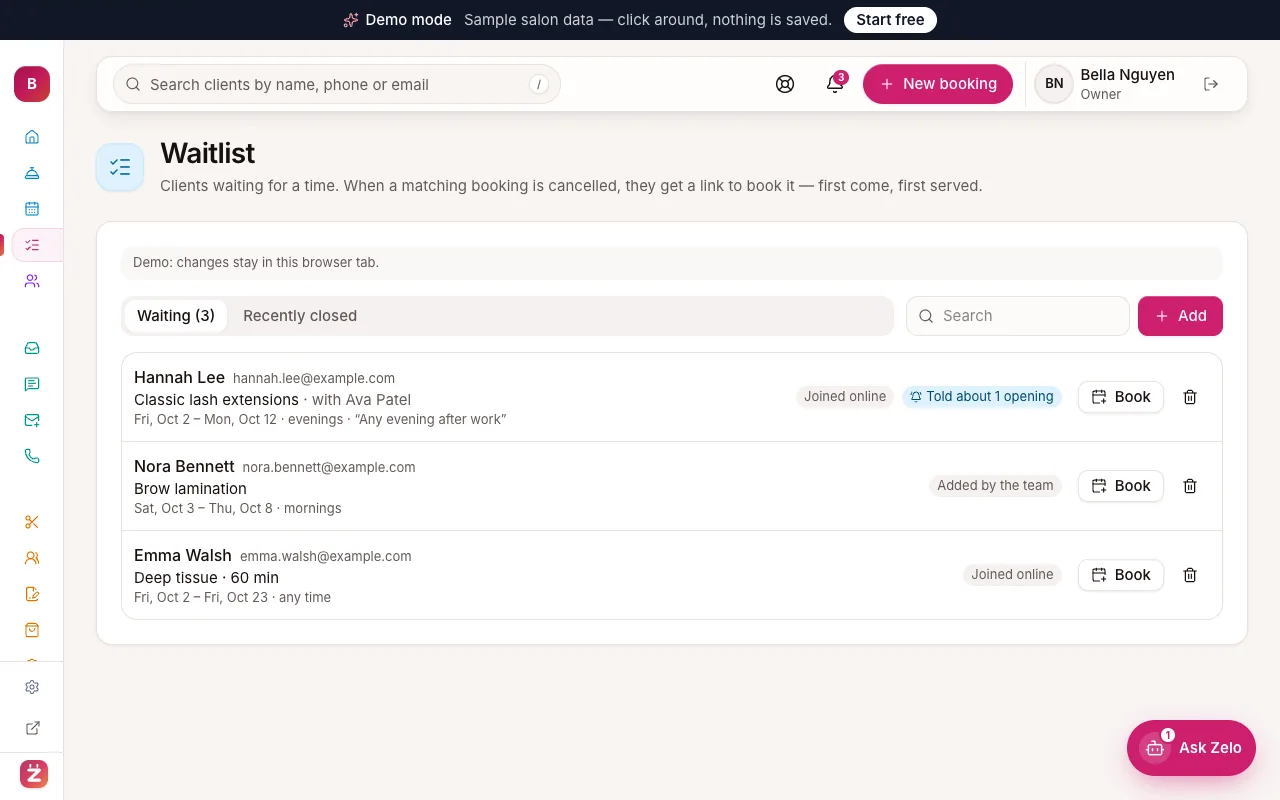
Your calendar updates straight away. Owners and admins get an email — “A client cancelled” or “A client moved their booking” — with an “Open calendar” button. A cancelled time is free again, and anyone on the waitlist who wants it is told.