Video walkthrough coming soon
The written steps below cover everything in the meantime.
About 4 min to follow along
When you’re done
- All your photos and videos in one place
- Good stock photos when you don’t have your own yet
- Photo descriptions that help Google and screen readers
- 1
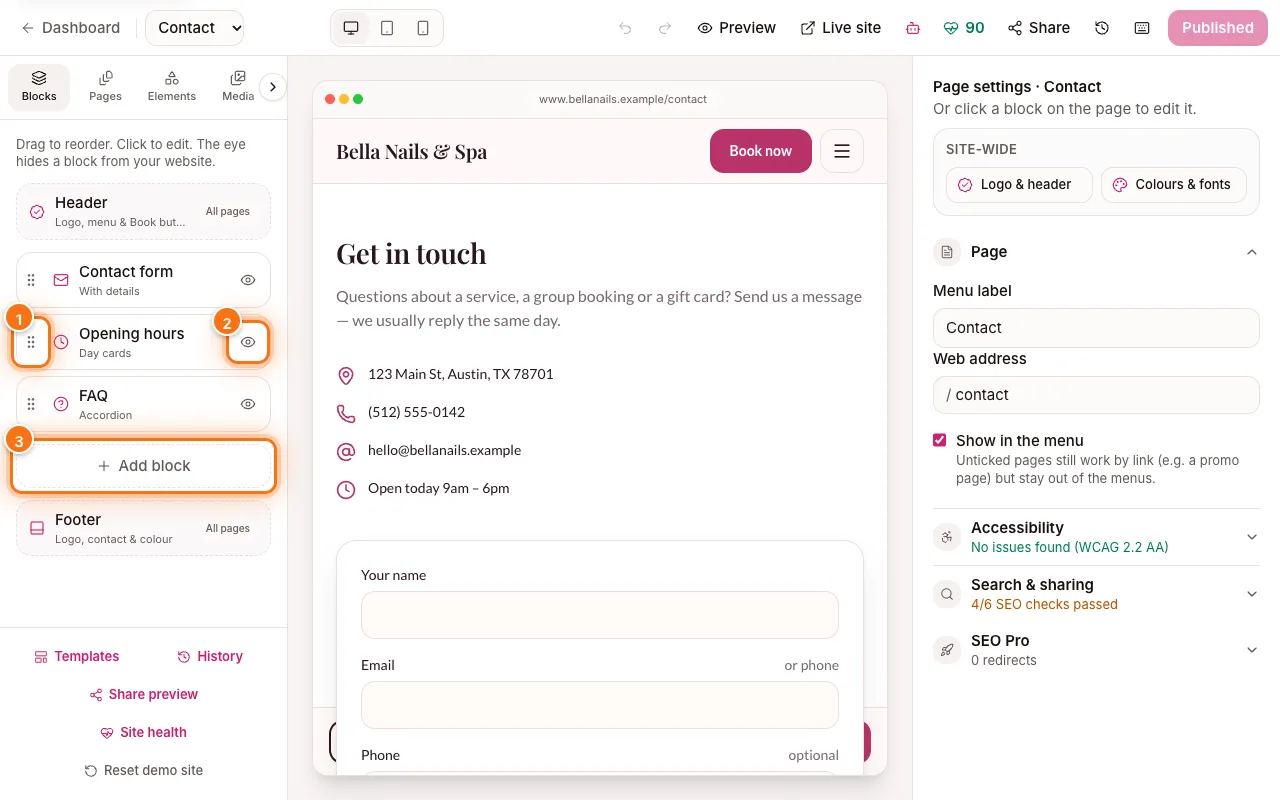
Upload your photos
Go to the left menu → Media. Click “Upload” (1) and choose photos or videos from your computer or phone. You can pick several at once.
The bar under the tabs shows how much storage you’ve used.
Tip: Photos taken in good daylight, close up on your work, sell best. Phone photos are fine.
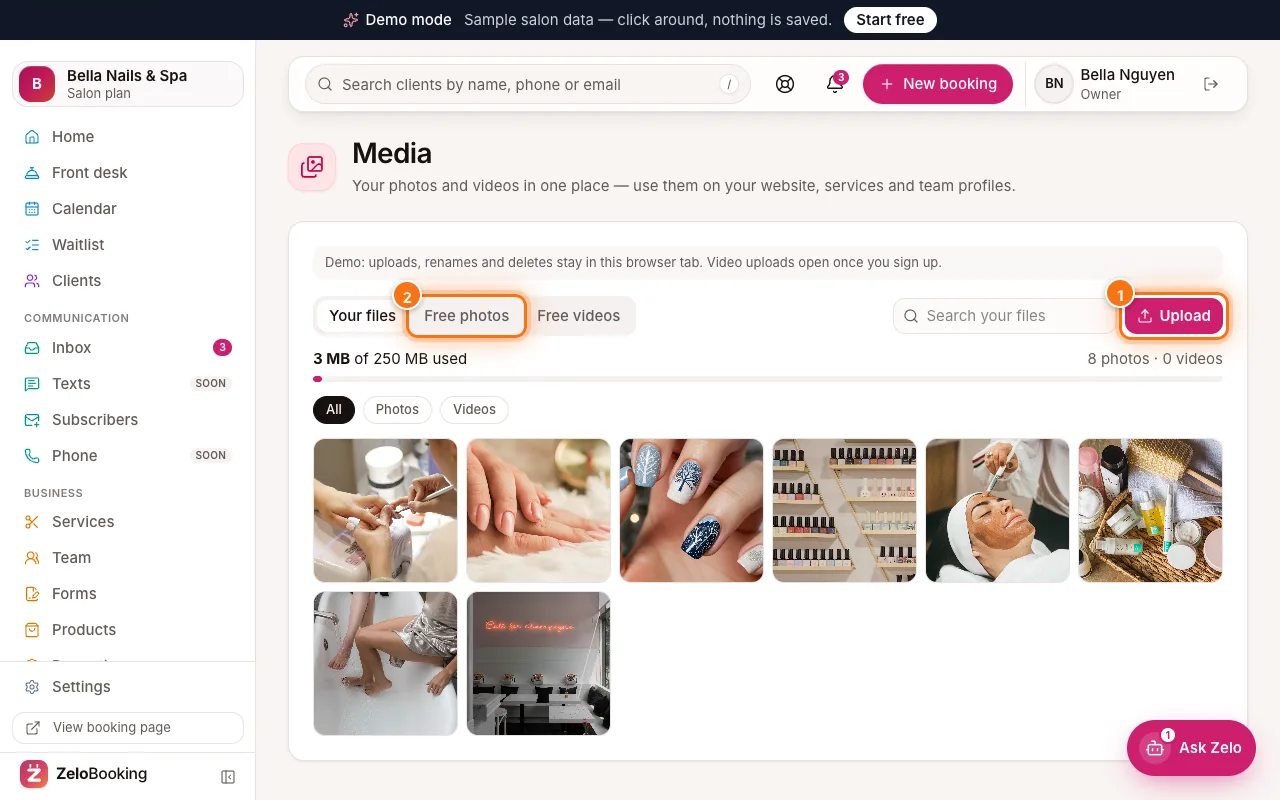
Media page with Upload (1) and Free photos (2) highlighted - 2
Use free stock photos
No photos yet? Click “Free photos” (1) (or “Free videos”) for a library of professional pictures by trade — Nails, Spa & facials, Barber and more. Use the search (2) to find something specific.
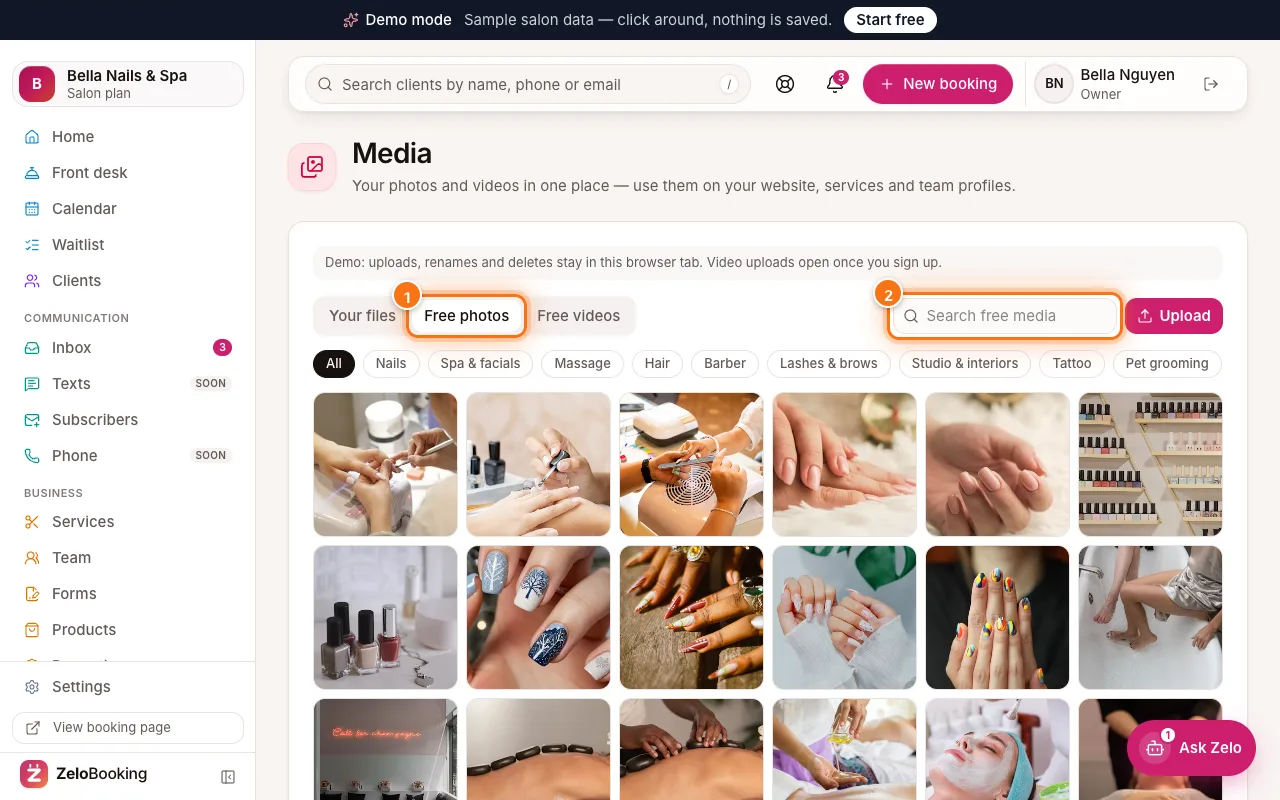
Free photos tab (1) with the search box (2) highlighted - 3
Rename and describe a photo
Click “Details” on one of your files. Change the “File name” (1) and add a “Description (alt text)” (2) — a short sentence like “Gel manicure with pink chrome finish”. It helps Google and people who use screen readers. Click “Save” (3).
The same panel shows where the file is “Used on” and has “Copy link”, “Open” and “Delete”. A file that’s still in use asks first — “Delete anyway” or “Keep it”. To free up space, “Delete unused files” under the storage bar removes every file you don’t use anywhere.
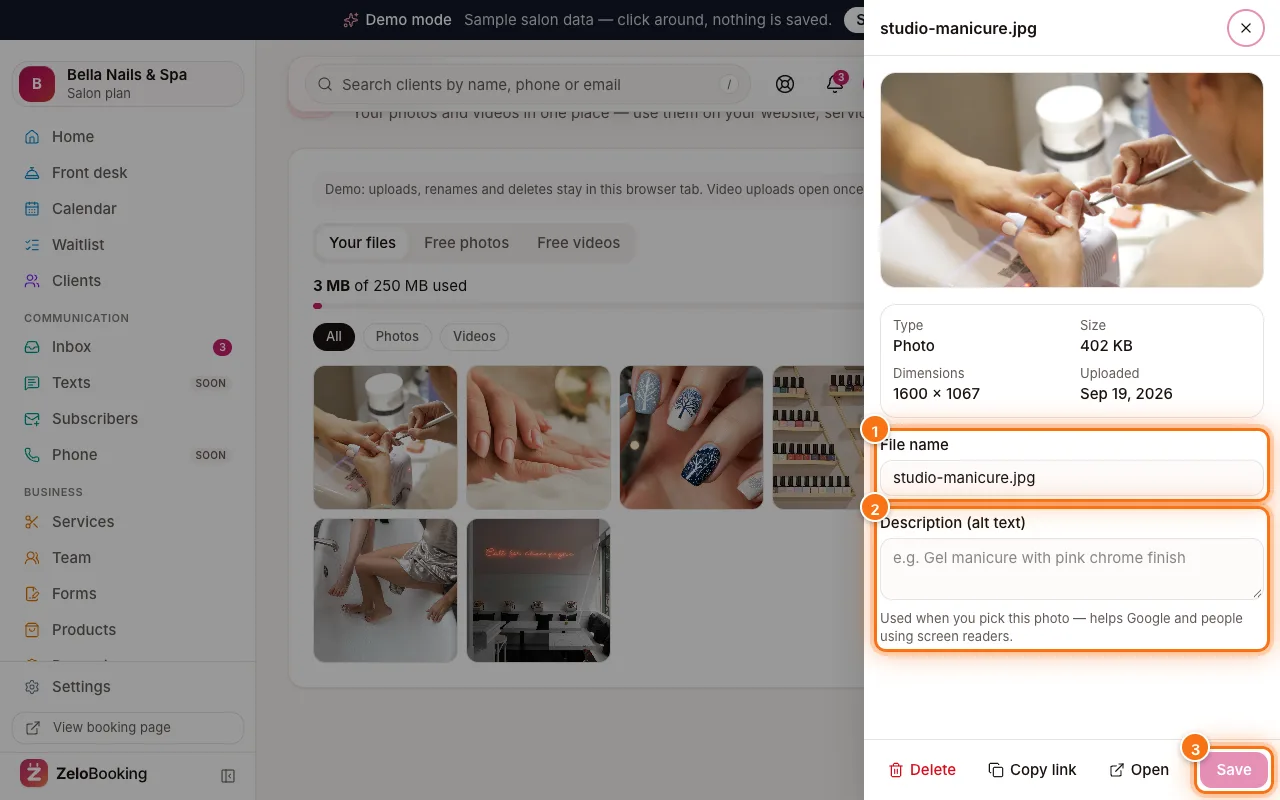
Photo details with File name (1), Description (alt text) (2) and Save (3) highlighted - 4
Use them in your website
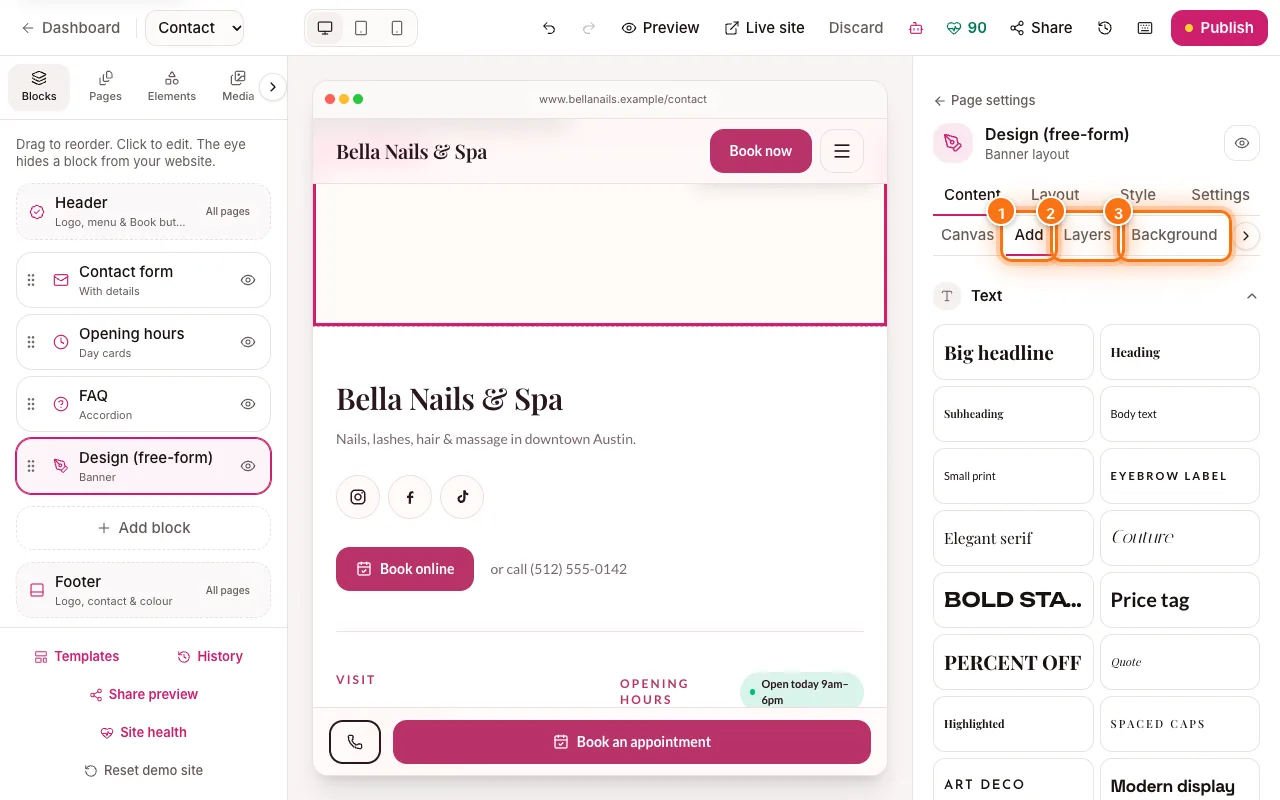
In the website editor, click the “Media” tab (1) in the left panel. Drag a photo onto a photo on the page to replace it — or click one, then click the photo you want to change (2).
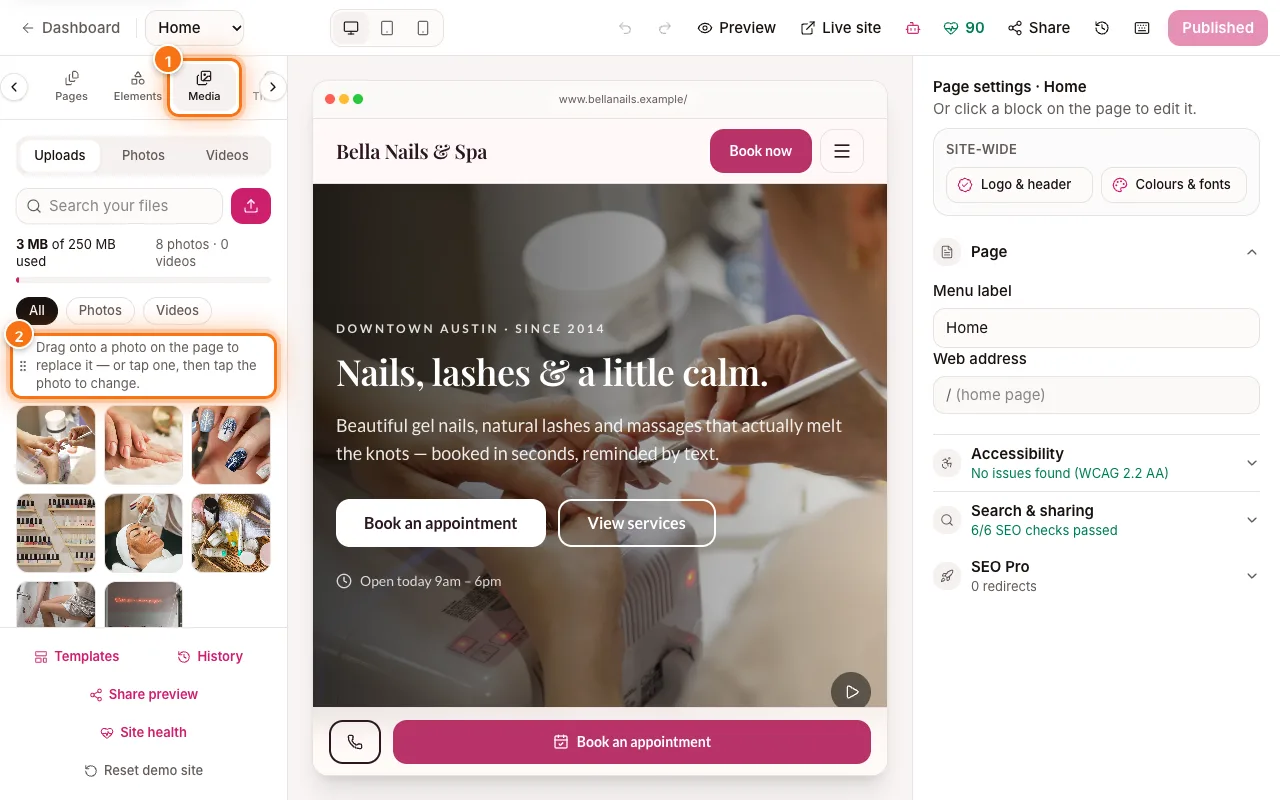
Editor Media tab (1) with the drag-to-replace hint (2) highlighted - 5
Use them elsewhere
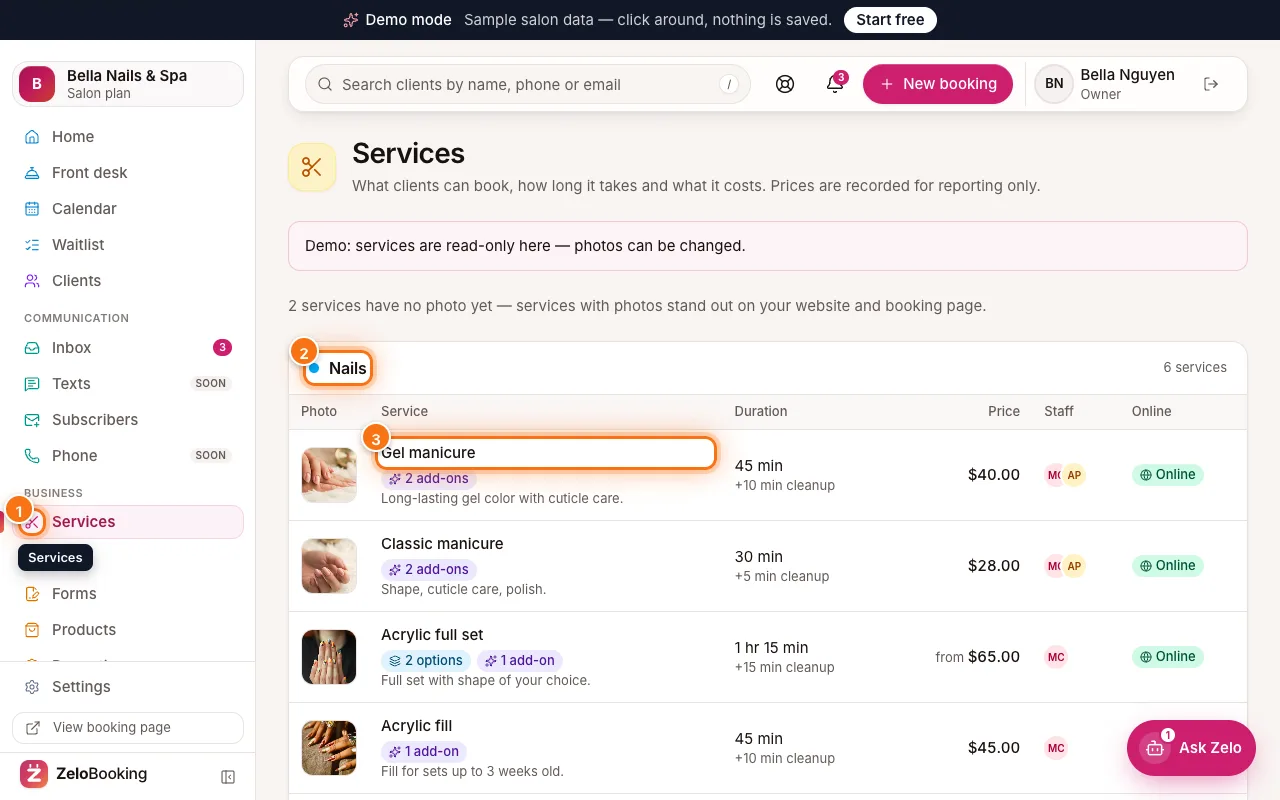
Where you add a photo to a service or a product, click “Browse media” to pick from this library; in a social post, click “Library”. Team member photos use only your own uploads (never stock faces).