Video walkthrough coming soon
The written steps below cover everything in the meantime.
About 4 min to follow along
When you’re done
- Know how many visitors turn into bookings
- See which pages and sources bring clients
- 1
Open Insights and pick a period
Go to the left menu → Insights (or click “Insights” on the Website page). Choose “Last 7 days”, “Last 30 days” (1) or “Last 90 days”.
The four cards show Visitors, Page views, “Booked from the website” (2) and “Visitors who booked”, each compared with the period before.
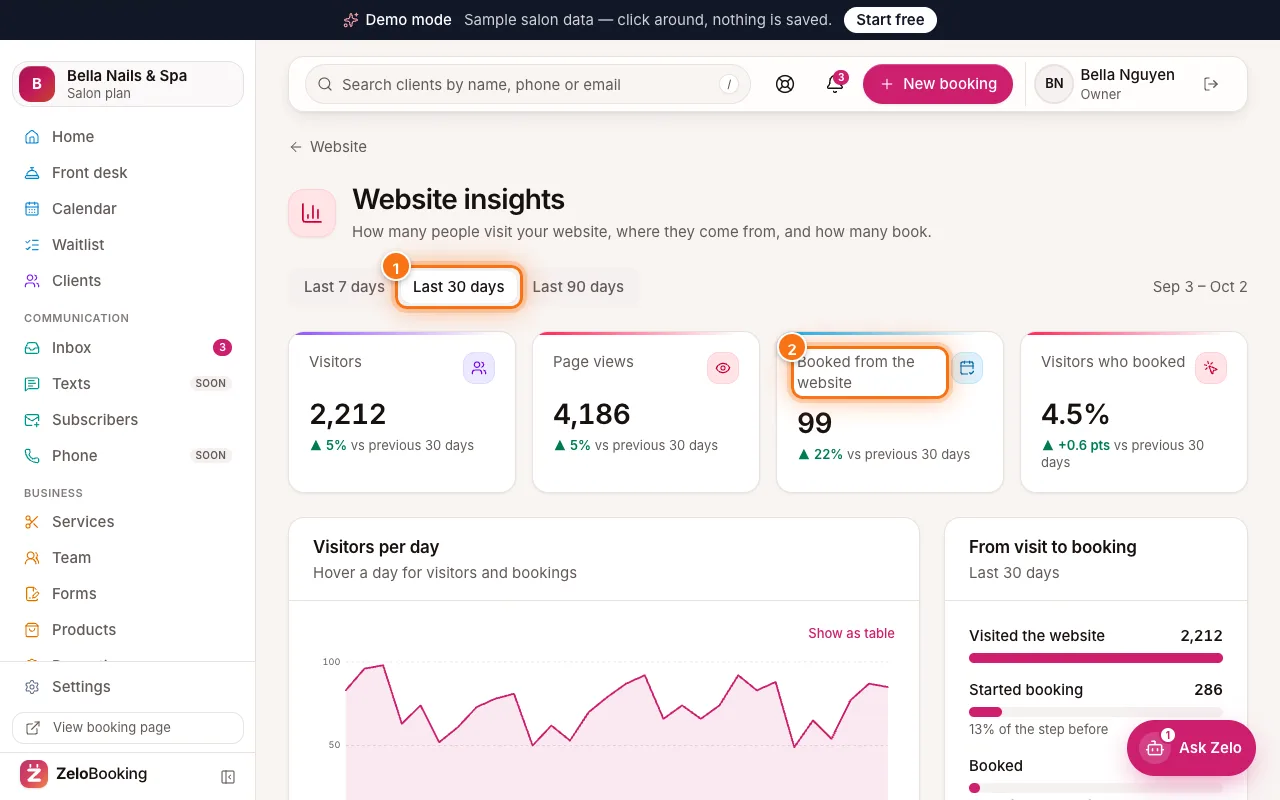
Website insights with Last 30 days (1) and Booked from the website (2) highlighted - 2
See where people drop off
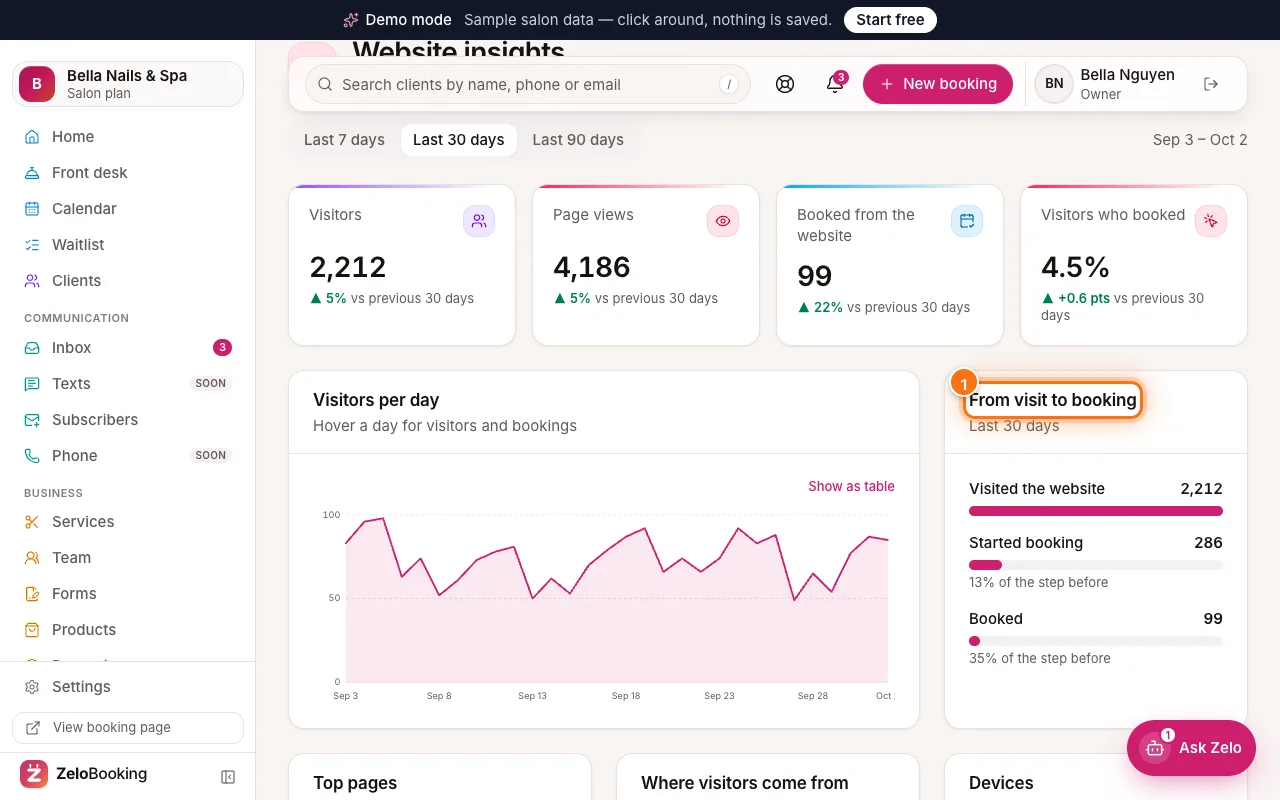
“Visitors per day” shows your busy days — point at a day for its numbers, or click “Show as table”.
“From visit to booking” (1) shows how many visited, how many started booking, and how many finished. A big drop between “Started booking” and “Booked” can mean too few open times.
Website insights with From visit to booking highlighted (1) - 3
Pages, sources and devices
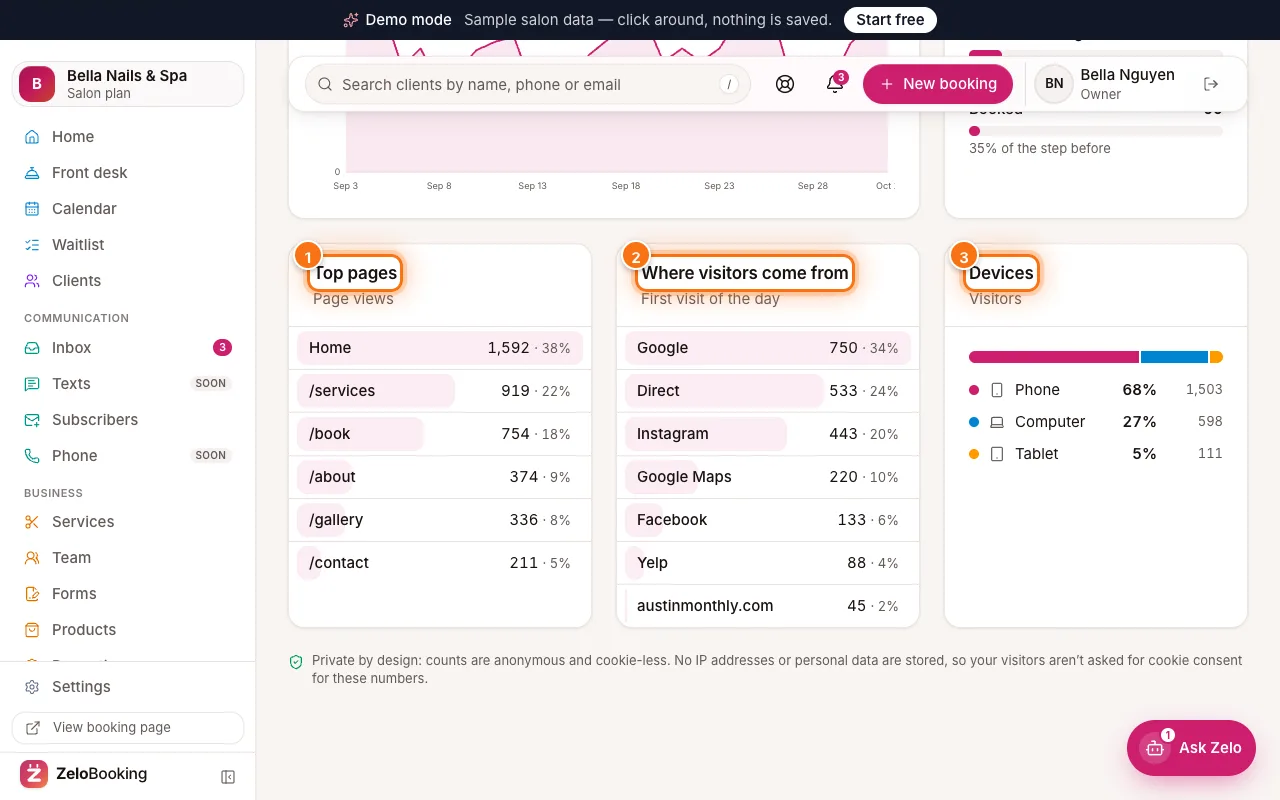
- “Top pages” (1) — what people read most.
- “Where visitors come from” (2) — Google, Instagram, Google Maps, Facebook, other websites, or Direct (typed your address or tapped a saved link).
- “Devices” (3) — phone, computer or tablet.
Tip: Most salon visitors are on phones — always check your site on the phone preview before publishing.
Top pages (1), Where visitors come from (2) and Devices (3) highlighted