Video walkthrough coming soon
The written steps below cover everything in the meantime.
About 10 min to follow along
When you’re done
- Clients confirming with a one-letter reply
- Texts sent from your own local number
- Opt-in and STOP handled for you
- 1
Coming soon
Texting is coming soon. Soon you’ll text clients from your own business number — confirmations, reminders and two-way replies. Until then, clients get every confirmation and reminder by email.
- 2
How texting works
Texting is coming soon — you’ll see “Soon” next to “Text messaging” in Settings (a few pilot businesses already have it). Until it’s switched on for you, clients get every confirmation and reminder by email.
Once it’s on, appointment texts come from your business’s own local number and always start with your business name. US carriers require every business to text from its own registered number, so there’s an approval step (usually 1–2 weeks). Clients only get texts if they ticked the box when booking, and replying STOP works instantly.
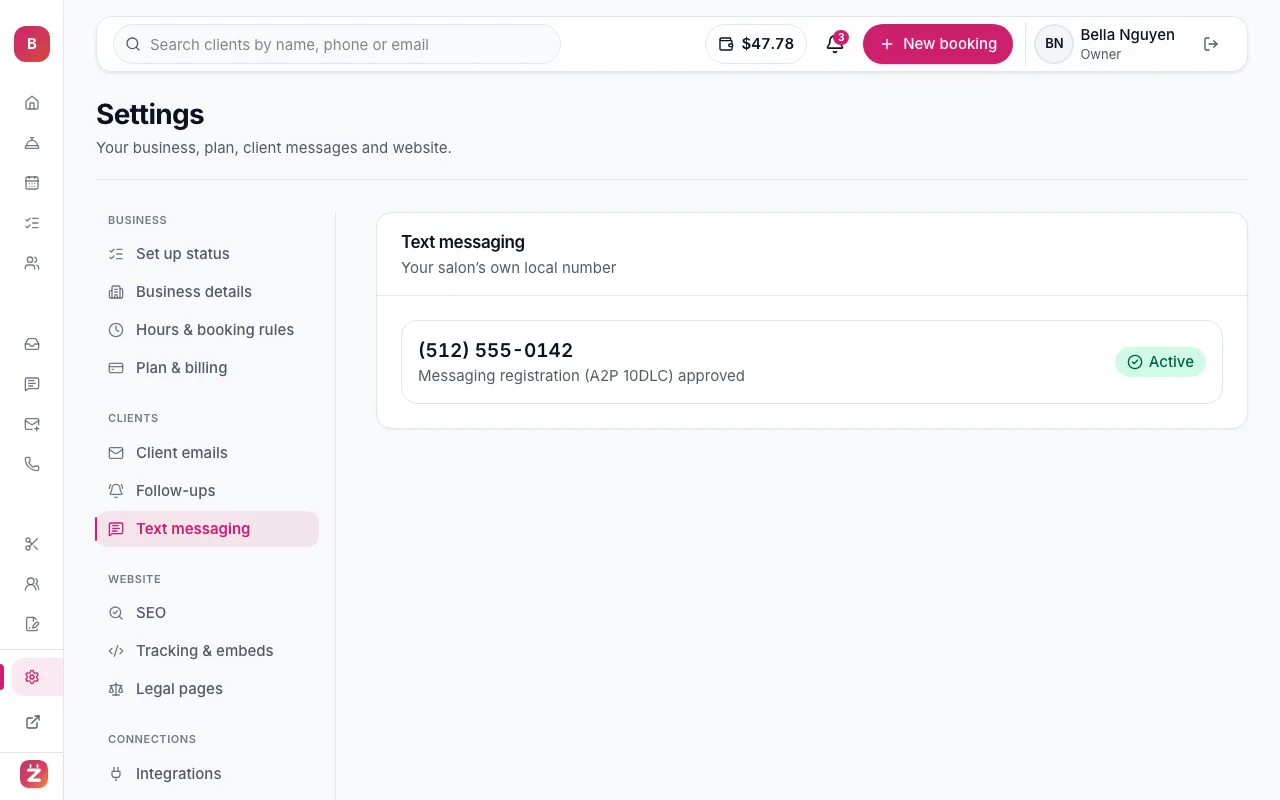
Settings → Text messaging: your own local number and registration status - 3
Get a new local number
Open Settings → “Text messaging” (owners only). Choose “Get a new local number”, type your area code and click “Find numbers”. Pick one from the list — it’s ready in about a minute.
Tip: Until your number is approved, everything keeps going by email — nothing breaks while you wait.
- 4
Register with the carriers
Click “Register for texting”. Three short steps, about 5 minutes — your answers save as you go:
- “Your business”: whether you have an EIN (every LLC and corporation does), the legal name exactly as on your IRS letter, business type, EIN, industry, your website (your ZeloBooking site works — publish it first) and address.
- “Who’s responsible”: the owner’s name, email, phone and role. Sole proprietors without an EIN give their own cell phone instead — the carriers text it once, reply YES within 24 hours.
- “How clients agree”: the texts and opt-in we register for you (you don’t write them) and four confirmations.
Then “Review & send” checks for the usual problems and “Send to carriers” registers your business. Registration is $49 one-time from your credit.
Tip: Your EIN and contact details are encrypted and only used for carrier registration. After you save the EIN you’ll only ever see its last two digits.
- 5
Follow the approval
The “Carrier registration” card on Settings → Text messaging shows each step — Number bought, Details submitted, Business check, Texting review, Live — what’s happening now and when we last checked. “Check now” asks the carriers right away; we also check every 15 minutes and email you at every step.
If the carriers ask for changes, the card says what to fix in plain words — click “Fix this” next to it, change the field and “Resubmit to carriers” (free).
- 6
Or move your existing number
Want to keep the number clients already call and text? Choose “Move my existing number” instead. You’ll need a recent bill and the account details from your current carrier (account number and, for mobile numbers, the port-out PIN).
Your number keeps working with your current provider until the move finishes — the carriers confirm the date.
- 7
Read and answer texts
Replies arrive in the left menu → “Texts” (under Communication). Replying C confirms the appointment the reminder was about; replying R sends the client a link to pick a new time. Everything else shows up as a conversation you can answer from there.
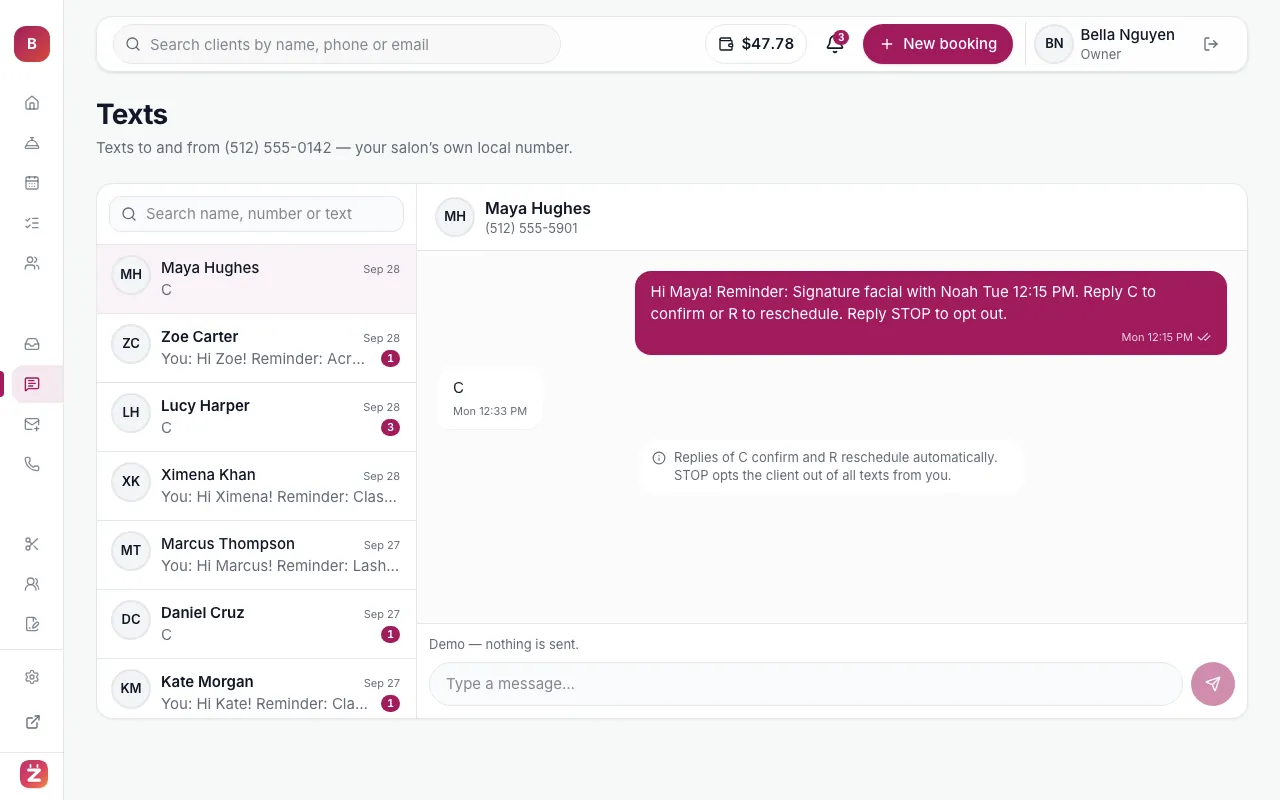
Texts: conversations with clients, confirmations and replies