Video walkthrough coming soon
The written steps below cover everything in the meantime.
About 6 min to follow along
When you’re done
- “Time for your next fill?” emails sent at the right moment
- A steady stream of Google reviews
- Cancelled times offered to your waitlist
- 1
Open Follow-ups
Go to Settings (gear icon at the bottom of the left menu) and click “Follow-ups” (1) under Clients. The “Automatic follow-ups” panel has three switches: Waitlist, Rebook reminders and Google review requests.
“Waitlist” is on by default: when a booking is cancelled, clients waiting for that time get a link to book it — first come, first served.
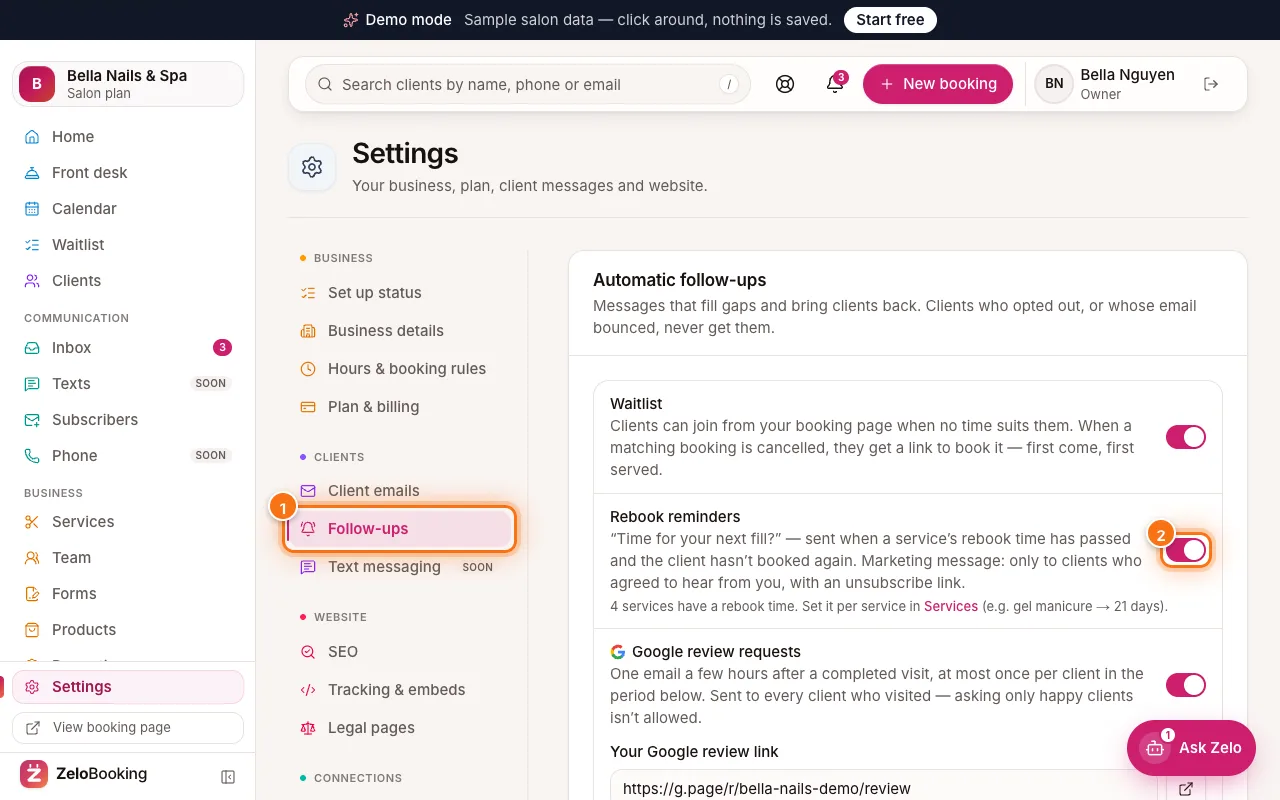
Settings → Follow-ups with the Follow-ups tab (1) and the Rebook reminders switch (2) highlighted - 2
Turn on rebook reminders
Click the switch next to “Rebook reminders” (2) so it turns pink.
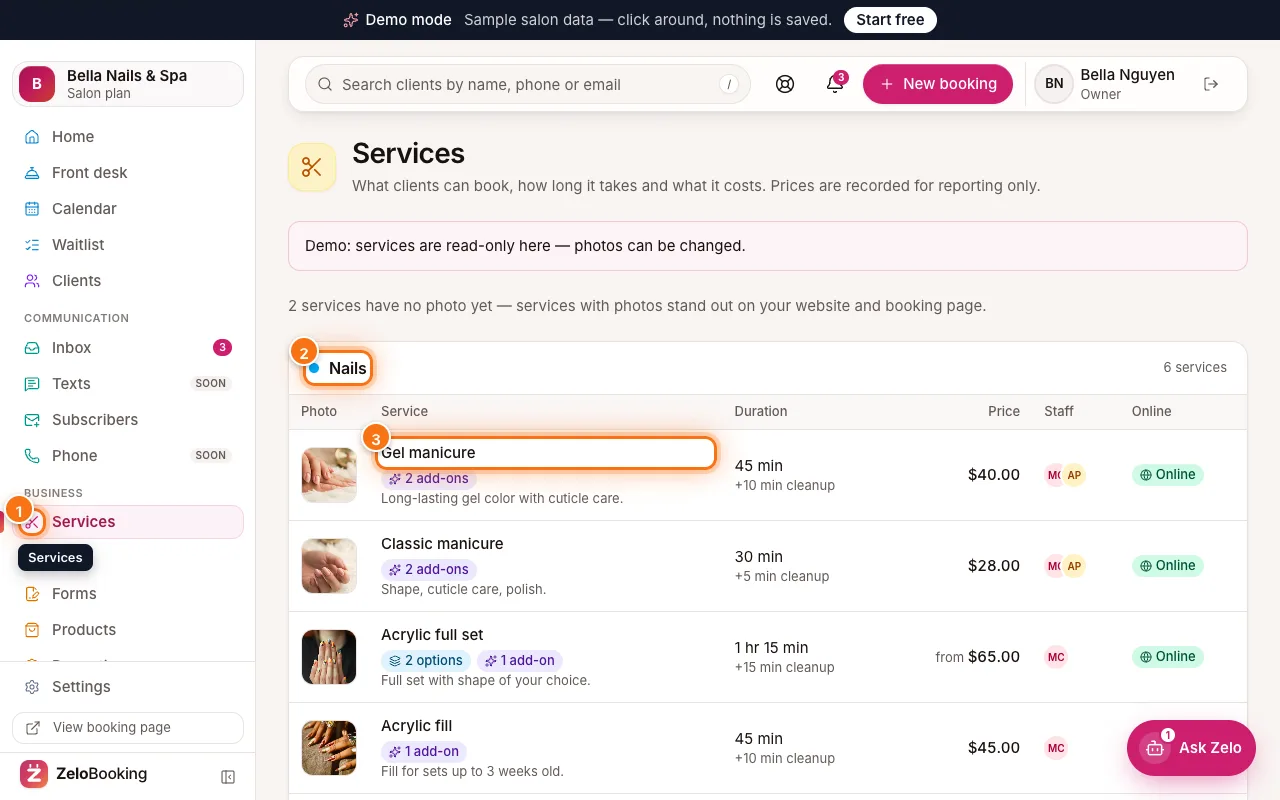
Now tell each service when clients are due back: go to the left menu → Services, click “Edit” on a service, and set “Remind clients to rebook after” (for example Gel manicure → 3 weeks). Choose “Don’t remind” for services people don’t repeat. The line under the switch tells you how many services have a rebook time.
When that time passes and the client hasn’t booked again, they get a friendly “Time for your next …?” email with a Book now button.
Tip: Rebook reminders are marketing messages: they only go to clients who agreed to hear from you, and every one has an unsubscribe link.
- 3
Set up Google review requests
Switch on “Google review requests”, then paste your review link into “Your Google review link” (1). To find it: open your Google Business Profile → “Ask for reviews” → copy the link (it starts with https://g.page/r/…). Click the small arrow button next to the box to test it.
Under “Send after” (2) choose how many hours after the visit is marked completed the email goes out. Under “Ask each client at most” (3) choose how often one client can be asked — for example once every 120 days, so regulars aren’t asked every visit.
Tip: The request goes to every client who visited. Asking only happy clients (“review gating”) isn’t allowed by Google.
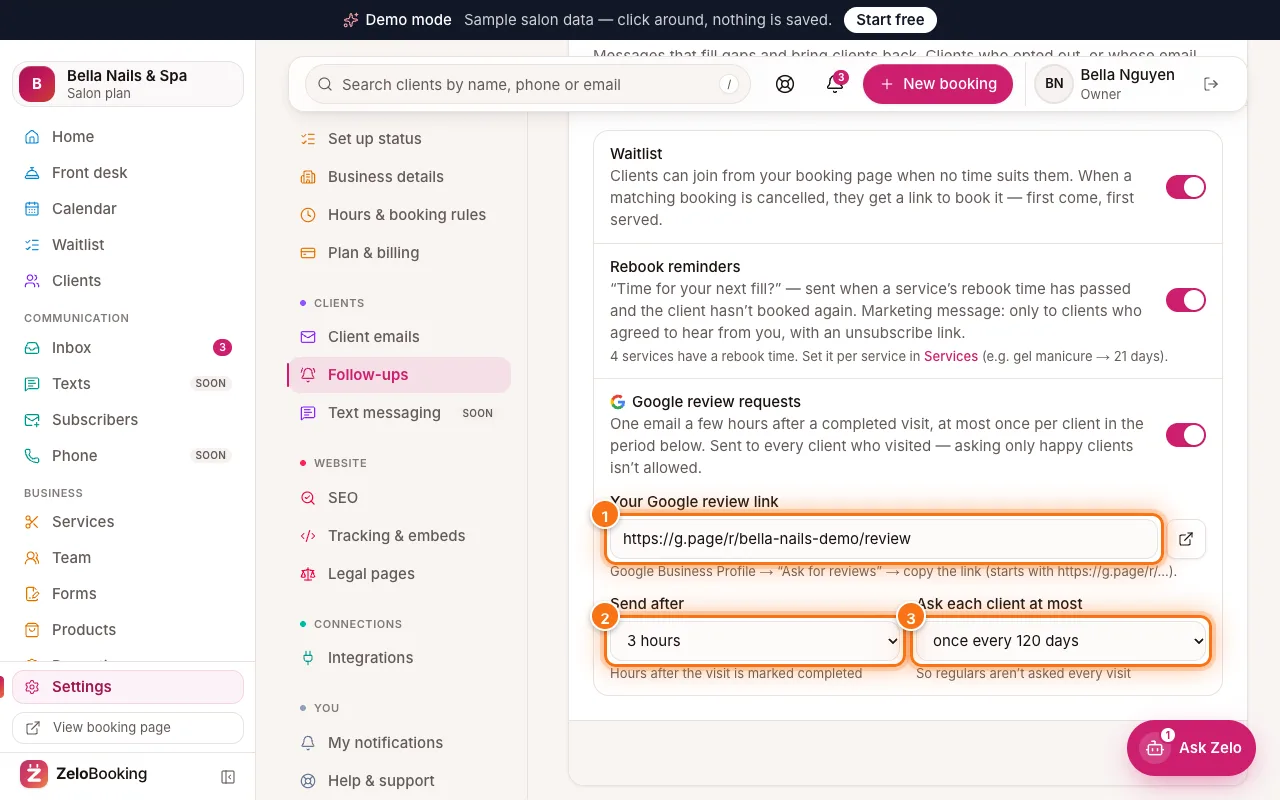
Google review requests: the review link box (1), Send after (2) and Ask each client at most (3) highlighted - 4
Save
Click “Save” at the bottom of the panel. You’ll see “Saved.” next to it. If review requests are on without a link, you’ll be asked to add the link first.
- 5
Preview the messages
Scroll down to “Preview”. Click a tab to see exactly what clients get: “A spot opened (waitlist)”, “Time to rebook” (1) or “Review request” (2). Each one shows the subject line and the email with an example client and service.
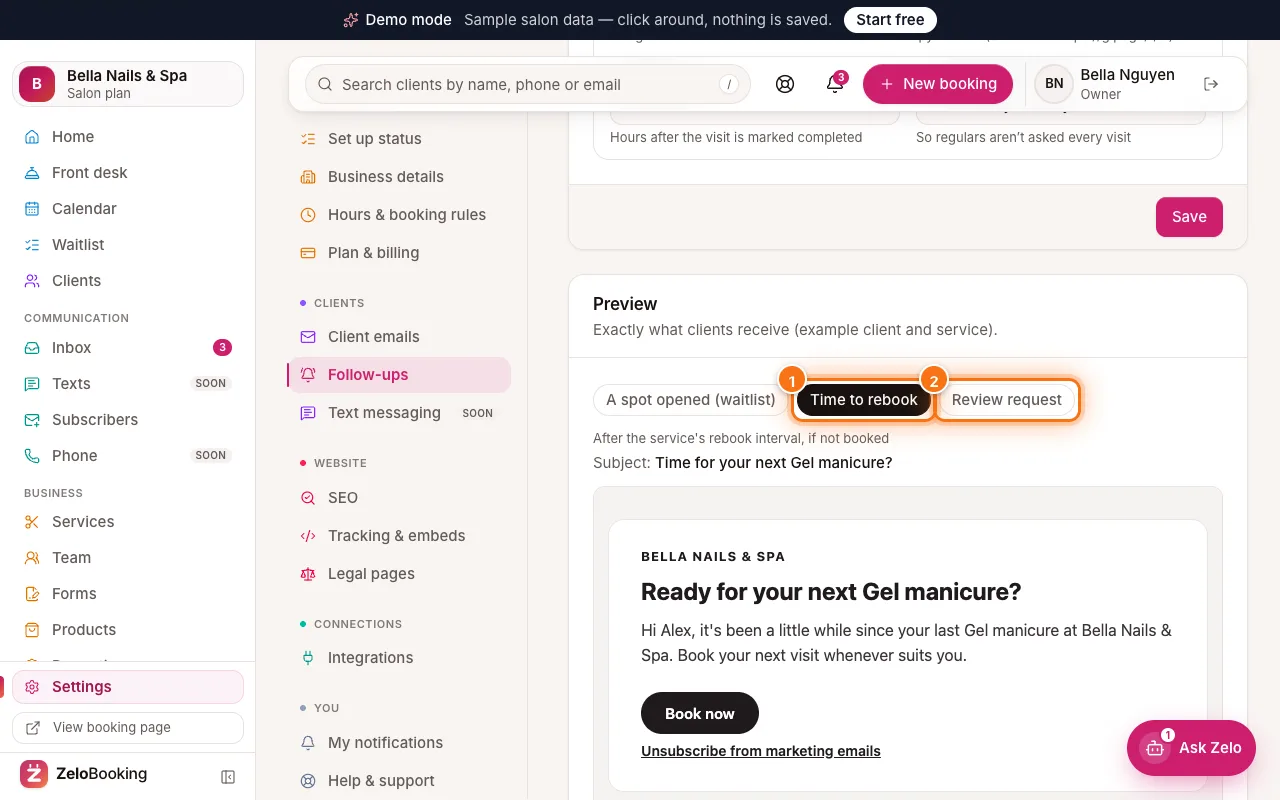
Follow-ups preview with the Time to rebook (1) and Review request (2) tabs highlighted