Video walkthrough coming soon
The written steps below cover everything in the meantime.
About 5 min to follow along
When you’re done
- Lunch breaks and appointments blocked so clients can’t book them
- Holidays added by staff themselves, with no approval step
- Know which tool to use: working hours, Block time or time off
- 1
Pick the right tool
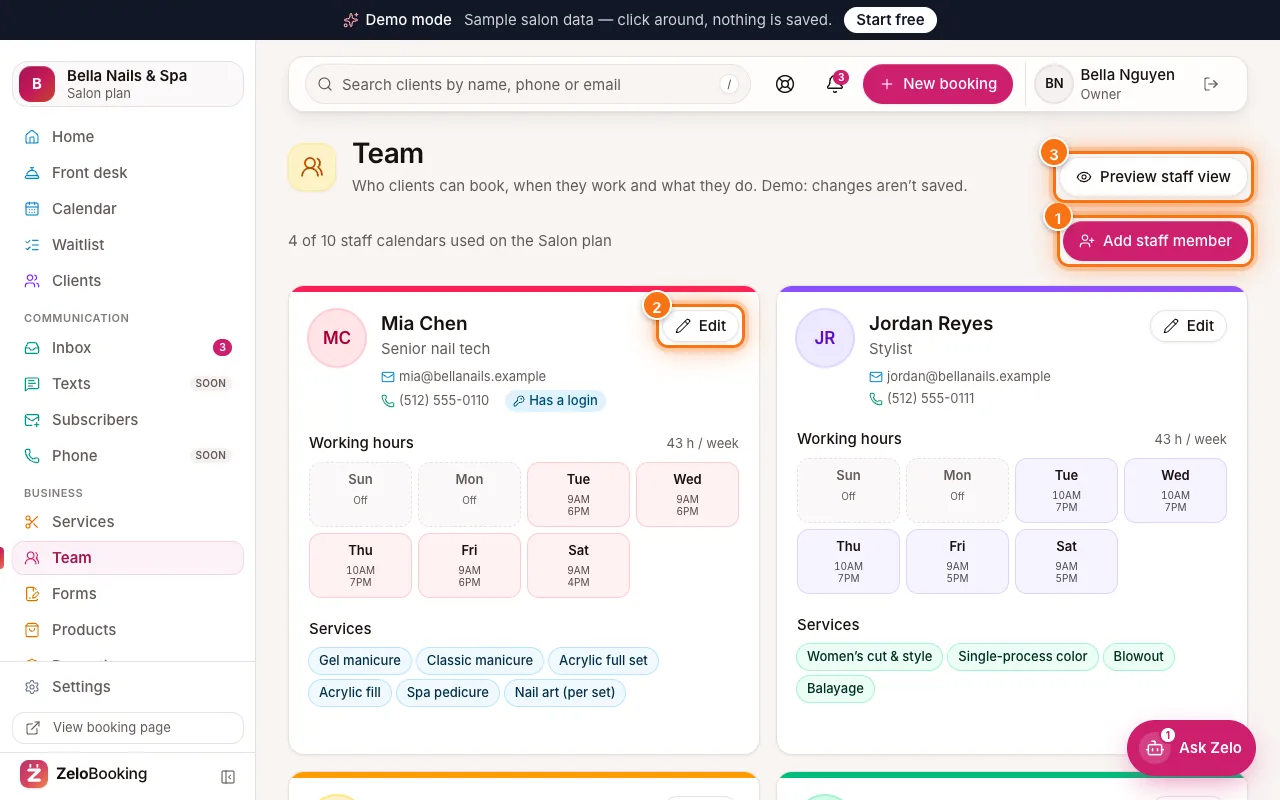
- Same day off every week? Switch that day off in their working hours (Team → Edit).
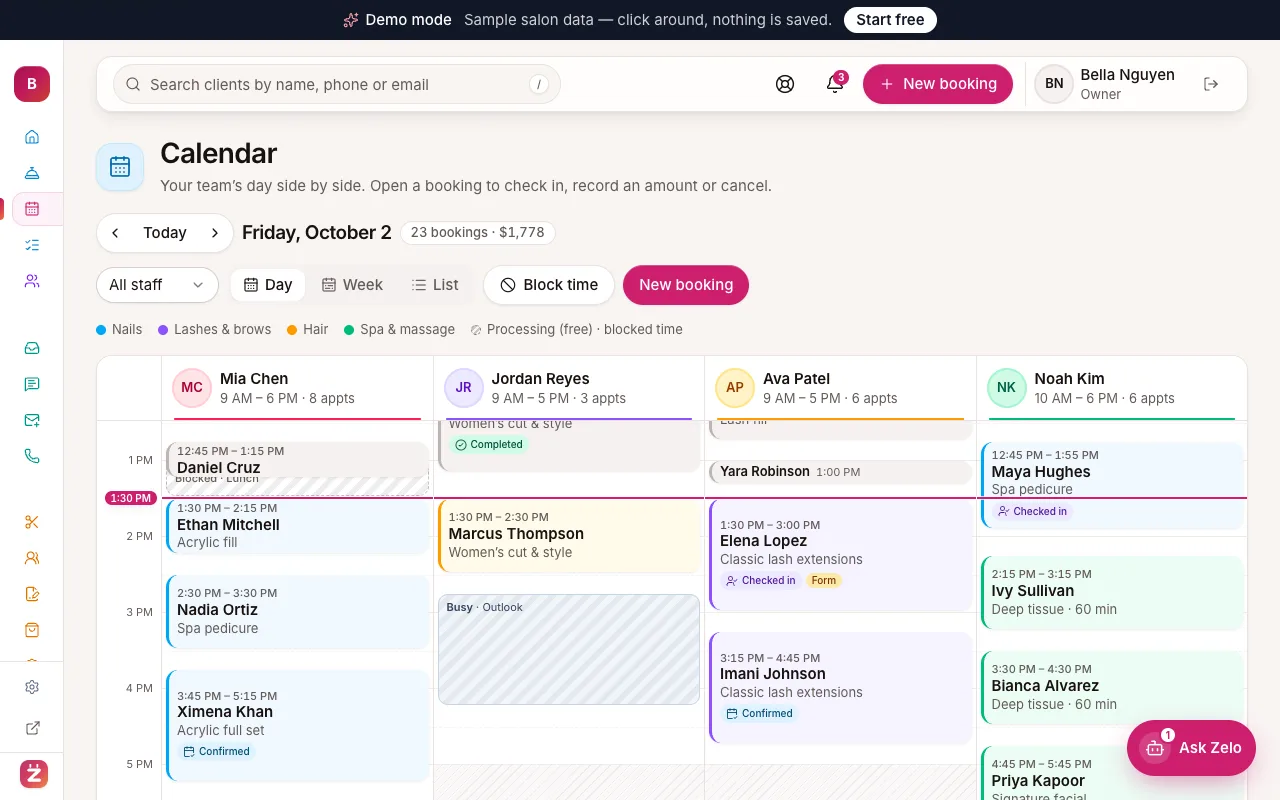
- A break or a few hours (lunch, training, doctor)? Use “Block time” on the calendar.
- Whole days away (vacation, sick)? Staff add “time off” in their own dashboard — or you block an all-day time.
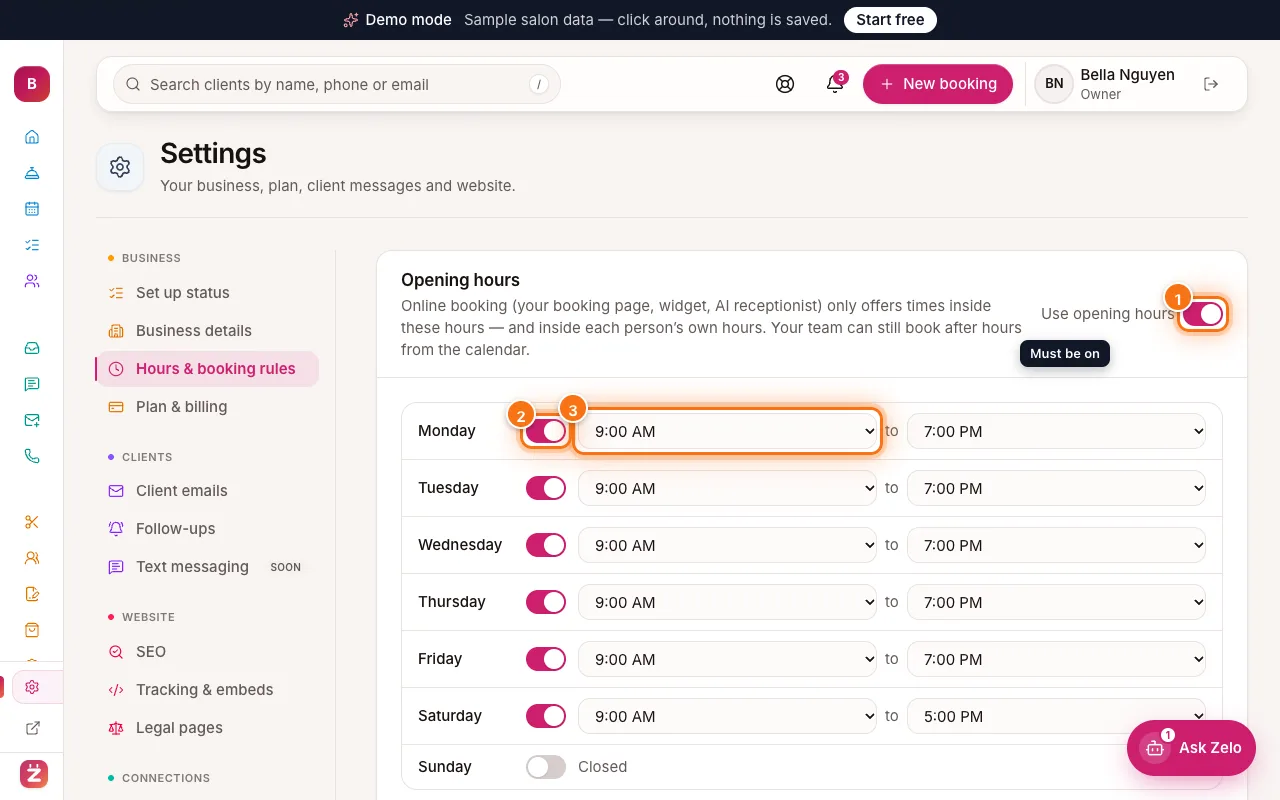
- The whole salon closed? Add a closed date in Settings → Hours & booking rules.
- 2
Block a break on the calendar
Open “Calendar” in the left menu and click “Block time” (1) next to “New appointment”.
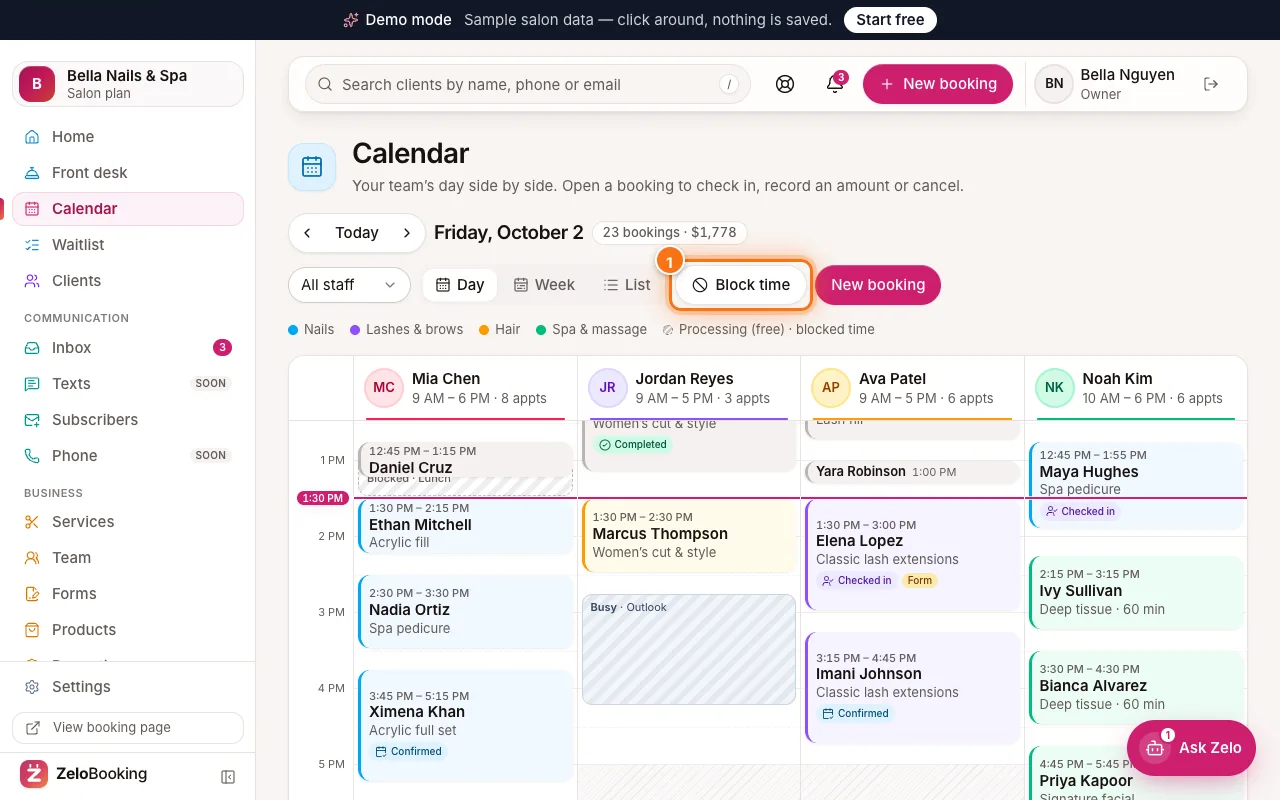
Calendar with the Block time button (1) highlighted - 3
Fill in who and when
In “Block time”, choose “Who” (1) and the “Date”. Pick “From” and “To”, or tick “All day” (2) for a whole day. Add a “Reason (optional)” (3), like “Lunch”, and click “Block time”.
The calendar shows a striped “Blocked” strip. Online booking won’t offer that time. To remove it, click the strip.
Tip: Bookings already inside that time stay as they are — move or cancel them from the calendar.
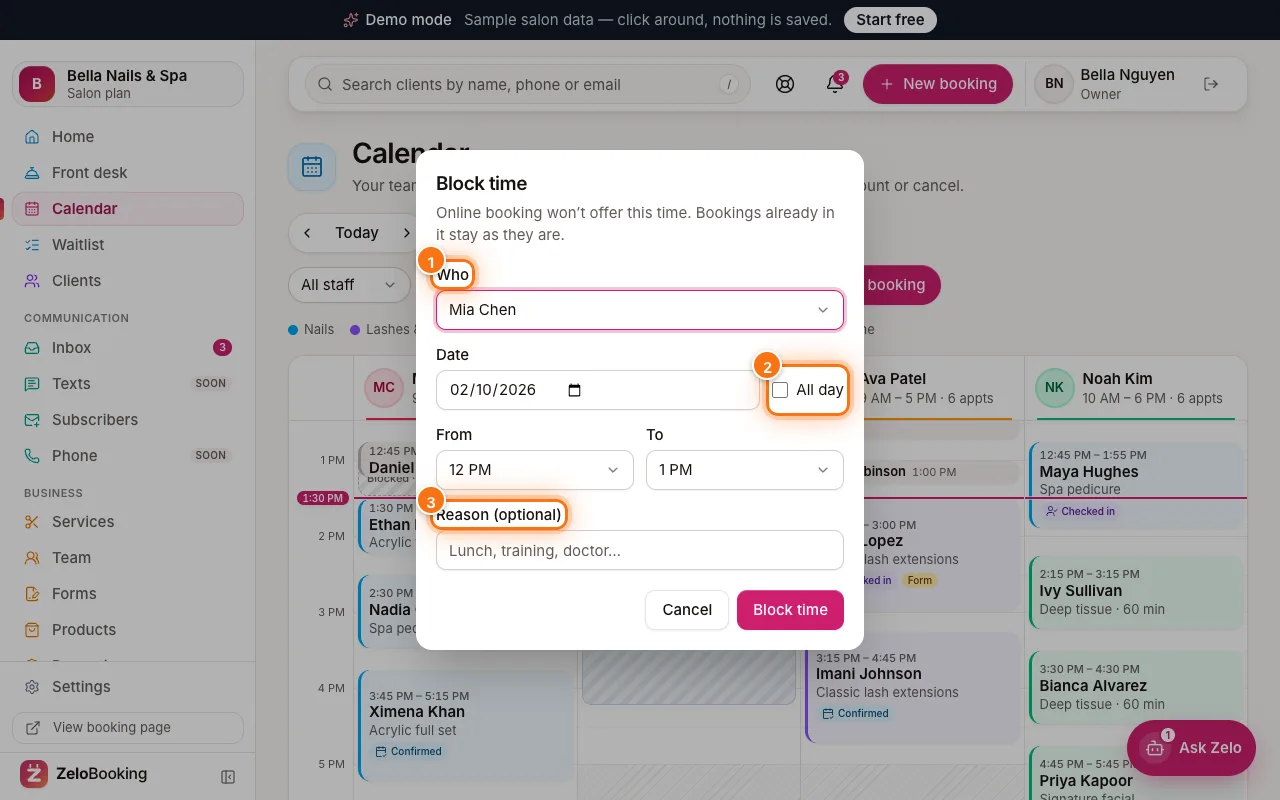
Block time window with Who (1), All day (2) and Reason (3) highlighted - 4
Staff: open Hours & time off
Team members open “Hours & time off” (1) in their own dashboard menu. At the top they see their “Working hours” (2) — set by you, read-only for them.
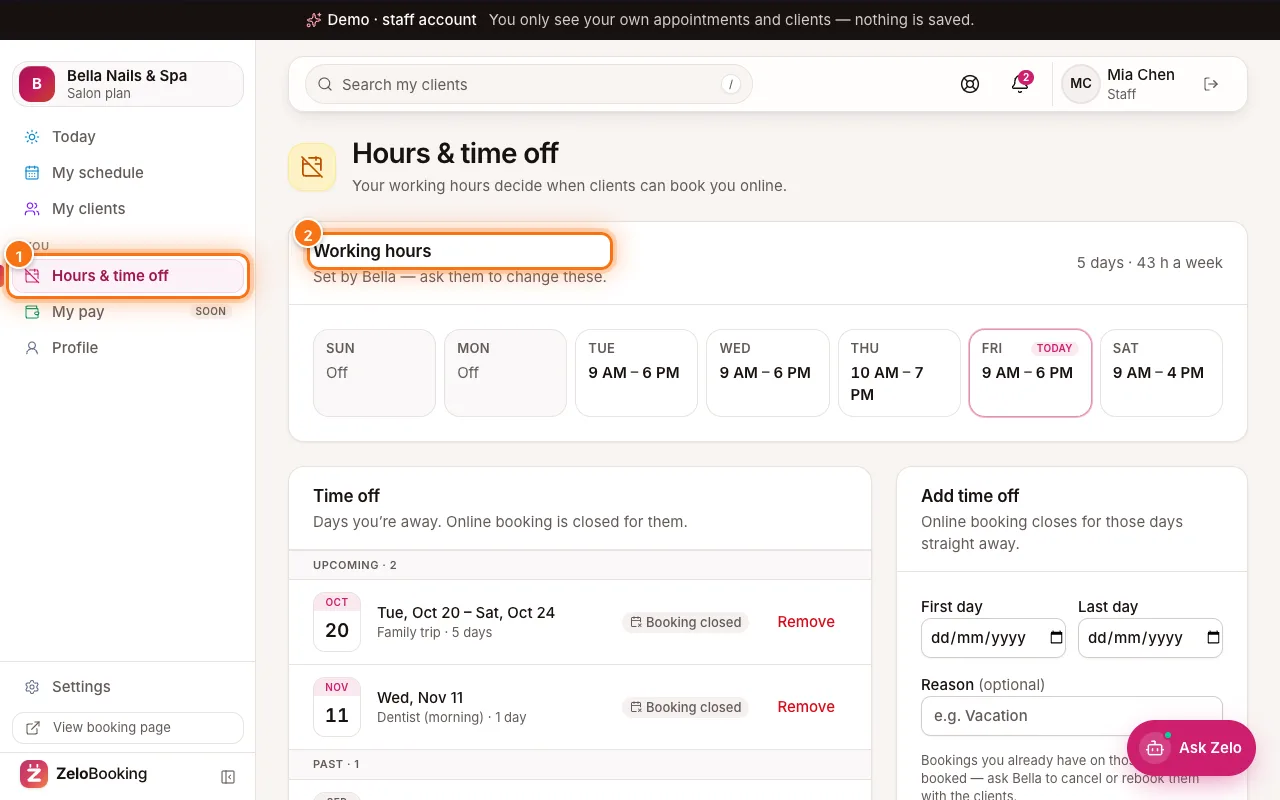
Staff app Hours & time off with the page title (1) and Working hours (2) highlighted - 5
Staff: add time off
Under “Add time off”, they pick the “First day” (1) and “Last day” (2), add an optional reason, and click “Save time off” (3).
Online booking closes for those days straight away — there’s no approval step. The days appear under “Upcoming” with “Booking closed”; “Remove” opens them again.
Tip: Appointments already on those days stay booked. The team member sees how many, and the front desk gets a notice in the bell to move or cancel them with the clients. Off for part of a day? They use “Block time” on “My schedule”.
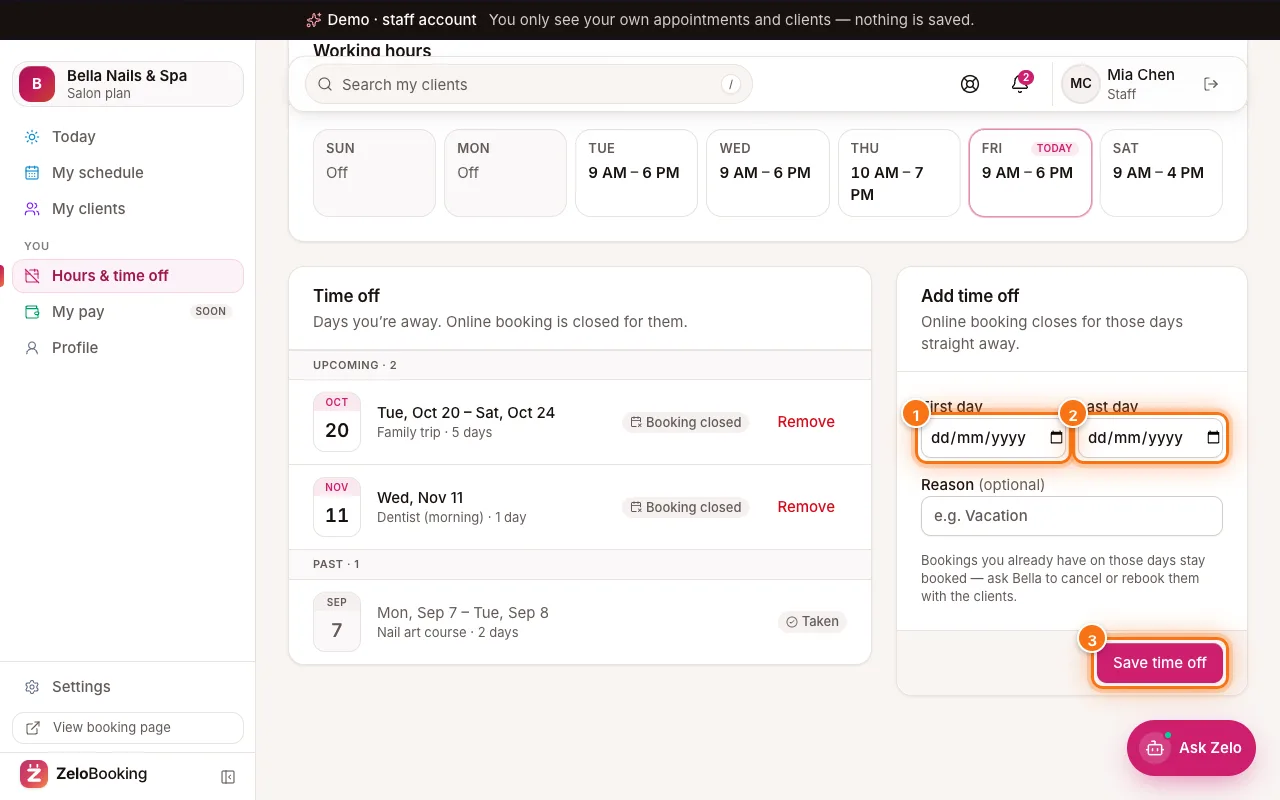
Add time off with First day (1), Last day (2) and Save time off (3) highlighted