Video walkthrough coming soon
The written steps below cover everything in the meantime.
About 3 min to follow along
When you’re done
- Legal pages linked in every page footer
- Your own business rules added to them
- 1
Open Legal pages
Go to Settings → “Legal pages” (1). Both pages are already on your website, built from your business details, cancellation policy and website settings, and linked in every page footer.
Click “View page” (2) to read what’s there now.
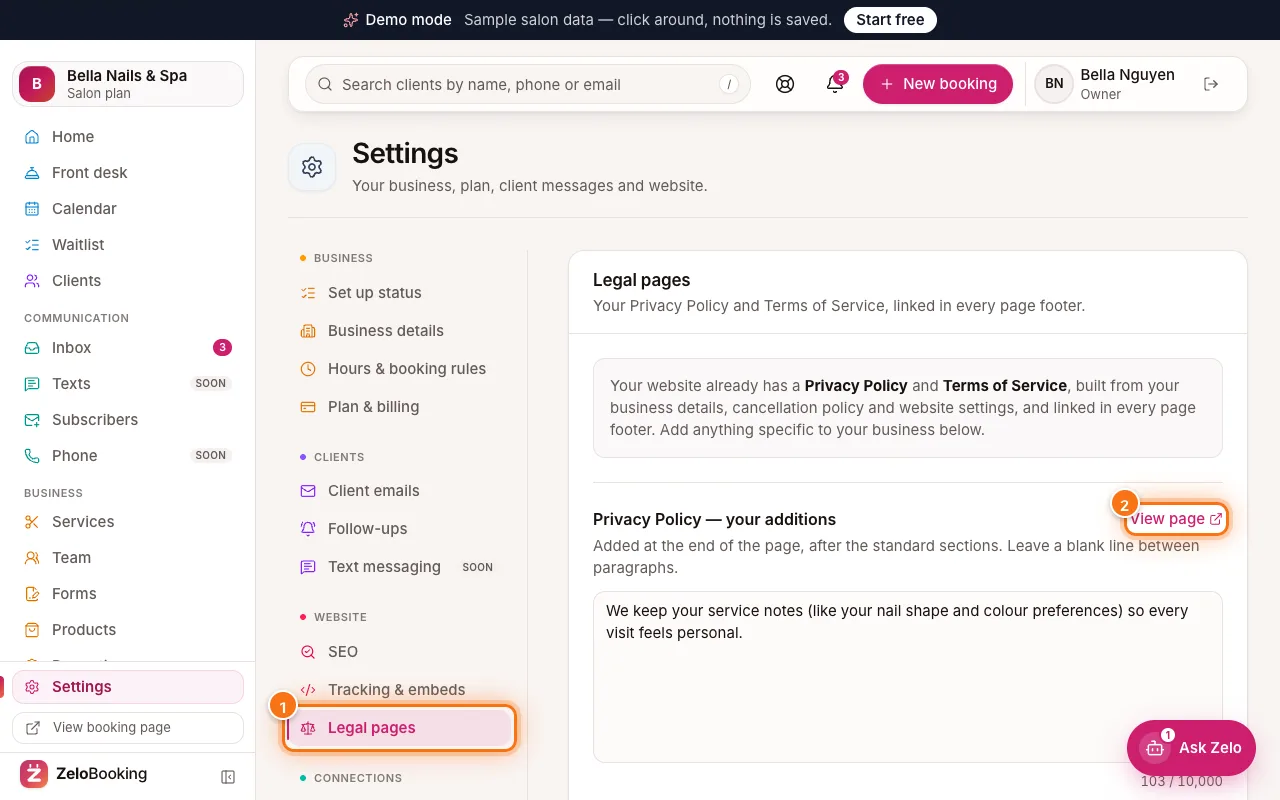
Settings → Legal pages (1) with View page (2) highlighted - 2
Add your own text
Type your additions in “Privacy Policy — your additions” or “Terms of Service — your additions” (1) — for example “Deposits are non-refundable within 24 hours of your appointment.” Leave a blank line between paragraphs.
Your text is added at the end of the page, after the standard sections. Click “Save legal pages” (2) — it’s live straight away.
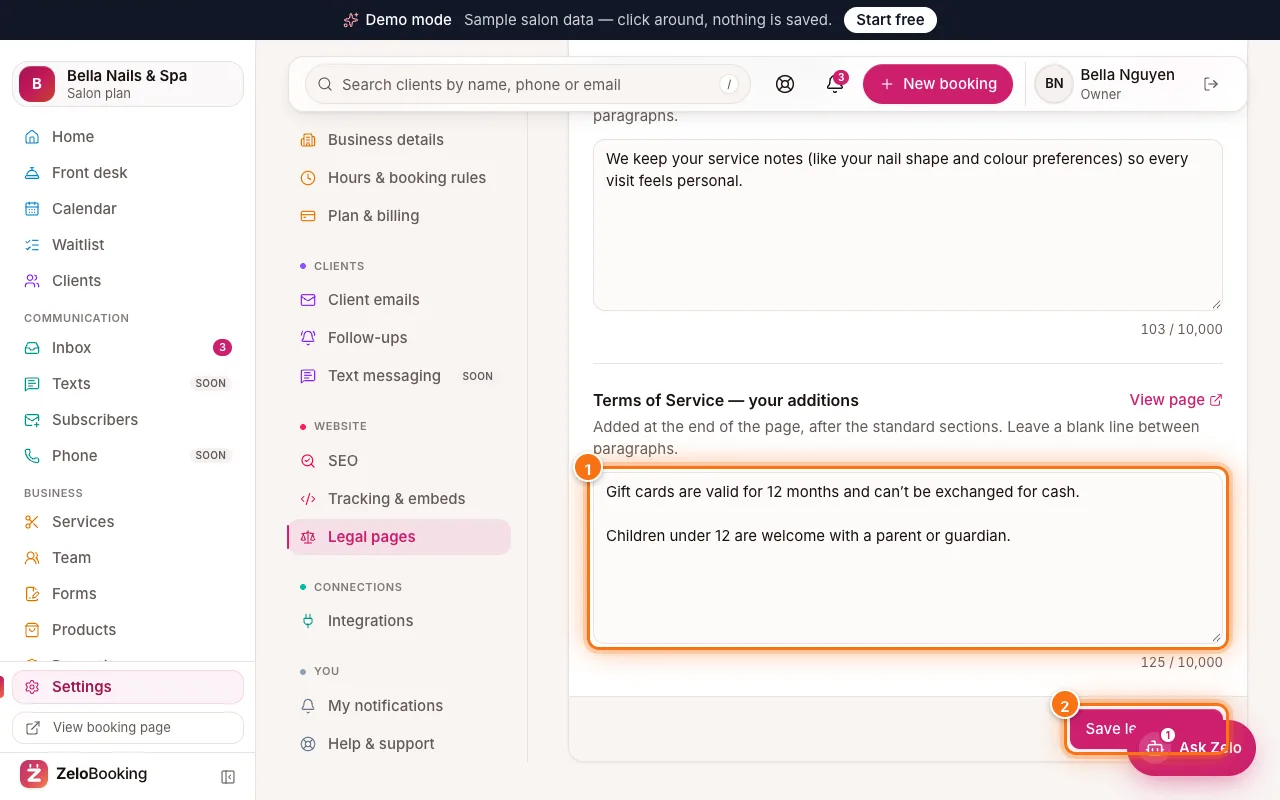
Terms of Service additions box (1) and Save legal pages (2) highlighted - 3
Keep it current
When your policies change (cancellation fee, age rules, photo consent), update the text here. Your “Cancellation policy” itself is set in Settings → Hours & booking rules, and shows up on the pages by itself.