Video walkthrough coming soon
The written steps below cover everything in the meantime.
About 5 min to follow along
When you’re done
- Your existing clients in ZeloBooking in minutes
- Columns matched for you, with a preview before anything is saved
- No duplicates and no surprise marketing messages
- 1
Export a CSV file from your old system
In your old booking system, look for an option like “Export clients” and save the file as CSV. Any spreadsheet saved as CSV works too, as long as the first row has the column names.
One file can hold up to 5,000 clients and 5 MB — a bigger file is refused, so split it into parts and import each one.
- 2
Open Import
In the left menu, click “Clients”, then “Import” (1) at the top right. Only owners and admins see this button.
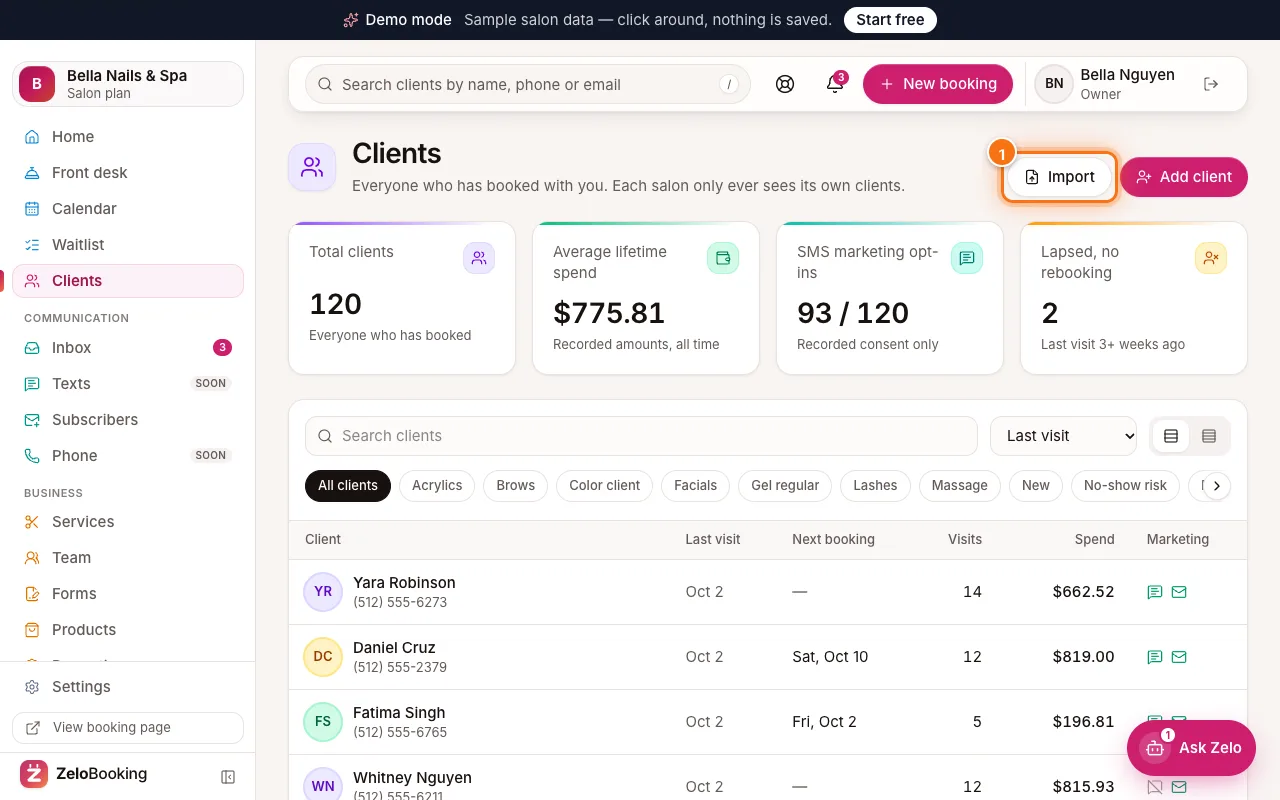
The Clients page with the Import button highlighted (1) - 3
Choose the file
In the “Import clients” panel, click “Choose a CSV file” (1) and pick the file you exported.
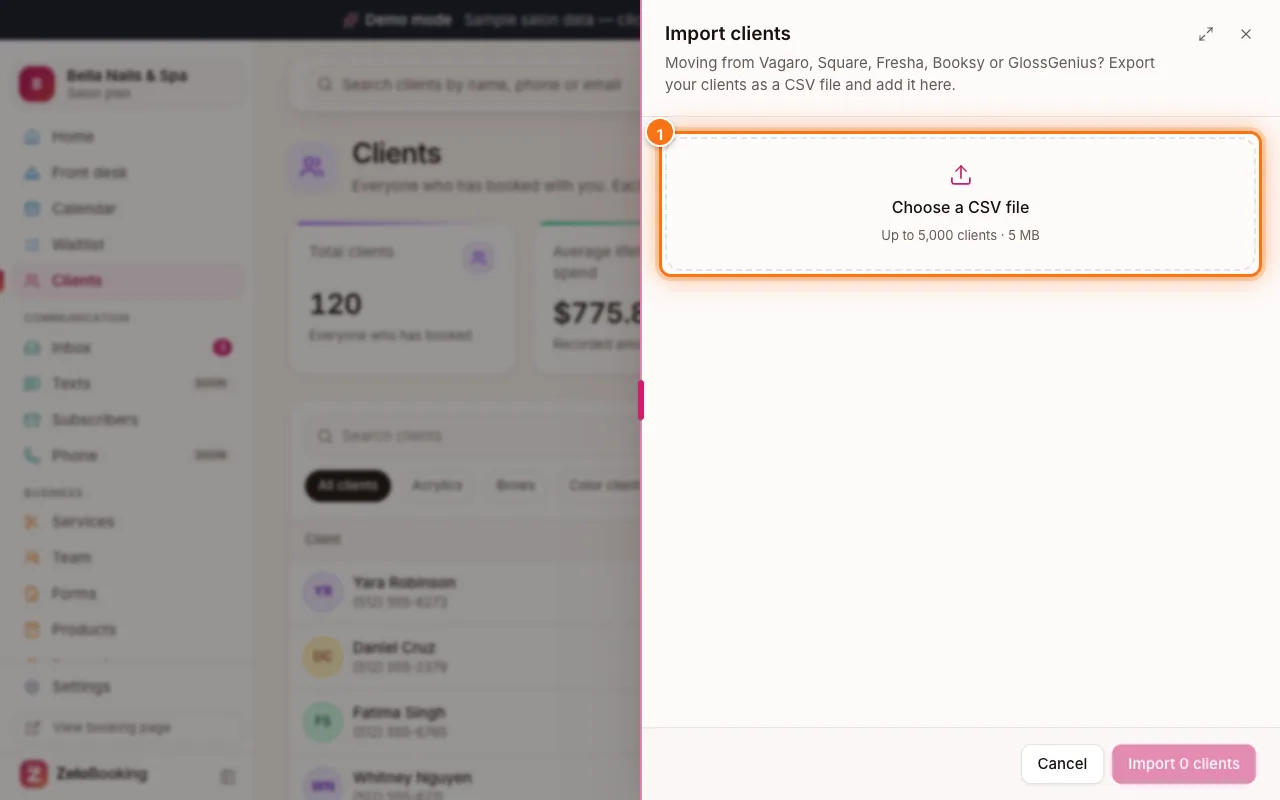
The Import clients panel with “Choose a CSV file” highlighted (1) - 4
Match the columns
Under “Match the columns” we guess which column is which from your file’s headings: First name, Last name, Full name (first + last), Email, Mobile / phone, Birthday, Notes and Tags / groups. Fix any that are wrong, or choose “— Not in this file —”. If your file has birthdays, “Birthdays are written” says whether dates are month first (03/14/1990) or day first (14/03/1990) — we guess from your file; change it if dates like 04/05 should read the other way.
Then check the three counts:
- “Ready” — clients that will be added.
- “Repeated in file” — the same person twice in your file (added once).
- “Can’t import” — open the line below the preview to see each line of your file and why.
A client whose phone number, email or birthday can’t be read is still imported without that detail — the notes below the preview list each one by its line in your file. The table shows the first few clients so you can check names and numbers look right.
- 5
Import
Click “Import … clients” at the bottom. You’ll see how many were added, and how many were already in your list (same email or phone) and left as they are — clients you archived say “Already in your list (archived)”; restore them from Clients → Show archived. Click “Done”.