Video walkthrough coming soon
The written steps below cover everything in the meantime.
About 4 min to follow along
When you’re done
- Every website enquiry in one place
- A reply sent in one click
- A copy of each new message in your own email, if you like
- 1
Open the Inbox
In the left menu, click “Inbox” (1) — the tray icon under Communication. A number on it shows unread messages.
The list on the left shows each message with the person’s name, the service they asked about and the first lines. New ones have a dot. Click a message (2) to read it on the right.
Tip: Looking for one person? Type their name or a word from the message in “Search messages” above the list.
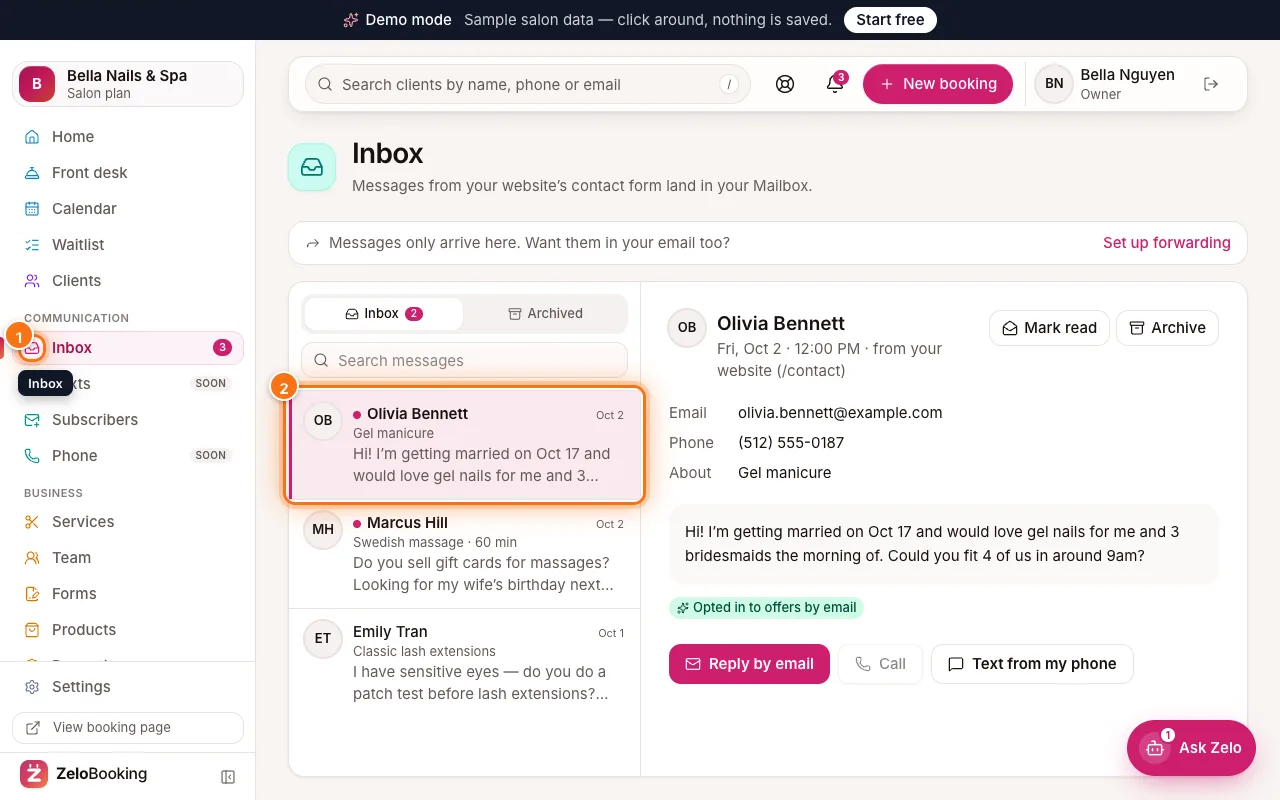
Inbox with the Inbox icon in the left menu (1) and the first website message (2) highlighted - 2
Read the details
At the top you see who wrote, when, and which page of your website they used. Below: their email, phone and the service they asked “About”, then their full message.
A green “Opted in to offers by email” tag means they ticked the box to hear about offers. We email them a link to confirm; once they tap it, they appear in your Subscribers list.
- 3
Reply
Pick how to answer:
- “Reply by email” (1) opens your email app with their address, a subject and their message quoted underneath — just write your answer.
- “Call” (2) rings them — from your business number once the browser phone is on, otherwise through this device’s phone app.
- “Text from my phone” (3) opens the messaging app on this device, so the text comes from your own phone number.
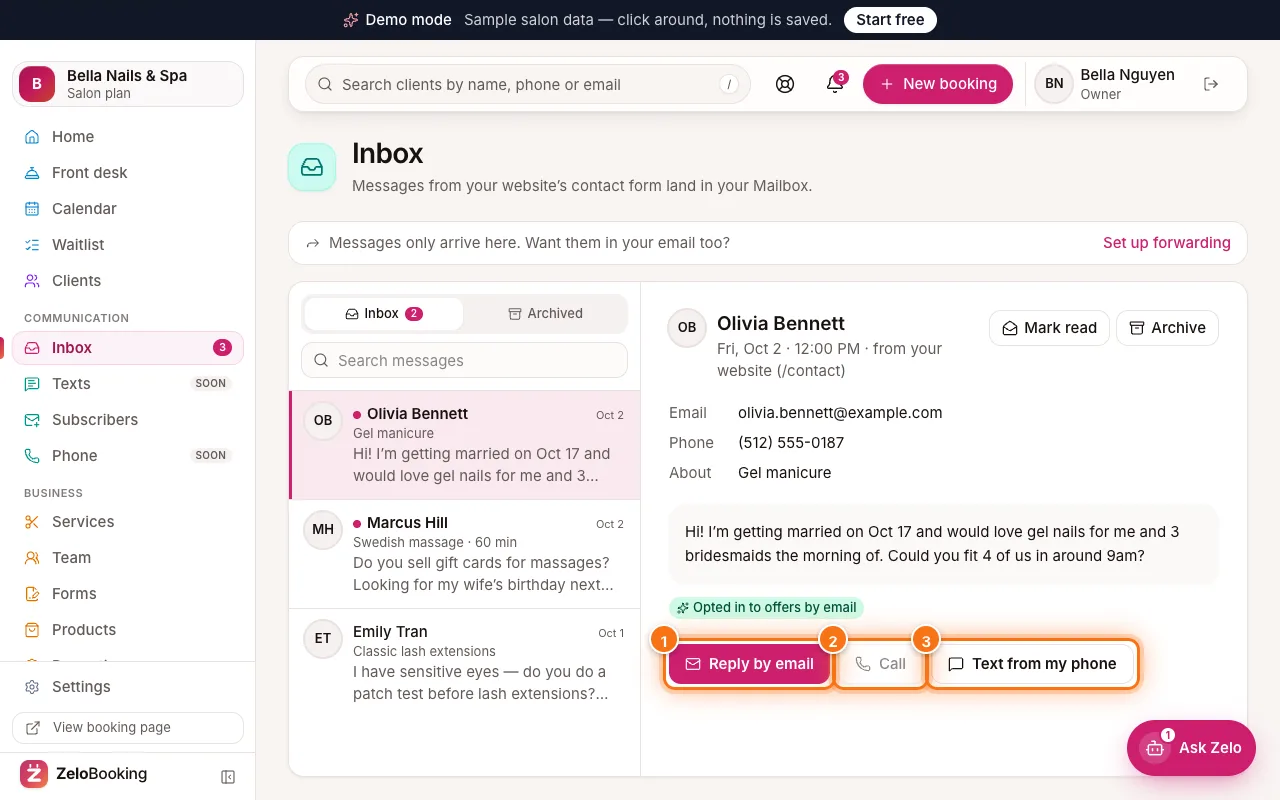
An open website message with Reply by email (1), Call (2) and Text from my phone (3) highlighted - 4
Mark read and archive
Opening a message marks it read. Click “Mark unread” to flag it again for later.
When it’s handled, click “Archive” (1). It moves out of the inbox into the “Archived” folder (2) at the top of the list. Open Archived and click “Move to inbox” to bring it back.
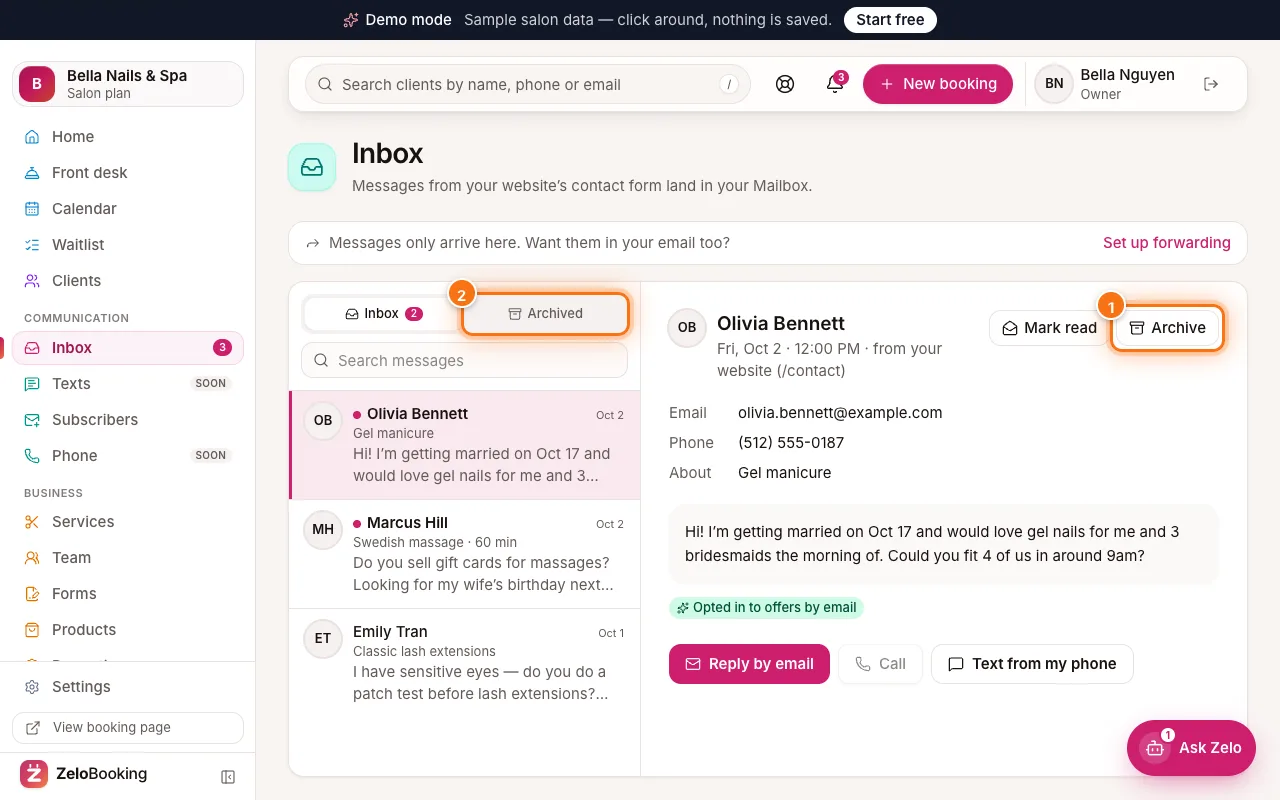
Inbox with the Archive button (1) and the Archived folder (2) highlighted - 5
Get copies in your own email
Scroll down to “Also send to my email” (or click “Set up forwarding” at the top of the Inbox). Type your address in the box (1) and click “Add & send verification” (2).
We email that address a link — nothing is forwarded until you click it (the link works for 24 hours). After that, every new website message is copied there, and if you reply from your email it goes straight to the client.
Tip: Didn’t get the link? Check spam, then click “Resend link” next to the address. You can add up to 3 addresses; use the switch to pause one or the bin icon to remove it.
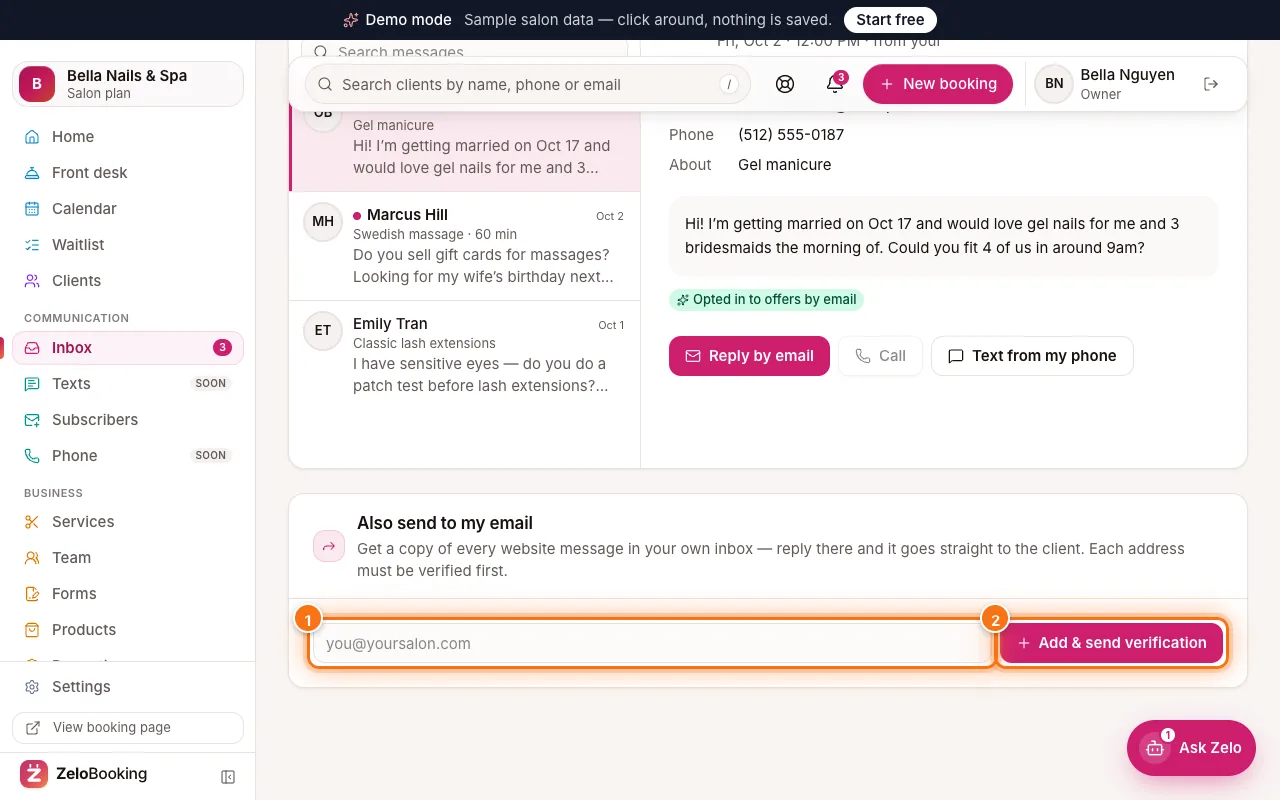
Also send to my email: the email box (1) and the Add & send verification button (2) highlighted