Video walkthrough coming soon
The written steps below cover everything in the meantime.
About 5 min to follow along
When you’re done
- Forms sent automatically with every booking that needs one
- A new link and PIN sent in one click when a client loses theirs
- Signed, sealed PDFs ready to download
- 1
How forms go out
When a client books a service that has a form attached (Forms → Edit → Settings → “Send for these services”), they’re emailed the form link in its own email (“Please sign before your visit”). Clients open it on their phone and enter a 4-digit PIN before they see the form. No account is needed. After booking online, the confirmation page tells them to fill it in now from that email, and their manage link shows “Sign now”, which emails a new PIN for a form still waiting (not after too many wrong PINs on that form’s link — then send a new one with “Resend”).
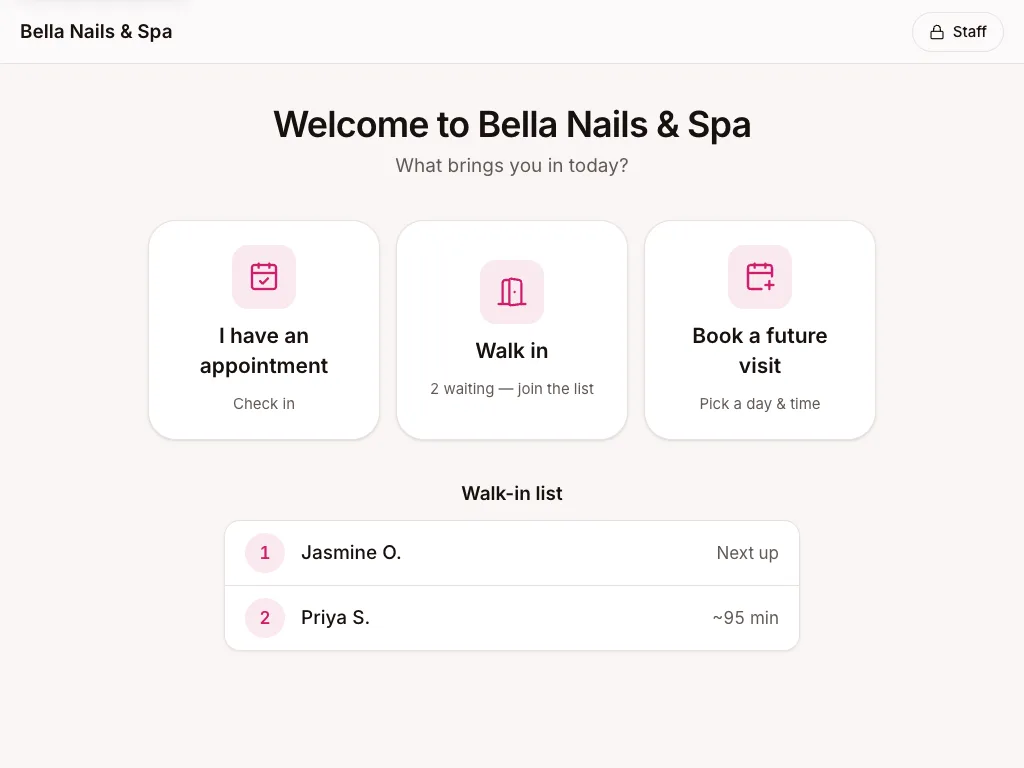
Not signed after 24 hours? They get an automatic reminder email with a new link and PIN (the old link stops working), and one more about 2 hours before the appointment — at most 2 reminders, none once they’ve signed or the booking is cancelled. Switch them off in Settings → Client emails → “Form reminders”. You can also send a new link any time with “Resend” (below) or have them sign on the kiosk when they arrive. The link works until the day after the appointment.
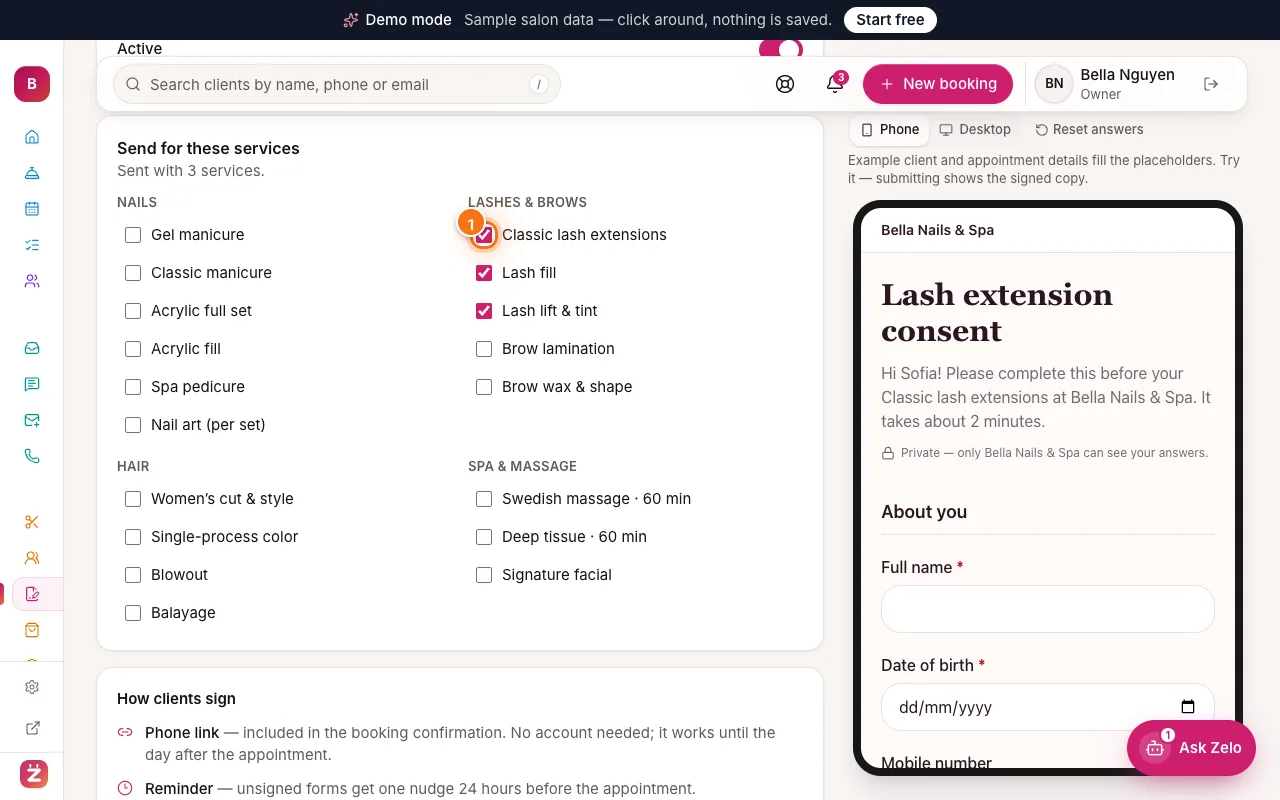
Send for these services: a ticked service highlighted (1) - 2
See who still has to sign
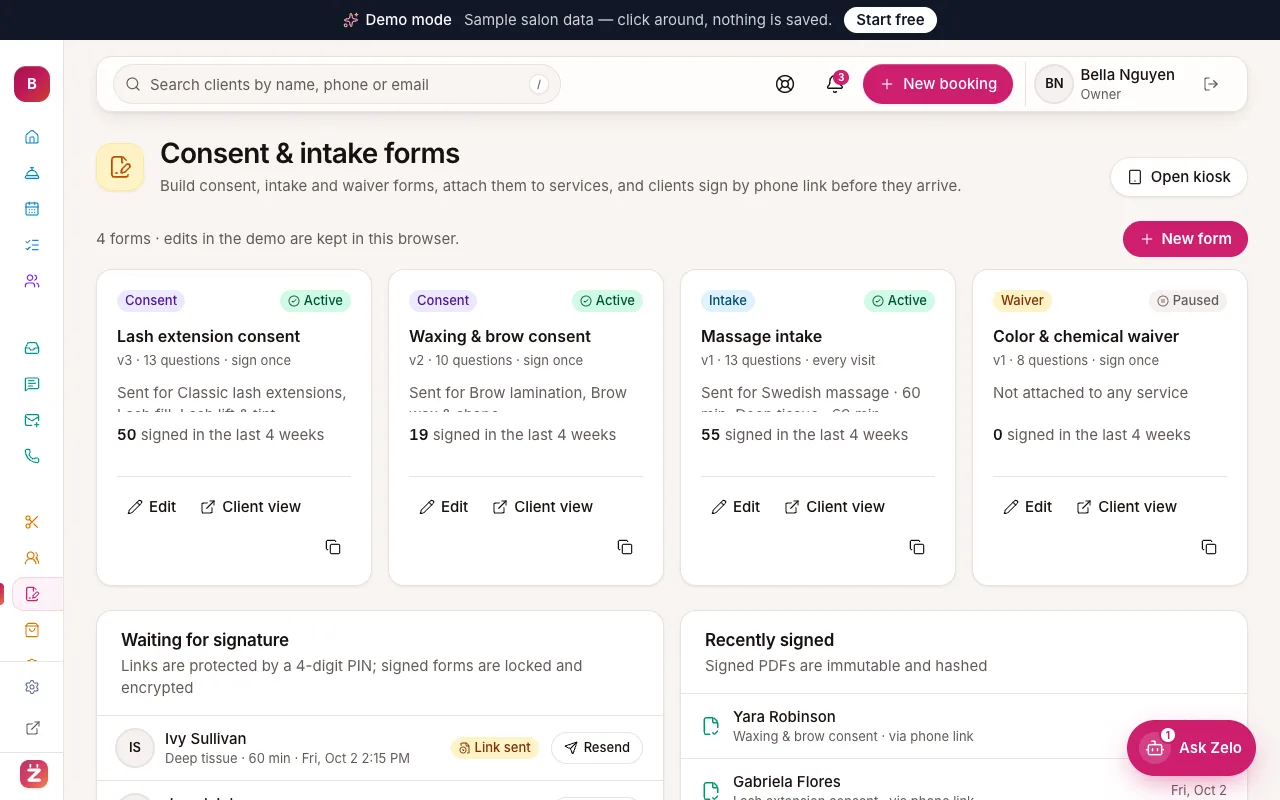
In the left menu, click “Forms” and scroll to “Waiting for signature”. Each row shows the client, the service and appointment time, and “Link sent” or “Opened” (“Sending email” for a few minutes right after a booking) — and “Reminded …” with the time once an automatic reminder went out. “Not emailed” or “Email failed” means the link never reached them (no email address, emails switched off, or the email bounced): fix it and resend, or have them sign on the kiosk.
Above it, “Not sent yet” (shown only when there are some) lists bookings in the next 14 days whose service has a form but no link yet — for example, a client who had no email when they booked, or a form you attached later. Click “Send” on a row.
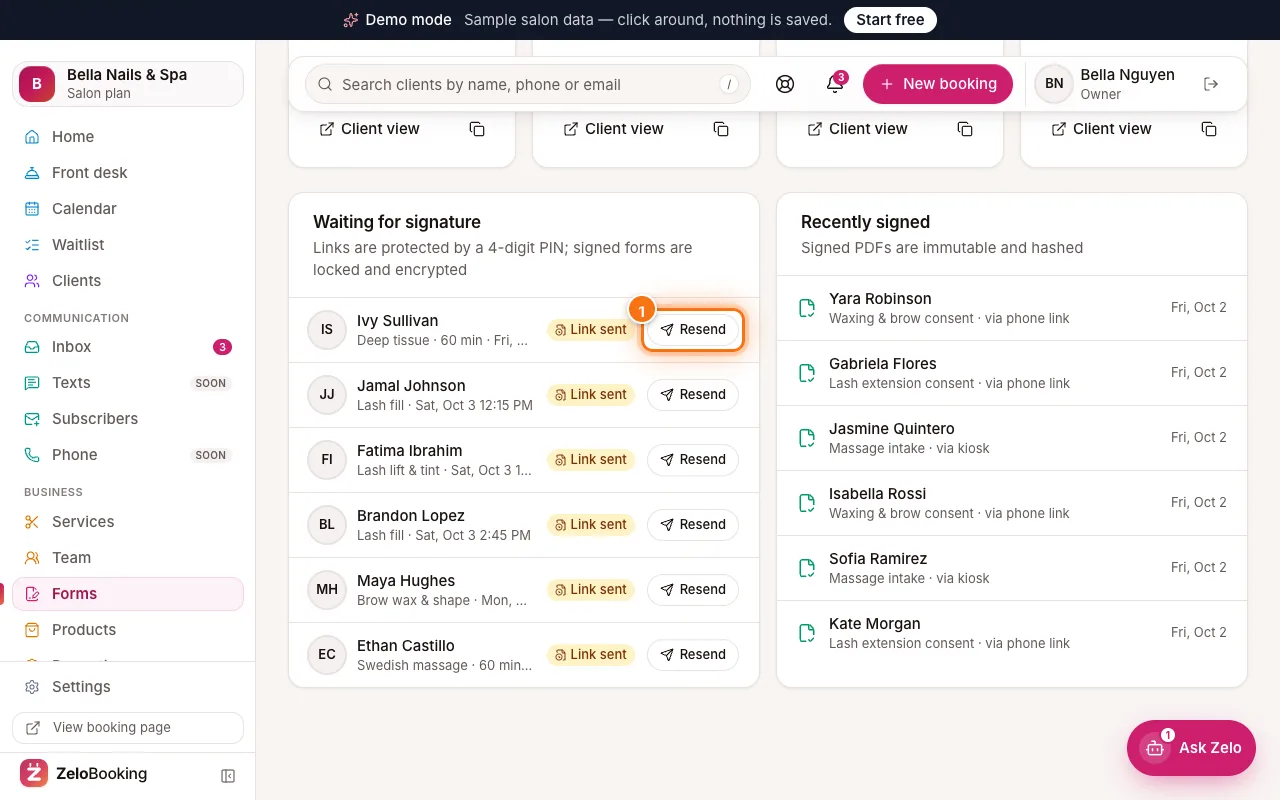
Waiting for signature and Recently signed lists with a Resend button highlighted (1) - 3
Send a new link and PIN
Client lost the email or forgot the PIN? Click “Resend” (1) on their row.
The window shows where the link and PIN will go. Right now both go by email; once texting is switched on for your business, the PIN goes by text, separately from the emailed link. Click “Send new link & PIN”. The old link stops working once the new email has gone — if it can’t be emailed, nothing changes and the old link and PIN keep working.
Tip: A new PIN is made for every send and is never shown again — resend if it’s lost. No email address? Have them sign on the kiosk.
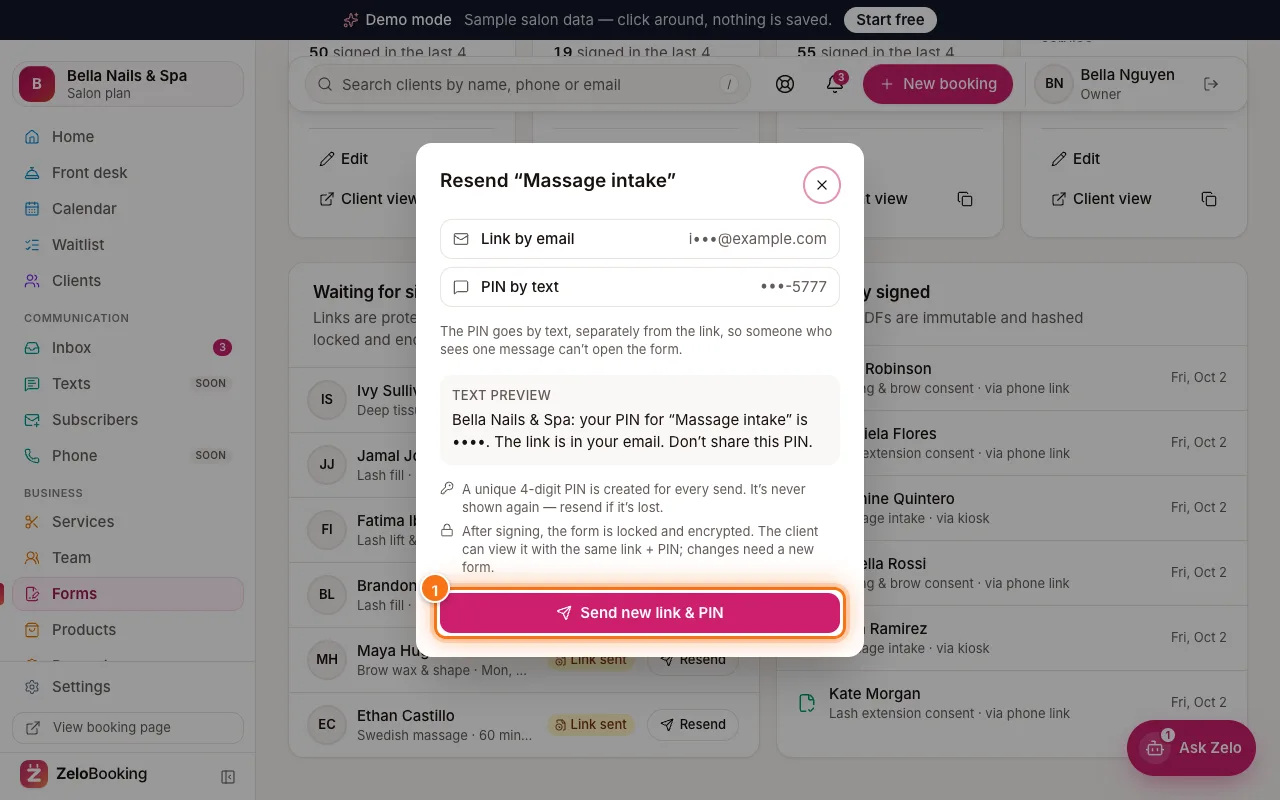
The Resend form window showing where the link and PIN go, with Send new link & PIN highlighted (1) - 4
Find signed forms
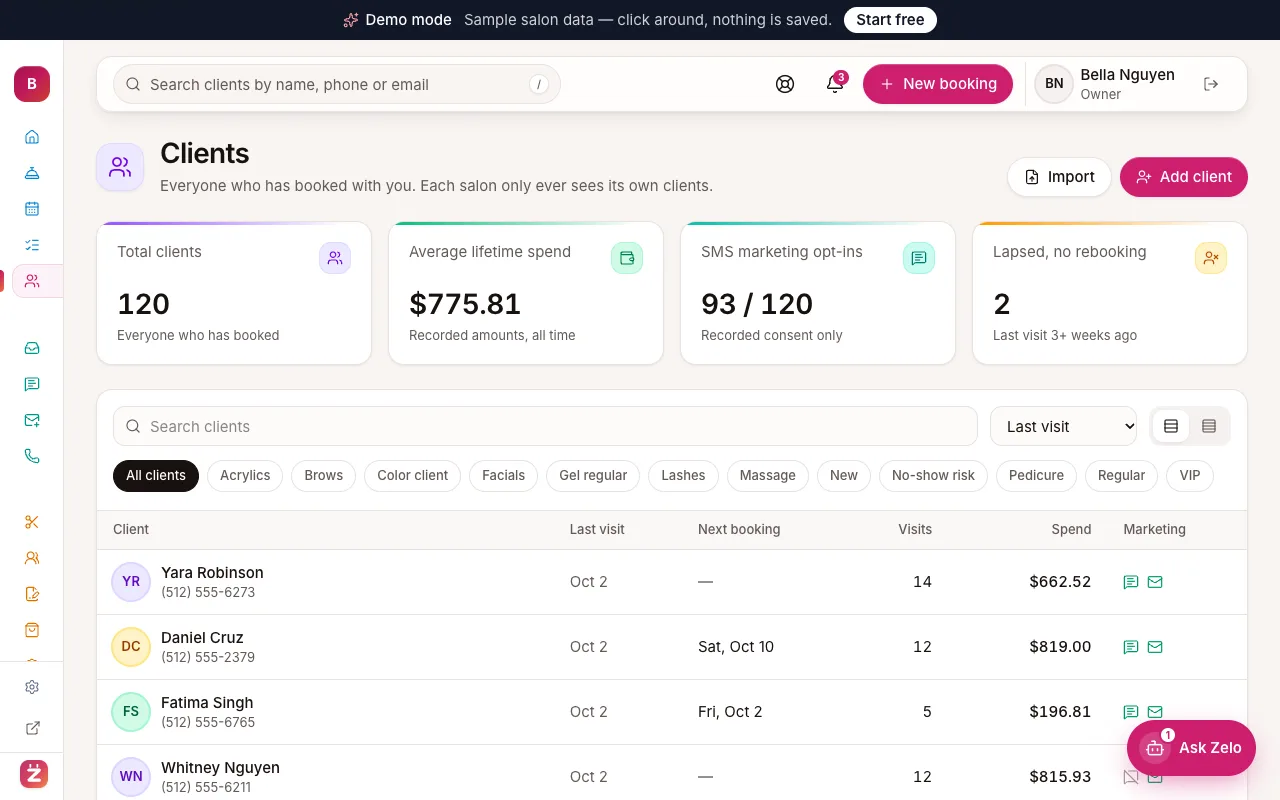
“Recently signed” lists the latest signed forms with the form name and how it was signed — “via phone link” or “via kiosk”. Click a client’s name (1) to open their signed copy.
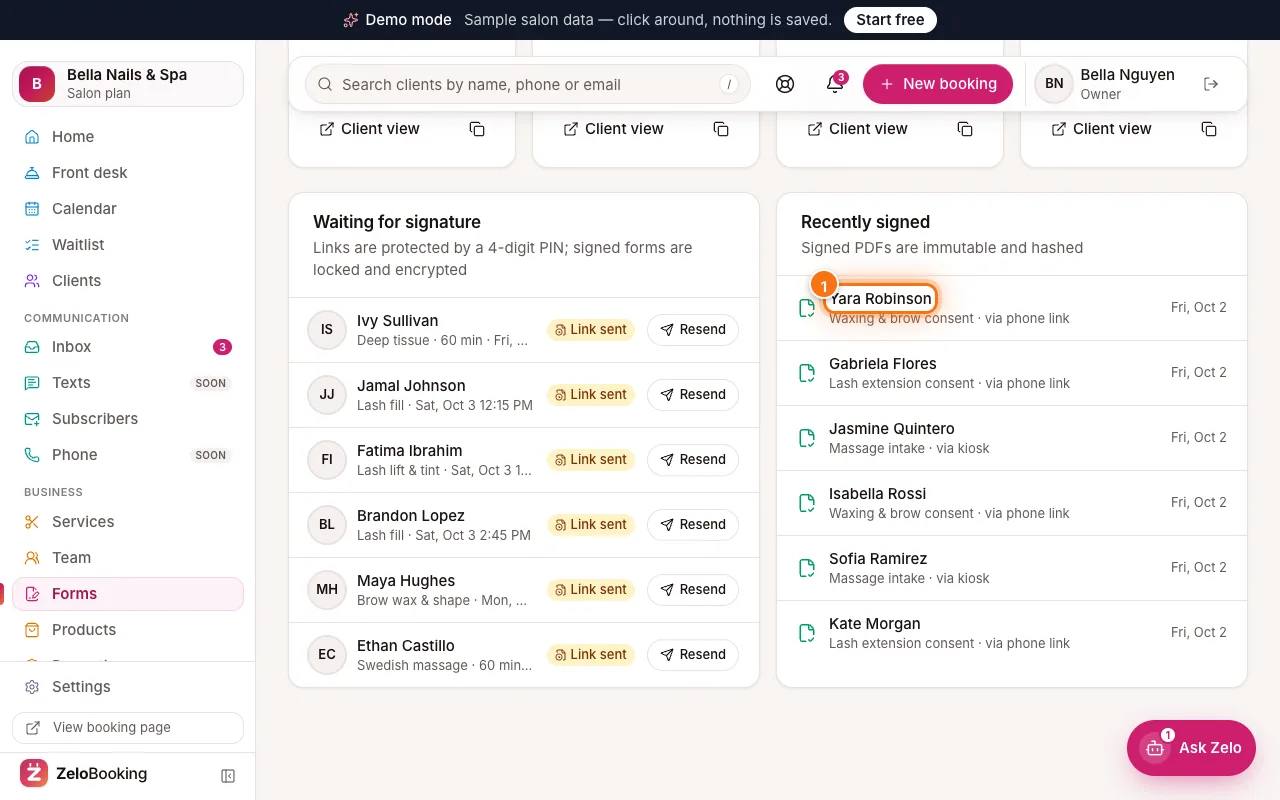
Recently signed with a client’s name highlighted (1) to open the signed form - 5
View or download the PDF
The signed copy shows every answer and the signature. Click “Download PDF” (1) to save or print it.
Signed forms are locked and can’t be changed. If something needs correcting, the client signs a new form.
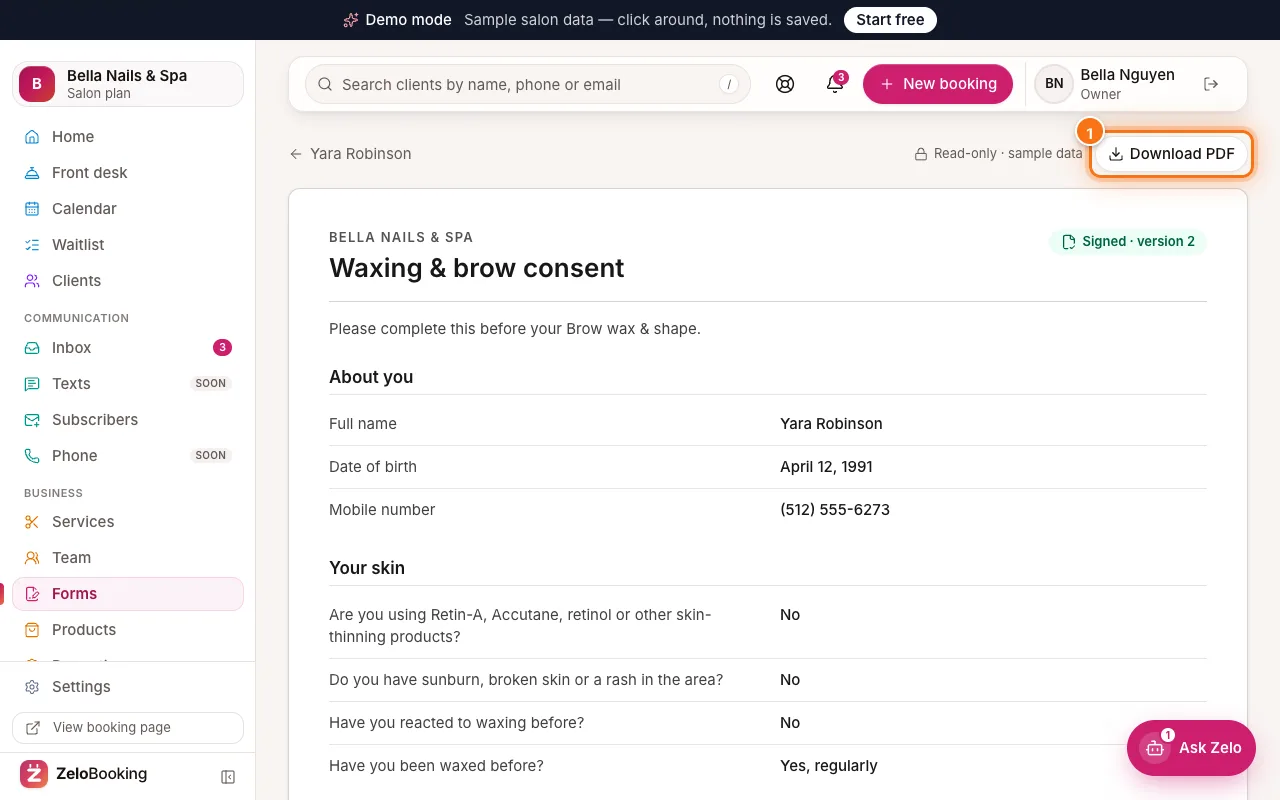
A signed form with the Download PDF button highlighted (1)