Video walkthrough coming soon
The written steps below cover everything in the meantime.
About 8 min to follow along
When you’re done
- A clear menu grouped by category
- Accurate times, so the calendar never overbooks
- Photos that make your booking page and website stand out
- 1
Open Services
In the left menu, click “Services” (1) under Business. Your services are grouped by category, such as “Nails” (2). Each row shows the photo, the service name (3), Duration, Price, Staff and whether it’s bookable Online.
The line at the top says how many services you have and how many are bookable online.
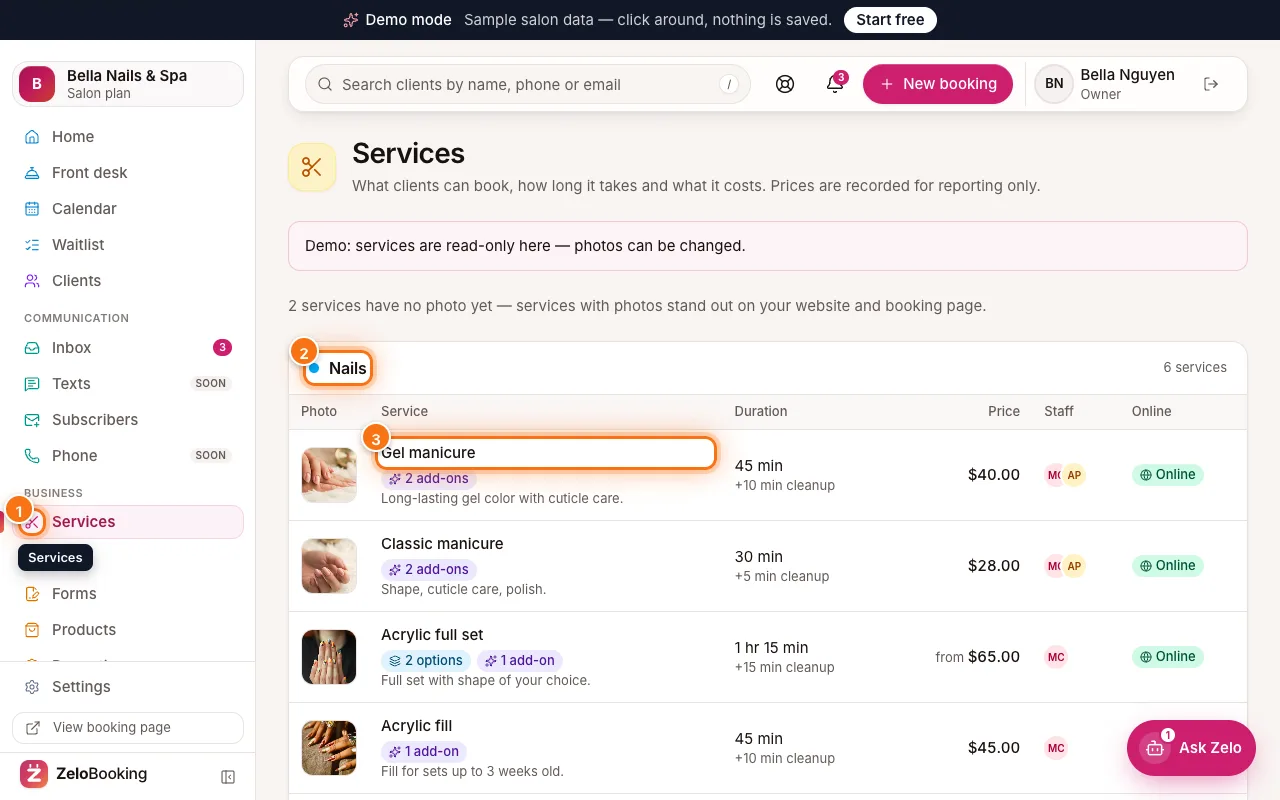
Services page with the Services menu icon (1), the Nails category (2) and a service name (3) highlighted - 2
Add a category or a service
At the top right, click “Add category” to create a new group (type a “Category name” and click “Save”), or “Add service” to open “Add a service”.
To change an existing service, click “Edit” at the end of its row. To rename a category, click “Rename” on its header.
To put categories and services in order, click “Change order”, move them with the up and down arrows and click “Save order” — your booking page and website follow it. A category with no services left shows “Delete” on its header.
Tip: The demo’s Services page is read-only (only photos can change), so you won’t see these buttons there.
- 3
Fill in the service
In the service panel:
- “Service name” — a name clients understand (“Gel manicure”, not “GM-45”)
- “Category” — the group it shows under
- “Description” — optional, shown on your booking page
- “Duration (minutes)” — how long the service takes
- “Price ($)” — tick “Show as “from” price” for services that vary, such as colour
Click “Save”. You’ll see “… added.” at the top of the page.
- 4
Add cleanup time
Set “Cleanup after (minutes)” — for example 10 minutes to sanitise a station. Clients don’t see it, but the calendar keeps that time free before the next client.
In the list it shows under the duration (1), like “45 min +10 min cleanup”. The price (2) and the people who do it (3) sit next to it.
Tip: Duration + cleanup is what blocks the calendar. Check both for your longest services.
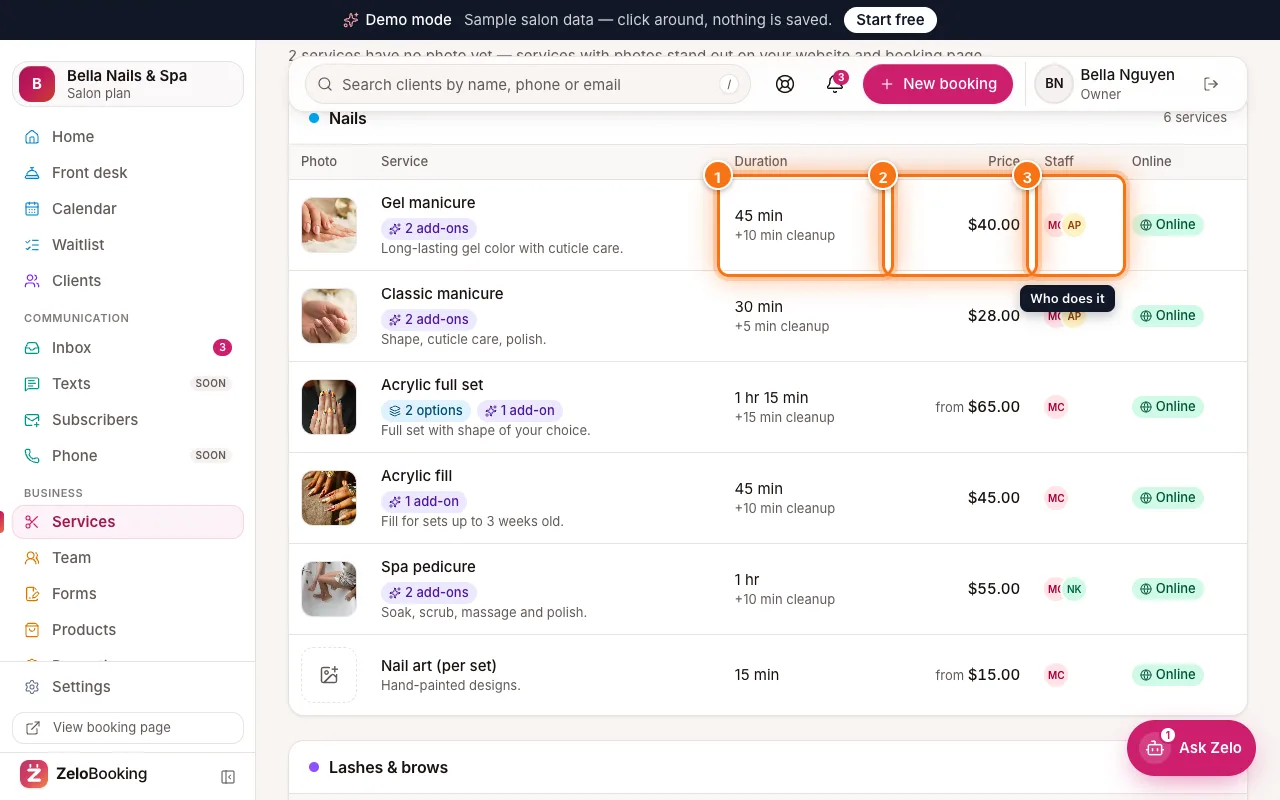
A service row with its duration and cleanup (1), price (2) and staff (3) highlighted - 5
Choose who does it
Under “Who does this service”, tick each team member who performs it. Clients booking online only see those people, and “Anyone available” only picks from them.
A service with nobody ticked shows “No one yet” in the Staff column.
- 6
Add a photo
Click the empty photo box (1) at the start of a row (or “Upload photo” / “Browse media” in the service panel) to add a picture. Services with photos stand out on your website and booking page — a note at the top tells you how many still need one.
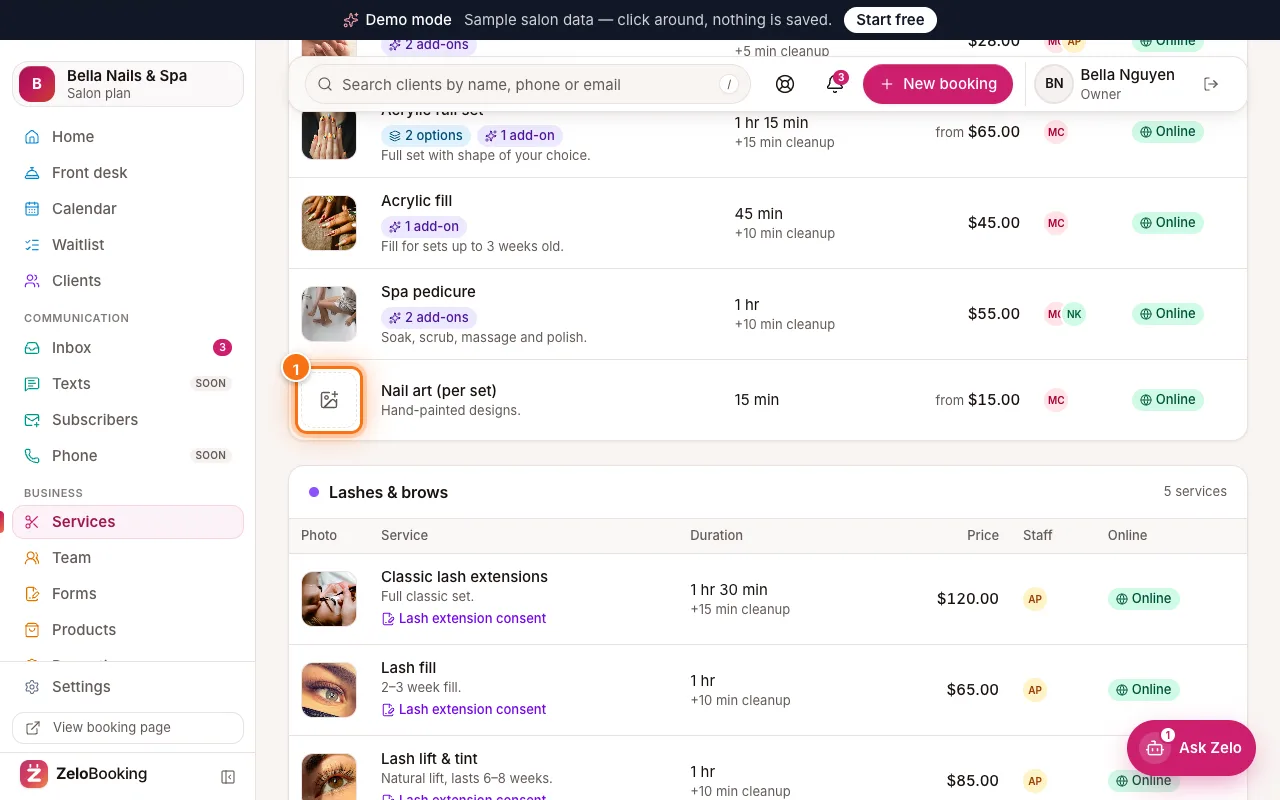
Services list with an empty photo box (1) highlighted - 7
Online booking on or off
Turn the “Online” switch off for services you only book by phone or after a consultation (in the service panel it’s called “Bookable online”). They stay on your menu, but only your team can book them from the calendar.
- 8
Archive a service you no longer offer
Open the service and click “Archive service” at the bottom left, then confirm. Clients can’t book it any more, but past bookings keep it.
Changed your mind? Click “Show archived services” (1) at the bottom of the page and click “Restore”. Restored services come back with online booking off, so you can check them first.
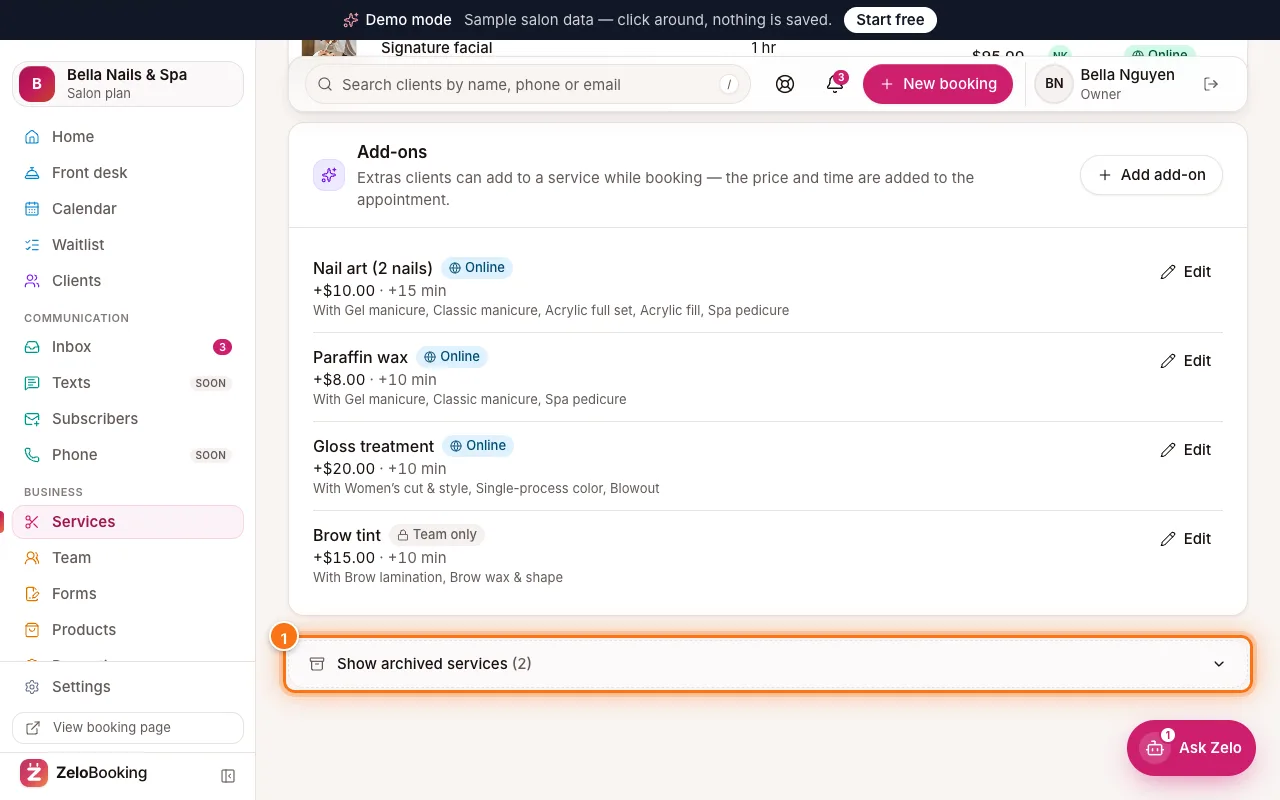
Bottom of Services with Show archived services (1) highlighted