Video walkthrough coming soon
The written steps below cover everything in the meantime.
About 5 min to follow along
When you’re done
- Cancelled slots offered to waiting clients automatically
- Callers added to the list in a few clicks
- Fewer empty chairs without any phone calls
- 1
Turn on the waitlist
In the left menu, click “Settings”, then “Follow-ups”. Switch on “Waitlist” (1) and click “Save” (2).
Now clients see a “Join the waitlist” button on your booking page when no time suits them.
Tip: If the waitlist is off, the Waitlist page shows a yellow note with a “Turn it on” link.
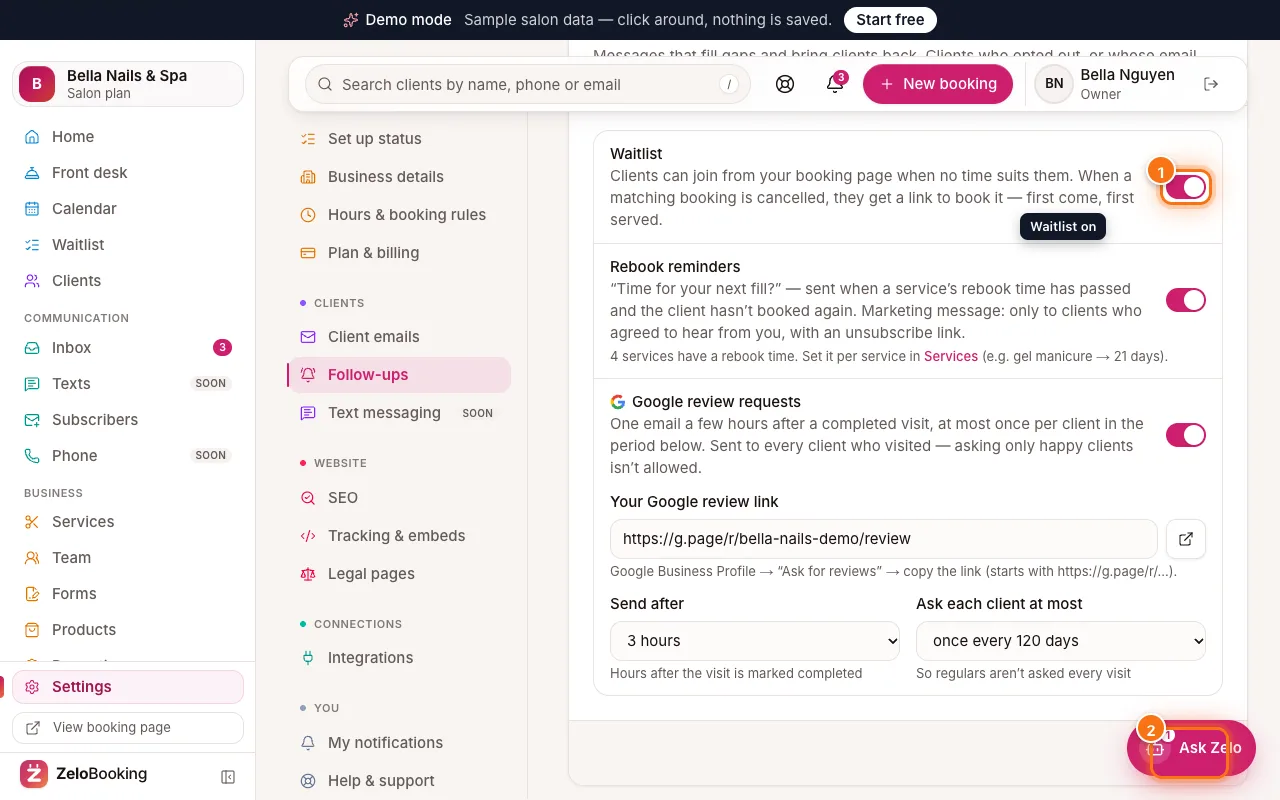
Settings → Follow-ups with the Waitlist switch (1) and Save (2) highlighted - 2
See who’s waiting
In the left menu, click “Waitlist”. The “Waiting” tab lists each client with the service, the team member they want (if any), the dates and time of day that suit them, and their note.
Tags show “Joined online” or “Added by the team”, and “Told about 1 opening” once they’ve been offered a time. “Recently closed” shows people who booked or were removed.
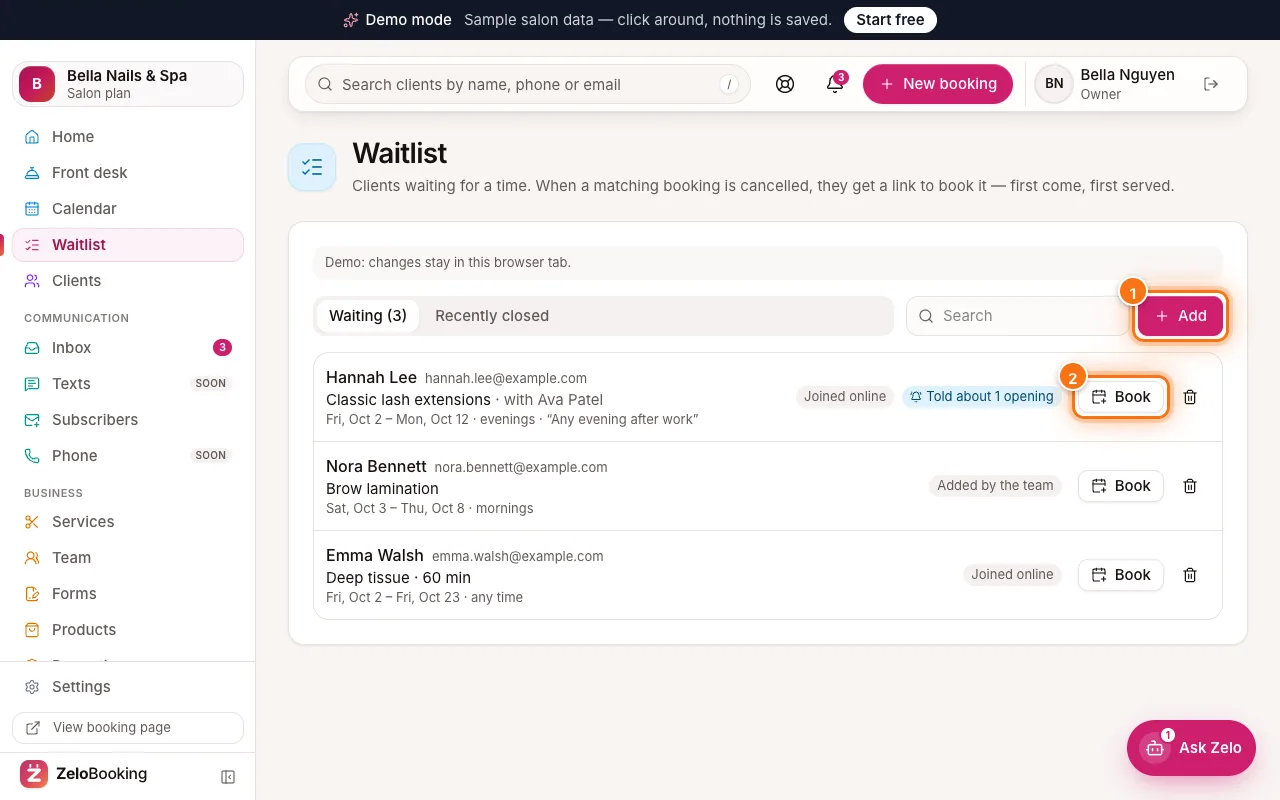
The Waitlist page with the Add button (1) and a client’s Book button (2) highlighted - 3
Add someone who calls
Click “Add” at the top right of the list.
- “Client” (1): type a name, email or phone and pick them, or click “+ New client” (give an email or a mobile number — that’s how they hear about an opening).
- “Service” and “With” (or “Anyone”).
- “From” and “To”: the dates that work for them.
- “Time of day” (2): “Any time”, “Morning”, “Afternoon” or “Evening”.
- “Note” (optional).
Click “Add” (3).
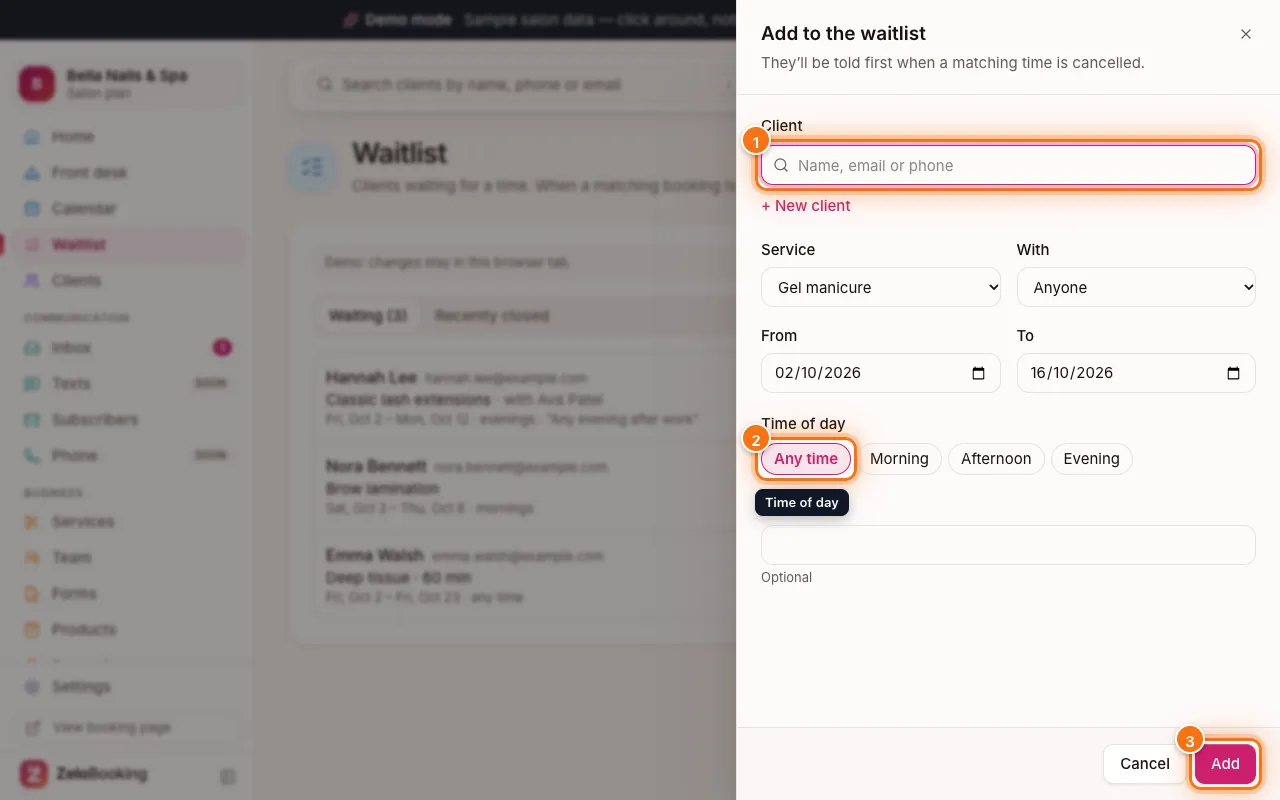
The Add to the waitlist form with the client search (1), Time of day (2) and Add (3) highlighted - 4
What happens when someone cancels
When a booking that matches is cancelled — or moved to another time or person — up to 10 people waiting for that time get a link to book it — first come, first served. Someone who was just told about an opening isn’t told about another one for 6 hours. You don’t have to do anything.
Someone joined later? Open the cancelled booking (Calendar → “List”, or Home) and click “Offer this opening to the waitlist”. It tells you how many were told — or why nobody was.
- 5
Book or remove someone yourself
Found them a time? Click “Book” (2) on their row to open the booking form. To take someone off the list, click the bin icon at the end of their row.
The Waitlist page with the Add button (1) and a client’s Book button (2) highlighted