Video walkthrough coming soon
The written steps below cover everything in the meantime.
About 6 min to follow along
When you’re done
- Your own name and photo on your login
- A strong password and an up-to-date sign-in email
- Two-step sign-in, so a stolen password isn’t enough to get in
- Alerts for new bookings and cancellations, the way you want them
- 1
Open your profile
Click your name and photo (1) at the top right of any page. This opens “Your profile”.
The arrow icon next to it (2) signs you out of this device.
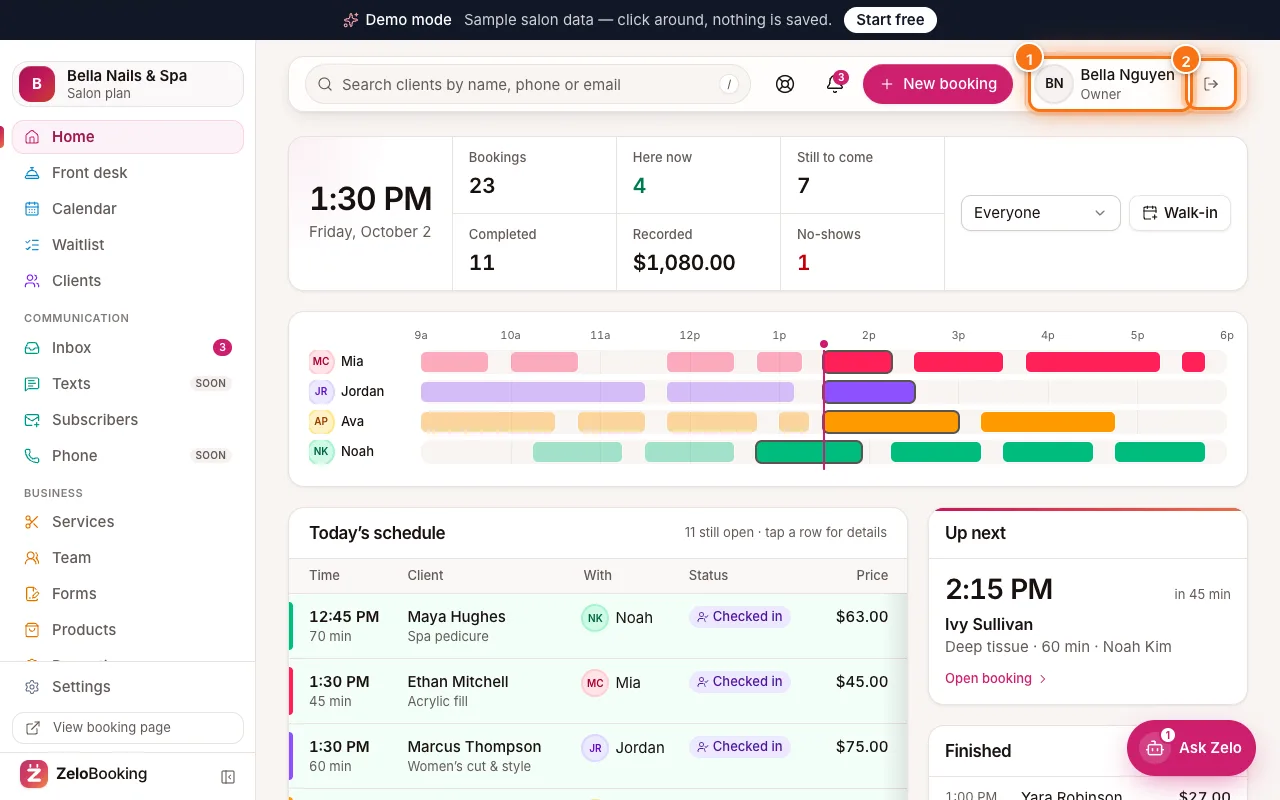
Top bar with your profile (1) and the sign-out button (2) highlighted - 2
Change your name and photo
In the “Your profile” panel, click the round + button on your picture (1) and choose “Upload from device” (once you have a photo: “Upload a new photo” or “Remove photo”).
Edit “Your name” (2) and, if you like, “Mobile phone”. Click “Save profile” (3).
Tip: This photo is only for your login. The photo clients see on your booking page is set in Team.
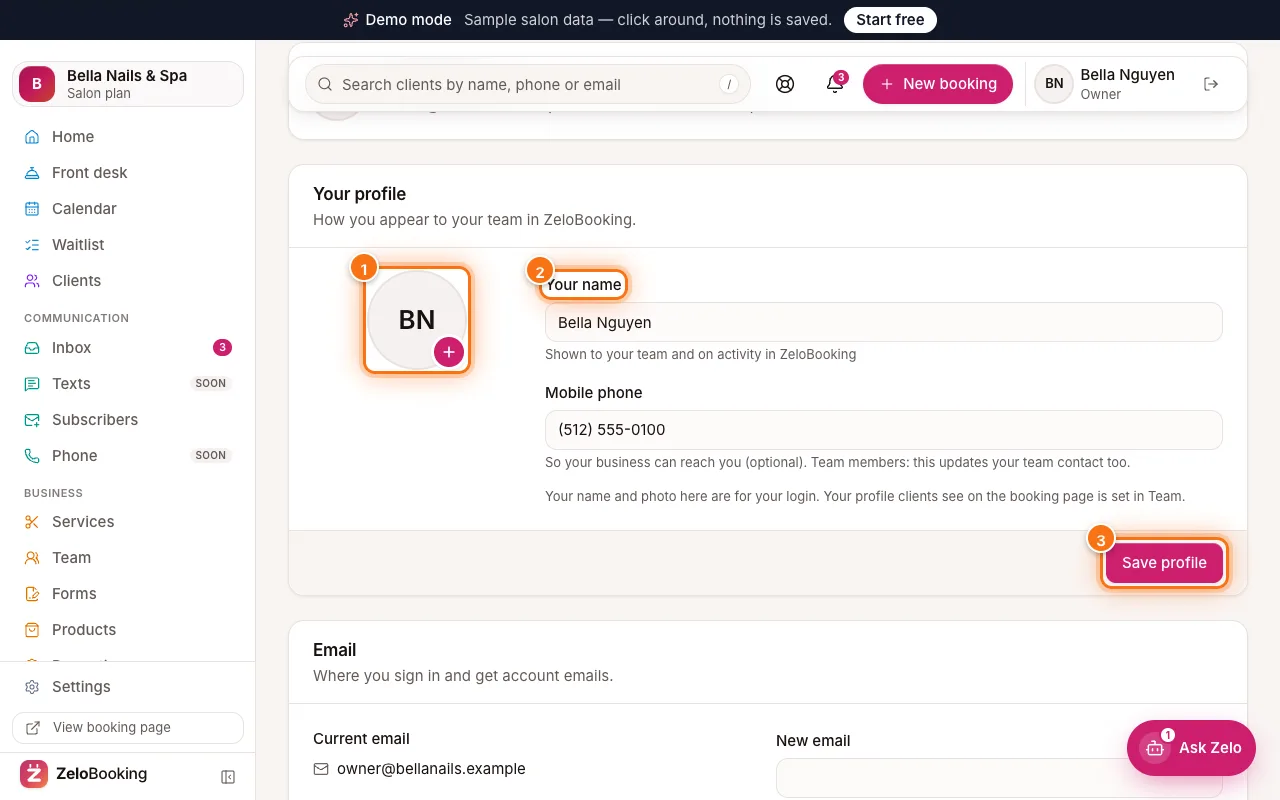
Your profile panel with the photo button (1), Your name (2) and Save profile (3) highlighted - 3
Change your email or password
Email: type a “New email” and click “Change email” (1). We email a 6-digit code to the new address and one to your current address: type each into its box under “Enter the 6-digit codes we emailed” and click “Verify” (or open the link in each email). Nothing changes until both are confirmed — “Resend codes” sends fresh ones.
Password: fill in “Current password”, “New password” (2) — at least 10 characters, with letters and a number — and “Confirm new password”, then click “Change password” (3).
Forgot your current password? Click “Reset it by email”, then “Email me a code”. Type the 6-digit code from the email (or open its link) and choose a new password.
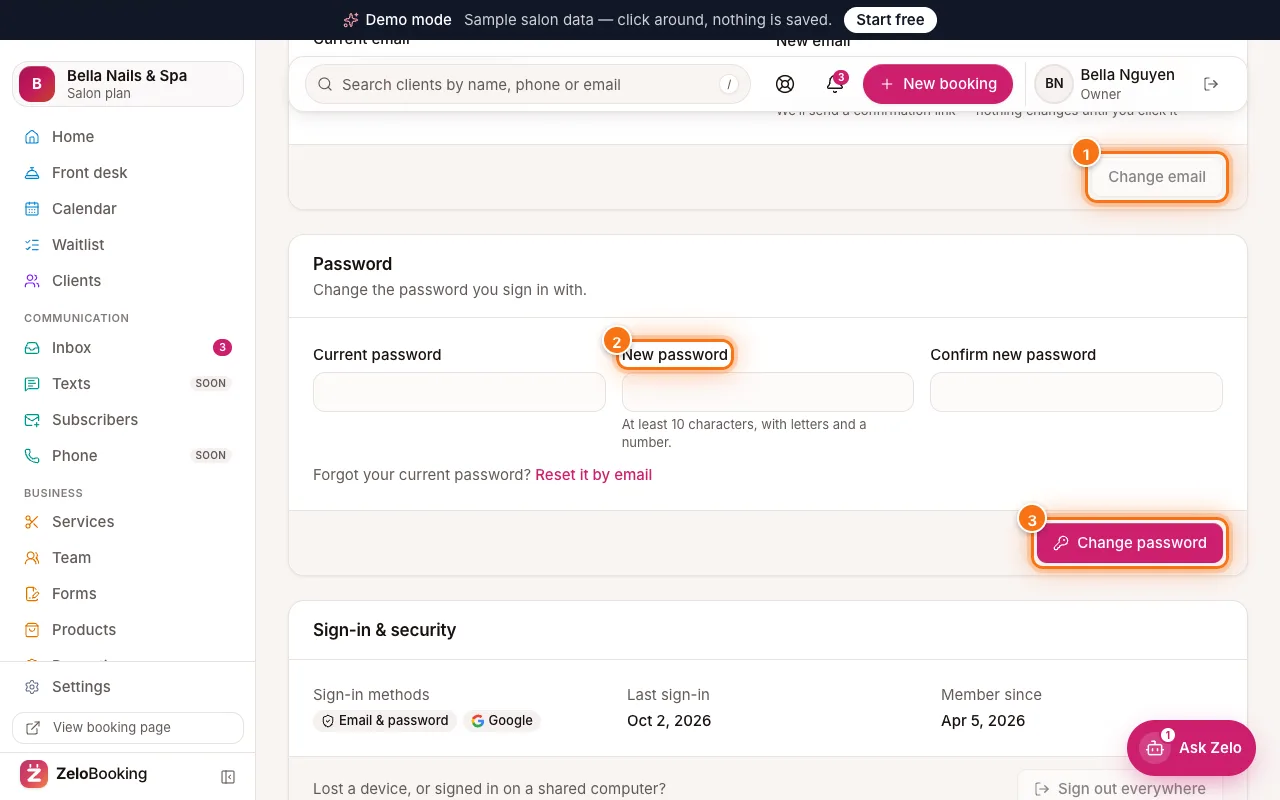
Email and Password panels with Change email (1), New password (2) and Change password (3) highlighted - 4
Sign out everywhere
Lost a phone, or signed in on a shared computer? Under “Sign-in & security”, click “Sign out everywhere” (1). Every device is signed out, including this one.
This panel also shows how you sign in (Email & password and/or Google) and when you last signed in.
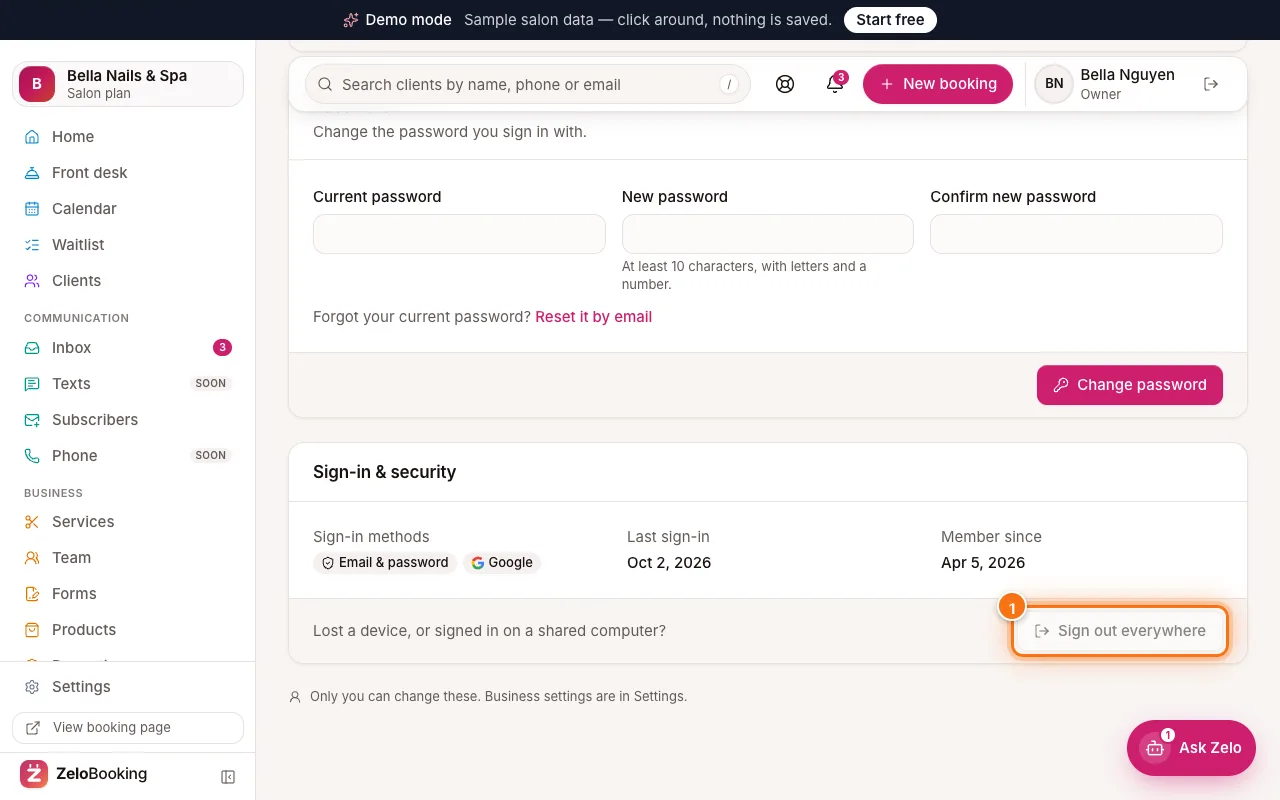
Sign-in & security panel with Sign out everywhere (1) highlighted - 5
Turn on two-step sign-in
In “Your profile”, find the “Two-step sign-in” panel and click “Set up authenticator app”. You need an authenticator app on your phone — Google Authenticator, Microsoft Authenticator, 1Password or similar.
- Scan the QR code with the app (or open “Can’t scan? Enter this key instead”).
- Type the 6-digit code the app shows under “2. Enter the 6-digit code it shows” and click “Turn on two-step sign-in”.
From now on, after your password (or Google) the “Enter your sign-in code” screen asks for the code from your app — in the ZeloBooking Business app too. Turning it on signs your other devices out (adding a second app later doesn’t), and we email you whenever an app is added or removed.
Tip: Owners and admins of a Pro business, or of more than one business, must use two-step sign-in. You’ll see a notice and get an email first, with 14 days to set it up.
- 6
Confirm it’s you before risky steps
Some steps are hard to undo: deleting or downloading a client’s data, moving or buying your business number, creating a Zapier key, removing a team member or adding an admin. If you haven’t signed in during the last 10 minutes, a “Confirm it’s you” window asks for a code from your authenticator app (or your password, if you don’t use two-step sign-in). Click “Confirm” and the step carries on — nothing you typed is lost.
To remove an authenticator app, click “Remove” next to it in “Two-step sign-in”, enter a code from the app and click “Remove this app”.
- 7
Get text alerts on your phone
Open Settings → “My notifications”. Type your “Mobile number” (1) (US numbers), tick “Text me account alerts from ZeloBooking” (2) and click “Save” (3). You’ll see “Text alerts are on.”
Owners and admins get a text for every new, moved or cancelled booking; team members for their own. When ZeloBooking support replies to your case you get a short text too, and owners get one when the trial is ending, a plan payment fails or credit runs low (free on every plan). No texts in your business’s quiet hours (9 PM – 8 AM unless changed). Reply STOP to turn them off.
Owners and admins also see “Business alerts” on the same page: “Email owners and admins about new bookings”, “Email the booked team member” and the “Quiet hours” for alert texts and phone notifications. Click “Save business alerts”.
Tip: Text alerts start once ZeloBooking’s alert number is approved by the carriers. Until then — and on the Free plan — you get the same alerts in the bell and by email.
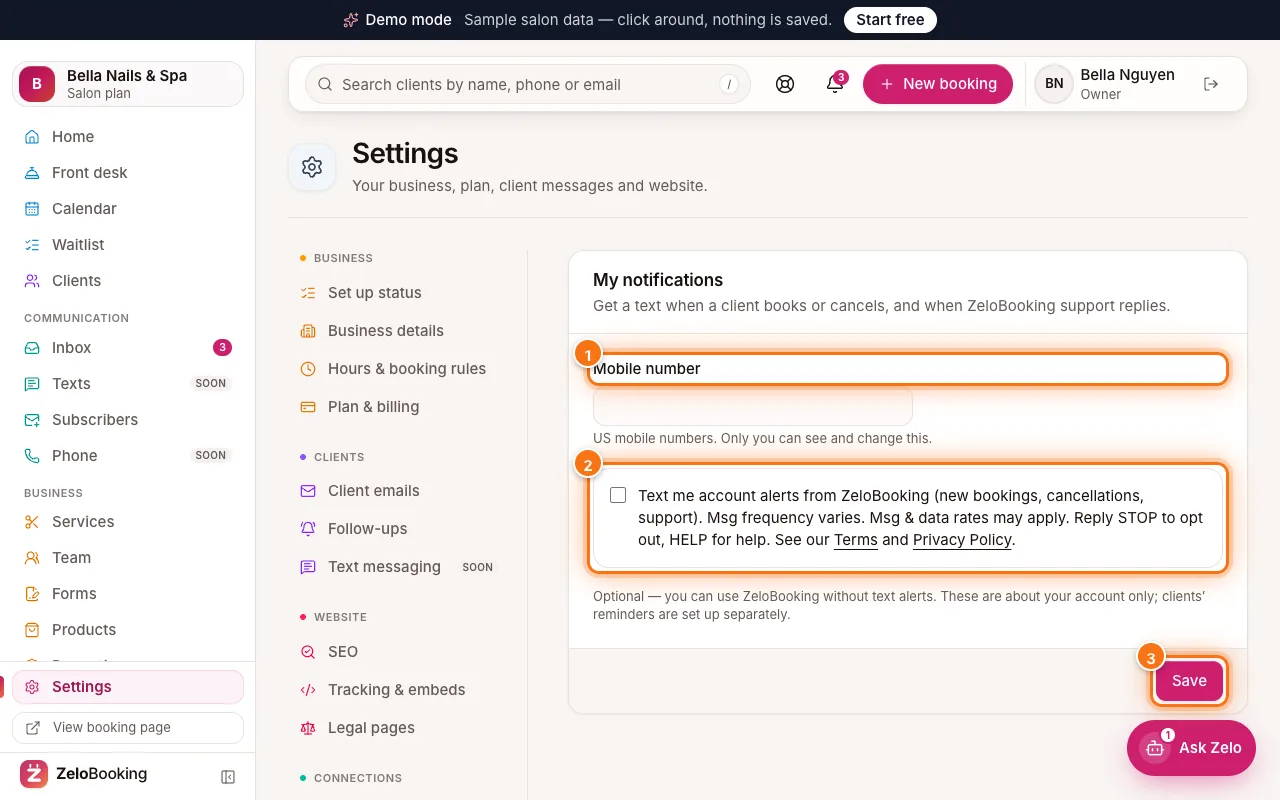
Settings → My notifications with Mobile number (1), the text alerts box (2) and Save (3) highlighted